|
VOOZH | about |
|
VOOZH | about |
Last updated:
Duo’s identity and access management (IAM) solution offers strong user authentication options, secure application access, self-service user enrollment, and device management capabilities.
With broad application support, Duo protects access to your organization's resources like VPN, email, web portals, cloud services, local operating system logins, etc. After successful primary authentication against the identity store of your choice, your users simply and securely complete multi-factor authentication using a platform authenticator like Touch ID or Windows Hello, a WebAuthn security key, or a request pushed to our Duo Mobile smartphone app. Users may also authenticate by answering a phone call or by entering a one-time passcode generated by the Duo Mobile app, a compatible hardware token, or received via SMS. Device policies verify that only the systems you trust can access your resources.
With a free 30-day trial of our Duo Advantage plan, you can see for yourself how easy it is to get started with Duo's trusted access.
Your Duo Advantage trial comes with most of the features and functionality of a paid Duo Advantage subscription like:
New Duo customer accounts don't automatically receive voice telephony. That means you won't be able to use phone calls as a two-factor authentication method for both administrators and end users. Duo Push, SMS passcodes, security keys, and hardware tokens all remain available.
You also won't be able to make these customizations:
If you require telephony or customized email and SMS messaging as part of your Duo evaluation or subscription, please contact your Duo sales executive or Duo Support.
During your 30-day Duo Advantage trial, you may choose to explore the Duo Premier edition instead. To convert your Duo Advantage trial to a Duo Premier trial, visit the "Billing" page in the Duo Admin Panel once you've logged in and click Try It Free under the Duo Premier plan description.
When your Duo Advantage trial ends, your account switches to the Duo Free plan automatically. You can continue using your Duo Free plan for up to 10 users at no cost. Paid features you enabled during your trial no longer have any effect. If you convert this free account to a paid subscription, we'll restore the settings created during the trial.
Duo commits to providing you with the best experience possible. We want to be sure you have what you need, whether that be guidance on how to use our product or knowing where to go for help. The Duo Admin Panel onboarding journeys guide you through enrollment, setup, deployment, optimization, and monitoring your security setup.
To access guided onboarding:
Log in to the Duo Admin Panel.
Click on the Setup button at the top of your Duo dashboard.
The Setup button directs you to the “Your Duo Setup” home page. The second-left navigation panel lists the onboarding journeys available to you. Each journey comprises multiple steps, shown as “Required” (default), “Optional”, “Caution”, or “Recommended”.
You may skip “Caution”, “Optional”, and “Recommended” steps and, in some cases, may manually mark the “Complete”. Each journey guides you through a specific set of tasks to achieve important milestones in your Duo setup. Each task links you to the "Admin Panel" page where you can perform the action described. If there is not a specific page in the application that corresponds to the task, documentation links will be provided.
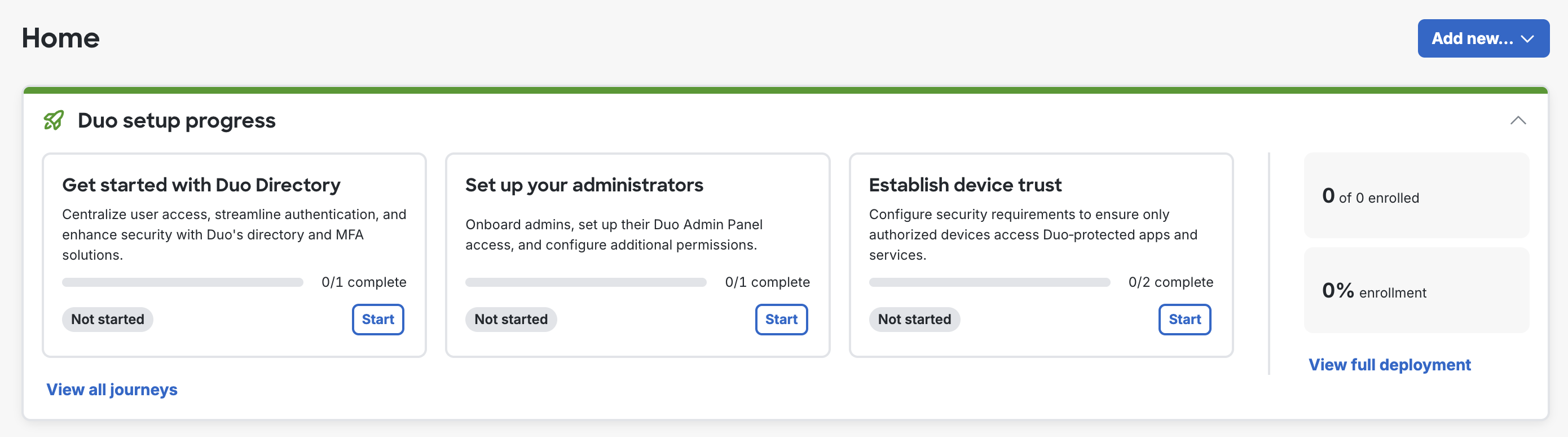
Duo setup progress appears on the "Home" page.
👁 Duo Optimization ProgressThe journeys offered correspond with different parts of the product based on your Duo edition and the features implemented within your organization.
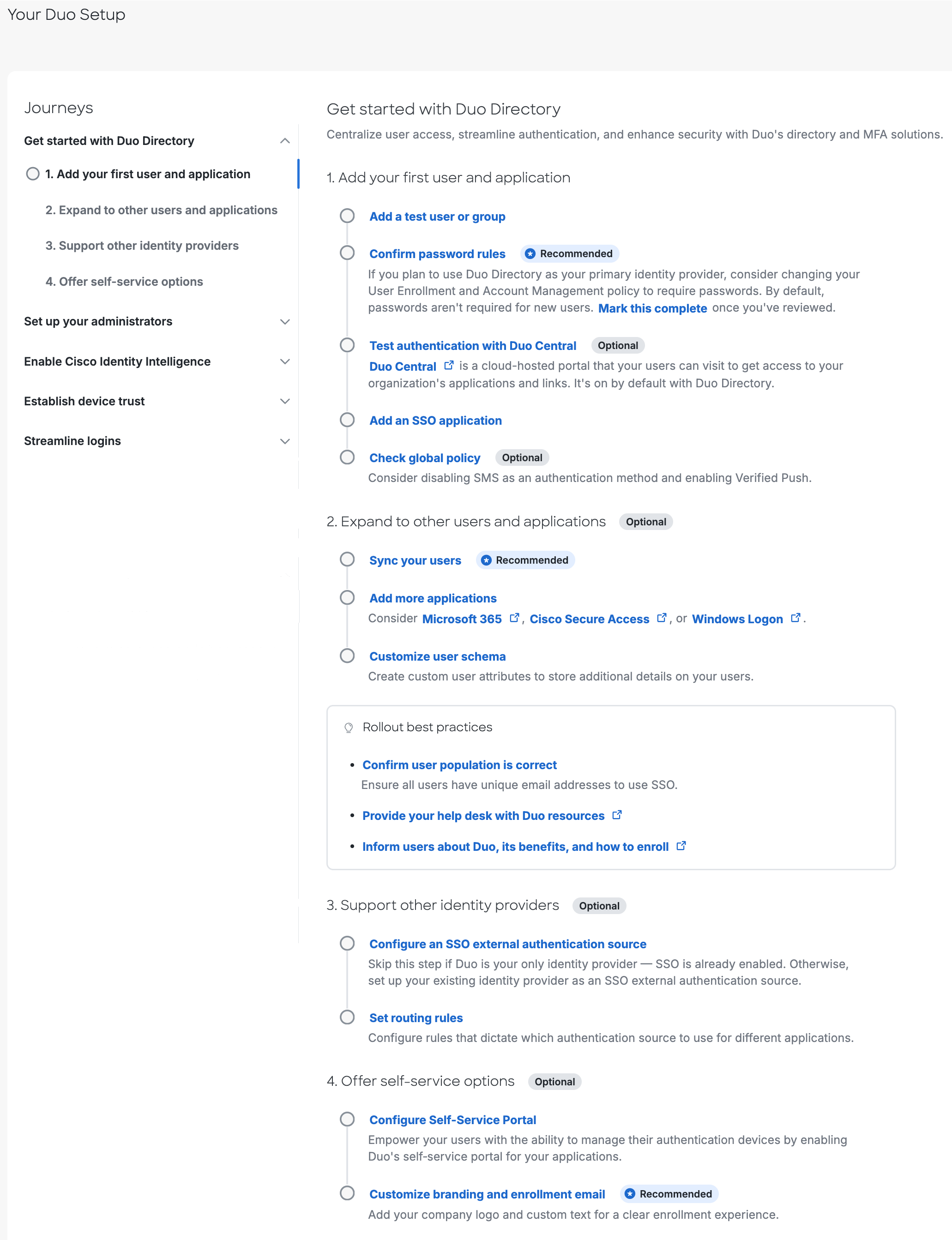
This journey guides you through basic setup steps for your Duo account.
👁 Get Started With Duo Directory Onboarding JourneyAdd your first user and application.
Add a test user or group.
Enroll your pilot users in Duo. We provide several methods for enrollment. Some applications also support self-enrollment by users in the Duo Universal Prompt when they access the protected service.
Your Duo administrator login can't also be used to log into the service or device now protected by a Duo application, so don't forget to enroll a Duo user account for yourself now, or complete user self-enrollment after you set up your first Duo application in the next step.
Confirm password rules. (Recommended)
Test authentication with Duo Central. (Optional)
Duo Central is a cloud-hosted portal that your users can visit to get access to your organization's applications and links or perform self-service device management tasks. Visit the Duo Central configuration page in the Admin Panel to find your Duo Central URL. Test user enrollment and access by logging in as one of the pilot users you created earlier.
You can customize the subdomain in your Duo Central URL later in your Duo Single Sign-On settings. Note that Duo plan trials may not create a custom subdomain URL.
Add an SSO application.
Decide which SAML or OIDC application you want to protect with Duo as a test. We recommend testing with a non-production application to start. Browse our SSO applications.
Note: Effective June 30, 2023, Duo's cloud service no longer supports TLS 1.0 or 1.1 connections or insecure TLS/SSL cipher suites. If you are unsure how this may affect your Duo deployment plans, please see the Duo Knowledge Base article to TLS support for Duo applications and TLS 1.0 and 1.1 end of support for additional information.
Check global policy. (Optional)
Expand to other users and applications. (Optional)
Sync your users. (Recommended)
Add more applications.
Customize user schema.
Support other identity providers. (Optional)
Configure an SSO external authentication source.
Set routing rules.
Offer self-service options. (Optional)
Configure Self-Service Portal.
Customize branding and enrollment email. (Recommended)
Customers who signed up for Duo before June 23, 2025 see "Onboard to Duo Directory" instead of "Get Started with Duo Directory". Some steps may be marked complete if you previously configured the required settings.
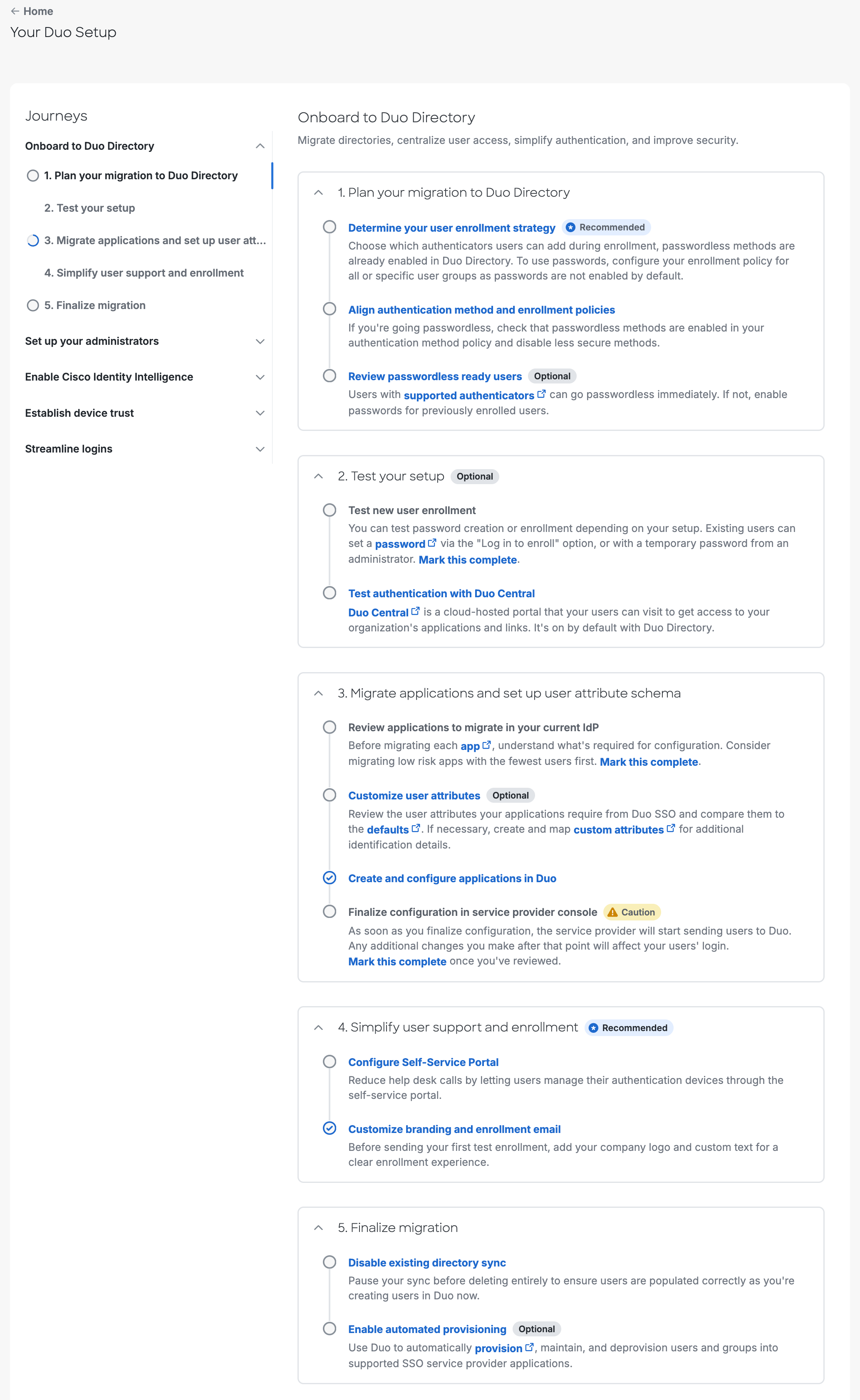
This journey describes the basic setup for migrating from your current identity provider (IdP) to your Duo Directory.
👁 Onboard to Duo Directory JourneyPlan your migration to Duo Directory.
Determine your user enrollment strategy. (Recommended)
To control settings for all users and all applications, edit the Global Enrollment Policy.
Note: Passwordless methods are already enabled by default in Duo Directory, while password authentification is not.
If your organization requires policy and controls that differ from the Global Enrollment Policy, you can create a Custom Enrollment Policy and assign it to user groups, applications, or applications for specific groups.
After you configure the enrollment and account management policies, enable them.
Align authentication method and enrollment policies.
Review passwordless ready users. (Optional)
Enable passwords for previously enrolled users who have no supported authenticaticators.
Note: Users with supported authenticators can authenticate without a password.
After reviewing, this step is automatically marked as complete.
Test your setup. (Optional)
Migrate applications and set up user attribute schema.
You can add and configure any of the available applications as needed.
Note: To complete this step, add at least one application.
Simplify user support and enrollment. (Recommended)
Finalize migration.
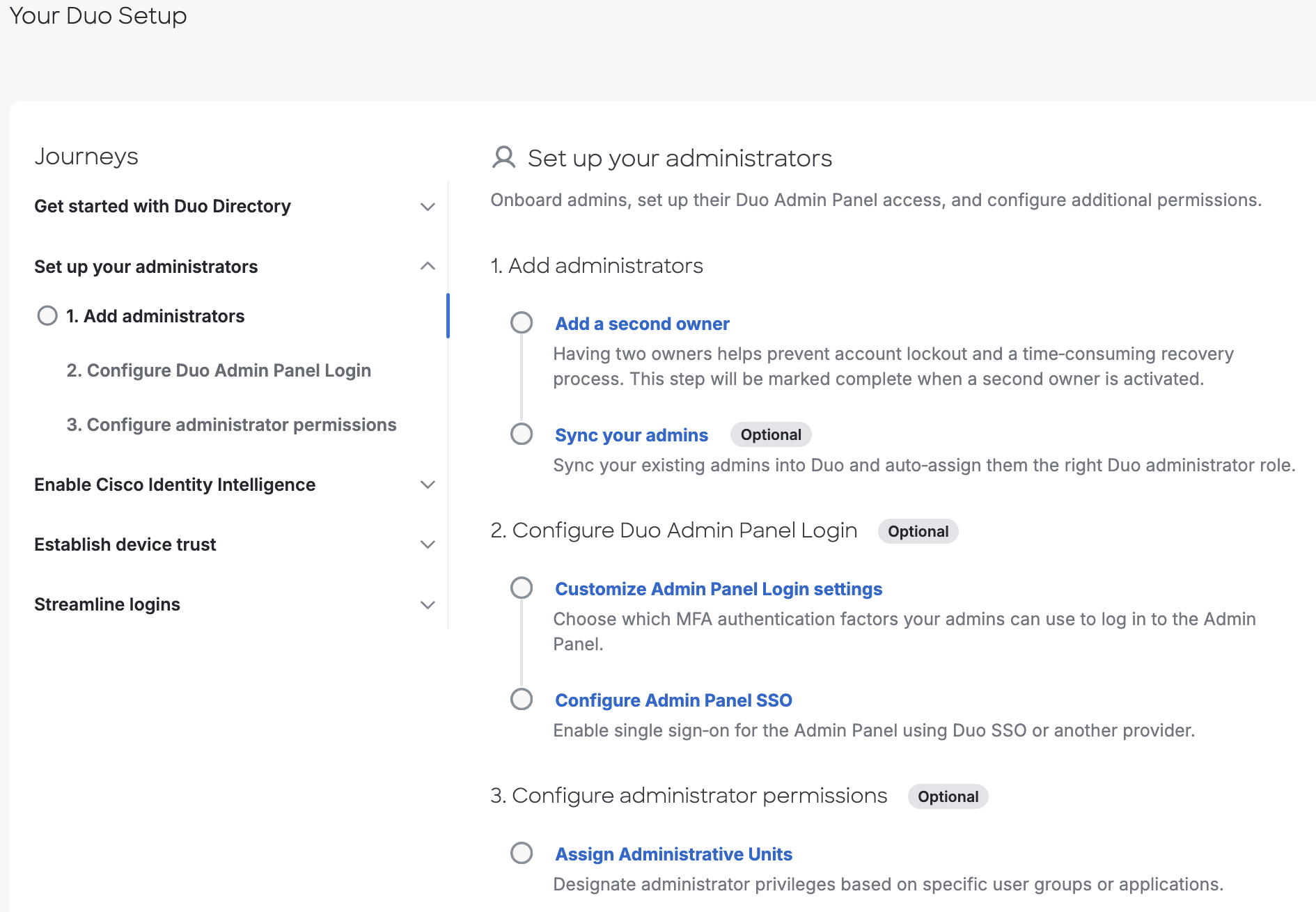
This journey further secures administrator access to your Duo account.
👁 Set Up Your Administrators Onboarding JourneyAdd administrators.
Add a second owner.
Sync your admins. (Optional)
Configure Duo Admin Panel Login. (Optional)
Customize Admin Panel Login settings.
Configure Admin Panel SSO.
Configure administrator permissions. (Optional)
This journey creates your Cisco Identity Intelligence tenant.
👁 Enable Cisco Identity Intelligence JourneyAdd admins for SSO access to Identity Intelligence.
Connect Additional Identity Sources for Richer Insights.
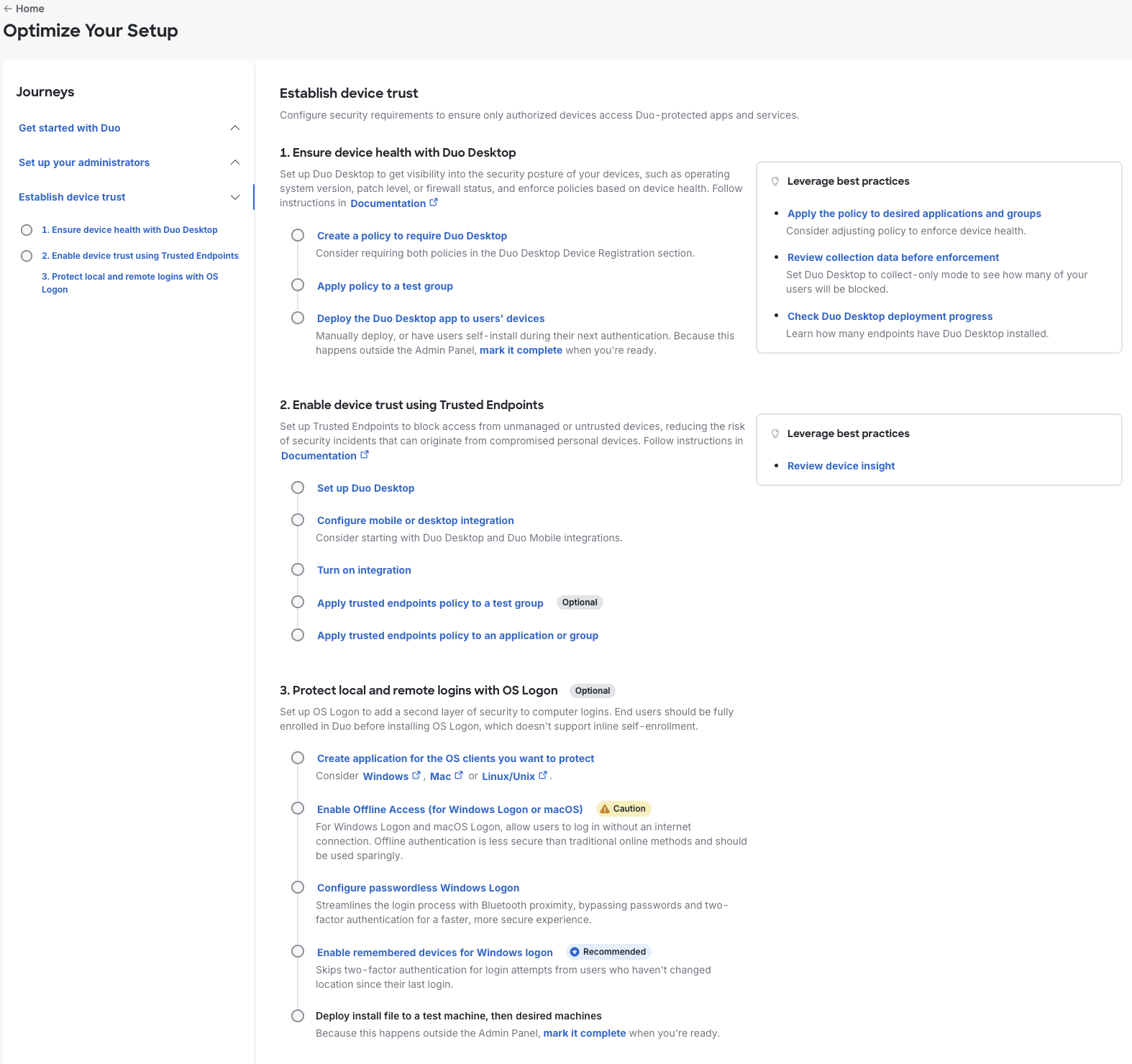
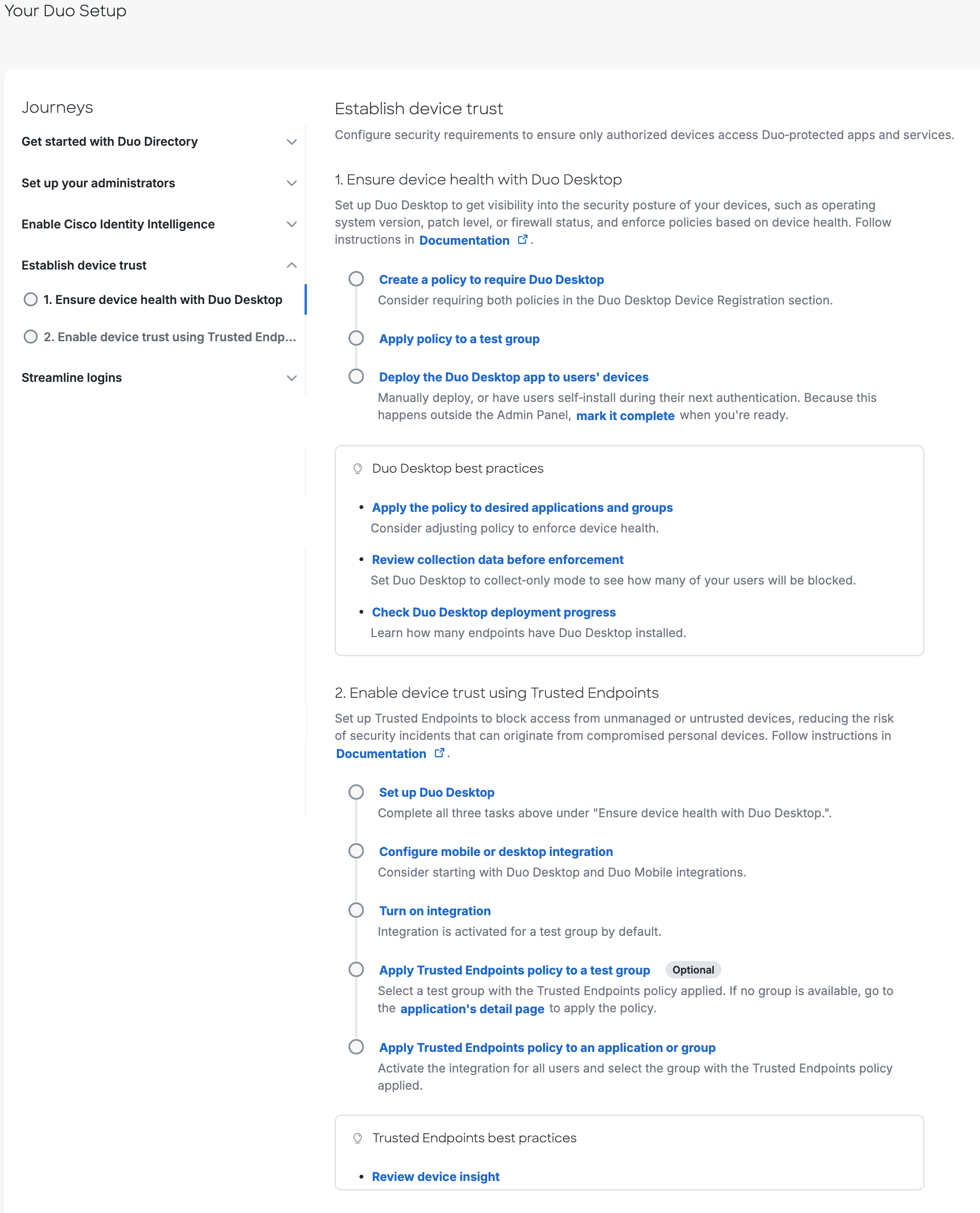
This journey configures device access policies and protecting operating system logons.
👁 Establish Device Trust Onboarding JourneyEnsure device health with Duo Desktop.
Create a policy to require Duo Desktop.
Apply policy to a test group.
Deploy the Duo Desktop app to users’ devices.
Enable device trust using Trusted Endpoints.
Set up Duo Desktop.
Configure mobile or desktop integration.
Turn on integration.
Apply Trusted Endpoints policy to a test group. (Optional)
Apply Trusted Endpoints policy to an application or group.
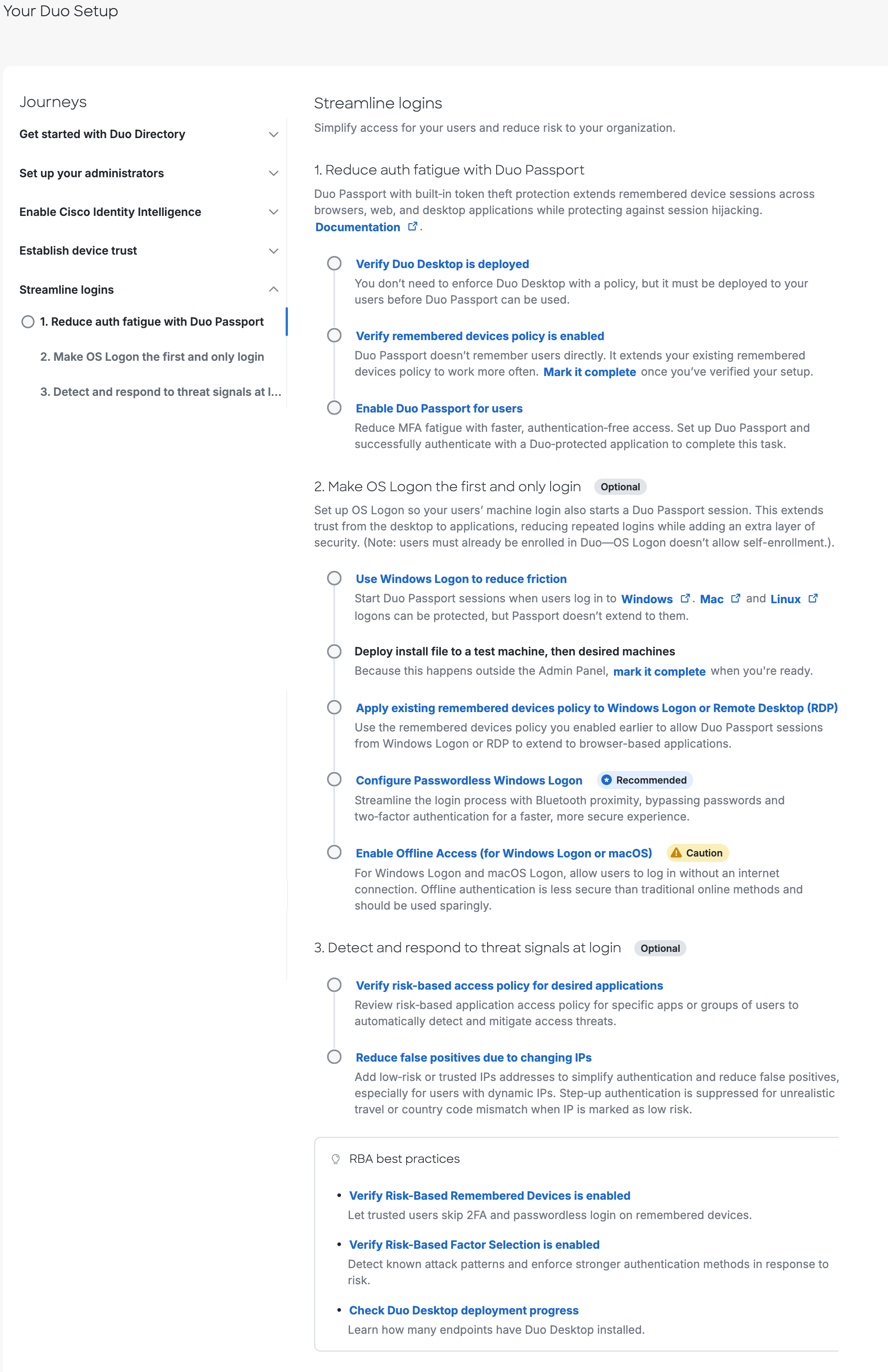
This journey helps strengthen security with smarter authentication and easier self-service for users.
👁 Streamline Logins JourneyReduce auth fatigue with Duo Passport.
Verify Duo Desktop is deployed.
Verify remembered devices policy is enabled.
Enable Duo Passport for users.
Make OS Logon the first and only login. (Optional)
Use Windows Logon to reduce friction.
Deploy install file to a test machine, then desired machines.
Apply existing remembered devices policy to Windows logon or Remote Desktop (RDP).
Configure Passwordless Windows Logon. (Recommended)
Enable Offline Access (for Windows Logon or macOS). (Caution)
Caution: offline authentication is less secure than traditional online methods and should be used sparingly.
Detect and respond to threat signals at login. (Optional)
Verify risk-based access policy for desired applications.
Reduce false positives due to changing IPs. (Optional)
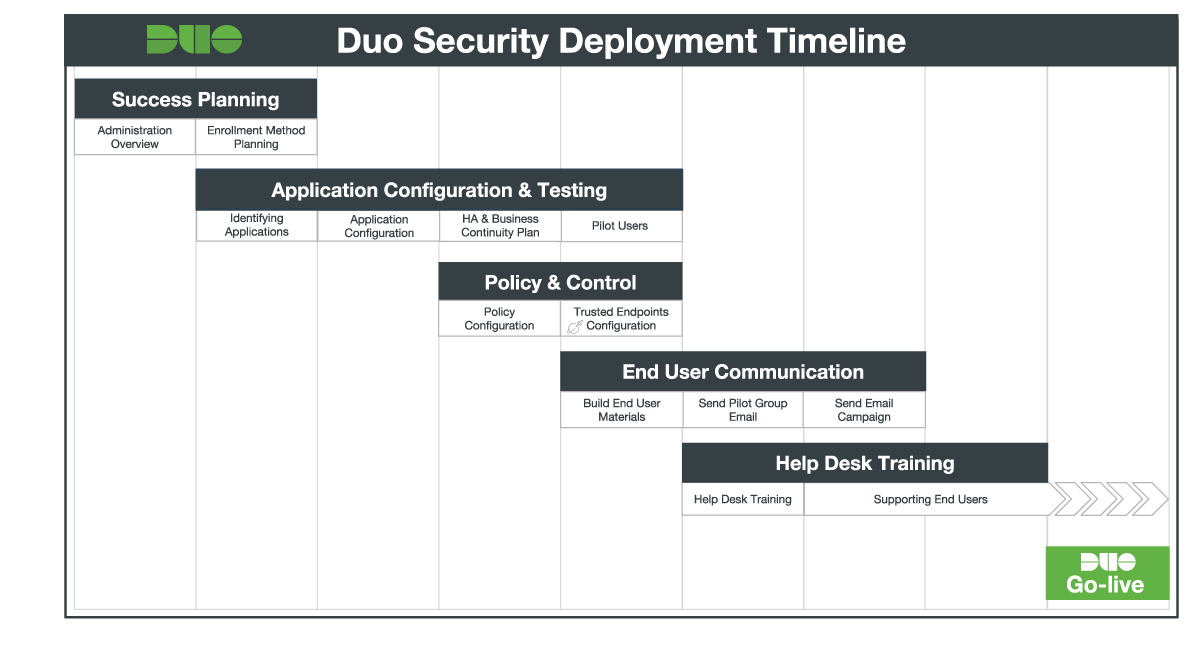
Now that you've experienced the ease of adding Duo protection to a test application and logging in to the application with Duo authentication, your next step is planning a full Duo deployment.
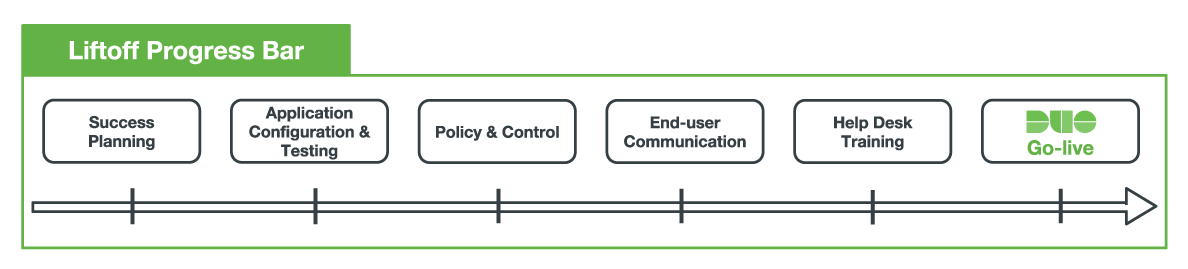
We've prepared a Liftoff guide that walks you through the stages of a typical organization Duo rollout.
👁 Liftoff Progress BarOur Liftoff guide includes timelines and milestones, configuration best practices, tips for employee communications and training your support staff, and more!
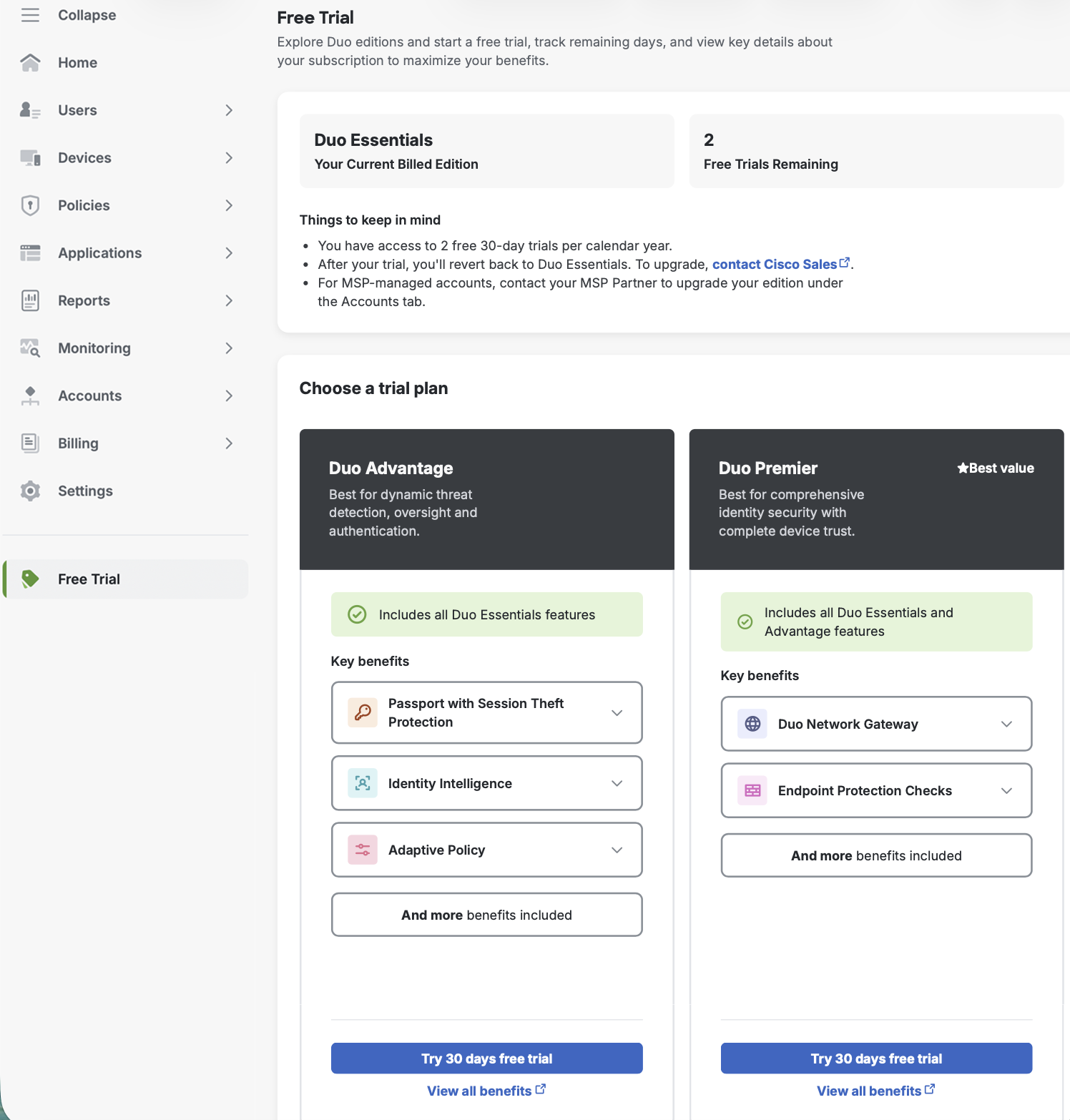
👁 Duo Deployment TimelineTo explore additional features and benefits, you can start a free trial of a higher edition by clicking Free Trial in the left sidebar.
👁 Free TrialOn the "Free Trial" page, you can view your current edition and start up to two 30-day trials per year. Available trial options depend on your current edition:
To compare editions and view all features, refer to the Editions and Pricing page.
If you have subaccounts, you can also start two additional free trials of a higher edition a year for them:
After the trial ends, your account automatically reverts to your previous paid edition. Any features of the higher edition enabled during the trial are no longer available. If you decide to upgrade to a higher edition, we will restore your trial settings.
Questions? Check our administration documentation and the rest of our documentation collections, the Duo Knowledge Base, or contact Duo Support for help.