|
VOOZH | about |
|
VOOZH | about |
Last updated:
Duo's Trusted Endpoints feature lets you define and manage trusted endpoints and grant secure access to your organization's applications with policies that verify systems using Duo application verification or management status.
Duo helps you distinguish between unmanaged endpoints and managed endpoints that access your browser-based applications. The Trusted Endpoints policy tracks whether clients accessing the applications can be identified as managed, or can block access to various applications from systems that aren't managed.
Trusted Endpoints is part of the Duo Essentials, Duo Advantage, and Duo Premier plans.
During authentication to a browser-based application that shows Duo's inline, interactive Universal Prompt or traditional Duo Prompt from a Windows, macOS, or Linux device, Duo Desktop installed on the endpoint reports unique device information back to Duo, including machine identifiers. Trusted Endpoints management integrations that use Duo Desktop for verification match the information reported by Duo Desktop to information reported by the endpoint management system to determine the computer's management status.
During authentication to a Duo-protected application from an Android or iOS access device, Duo checks for the presence of Duo Mobile, activated for Duo Push authentication, on the device to determine the endpoint's management status.
Most organizations perform a staged deployment of Duo's Trusted Endpoints policy. Beginning to end, your rollout should proceed like this:
Before you can use the Trusted Endpoints policy for reporting or controlling access to applications, you'll need to perform some configuration steps in Duo and your device management system, and then distribute Duo Desktop or Duo Mobile to your organization's managed devices. We've created guides for these deployment options:
You can use any or all of these deployment options in your environment. In fact, we recommend configuring more than one to ensure that you enroll as many trusted endpoints as possible.
To view a list of your management integrations:
Log on to the Duo Admin Panel as an administrator with the Owner or Administrator admin role.
Navigate to Devices → Trusted Endpoints.
The Device Management Tools tab displays a list of your Trusted Endpoints management integrations. The Endpoint Detection & Response Systems tab displays the Cisco Secure Endpoint integrations you’ve created.
Create a new policy with the Trusted Endpoints setting. At first, configure the policy to check for management status.
Log on to the Duo Admin Panel as an administrator with the Owner or Administrator admin role.
Navigate to Policies → Policies and click + Add Policy. The policy editor launches with an empty policy.
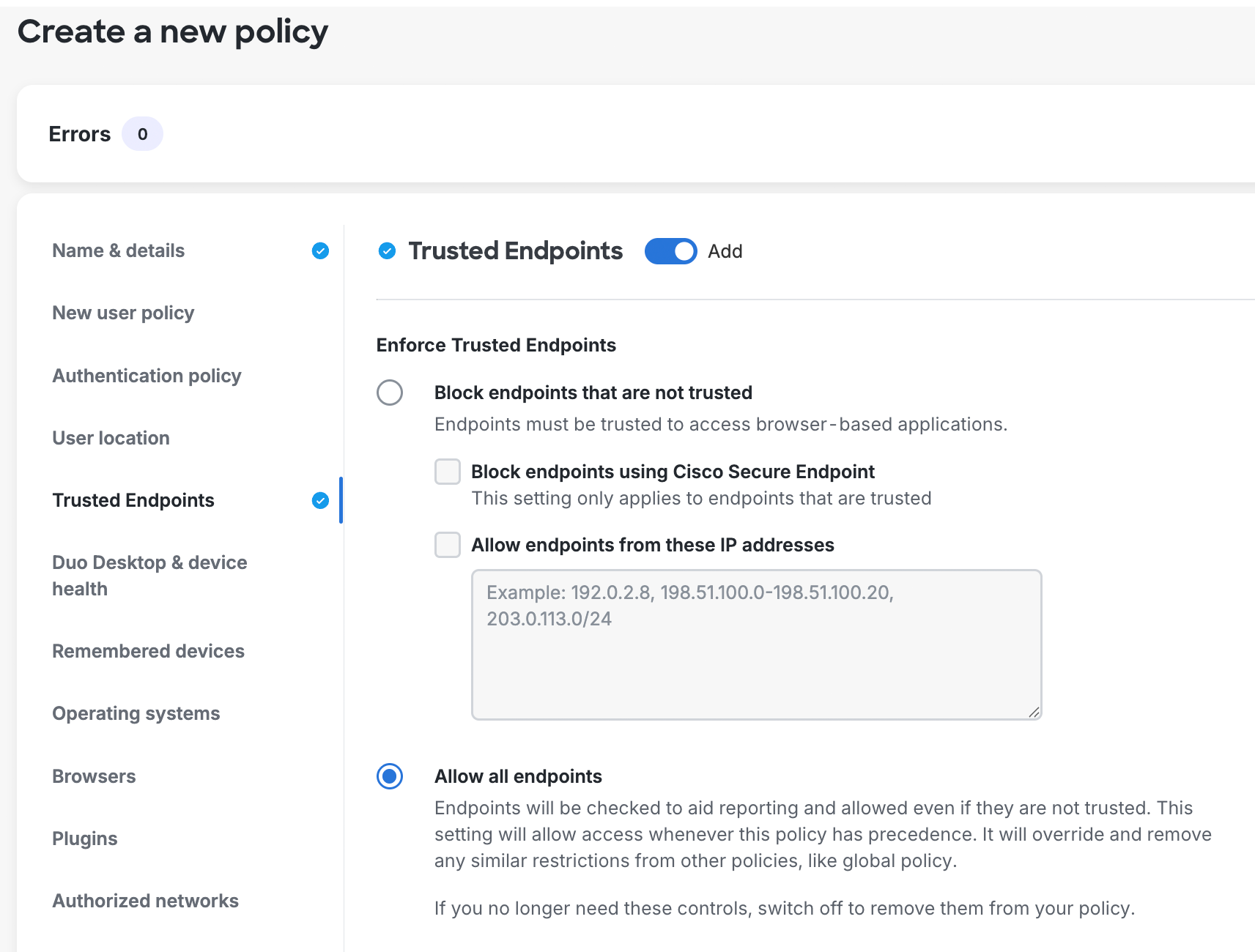
Enter a descriptive Policy Name on the "Name & details" tab, and then click the Trusted Endpoints policy item on the left. Add this policy section with the default selection of Allow all endpoints.
👁 Creating the Trusted Endpoints PolicyClick the Save button to save the settings and create the new policy.
Navigate to Applications → Applications or use the search bar at the top of the Admin Panel to find the application to which you want to apply your new Trusted Endpoints policy. Open the details page for that application.
Scroll down on the application's details page to the "Application-Group policies" section and click Apply a policy to groups of users to assign the new Trusted Endpoints policy to a test group.
Select the Trusted Endpoints policy you just created from the Policy drop-down list.
Start typing in the pilot group's name in the Groups field and select it from the suggested names.
Click the Apply Policy button. The application page shows the new group policy assignment.
For more information about creating and applying group policies, see the Policy documentation.
The Cisco Secure Endpoint integration verifies Windows and macOS endpoint status in Cisco Secure Endpoint and blocks access from Duo trusted endpoint client systems that Cisco Secure Endpoint identifies as "compromised". Learn more about Duo and Cisco Secure Endpoint.
Your organization may want to apply different Duo trusted endpoint policies to computer endpoints and mobile devices. For instance, you may want to track the status of application access by unmanaged workstations without blocking access, while at the same time preventing application access from unmanaged mobile endpoints.
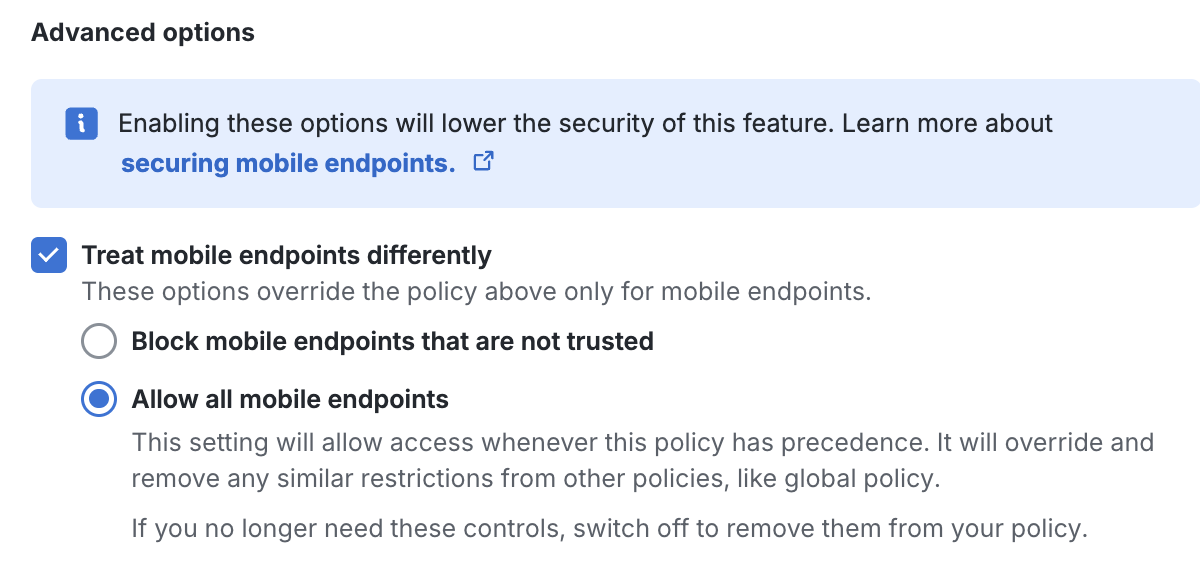
Accomplish this by enabling the Treat mobile endpoints differently option within the Trusted Endpoints policy setting's "Advanced options" to expose the mobile-only selections. With the mobile options for trusted endpoints have enabled, Duo uses the accessing browser's user agent string to distinguish between mobile and traditional endpoints and apply the configured policy setting based on the endpoint's platform.
👁 Trusted Endpoints Mobile Policy OptionsSince the user agent is self-reported by the browser, it's possible to manipulate the user agent string contents from the client side to make it appear as a different browser or operating system to Duo, with the potential effect of bypassing a trusted endpoints policy intended to block access.
Duo generally recommends using the default trusted endpoints policy settings for all types of endpoints to protect against policy bypass due to user agent spoofing.
Plans Required to view Device Insight and Endpoints Pages: Duo Premier or Duo Advantage
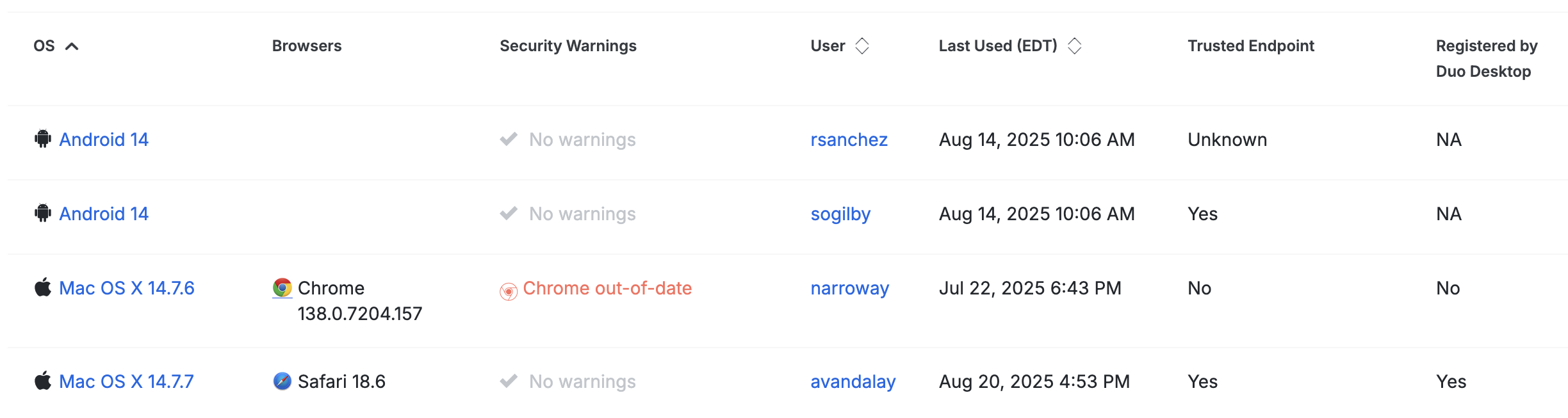
As users access the application that has the Trusted Endpoints policy, they see no difference in the Duo Prompt when authenticating but Duo notes whether the devices used are managed or not. When you view these endpoints in the Admin Panel (from the Endpoints page, from the details page for that device, or from an individual user's details page), the "Trusted Endpoint" column shows the device trust status: "Yes" if the endpoint passed Duo's managed system check, or "No" if it did not. You'll also see if a macOS or Windows device had secure device registration performed by Duo Desktop.
👁 Trusted Endpoints Reporting"Unknown" status in the Trusted Endpoint column usually indicates that the endpoint hasn't been used to access the application that has the Trusted Endpoints policy yet.
To include more of your users in the Trusted Endpoints pilot, return to the Duo Admin Panel and either add more users to the pilot Duo group or apply the test policy to additional groups from the test application's details page, You can also apply the Trusted Endpoints policy to additional applications.
Add even more users to your test application by switching from applying the Trusted Endpoints policy to specific groups on an application to applying the policy to all users of that application. Click the Apply a policy to all users link on an application's details page and select the Trusted Endpoints policy.
To expand your Trusted Endpoints deployment even further to users across multiple applications you can bulk apply your new policy to user groups. Navigate to Policies in the Duo Admin Panel, select your Trusted Endpoints policy in the list of policies by checking the box to the left of the policy's name, and then click Actions → Apply. On the "Apply Policy" page, leave User-Group policy selected, select the user groups to which you want to apply this policy, and then click Apply. When a user in the selected groups logs in to any browser-based application protected by Duo your Trusted Endpoints policy takes effect. Learn more about user-group policy assignments.
Eventually, you may opt to enable the Trusted Endpoints policy settings to your Duo Global Policy, so that all your browser-based applications default to verifying device trust for all users.
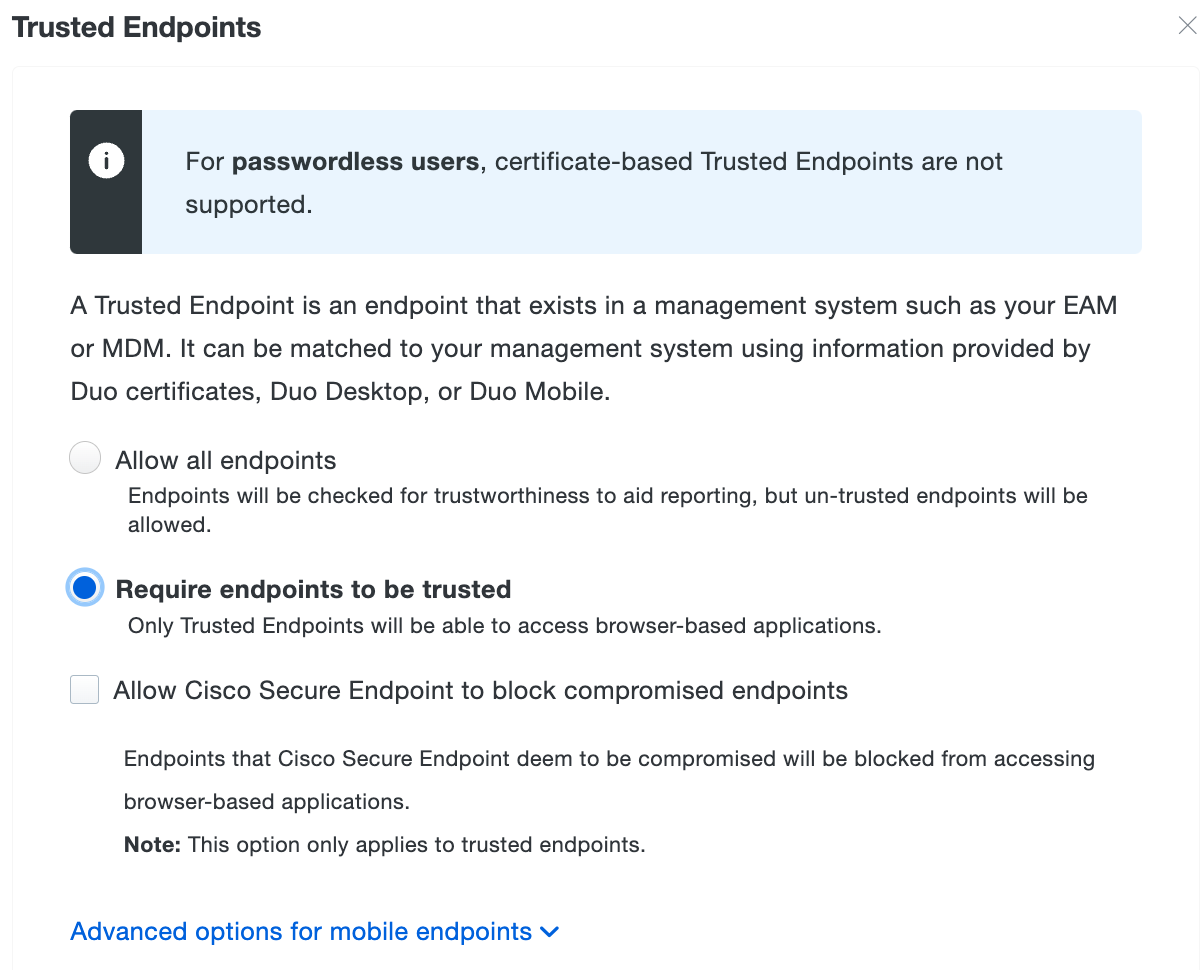
When the majority of your devices have Duo Desktop installed and report trusted status back to Duo, you may wish to block access to your more sensitive applications from unmanaged devices. Accomplish this by applying a policy with the "Trusted Endpoints" policy option set to Block endpoints that are not trusted.
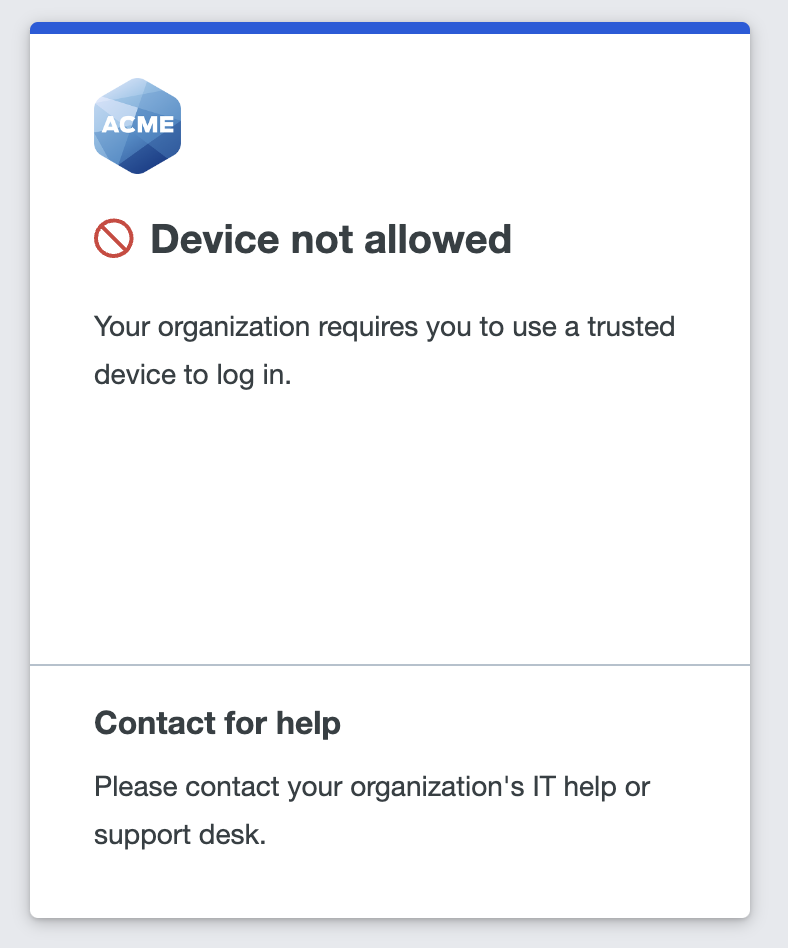
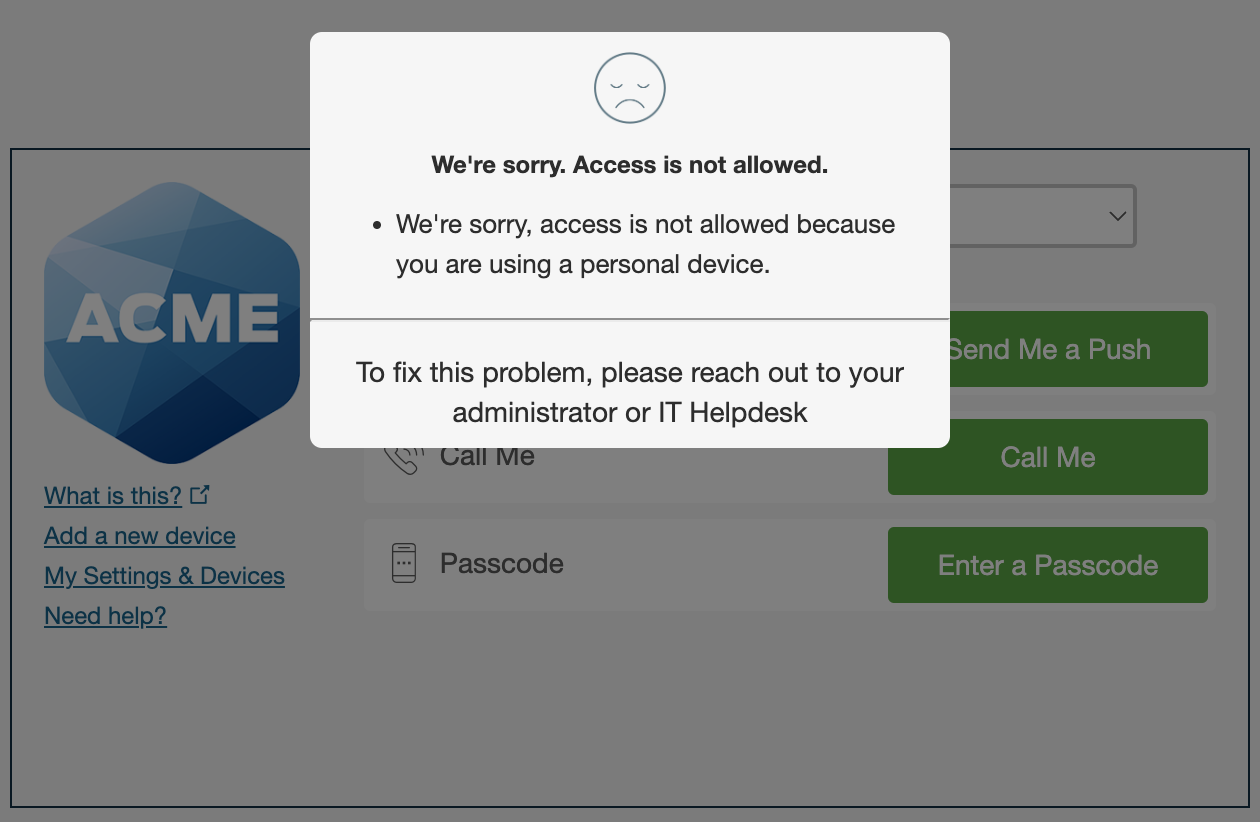
👁 Trusted Endpoints Policy to Block Unmanaged Device AccessUsers accessing the applications with this policy from trusted devices see no change in the Duo Prompt when authenticating. However, if the device does not pass the trusted device check then Duo prevents the user from authenticating.
You can allow certain devices to bypass the trusted device check by specifying a block of IP addresses, IP ranges, or CIDRs as a comma-separated list in the Allow endpoints from these IP addresses field.
Duo Universal Prompt
👁 Trusted Endpoints Policy to Block Unmanaged Device Access in the Universal PromptTraditional Duo Prompt
👁 Trusted Endpoints Policy to Block Unmanaged Device Access in the Traditional Duo PromptDon't enable this policy setting before deploying Duo Desktop to your trusted access devices, or you may inadvertently block users' access to applications.
Plans Required: Duo Premier or Duo Advantage
You can deny trusted endpoints individually to prevent access to applications which have a Trusted Endpoint policy applied that blocks access from untrusted devices. Learn how to deny access to an individual endpoint.
Shared device authentication eliminates repetitive Duo Desktop authentication setup for users without individual workstations. When enabled, designated users perform interactive authentication enrollment with Duo Desktop once from a trusted endpoint. Subsequent Duo Desktop authentication enrollments from additional computers happen silently. See Shared Device Authentication for more information.
Most organizations will want to test the Trusted Endpoints feature on a select group of users before deploying the feature to their entire user population. Below are instructions on how to achieve commonly desired configurations while avoiding user interruptions during your testing and deployment.
For each of the desired configurations documented below, once completed, the Endpoints menu can be used to filter users devices based on their trust status using the "Trusted Endpoint" filter.
Create a group in Duo or identify a synced directory group that contains the members of the pilot group.
To enable Trusted Endpoint identification for:
a. All applications: Make sure the global policy setting for Trusted Endpoints is set to Allow all endpoints. This is the default and cannot be changed unless at least one Trusted Endpoint integration exists. Identification of trusted endpoints will not start until an applicable Trusted Endpoint integration is enabled.
b. One application: Create an application or application-group custom policy for the desired application with the policy setting for Trusted Endpoints set to Allow all endpoints. This is the default and cannot be changed unless least one Trusted Endpoint integration exists. Identification of trusted endpoints will not start until an applicable Trusted Endpoint integration is enabled.
Create a Trusted Endpoint integration for your chosen management tool and configure it according to its instructions. A Trusted Endpoint integration will be created in the disabled state and thus will not have any effect on when trusted endpoint identification will be attempted.
On the Trusted Endpoints integration:
a. Locate the "Change Integration Status" section of the page, which shows the current integration status.
b. Toggle from the disabled state to the active state.
c. Select the Test with a group option and select the desired group from the drop-down menu.
d. Click Save.
Members of the pilot group will have their devices identified as trusted.
Note: Identifying trusted devices sometimes requires that users take extra actions during authentication, such as launching Duo Mobile on mobile devices. The advanced option Allow all mobile endpoints can be used to avoid extra authentication steps on mobile devices.
To block access to applications from devices that are not trusted for only a pilot group of users, each application will have to be configured with the Block endpoints that are not trusted Trusted Endpoints setting as described below.
Create a group in Duo or identify a synced directory group that contains the members of the pilot group.
Create a custom policy for the desired application with the policy setting for Trusted Endpoints set to Block endpoints that are not trusted.
Create a Trusted Endpoint integration for your chosen management tool and configure it according to its instructions. A Trusted Endpoint integration will be created in the disabled state and thus will not have any effect on when trusted endpoint identification will be attempted.
On the Trusted Endpoint integration:
a. Locate the "Change Integration Status" section of the page, which shows the current integration status.
b. Toggle from the disabled state to the active state.
c. Select the Test with a group option and select the desired group from the drop-down menu.
d. Click Save.
Select the desired application and in the "Application-Group policies" section, assign the custom policy from step 2 to the Duo group identified in step 1.
Members of the pilot group will have their devices identified as trusted or not trusted, with application access granted or blocked accordingly.
Create a group in Duo or identify a synced directory group that contains the members of the pilot group.
Create an application or group custom policy for the desired application with the policy setting for Trusted Endpoints set to Allow all endpoints. Then enable Treat mobile endpoints differently and select the Block mobile endpoints that are not trusted option. Once the policy is saved, apply it to the group created in step 1.
Create an additional Trusted Endpoint integration for mobile clients for your chosen mobile management tools integration and configure it according to its instructions. A Trusted Endpoint integration will be created in the disabled state and thus will not have any affect on when trusted endpoint identification will be attempted.
On the Trusted Endpoint integration:
a. Locate the "Change Integration Status" section of the page, which shows the current integration status.
b. Toggle from the disabled state to the active state.
c. Select the Test with a group option and select the desired group from the drop-down menu.
d. Click Save.
Members of the pilot group will be required to use trusted mobile devices for that application.
Create a group in Duo or identify a synced directory group that contains the members of the pilot group.
In the "Applications" menu, select the application you want to protect. Create a new group policy and set Trusted Endpoints to Block mobile endpoints that are not trusted. Once the policy is saved, apply it to the group created in step 1.
Create a Trusted Endpoint integration of the desired type and configure it according to its instructions.
On the Trusted Endpoint integration:
a. Locate the "Change Integration Status" section of the page, which shows the current integration status.
b. Toggle from the disabled state to the active state.
c. Select the "Test with a group" option and select the group from step 1 in the drop-down menu.
d. Click "Save" and the members of the pilot group will be required to use trusted desktop AND mobile devices for that application.
Simply add additional users to the pilot group that was created to test the trusted endpoints feature.
In each application that you want to test, in the "Group policies" section apply the already created custom policy to the Duo group you created previously.
For each Trusted Endpoint Configuration that has been restricted to the pilot group, change its integration status to "Activate for all". Then for each application that has a custom group policy, either replace the group policy with an "Application policy", or delete the group policy so that the global policy is enforced.
Need some help? Take a look at our Trusted Endpoints Knowledge Base articles or Community discussions. For further assistance, contact Support.