How to use Kling AI: A complete beginner guide (2026)


Last edited October 12, 2025
It feels like every other day there's a new AI tool that promises to change everything. AI video generation, in particular, has been getting a lot of attention. What used to be the domain of animators and video editors with powerful computers can now be done with just a few words typed into a box.
Among the new tools popping up, Kling AI has made a name for itself as a capable and pretty user-friendly option for creators, marketers, or really, anyone with an idea they want to bring to life. It’s all about turning your text or images into quality video clips without needing a technical manual.
If you've been curious but not sure where to start, you're in the right place. This guide will walk you through, step-by-step, how to create your first video with Kling AI. No jargon, just a practical walkthrough.
What is Kling AI?
Kling AI, is a company that knows a thing or two about short-form video. The whole point of Kling AI is to create high-quality, realistic, or imaginative videos from simple instructions. It’s less about just creating a flashy effect and more about producing a short clip that actually makes sense.
It basically does two main things:
-
Text-to-Video: You type out a description of a scene, and Kling AI builds a video clip based on your words.
-
Image-to-Video: You give it a still image, and the AI animates it to add movement and life.
What’s getting people talking are the technical details. Kling AI can generate video in 1080p at 30 frames per second, which is a big step up in quality compared to some earlier tools. It also has some neat features for extending clips, so you can build out a longer, more cohesive story. The model is constantly being updated, so it's getting better at understanding prompts and making motion look more natural.
What you'll need to get started with Kling AI
Before diving in, let’s get your toolkit ready. Don’t worry, you won’t need much.
-
A Kling AI account: You'll have to sign up, either through its official app or on a platform that hosts the model. Many services offer some free credits when you start, which is great for trying it out without pulling out your wallet.
-
A clear idea: This is probably the most important piece. For text-to-video, a vague prompt like "a person walking" won't get you very far. You need something more descriptive. If you’re animating a picture, you should have a good idea of what you want to see move.
-
An image (if you need one): For the image-to-video feature, have a decent quality JPG, PNG, or WEBP file ready. A sharper, clearer source image usually leads to a better-looking video.
-
A little patience: This isn't like sending a text message. Generating AI video takes a few minutes to process. If you’re on a free plan, you might even find yourself in a queue. It’s a perfect excuse to go make a cup of coffee.
How to use Kling AI to create your first video
Okay, let's get to the main event. Here’s how you can go from an idea to a finished video clip.
Step 1: Sign up and get familiar with the Kling AI layout
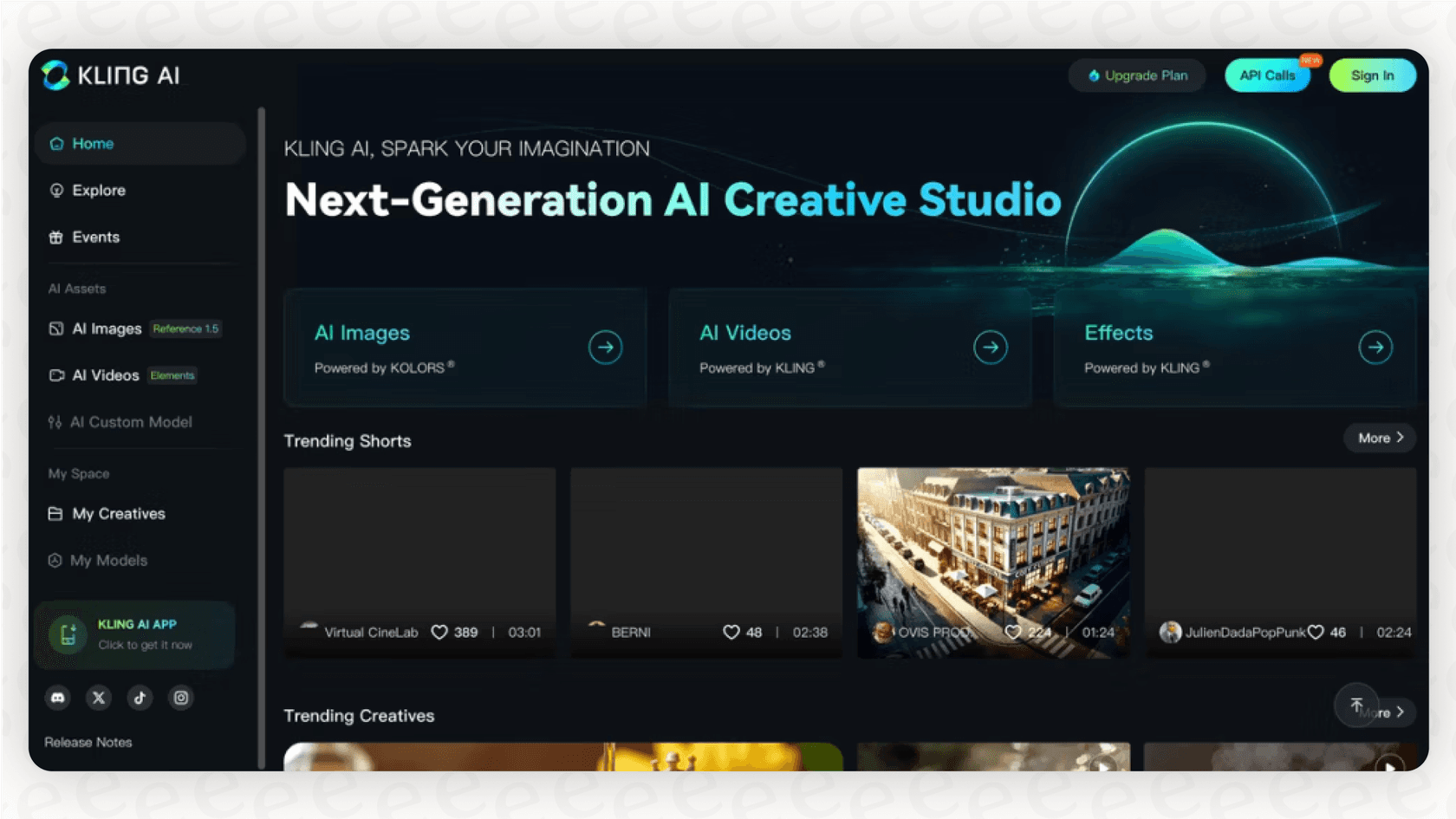
First thing's first: you need an account. You can usually find Kling AI on its official website or as an app. Once you're signed up and logged in, just take a minute to look around the dashboard. Most of these tools are designed to be pretty intuitive.
You’ll probably see a few main components:
-
A prompt field: The text box where all the magic starts. This is where you'll describe the video you want.
-
An image uploader: A button or a drag-and-drop spot to add an image you want to animate.
-
Some settings: Toggles or dropdowns to control the aspect ratio (like widescreen for YouTube or vertical for TikTok), video quality, and length.
Don't hesitate to click on things to see what they do. You can't break anything, and it's the best way to learn your way around.
Step 2: Make a Kling AI video from a text prompt
This is where you get to be a director. Creating a video from text is one of Kling AI's coolest abilities.
-
Find the "Text to video" option and make sure it's selected.
-
Start typing your prompt into the text box. Be specific! Think about the subject, what they're doing, the setting, the overall style, and even how the "camera" should move.
-
Tweak your settings. A 16:9 aspect ratio is standard for widescreen videos, while 9:16 is your go-to for social media stories and reels. Pick your desired quality and duration. Most tools let you generate short clips of just a few seconds to start.
-
Click the "Generate" button and let the AI take over.
Step 3: Animate a still image with Kling AI
Got a cool photo that feels like it could be a video? Kling AI can make that happen.
-
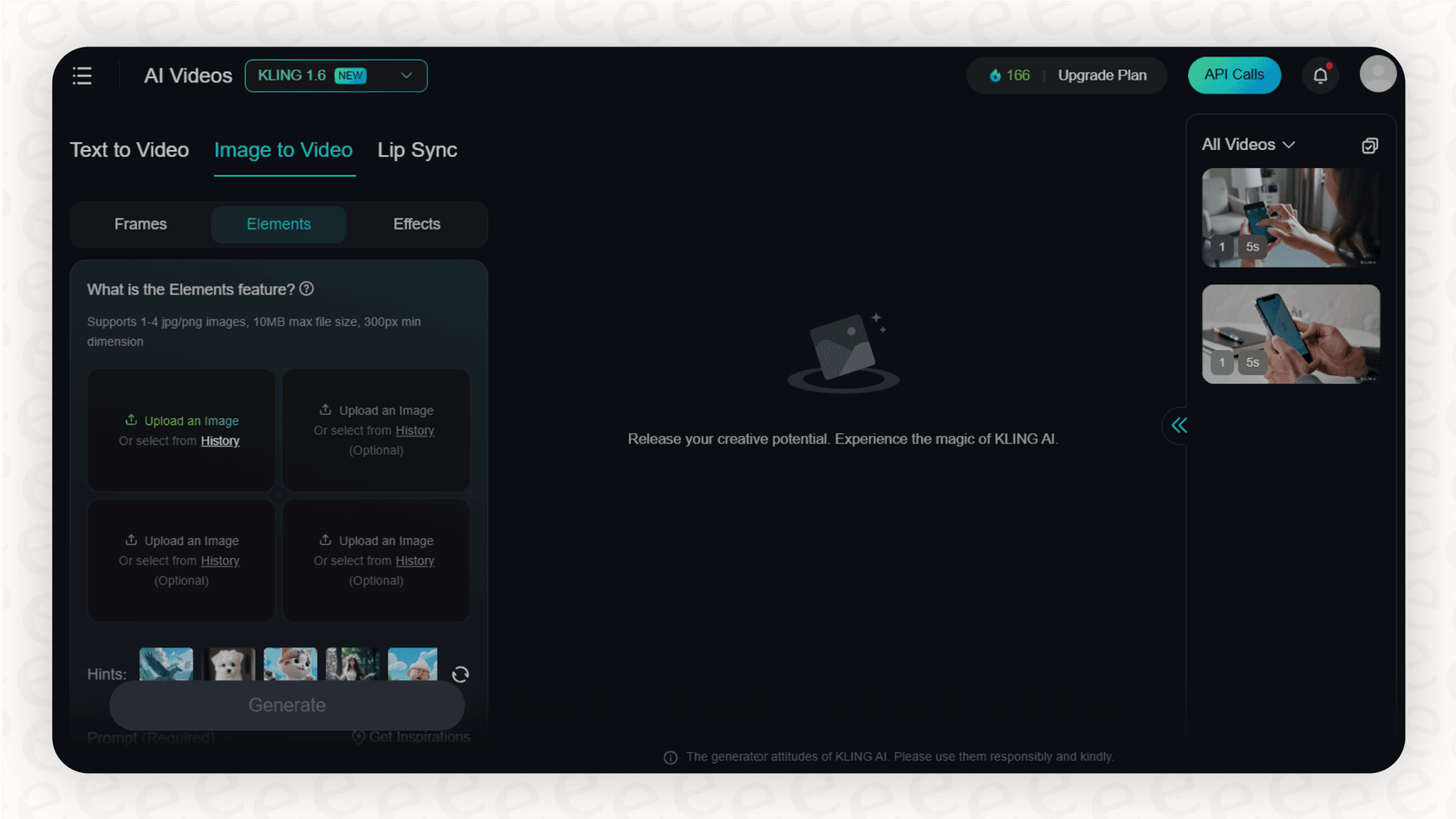
Switch over to the "Image to video" mode.
-
Upload your picture. It can be anything, a portrait, a landscape, a drawing, or a product photo.
-
You can add an optional text prompt here to give the AI some direction. For a picture of a coffee mug, you could write, "steam gently rising." For a photo of a forest, maybe "leaves rustling in a light breeze." If you leave the prompt blank, the AI will take its best shot at figuring out what should be moving.
-
Double-check the settings. The aspect ratio will probably default to your image's dimensions, which is helpful.
-
Hit "Generate." After a few moments, your static image will have a new life as a short video.
Step 4: Try out the advanced Kling AI features
Once you're comfortable with the basics, you can start exploring some of the more advanced tools to fine-tune your videos.
-
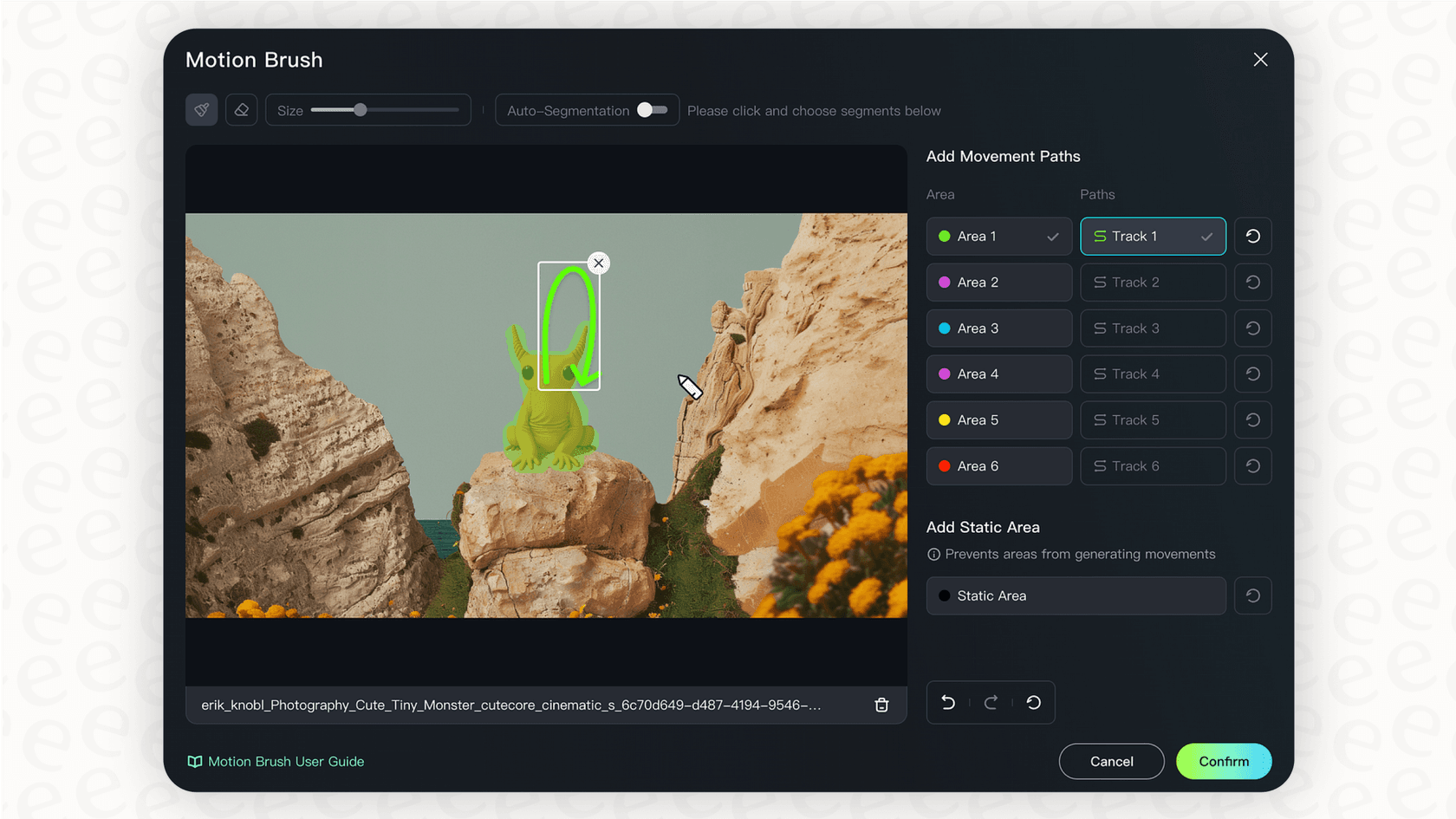
Motion Brush: This is a really handy feature. It lets you "paint" over parts of an image to tell the AI exactly what to animate. For instance, in a photo of a lake, you could paint over just the water to make it ripple while the mountains in the background stay completely still.
-
Video Extension: Made a 5-second clip that you love? The extension tool lets you add a few more seconds to it, continuing the action while trying to keep the style and characters consistent. It's great for building slightly longer, more narrative clips.
-
Start/End Frames: Some versions of the tool let you upload a starting image and an ending image. Kling AI will then generate the frames in between, creating a smooth transition. This gives you a ton of control over how the animation plays out.
Step 5: Download and review your Kling AI work
When the AI is done processing, your video will show up in a results gallery. Play it back and see how it turned out. If you're happy with it, there will be a download button, which usually gives you a clean MP4 file without a watermark.
And hey, don't feel bad if your first few attempts are a little weird. Working with AI is often a process of trial and error. Just adjust your prompt, try a different picture, or play with the settings and go again. You'll get a feel for what works with each new attempt.
Common Kling AI mistakes and how to get better results
As you spend more time with Kling AI, here are a few things to keep in mind to sidestep common issues and improve your videos.
The "be more specific" rule
This is the number one hurdle for newcomers. The AI is impressive, but it can't read your mind. A vague prompt will almost always give you a generic result. Be sure to describe the scene, the style ("photorealistic," "anime," "3D animation"), the colors, and the general vibe you want.
Forgetting about the aspect ratio
It's a small detail that makes a big difference. Don't create a beautiful widescreen video if your plan is to post it on a vertical platform like TikTok. You'll end up with awkward cropping. Choose the right aspect ratio from the get-go so your final video looks polished and intentional.
Not understanding the credit system
Most of these platforms run on credits. Generating a video costs a certain number of credits, with longer or higher-quality videos costing more. A smart approach is to run a few quick, low-quality tests to get your prompt just right before you spend a bunch of credits on the final 1080p version.
Learning from the community
Most AI video tools have a public gallery showcasing what other users have created. This is a goldmine for inspiration. Spend a little time scrolling through it. You can see what's possible and often view the exact prompts people used to achieve those results.
Beyond video: Using AI in your business operations
Playing around with tools like Kling AI really opens your eyes to what artificial intelligence can do for creative work. But what if you could apply that same kind of power to the less glamorous, but equally important, parts of your business, like customer support?
While creative AI often involves a learning curve with prompts and settings, other business tools are designed to work right out of the box. That’s the idea behind a platform like eesel AI. It's built to bring powerful AI to your customer service and internal support teams without the headache.
Instead of needing a team of developers, you can connect eesel AI to your existing helpdesk, like Zendesk or Intercom, and launch an AI agent in just a few minutes. It learns from your company's past support conversations, help articles, and internal documents to provide fast, accurate answers.
And just like you’d preview an AI-generated video before you download it, eesel AI lets you test everything first. Its simulation mode runs your setup against thousands of your past support tickets, so you can see exactly how it will perform and measure the potential return before it ever goes live with a real customer. It’s about being confident in your automation from day one.
Wrapping up with Kling AI
Kling AI is a flexible and surprisingly capable tool that makes high-quality video creation accessible to just about anyone. Whether you're making content for fun, for marketing, or just out of curiosity, it unlocks a whole new way to be creative. With the steps we've covered here, you have a solid foundation to start generating your own impressive AI content.
And when you’re ready to see how AI can bring a similar level of innovation to your support operations, you can start a free trial of eesel AI today.
Frequently asked questions

Share this article

Article by
Stevia Putri
Stevia Putri is a marketing generalist at eesel AI, where she helps turn powerful AI tools into stories that resonate. She’s driven by curiosity, clarity, and the human side of technology.