VOOZH about

URL: https://helgeklein.com/blog/changing-location-powershell-profile-script/

⇱ Changing the Location of PowerShell Profile Scripts


Start typing to search...

navigate select close

Changing the Location of PowerShell Profile Scripts

A PowerShell profile is an init script that is executed when the shell starts. PowerShell searches for profile scripts in hard-coded locations. This article explains how to move profile scripts to any directory of your choice.

👁 Image

Where are Profile Scripts Located?

As documented here, PowerShell has per-machine in addition to per-user profile scripts. We’ll ignore the former and focus on the latter.

User Profile Scripts

Per-user PowerShell profile scripts are stored in the Windows user profile. The path and name depend on the PowerShell version as well as the PowerShell host (e.g., Windows Terminal, VS Code). Here’s a quick overview:

PowerShell versionPowerShell hostPathFile name
Windows PowerShell (5.x)all hosts%USERPROFILE%\Documents\WindowsPowerShellprofile.ps1
PowerShell (7.x)all hosts%USERPROFILE%\Documents\PowerShellprofile.ps1
Windows PowerShell (5.x)console host, Terminal%USERPROFILE%\Documents\WindowsPowerShellMicrosoft.PowerShell_profile.ps1
PowerShell (7.x)console host, Terminal%USERPROFILE%\Documents\PowerShellMicrosoft.PowerShell_profile.ps1
Windows PowerShell (5.x)VS Code%USERPROFILE%\Documents\WindowsPowerShellMicrosoft.VSCode_profile.ps1
PowerShell (7.x)VS Code%USERPROFILE%\Documents\PowerShellMicrosoft.VSCode_profile.ps1

Changing the Location of PowerShell Profile Scripts

The symlink technique I used for Windows Store apps like Windows Terminal doesn’t work well with PowerShell because it breaks dot-sourcing (including additional scripts from a path relative to the symlink target). We can use dot-sourcing as a simple alternative, though.

Source

Using the table above, determine the path and file name of the profile script whose location you want to change. For the PowerShell 7 all hosts script, for example, that would be:

%USERPROFILE%\Documents\PowerShell\profile.ps1

Create that as a new (empty) file and open it in an editor.

Target

In the above profile script, we place a single instruction to include the actual profile script from the target directory, e.g.:

. 'D:\Data\PowerShell\profile_v7.ps1'

That’s it! We effectively redirected from %USERPROFILE%\Documents\PowerShell\profile.ps1 to D:\Data\PowerShell\profile_v7.ps1.

ConfigurationPowerShell

Comments

Related Posts

Fixing VS Code UI Unresponsiveness Caused by GitHub Copilot Extension

This article shows a simple solution to a problem that doesn’t seem to be adequately documented: VS Code UI lags, freezes, and delays caused by the GitHub Copilot extension. Problem: VS Code UI Becoming Slow Having worked on a Python project for a while, I noticed that VS Code’s UI was frequently freezing for seconds at a time. This was happening in various places of the UI: the editor itself but also in the GitHub Copilot Chat window. Copilot also seemed to be taking more and more time getting ready to answer, and the extension-host process would fully saturate one CPU core for long periods of time.
Applications

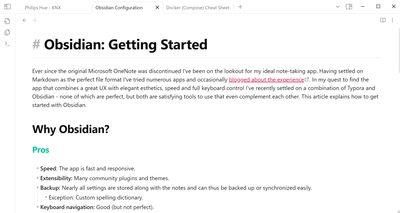
Obsidian: Getting Started With the Markdown Note-Taking App

Ever since the original Microsoft OneNote was discontinued I’ve been on the lookout for my ideal note-taking app. Having settled on Markdown as the perfect file format I’ve tried numerous apps and occasionally blogged about the experience. In my quest to find the app that combines a great UX with elegant esthetics, speed and full keyboard control I’ve recently settled on a combination of Typora and Obsidian - none of which are perfect, but both are satisfying tools to use and they even complement each other. This article explains how to get started with Obsidian.
Applications

Latest Posts

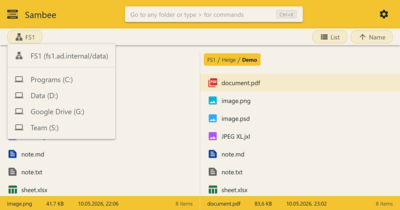
Introducing Sambee, Your Browser-Based File Manager for SMB Shares and Local Drives

Sambee is a browser-based viewer and manager for files on SMB network shares and on your computer’s local drives. It supports single-pane and dual-pane views and can replace Windows File Explorer as well as Norton Commander-style tools on your PC and on your phone. And yes, it’s free and open source.
Helge's Tools

WSL Disk Space Cleanup

The Windows Subsystem for Linux (WSL) stores its virtual hard disks in the user profile on drive C:. These VHDX files can grow up to 1 TB in size, making it necessary to clean up and reclaim space occasionally. This article shows how.
Virtualization & Containers

Changing the Location of the Windows Terminal Settings Files

Windows Terminal stores its settings in configuration files that resides in the Windows user profile. This article explains how to move them to any directory of your choice. Where are the Settings Files Located? The location of the Windows Terminal settings file is hard-coded. The exact path depends on the app variant you installed, but it’s always in the user profile:
Applications