sqlite utils Python (How It Works For Developers)

The SQLite-utils Python package is a versatile tool that contains Python utility functions for working with SQLite databases. It provides a command-line interface (CLI) and a Python library, making it easy to create, manipulate, and query SQLite databases. Let's dive into its features and see some code examples. Later in this article, we will explore IronPDF, a PDF generation library developed by Iron Software.
Overview of SQLite-utils
SQLite-utils is designed to simplify various tasks related to manipulating SQLite databases. Some of its key features include:
- Creating and managing databases: Easily create new databases and tables.
- Inserting and querying data: Insert JSON data, CSV, or TSV files and run SQL queries.
- Full-text search: Configure and run full-text search queries.
- Schema transformations: Perform schema changes that SQLite's ALTER TABLE does not support directly.
- Data normalization: Extract columns into separate tables to normalize data.
- Custom SQL functions: Install plugins to add custom SQL functions.
Installation
You can install SQLite-utils using pip:
pip install sqlite-utilspip install sqlite-utilsOr, if you use Homebrew on macOS:
brew install sqlite-utilsbrew install sqlite-utilsUsing SQLite-utils as a CLI Tool
The CLI tool allows you to perform various operations directly from the command line. Here are some examples:
Creating a Database and Inserting Data
Let's create a new SQLite database and insert some data from a CSV file:
# Create a new database and insert data from a CSV file
sqlite-utils insert dogs.db dogs dogs.csv --csv
# Create a new database and insert data from a CSV file
sqlite-utils insert dogs.db dogs dogs.csv --csvQuerying Data
The command below is how you would perform an SQL query from the database:
# Query the database and display results in JSON format
sqlite-utils dogs.db "select * from dogs" --json
# Query the database and display results in JSON format
sqlite-utils dogs.db "select * from dogs" --jsonListing Tables
List all tables in the database along with their row counts:
sqlite-utils tables dogs.db --countssqlite-utils tables dogs.db --countsUsing SQLite-utils as a Python Library
You can also use SQLite-utils as a Python library to interact with SQLite databases programmatically.
Creating a Database and Inserting Data
Here's how to create a new database and insert data using Python:
import sqlite_utils

# Create a new database
db = sqlite_utils.Database("demo_database.db")

# Insert data into a table
db["dogs"].insert_all([
 {"id": 1, "age": 4, "name": "Cleo"},
 {"id": 2, "age": 2, "name": "Pancakes"}
], pk="id")
import sqlite_utils
# Create a new database
db = sqlite_utils.Database("demo_database.db")
# Insert data into a table
db["dogs"].insert_all([
{"id": 1, "age": 4, "name": "Cleo"},
{"id": 2, "age": 2, "name": "Pancakes"}
], pk="id")Querying Data
You can run SQL queries and fetch results:
# Run a query and fetch results
rows = db.query("SELECT * FROM dogs")
for row in rows:
 print(row)
# Run a query and fetch results
rows = db.query("SELECT * FROM dogs")
for row in rows:
print(row)Full-Text Search
Enable full-text search on a table and execute search queries:
# Enable full-text search on the 'name' column
db["dogs"].enable_fts(["name"])

# Run a search query for the term "Cleo"
results = db["dogs"].search("Cleo")
for result in results:
 print(result)
# Enable full-text search on the 'name' column
db["dogs"].enable_fts(["name"])
# Run a search query for the term "Cleo"
results = db["dogs"].search("Cleo")
for result in results:
print(result)Introducing IronPDF
👁 sqlite utils Python (How It Works For Developers): Figure 1 - IronPDF: The Python PDF Library
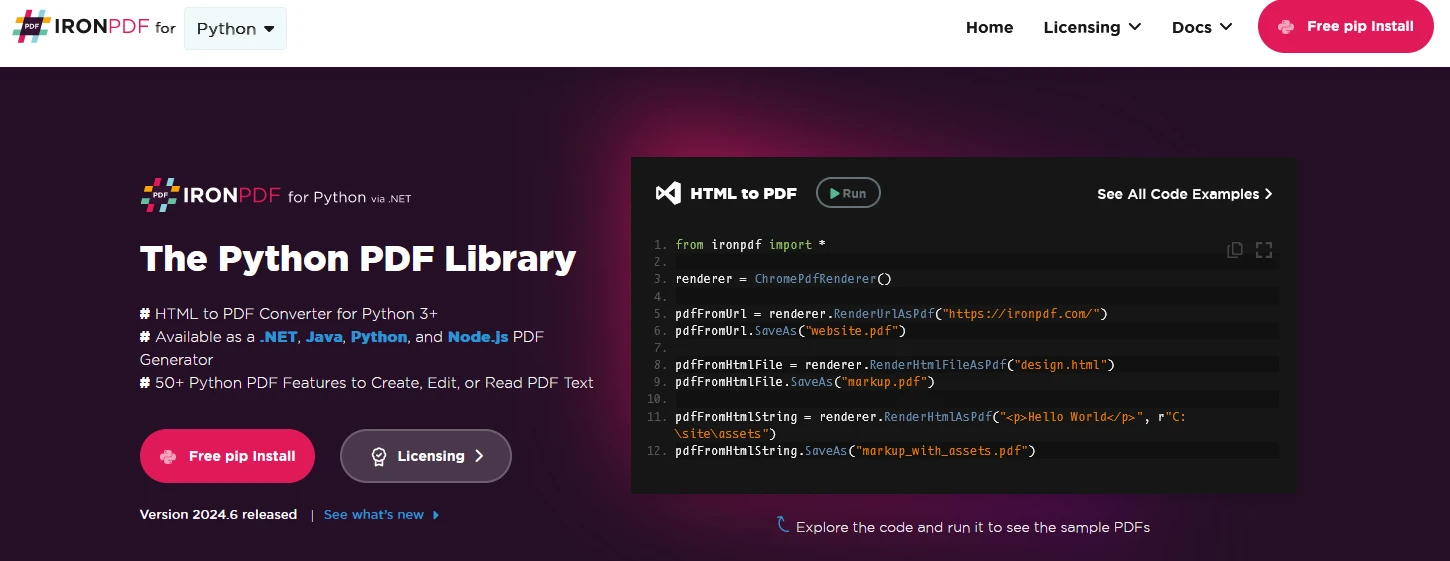
IronPDF is a powerful Python library designed to create, edit, and sign PDFs using HTML, CSS, images, and JavaScript. It offers commercial-grade performance with a low memory footprint. Key features include:
HTML to PDF Conversion:
Convert HTML files, HTML strings, and URLs to PDFs. For example, render a webpage as a PDF using the Chrome PDF renderer.
Cross-Platform Support:
Compatible with various .NET platforms, including .NET Core, .NET Standard, and .NET Framework. It supports Windows, Linux, and macOS.
Editing and Signing:
Set properties, add security with passwords and permissions, and apply digital signatures to your PDFs.
Page Templates and Settings:
You can customize PDFs with headers, footers, page numbers, and adjustable margins. It additionally supports custom paper sizes and responsive layouts.
Standards Compliance:
Complies with PDF standards, including PDF/A and PDF/UA, supports UTF-8 character encoding, and manages assets such as images, CSS, and fonts.
Generate PDF Documents using IronPDF and Sqlite Utils
import sqlite_utils
from ironpdf import ChromePdfRenderer, License

# Apply your license key
License.LicenseKey = "key"

# Initialize a new database
db = sqlite_utils.Database("mydatabase.db")

# Define a table schema
schema = {
 "id": int,
 "name": str,
 "age": int
}

# Create a table with the defined schema
db["users"].create(schema)

# Sample data to insert into the table
data = [
 {"id": 1, "name": "Alice", "age": 30},
 {"id": 2, "name": "Bob", "age": 28},
 {"id": 3, "name": "Charlie", "age": 32}
]

# Insert data into the table
db["users"].insert_all(data)

# Query all records from the table
rows = db.query("SELECT * FROM users")

# Initialize the PDF renderer
renderer = ChromePdfRenderer()

# Create HTML content for the PDF
content = "<h1>Awesome IronPDF with Sqlite-Utils</h1>"
content += "<p>Table data:</p>"
for row in rows:
 content += f"<p>{row}</p>"

# Render the HTML content as PDF
pdf = renderer.RenderHtmlAsPdf(content)

# Save the generated PDF as a file
pdf.save_as("DemoSqliteUtils.pdf")
import sqlite_utils
from ironpdf import ChromePdfRenderer, License
# Apply your license key
License.LicenseKey = "key"
# Initialize a new database
db = sqlite_utils.Database("mydatabase.db")
# Define a table schema
schema = {
"id": int,
"name": str,
"age": int
}
# Create a table with the defined schema
db["users"].create(schema)
# Sample data to insert into the table
data = [
{"id": 1, "name": "Alice", "age": 30},
{"id": 2, "name": "Bob", "age": 28},
{"id": 3, "name": "Charlie", "age": 32}
]
# Insert data into the table
db["users"].insert_all(data)
# Query all records from the table
rows = db.query("SELECT * FROM users")
# Initialize the PDF renderer
renderer = ChromePdfRenderer()
# Create HTML content for the PDF
content = "<h1>Awesome IronPDF with Sqlite-Utils</h1>"
content += "<p>Table data:</p>"
for row in rows:
content += f"<p>{row}</p>"
# Render the HTML content as PDF
pdf = renderer.RenderHtmlAsPdf(content)
# Save the generated PDF as a file
pdf.save_as("DemoSqliteUtils.pdf")Code Explanation
This script combines the functionalities of the SQLite-utils Python package and IronPDF library to manage an SQLite database and generate a PDF document. The following is a step-by-step explanation of what the code does:
Database Initialization:
- Initializes an SQLite database named "mydatabase.db" using SQLite-utils.
Table Creation:
- Defines a table schema with columns
id,name, andage. - Creates a table named "users" in the SQLite database using the defined schema.
- Defines a table schema with columns
Data Insertion:
- Inserts multiple records into the "users" table using SQLite-utils.
Data Querying:
- Retrieves all records from the "users" table and creates an HTML representation of the data.
- PDF Generation:
- Utilizes IronPDF to create a PDF document.
- Constructs HTML content for the PDF document, including headers and table data retrieved from the SQLite database.
- Saves the generated PDF document as "DemoSqliteUtils.pdf."
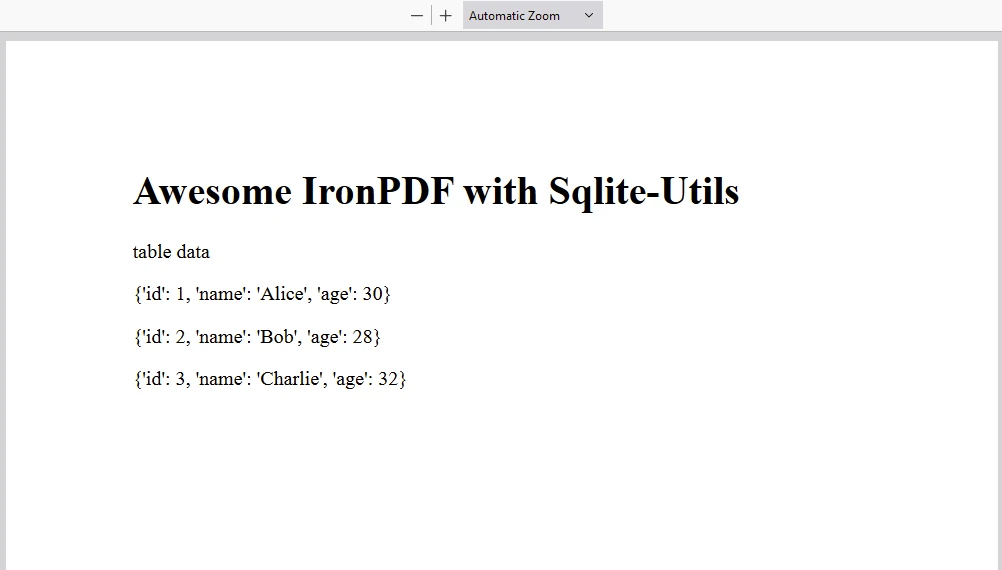
Overall, this script demonstrates how to leverage SQLite-utils for database management tasks such as table creation, data insertion, and querying, combined with IronPDF for generating PDF documents from dynamic content sourced from an SQLite database in Python applications.
Output
👁 sqlite utils Python (How It Works For Developers): Figure 2 - Example console output

IronPDF License
IronPDF runs on the Python license key. IronPDF for Python offers a free trial license key to allow users to test its extensive features before purchasing.
Place the License Key at the start of the script before using IronPDF package:
from ironpdf import License

# Apply your license key
License.LicenseKey = "key"
from ironpdf import License
# Apply your license key
License.LicenseKey = "key"Conclusion
SQLite-utils is a powerful tool for working with SQLite databases. It offers both a CLI and a Python library. Whether you need to quickly manipulate data from the command line or integrate SQLite operations into your Python applications, SQLite provides a flexible and easy-to-use solution.