


Markdown supports adding various kinds of links. The syntax for all of them is the same:
[Link text](link_address)The same syntax can be used for adding external links, internal links (another document in the same project) and links to the document's same section.
I'll show each of them with examples. Let's start with the simplest of them all.
Add external links in Markdown
If you want to link a particular text to a web URL, you can use the syntax link this:
[Text to link](https://link-url.com)Not clear enough? Let me share an example.
I want to write this text:
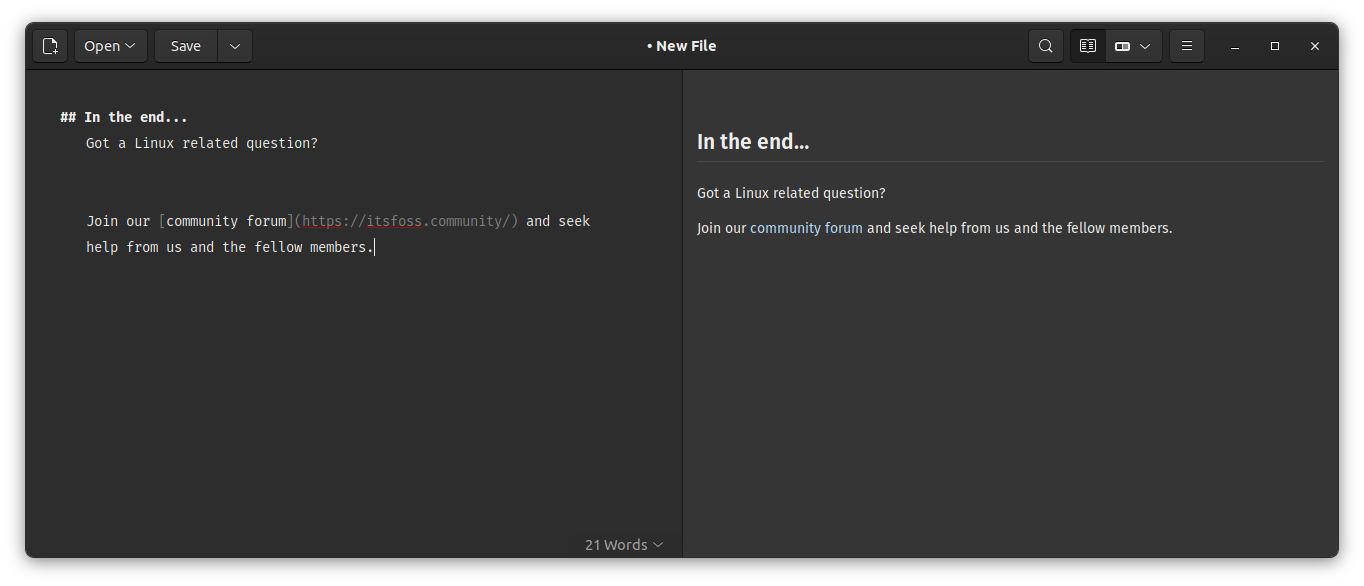
Join our community forum and seek help from us and the fellow members.
The text 'community forum' is linked to the URL https://itsfoss.community/
The same can be written in Markdown as:
Join our [community forum](https://itsfoss.community/) and seek help from us and the fellow members.
To see this in action, enlarge the screenshot below that shows both the Markdown code and the rendered text.
Add link to a section in Markdown
Markdown allows you to link the subheadings. This way, you can create a beautifully crafted document where users can quickly jump to a specific section. This is also called an anchor link.
The syntax is pretty much the same, except here, you'll have to use the text of the subheading.
[Text to sub-heading](#text-of-the-subheading)Things to keep in mind is:
- You can only link to subheadings, not normal paragraph text
- This link starts with #
- There should be no upper cases in the link, even if the subheading has it
- The white spaces in the subheading text are replaced by -
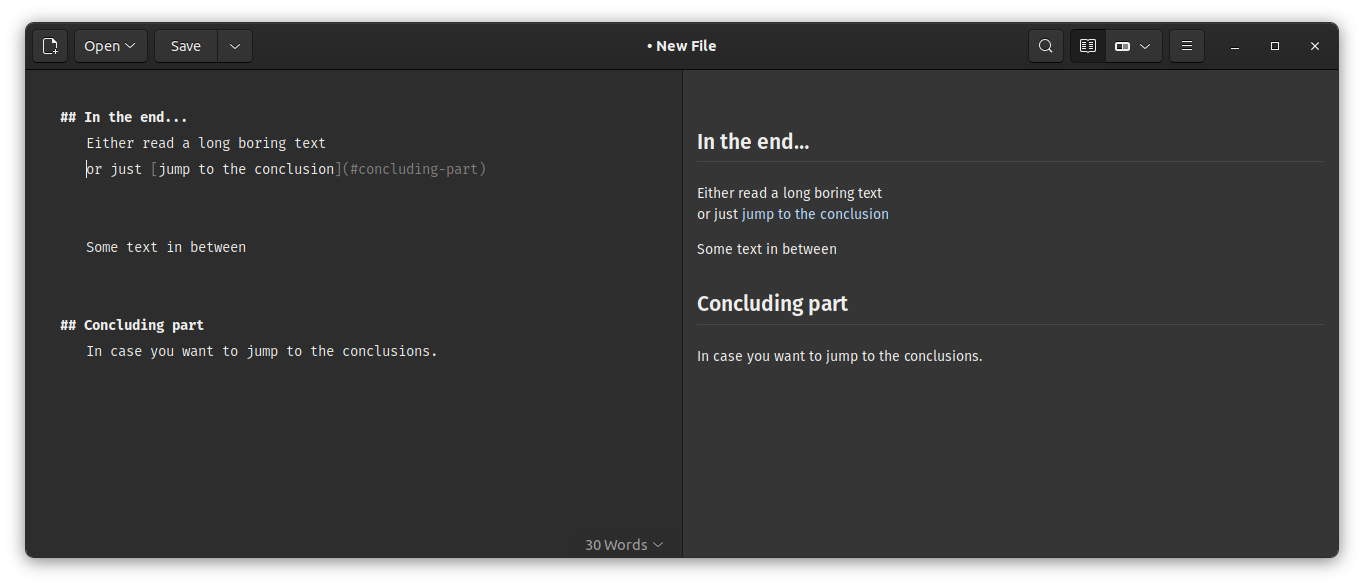
Let me share an example. I have a subheading with the text "Concluding part". Now I want to link to this section from another part of the file.
or just [jump to the conclusion](#concluding-part)
This screenshot will make things even more clear.
Not all markdown editors support it properly but in theory, it should work.
Add internal links in Markdown
Some Markdown based document management solutions like Obsidian allow you to interlink other markdown files in the same project.
Now, this is tricky because the file path hierarchy may not be the same in all the tools.
For example, I have this directory hierarchy.
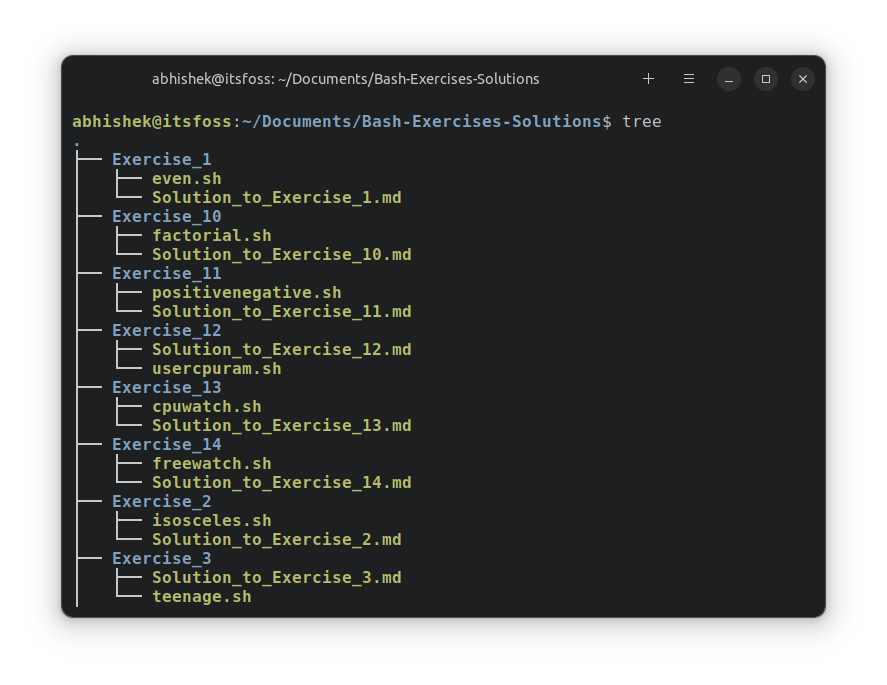
To internal link to the file Solution_to_Exercise_2.md under the Exercise_2 folder, I do the following:
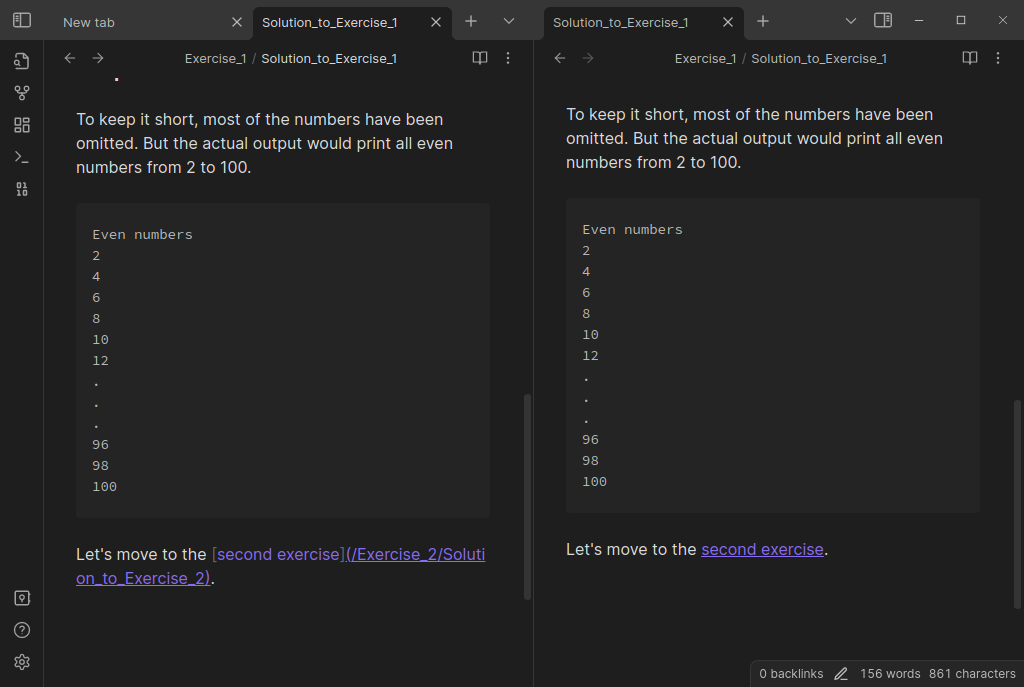
Let's move to the [second exercise](/Exercise_2/Solution_to_Exercise_2).
Here's a screenshot of the Obsidian editor:
Linked it or not?
Markdown is awesome for web writing. It is also good for personal note-taking once you get the hang of it.
I have created this cheat sheet to help you get familiar with it. Feel free to download it.
If you want a detailed explanation of Markdown syntax, we have a guide for that as well.


I hope you find this helpful in adding links in Markdown. If you have any questions or suggestions, please feel free to leave a comment.
