|
VOOZH | about |
|
VOOZH | about |
It’s every site owner’s worst nightmare — you visit your website and find that it’s completely down. What do you do? Where do you go from here?
There are a variety of reasons your website might be inaccessible — it was hacked, there was a theme or plugin conflict, you accidentally deleted something — but it can be crippling no matter what. If your site is down even briefly, you could lose customers, clients, or followers. If it’s down longer (especially because of a hack) you could lose your cash flow, drop in search engine rankings or suffer permanent damage to your reputation. And, of course, if you have no way to restore it, you might lose your past orders or content, and then need to hire someone to fix it for you.
That’s where backups can save the day! A good backup plugin requires very little setup on your end but saves your site automatically so that, if the unthinkable happens, you can get back up and running again quickly. It’s more than just a handy tool; it’s peace of mind.
But there are a lot of good options out there. How do you know which one to choose?
We’ve examined the best WordPress backup plugins and compared them based on their features, pros and cons, ease of use, and pricing.
VaultPress Backup was built specifically for WordPress and WooCommerce by the team behind both WordPress.com and WooCommerce. They know exactly what WordPress sites need in a backup plugin and created a comprehensive solution that makes it one of the best WordPress backup plugins. It’s a proven option, with 269 million site backups over the last ten years.
All backup plans include real-time backups, which save your site every time you make a change, ensuring that you don’t lose a single update, change, or customer order. And you can rest easy knowing that your files and database are safe — VaultPress Backup stores multiple copies of your backups (for redundancy) on the exact same Automattic servers as all WordPress.com sites.
Need to restore your site? Navigate to a WordPress activity log that keeps a record of everything that happened on your website. Find the exact moment you want to restore a backup from (say, before you updated that plugin or edited that line of code) and get your site back in a click. And if your website goes down while you’re away from your computer, you can restore from your phone or tablet just as easily, no code required.
What about migrating to a new host? You can use VaultPress Backup to do that as well. The WordPress cloning feature makes things super simple — there’s no need for FTP tools or complicated server connections.
VaultPress Backup is a streamlined but feature-rich solution supported by WordPress Happiness Engineers. And that’s what makes it the best WordPress backup plugin.
Key features of VaultPress Backup:
Pros of VaultPress Backup:
Cons of VaultPress Backup:
Ease of use:
VaultPress Backup was built with the average WordPress user in mind. That means that it’s super easy to install, set up, and restore, even if your site is completely down. There’s absolutely no need for a single line of code or complicated server management — it just works.
Don’t believe us? Give our documentation a look for all the details.
And if you do run into any issues, our support team is available to help with priority support just for you.
Pricing:
UpdraftPlus is a popular freemium WordPress backup plugin. It automatically backs up your files and database on nearly any schedule — choose between a variety of frequencies between two hours and every 30 days. Plus, you can send backup files to a number of third parties, like Google Drive and Dropbox, or store them on your server.
Key features of UpdraftPlus:
Pros of UpdraftPlus:
Cons of UpdraftPlus:
Ease of use:
UpdraftPlus is relatively easy to set up, but there are a number of settings to configure, like backup frequency and storage location. Restoring from a backup is also pretty straightforward, but only if your site is still functioning. To restore, log into your site, navigate to UpdraftPlus settings, select the files you want to restore, and wait for it to finish.
However, if your site is down, you have one of two options:
For beginners, this can get quite complicated.
Pricing:
BlogVault is a premium all-in-one WordPress backup plugin with a 100% restore rate. They provide incremental backups on a daily, weekly, monthly, or real-time basis depending on your plan. And, since they’re the sister company of the security plugin MalCare, they can seamlessly provide additional security features as part of their medium-tier plan.
Key features of BlogVault:
Pros of BlogVault:
Cons of BlogVault:
Ease of use:
BlogVault is pretty easy to use no matter your experience level. You can restore a backup in one click and there’s an auto-setup process to make getting started simple.
Pricing:
The following plans and pricing assume that you’re using BlogVault for one site. However, there are also plans that include additional websites.
BackupBuddy is a premium WordPress backup solution that offers a variety of automatic backups, including real-time options. You can customize exactly what’s saved each time and even restore individual files. This can be very helpful if you need to restore a specific plugin, theme, or image. However, while it’s easy to use if your site is working, it can be quite complicated if you can’t log into your WordPress dashboard.
Key features of BackupBuddy:
Pros of BackupBuddy:
Cons of BackupBuddy:
Ease of use:
If your site is still up and running when you need to restore a WordPress backup, it’s as simple as following a wizard from within the WP dashboard.
However, if your site is down (which can happen for a huge variety of reasons), BackupBuddy is much more difficult to use for non-developers than many of the other options on this list. To restore your site, you must use your host’s cPanel or remote FTP access to load your server. You’ll also need access to your database through PHPMyAdmin.
While BackupBuddy does provide detailed documentation on restoring a full site, if you’re not familiar with server management, it can be very confusing and easy to damage your site files.
Pricing:
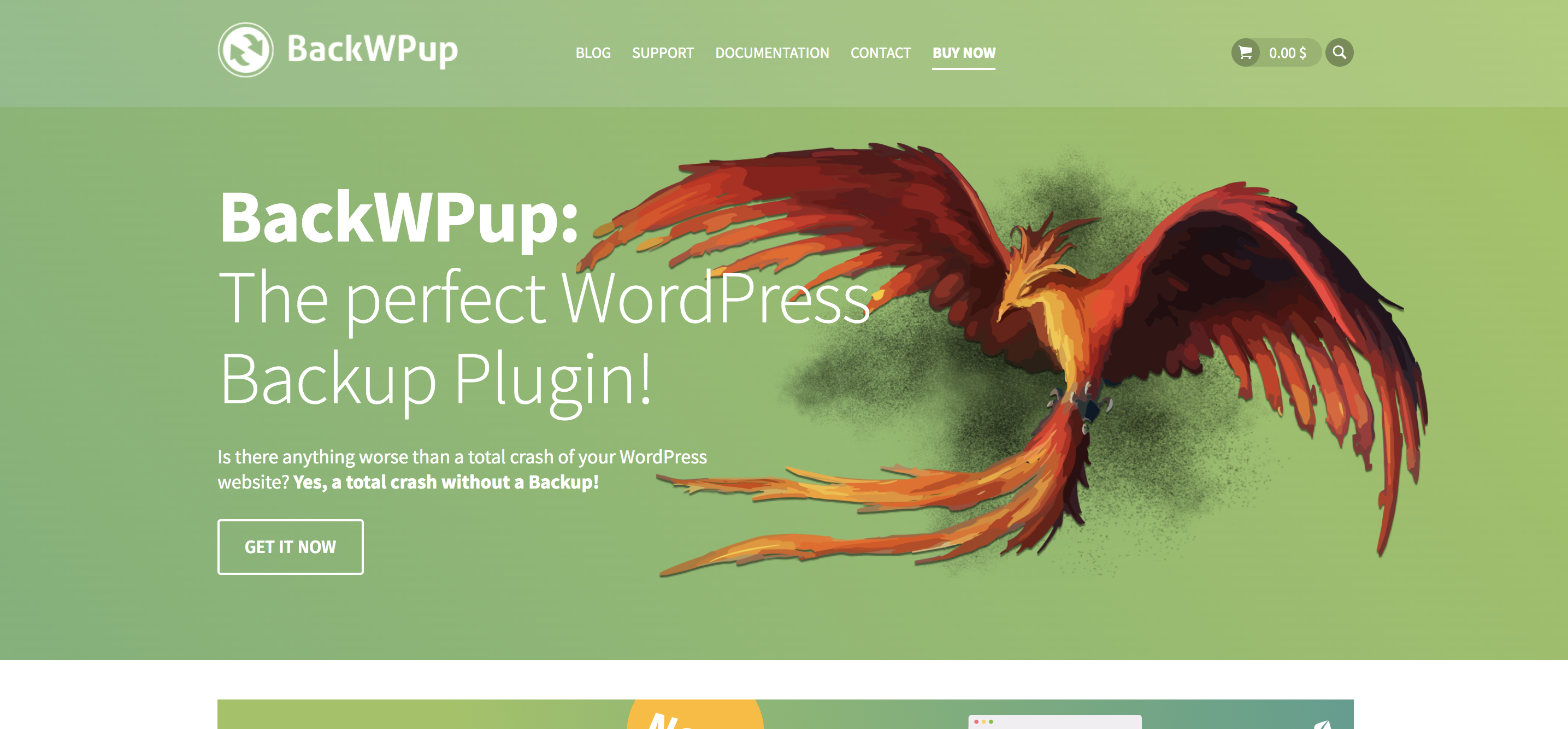
BackWPUp is a backup plugin with a very limited free version and premium plans that include more robust features. It has relatively straightforward functionality, without unnecessary bells and whistles, but can be difficult for beginners to use effectively.
Key features of BackWpUp:
Pros of BackWpUp:
Cons of BackWpUp:
Ease of use:
In the free version of the plugin, the settings can be confusing for beginners, and use technical language like “script execution time” and “empty output on backup working.” The free version also doesn’t include a way to automatically restore backup files. Thus, to be able to really use this plugin without having coding experience, you must purchase a premium plan.
However, with a premium plan, the setup wizard and restore wizard are easy to use. You can get up and running or restore a backup in just a few clicks (assuming your site is working), no experience needed.
If your site is down, there is an “emergency restore” tool available. However, you have to be able to access your server via FTP to run this tool and restore your site.
Pricing:
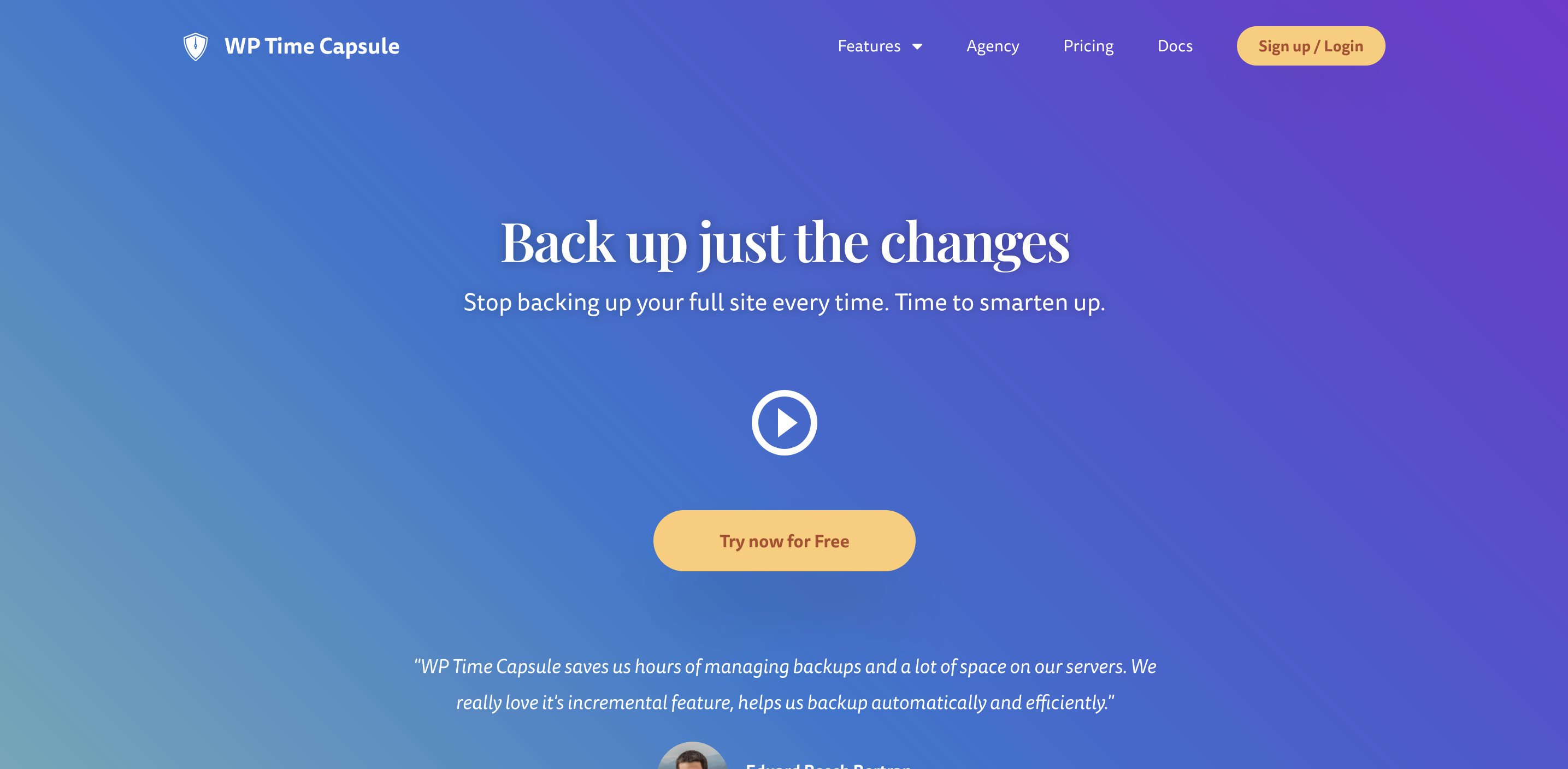
WP Time Capsule is a premium backup plugin with a 30-day free trial available. All backups are real-time and incremental, so changes (and only changes) are saved as they happen. This makes a big difference in how the plugin affects your site speed. In addition, all backups are stored using third-party tools, keeping them safe from server hacks and giving you full control.
Key features of WP Time Capsule:
Pros of WP Time Capsule:
Cons of WP Time Capsule:
Ease of use:
Setting up WP Time Capsule is as easy as installing the plugin and choosing configuration options. In addition, there are instant restores and it just takes one click to push changes live from your staging environment.
Pricing:
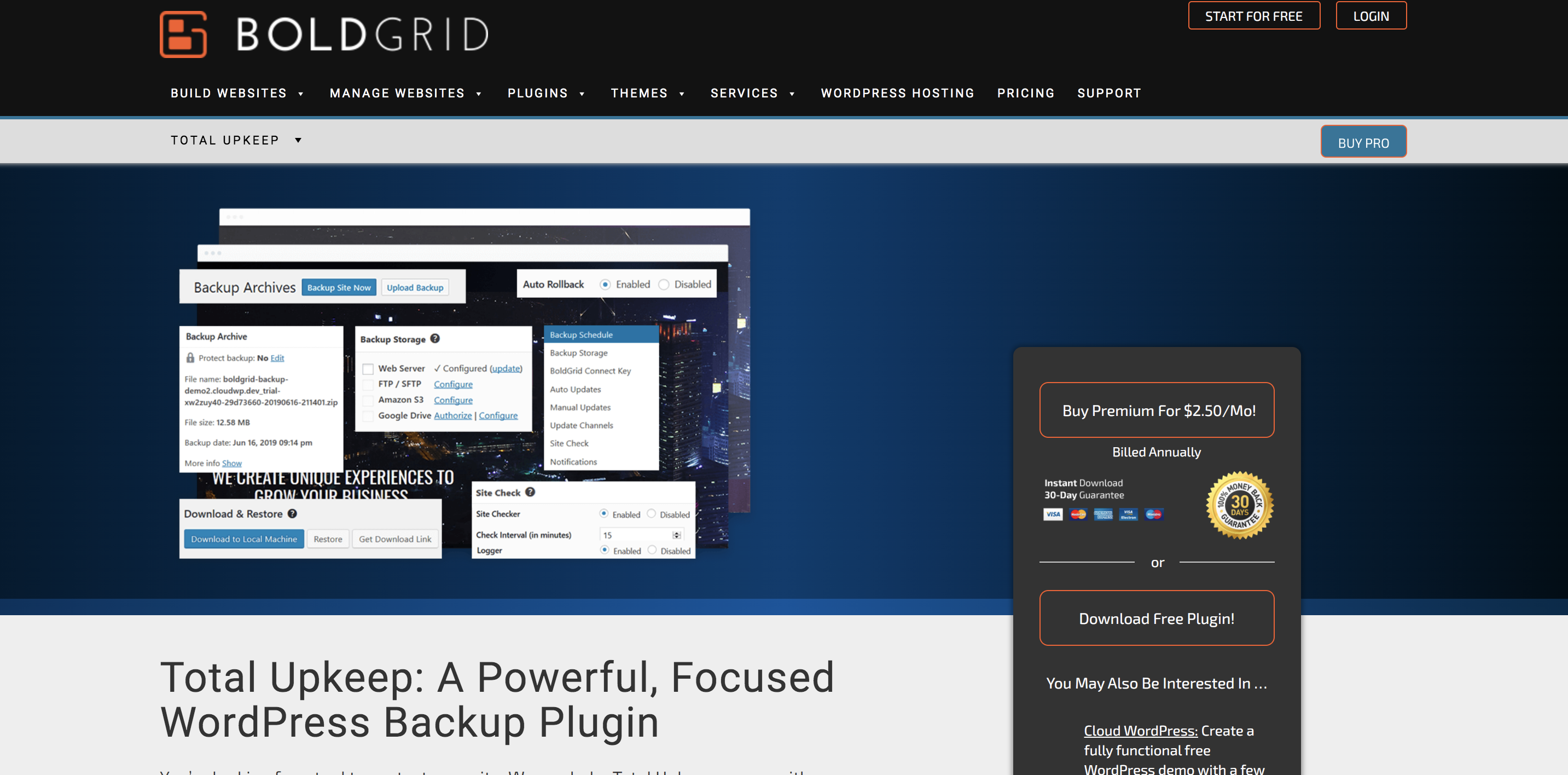
BoldGrid Total Upkeep (formerly BoldGrid Backup) is a WordPress plugin that offers automated and manual backups, along with additional security features that help you avoid needing to restore a backup in the first place.
Key features of BoldGrid Total Upkeep:
Pros of BoldGrid Total Upkeep:
Cons of BoldGrid Total Upkeep:
Ease of use:
Installing and setting up BoldGrid is very straightforward and simple. Just install and activate the WordPress plugin, then configure a few settings like backup days/times and storage locations.
If your site is running, restoring a backup is just as easy — select the backup you want to load from the WordPress dashboard and click “Restore.” However, if your site is down, that’s where things get tricky. You’ll need to restore your files using SSH and a specific command line. If you’re not familiar with this process, it can be confusing and difficult.
Pricing:
| VaultPress Backup | UpdraftPlus | BlogVault | BackupBuddy | BackWPUp | WP Time Capsule | BoldGrid Total Upkeep | |
|---|---|---|---|---|---|---|---|
| Automated backups | Yes | Yes | Yes | Yes | Yes | Yes | Yes |
| Real-time backups | Yes | No | Yes, with some plans | Yes | No | Yes | No |
| Activity log | Yes | No | Yes | No | No | No | No |
| Easily restore even if your site is down | Yes | No | Yes | No | No | Yes | No |
| Restore from a mobile device | Yes | No | No | No | No | No | No |
| WordPress migration | Yes | Yes, with premium extension | Yes | Yes | Yes | Yes | Yes |
| Optional additional security features | Yes | No | Yes | Yes | No | No | Yes |
| Backup storage | Off-site | On-site or with third-party tools | Off-site | Off-site | On-site or with third-party tools | With third-party tools | On-site or with third-party tools |
| WordPress Multisite support | No | Yes | Yes | No | Yes | Yes | Yes |
| Saves to third-party tools | No | Yes | Yes, but not automatically | Yes | Yes | Yes | Yes |
| Price | $4.95 for the first year | Free – $117 per year | $89 – $249 per year | $80 – $199 per year | Free – $349 per year | $49 – $199 per year | Free – $2.50 per month |
Now that we’ve compared the best WordPress backup plugins let’s take a step back and look at what really makes a plugin “good.”
Here are the features of a good WordPress backup plugin:
Having to manually backup a WordPress site every day is, of course, incredibly time-consuming. And it also leaves a ton of room for error — it’s so easy to forget!
That’s why automated backups are critical. You can just turn them on and not worry about them. If anything goes wrong, you have everything you need already in place.
Real-time backups are life-changing if you update your website regularly. They save a copy of your files and database every time something changes, so you know that everything is up-to-date.
While these are great to have for any site, they’re especially important if you post multiple blog posts a day, run forums, or have an eCommerce store. Imagine losing your latest order information!
Some plugins store backups on your server, which can be convenient, but this can significantly slow down your site. You want to avoid this if at all possible. If a hacker gains access to your site, they may also be able to access your server. In this case, your backups would be compromised or infected with malware, too.
Cloud-based offsite backups like what VaultPress Backup provides are ideal because they won’t slow down your site, and multiple copies are stored on our global network, so you’ll never lose your content.
An activity log keeps track of everything that happens on your site. What does this have to do with backups?
If you know when a plugin was deleted, when someone logged in from an unfamiliar location, or when a page was changed, you can also identify when a hack occurred or an issue arose. This allows you to restore a backup from right before the problem.
If your site goes down or is hacked, you want to get it back up as quickly as possible. Every second that it’s down means lost orders, site visitors, followers, or ad clicks. And, on top of that, you might be frazzled.
The last thing you want to worry about is a complicated, long restore process or having to reach out to your developer and ask them to restore a backup (whenever they’re available.) So, look for a one-click restore that makes it easy for you to return to normal.
Sites don’t go down based on your schedule. Anything could happen at any time — when you’re commuting to or from the office, in the middle of the night, or when you’re traveling. Choose a backup plugin that includes an app so you can restore your site no matter where you are, right from your mobile device.
Incremental backups only save the most recent changes, rather than backing up the full site every single time. While this still ensures that a copy of everything is saved, it dramatically reduces the amount of storage needed because fewer files are backed up each time. This also means less server bloat, which can save you expensive resources and prevent your site from loading slowly while backups are running.
There isn’t a single “best” backup plugin for every WordPress site. Your ideal choice depends on your budget, how often your content changes, and how comfortable you are with technical tasks like FTP and database restores.
That said, for many small-to-medium businesses and WooCommerce stores that want real-time, offsite backups with minimal setup, VaultPress Backup will be the easiest long-term option.
It offers robust features, an easy-to-use interface, reliable, secure backup storage, and support from Automattic Happiness Engineers that know WordPress better than anyone else.
But there are a few scenarios in which another plugin might be a better fit:
Running WordPress Multisite? Give BlogVault a go — it fully supports multisite backups.
Looking to restore individual files? BackupBuddy lets you select the files you want to restore.
Want to set up a staging site? If your hosting plan doesn’t already include a staging environment, WP Time Capsule might be a good fit. You’ll get both backups and staging in one paid plan, with the ability to test changes and push them live with one click.
But, if you’re like most WordPress site owners, Jetpack will provide everything you need, and then some. Get started with VaultPress Backup.
Managed WordPress hosts often include automatic backups, but they’re not always enough on their own. Host-level backups usually:
A dedicated backup plugin gives you:
For most sites, the safest approach is a real-time backup plugin that stores backups off-site.
When you choose a backup plugin, think about how it will handle:
Use these scenarios to pick the plugin that lines up with your real risks.
The most important feature is reliable and complete backup capability. A good plugin must back up all your WordPress files, databases, themes, and plugins automatically and regularly.
It should allow you to store backups off-site, such as on cloud storage, to protect against server failure. Features like incremental backups, easy restoration options, and scheduling are also key. These ensure your site can be restored quickly after a crash or hack, minimizing downtime and data loss.
Backups should be done as often as the frequency of changes on your site. For dynamic sites with regular posts, comments, or transactions, daily or real-time backups are recommended. Automated backup plugins that schedule regular backups help maintain site safety without manual work.
Yes, most backup plugins provide a user-friendly restore process. Usually, restoration involves selecting a backup file and letting the plugin handle the file replacement and database recovery.
Some plugins offer one-click restore or staged site recovery features. It is important to follow the plugin’s instructions and have a test environment if possible. Regularly practicing restores ensures you can recover quickly in emergencies.
Free backup plugins offer basic safety features and can be sufficient for small sites. However, free versions often lack advanced options like real-time backups, cloud storage, or incremental backups.
Using reputable plugins from trusted sources is crucial. To ensure the highest security, consider premium plugins with dedicated support and strong encryption for backup files.
A full backup copies all site data every time, which can be time-consuming and large. An incremental backup only copies the data changed since the last backup. Incremental backups save storage space and reduce server load. They are efficient for websites with frequent changes, as they speed up the backup process while maintaining data integrity.
Not all backup plugins support multisite networks. It is important to choose plugins specifically designed for multisite or that mention multisite compatibility. Proper multisite backups require backing up all sites, databases, and network-specific settings in one package to ensure complete recovery.
You can test by performing a backup and attempting a full restoration on a staging or local environment. Check if all site content, plugins, themes, and settings restore accurately without errors. Review backup logs for any warnings. Regular testing ensures that your backup system will function when needed and builds confidence in disaster recovery.
It depends on the plugin you choose. The most common frequency is daily, but there are also options for weekly, monthly, every couple of hours, or in real-time.
VaultPress Backup, for example, offers real-time backups, which save everything whenever a change occurs. This can be extremely valuable if your site is regularly updated, like in the case of a WooCommerce store, news blog, or online forum.
Again, it depends on the backup plugin. However, a 30-day archive is pretty typical, while some plugins allow you to choose the number of backups to save.
There are several ways you can confirm if your plugin is saving your site. The plugin you choose should keep a record of when backups were made. Others may send you an email or notification after a successful backup. You can also download a backup file from remote storage or your server to double-check that your files and database are there.
With VaultPress Backup, you can check the activity log to see when the last backup was completed and whether or not it was successful.
This depends on the plugin that you choose. Many plugins save backup files to your server, which leaves them vulnerable to hacks and takes up valuable storage space (that you pay for!). Others integrate with third-party tools like Google Drive or Dropbox, which keeps them separate from your hosting plan.
VaultPress Backup stores multiple copies of each backup in the cloud on WordPress.com’s super-secure servers — the same ones their own website lives on! That means that you benefit from protected files without having to manage any third-party tools. Plus, you can also restore with just a few clicks, even if your site is completely down.
In most cases, you can still restore a backup if your site is down. However, this process typically involves accessing your server via FTP and PHPMyAdmin or running a script using SSH. These steps can be confusing and complicated for many website owners and are relatively easy to mess things up.
VaultPress Backup, on the other hand, makes it super easy to restore a backup even if you can’t access your WordPress admin dashboard. All you have to do is select the backup you want to load from the activity log, choose the files you want, and click a single button. That’s all it takes!
Rob works on building tools for creators and their audiences. He's focused on building an open, calm platform that will be loved by bloggers, newsletter publishers, podcasters, and readers alike. He's worked on marketing and product for 15 years, primarily at Automattic, Mailchimp, and UPS.
The best real‑time WordPress backup plugin
Save every change and get back online quickly with one‑click restores from VaultPress Backup.
Get VaultPress BackupHave a question?
Comments are closed for this article, but we're still here to help! Visit the support forum and we'll be happy to answer any questions.
View support forum