|
VOOZH | about |
|
VOOZH | about |
SQL Query makes it possible to write SQL expressions and joins to query MongoDB.
To open SQL Query:
SQL Query has two main areas: the Editor at the top where you write SQL queries, and the Result tab at the bottom where query results and documents are shown.
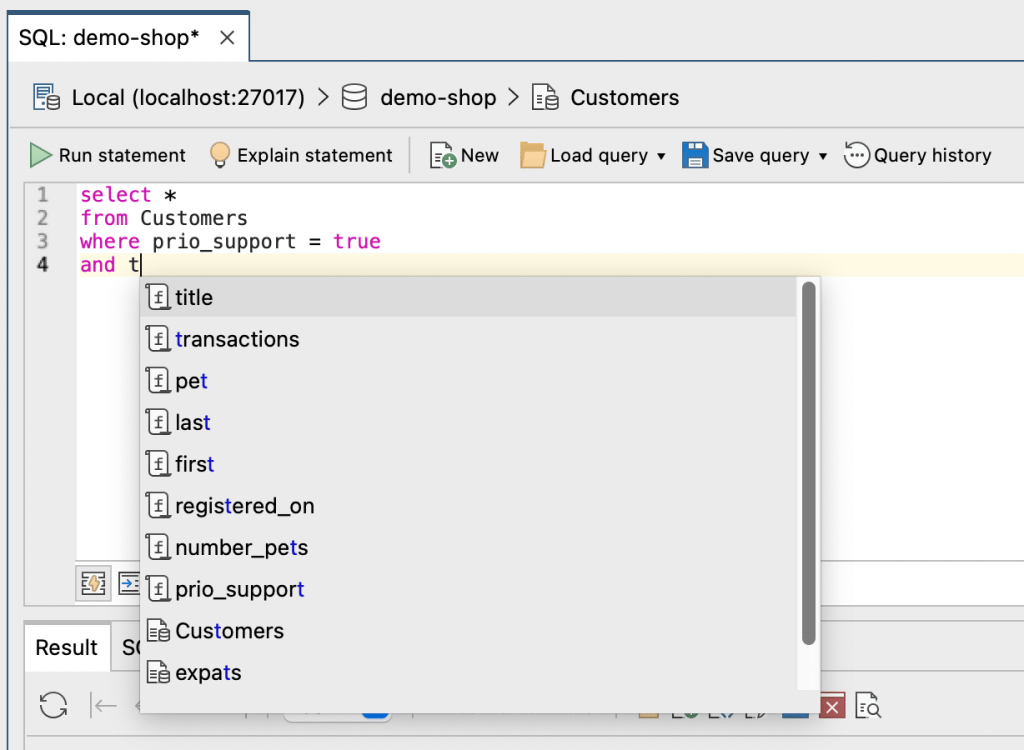
SQL Query supports smart auto-completion which is similar to auto-completion in IntelliShell, Studio 3T’s built-in shell for MongoDB. The editor detects and suggests standard SQL functions as well as fields, collections, and keyword names.
You can run a SQL statement in the following ways:
The Result tab shows the MongoDB document data that matches your query. You can view the query results as rows and columns in Table View, in a hierarchical format in Tree View, or as scrollable JSON documents in JSON view.
Editing documents and data in the SQL Query tab in Studio 3T is based on a ‘search and edit’ paradigm. Rather than searching for the documents you want to edit and then issuing separate UPDATE, DELETE, or INSERT commands, you simply edit the documents directly inline.
To edit a particular field or value in a document, simply double-click on it and Studio 3T will show a type-specific editor for that value.
Pressing ‘Enter’ writes the new value to the database, while pressing ‘Esc’ returns the previous value and exits the editor.
To prevent accidental edits to document data, for example in a production database, you can enable read-only mode. Click on the padlock icon in the Result tab to stop the data being directly editable.
You can also configure read-only mode for all the databases and collections for a particular connection.
To save your SQL query so that you can use it throughout Studio 3T or as a .sql file:
If you are using Studio 3T’s Team Sharing, you can save your SQL query in a shared folder. You and your team members can access the shared query from the My resources sidebar.
To store the connection, database, and collection details with your SQL query, select the Save target details checkbox.
To open existing .sql files, click Load query.
Whenever you run a query in Studio 3T, it is automatically saved. To view your query history, click Query history in the toolbar.
You can search through your history, save an item as a query so that you can use it again in Studio 3T, or load an existing query.
Query Code converts SQL queries into JavaScript (Node.js), Java (2.x, 3.x, and 4.x driver API), Python, C#, PHP, and the MongoDB Shell language.
To see a SQL query’s equivalent code:
To learn how a SQL query translates to MongoDB query syntax:
Click Explain statement or simply click the Explain tab to open Visual Explain which shows you a visual flowchart of how MongoDB ran your query including the option to view execution statistics with Run full explain – a helpful tool for tuning your query’s performance.
To query MongoDB with SQL, Studio 3T supports many SQL-related expressions, functions, and methods to input a query. This tutorial uses the data set Customers to illustrate examples.
When you open SQL Query, Studio 3T automatically generates a basic SELECT * query by default. This retrieves all of the documents in a collection, similar to selecting all the rows of a table in an SQL database.
The SQL query
select *

from Customers;
shows all documents and fields in the Customers collection.
JSON can be used in SQL WHERE clauses in two ways:
WHERE JSON
or
WHERE identifier <SQL operator> JSON
JSON keys can be quoted or not. As strings, they can be quoted with single-quotes (”) or double-quotes (“”), which means these two queries are the same:
SELECT * FROM [coordinates]

WHERE location = { "x" : 3 }
SELECT * FROM [coordinates]

WHERE { "location" : { "x" : 3 } }
You can also use a wide array of MongoDB data type constructors such as NumberInt, NumberLong, NumberDecimal, ObjectId, ISODate, Date, LUUID, CSUUID, JUUID, PYUUID, UUID, Timestamp, Symbol, DBRef, BinDate, and HexData.
Here are a few examples:
SELECT * FROM [binaries]

WHERE { "data" : BinData(3, '0x0') };
SELECT * FROM [table]

WHERE { 'date' : new Date(2019, 0, 2) }
This means we can also make use of any MongoDB operator.
SELECT * FROM [places]

WHERE {'$or' : [ { "item" : "foo" }, { 'item' : 'bar' } ] }
SELECT * FROM [words]

WHERE word = { $regex : "foo", "$options" : "i" }
SELECT DISTINCT eliminates any repeated documents from the output.
Consider the query:
SELECT first_name FROM customers
It returns a table of names where the names can repeat:
Alice

Bob

Charlie

Bob

Charlie

...
But when you write the query with DISTINCT:
SELECT DISTINCT first_name FROM customers
you get a list of distinct names:
Alice

Bob

Charlie

...
So in a DISTINCT query output, each identical document is returned only once.
Note that all the SELECT-ed fields are taken into account. The query
SELECT DISTINCT first_name, last_name FROM customers
returns
Alice, Allen

Bob, Brown

Charlie, Clark

Alice, Brown

Bob, Clark

Charlie, Allen

...
First names and last names can repeat, but their pairs do not.
When you have a query with DISTINCT and ORDER BY, you can sort only by a selected (visible) field:
SELECT DISTINCT first_name FROM customers ORDER BY first_name
– OK
first_name which is in ORDER BY must also be in SELECT DISTINCT.
SELECT DISTINCT first_name FROM customers ORDER BY last_name
– FAILS
Compare the above to the regular:
SELECT first_name FROM customers ORDER BY last_name
– OK
Some fields may be contained within an embedded document. You can access these fields using dot notation.
In the Customers collection, the field address has four embedded fields: street, city, state, and zip_code.
To find customers living in the city Berlin, run the following SQL query:
select *

from Customers

where address.city = 'Berlin';
The other embedded fields are then referenced as address.street, address.state, and address.zip_code, respectively.
Be aware, however, of the differences when quoting names and string values.
String values in a SQL query in Studio 3T can either be single- or double-quoted:
where address.city = 'Berlin'
or:
where address.city = "Berlin"
Names, including collection names and field names, both dotted and un-dotted, may be quoted using either back-ticks or square brackets.
For example, we can write:
where `address.city` = 'Berlin'
or:
where [address.city] = 'Berlin'
WHERE identifier <SQL operator> JSON
When querying MongoDB arrays with SQL, it is important to wrap the collection name and the field name(s) in square brackets, otherwise the query returns a syntax error.
select *

from [Customers]

where [device.0.mobile] = 'foo';
To show only specific fields (for example, the first name, last name, city, and number of transactions), run the query:
 select first, last, address.city, transactions

from Customers;
Studio 3T supports the standard SQL comparison operators: =, <>, <, <=, >=, or >.
To find customers with fewer than twenty transactions, run the SQL query:
select *

from Customers

where transactions < 20;
Expressions can be combined using AND or OR:
select *

from Customers

where transactions < 20

and address.city = 'Berlin'

or address.city = 'New York'
;
Results can be ordered or sorted by specifying an ORDER BY clause.
By default, ORDER BY sorts results in ascending order, which is the number of transactions in this example:
select *

from Customers

order by transactions;
Add desc to order customers by number of transactions in descending order:
select *

from Customers

order by transactions desc;
Use the boolean values true and false when querying boolean fields in a MongoDB document, for example:
select *

from docsWithBoolsCollection

where myBoolField = true;
Some dialects of SQL use the integer values 1 and 0 to represent the boolean values true and false respectively.
MongoDB collections are schema-free, so there’s no schema to indicate that a particular field is of boolean type. Therefore, a value of 1 really means true in that case.
No match occurs when an attempt to match a field with a boolean value against 0 or 1 is made. With Studio 3T, remember to use true and false when matching boolean values.
GROUP BY groups a result set by a particular field, and is often used with other aggregate functions like COUNT, SUM, AVG, MIN, and MAX.
For example, to group customers by city, use the following SQL query:
 select address.city

from Customers

group by address.city;
The results won’t show the count of customers per city, but the list of unique cities represented in the data.
You can also use GROUP BY with HAVING and ORDER BY, even when a field itself is a document, such as in this query:
SELECT customer_record FROM customers GROUP BY customer_record HAVING customer_record.salary > 1000 ORDER BY customer_record.age
In other words, HAVING and ORDER BY clauses can reference internal keywords found in the GROUP BY documents.
COUNT shows the numerical count of documents that match the query criteria.
The following SQL query shows the number of customers per city in ascending order:
select count(*), address.city

from Customers

group by address.city

order by count(*);
SUM shows the total sum of the values in a numeric field.
To see the total number of transactions, run the query:
select sum(transactions)

from Customers;
AVG shows the average value of a numeric field across a collection.
The average number of transactions is shown with the query:
select avg(transactions)

from Customers;
MIN shows the smallest value of a particular field across a collection.
Run the following query to see the individual customer with the lowest total number of transactions:
select min(transactions)

from Customers;
MAX shows the largest value of a particular field across a collection.
The SQL query
select max(transactions)

from Customers;
shows the individual customer with the highest total number of transactions.
The LIMIT clause limits the number of documents returned in a result set.
Results are limited to show only 12 customers in this query:
select *

from Customers

limit 12;
The OFFSET clause skips a certain number of documents in the result set.
To skip the first 25 customers while still limiting the results to 12, use the query:
select *

from Customers

limit 12

offset 25;
The LIKE operator searches for a pattern in the values of a field, and is often used with wildcards.
Wildcard characters % and _ are used to substitute characters in a string to find matches.
For example:
select *

from Customers

where address.city like '%New%';
shows customers whose cities contain the substring “New”, for example Newark, New York, or New Orleans.
To show customers whose cities start with the substring “Lon”, the wildcard character % is placed at the end:
select *

from Customers

where address.city like 'Lon%';
To find customers whose cities start with any letter but ends with “aris”, use the wildcard _:
select *

from Customers

where address.city like '_aris';
To find customers whose cities that start with any two letters but end with “ris”, simply add an additional _:
select *

from Customers

where address.city like '__ris';
The IN operator is used to see if a customer is a member of a set.
select *

from Customers

where address.city in ('Berlin', 'New York', 'Wichita');
The BETWEEN operator shows if a value lies within a range. The opposite is the operator NOT BETWEEN.
The query to find customers with transactions between 70 to 100 is:
select *

from Customers

where transactions between 70 and 100;
While the query to show customers whose cities start with a letter not between B and D is:
select *

from Customers

where address.city not between 'B' and 'D';
MongoDB supports special BSON data types, which in the MongoDB shell are represented by ObjectId, NumberDecimal and BinData, for example.
To query values of these types, write out the values as they would be written in the MongoDB Shell:
select *

from specialBSONDataTypesCollection

where _id = ObjectId('16f319f52bead12669d02abc');
select *

from specialBSONDataTypesCollection

where aNumberDecimal = NumberDecimal('9876543210987654321.0');
select *

from specialBSONDataTypesCollection

where aBinDataField = BinData(0, 'QyHcug==');
ISODate values can also be queried this way, but as described in the section above, it can be more convenient to use the date function provided in the Studio 3T SQL tab to specify date values in various common, concise formats.
SQL Query supports MongoDB’s native join functionality, so you can write SQL queries with inner joins or left joins, for example:
You can use Query Code to translate a SQL join to the MongoDB Shell language, JavaScript (Node.js), Java (2.x, 3.x, and 4.x driver API), C#, Python, PHP, and Ruby.
However, there are several considerations to bear in mind, as described in the following sections.
To start, the syntax is simple. To perform an inner join:
select *

from collA

inner join collB on collA.field1 = collB.field2;
And for left joins:
select *
 from collA
 left join collB on collA.field1 = collB.field2;
You can perform projections on the joined collections. These take the following form:
select collA.field1, collA.field3, collB.field2, collB.field4

from collA

inner join collB on collA.field1 = collB.field2;
Note that fields referenced in the projection must be qualified with the collection name, for example ‘collA.field1‘ and not just ‘field1‘.
In a relational ‘schemaful’ setting, it’s enough to provide only the column (field) name if it’s distinct to one of the tables. However, in the schema-free MongoDB setting, there isn’t a schema to indicate which collection a particular field belongs to, so the field name must be qualified explicitly along with its collection.
By the same token, note that while some ambiguous queries such as ‘select * …‘ are permitted, others like ‘select collA.* …‘ are not.
Multiple joins are supported, simply write queries such as:
select *

from collA

inner join collB on collA.field1 = collB.field2

left join collC on collB.field3 = collC.field1;
The order in which joins are processed is the same in which they are written, and a join condition can only reference the collections to its left.
SQL aggregate functions such as GROUP BY, HAVING, and so on, can all be applied to the joined collections as well:
select collA.field3, collB.field3, count(*)

from collA

inner join collB on collA.field1 = collB.field2

where collA.date > date('2018-01-01')

group by collA.field3, collB.field3

having count(*) > 250

order by collA.field3, collB.field3

limit 1

offset 1;
A collection can be joined to itself through the use of aliases, for example:
select *

from collA as child

inner join collA as parent on parent._id = child.parentId;
Note that after a collection has been aliased, all references to its fields must use the new alias and not its original name.
Studio 3T supports cross joins, such as:
select *

from collA

cross join collB;
or:
select *

from collA, collB;
It’s important to note however, that cross join queries can quickly become processor-intensive to run as the number of documents in the collections grows.
Studio 3T allows dates and times to be expressed in the following formats:
select *

from dates_example

where d > date('2017-03-22T00:00:00.000Z');
select *

from dates_example

where d > date('2017-03-22T00:00:00.000+0000');
select *

from dates_example

where d > date('2017-03-22T00:00:00.000');
select *

from dates_example

where d > date('2017-03-22T00:00:00');
select *

from dates_example

where d > date('2017-03-22T00:00');
select *

from dates_example

where d > date('2017-03-22 00:00:00.000Z');
select *

from dates_example

where d > date('2017-03-22 00:00:00.000+0000');
select *

from dates_example

where d > date('2017-03-22 00:00:00.000');
select *

from dates_example

where d > date('2017-03-22 00:00:00');
select *

from dates_example

where d > date('2017-03-22 00:00');
select *

from dates_example

where d > date('20170322T000000.000Z');
select *

from dates_example

where d > date('20170322T000000.000+0000');
select *

from dates_example

where d > date('20170322T000000.000');
select *

from dates_example

where d > date('20170322T000000');
select *

from dates_example

where d > date('20170322T0000');
select *

from dates_example

where d > date(‘2017-03-22’);
select *

from dates_example

where d > date('20170322');
In this exercise, we’ll use our Customers dataset to find all the customers who:
To start building our query, let’s open SQL Query by clicking SQL in the global toolbar or by using the shortcuts: Shift + Ctrl + L (Shift + ⌘+ L).
We’ll type the SQL query in the editor like this:
select *

from Customers

where transactions < 20

and (address.city = 'Berlin'

or address.city = 'New York');
Then we’ll run the query by clicking Run statement in the toolbar, which gives us the following results:
19 customers – all of whom live in Berlin or New York.
Congratulations, you’ve now successfully created your first SQL query in MongoDB! If you’re looking for something more advanced, try your hand at using SQL joins to Query MongoDB.
This article was originally published by Kathryn Vargas and has since been updated.
Kirsty Burgess
With your consent, we and third-party providers use cookies and similar technologies on our website to analyse your use of our site for market research or advertising purposes ("analytics and marketing") and to provide you with additional functions (“functional”). This may result in the creation of pseudonymous usage profiles and the transfer of personal data to third countries, including the USA, which may have no adequate level of protection for the processing of personal data. Please choose for which purposes you wish to give us your consent and store your preferences by clicking on “Accept selected”. You can find further information in our Privacy Policy.
Essential cookies are strictly necessary to provide an online service such as our website or a service on our website which you have requested. The website or service will not work without them.
Performance cookies allow us to collect information such as number of visits and sources of traffic. This information is used in aggregate form to help us understand how our websites are being used, allowing us to improve both our website’s performance and your experience.
Functional cookies collect information about your preferences and choices and make using the website a lot easier and more relevant. Without these cookies, some of the site functionality may not work as intended.
Social media cookies are cookies used to share user behaviour information with a third-party social media platform. They may consequently effect how social media sites present you with information in the future.