Zendesk automation macros: a practical guide for 2026


Last edited June 13, 2026

Table of Contents
- What Zendesk macros are, and how they differ from triggers and automations
- What a single macro can actually do
- How to create a macro in Zendesk
- How agents apply macros
- Personal versus shared macros (and the 5,000 limit)
- Organizing and managing macros at scale
- Zendesk's AI macro features: two different things
- Where macros hit a ceiling
- Macro best practices worth stealing
- Try eesel for the tickets macros can't close
What Zendesk macros are, and how they differ from triggers and automations
A macro is a saved set of actions an agent applies by hand. Zendesk's own docs describe it as "a prepared response or action that agents use to respond to common support requests." The key word is agents: a macro contains actions but no conditions, so nothing evaluates a ticket and decides to fire it. A person does.
That is the cleanest way to keep the three "business rules" straight, because they all live in the same place (Admin Center > Objects and rules) and they all change tickets, so they blur together fast.
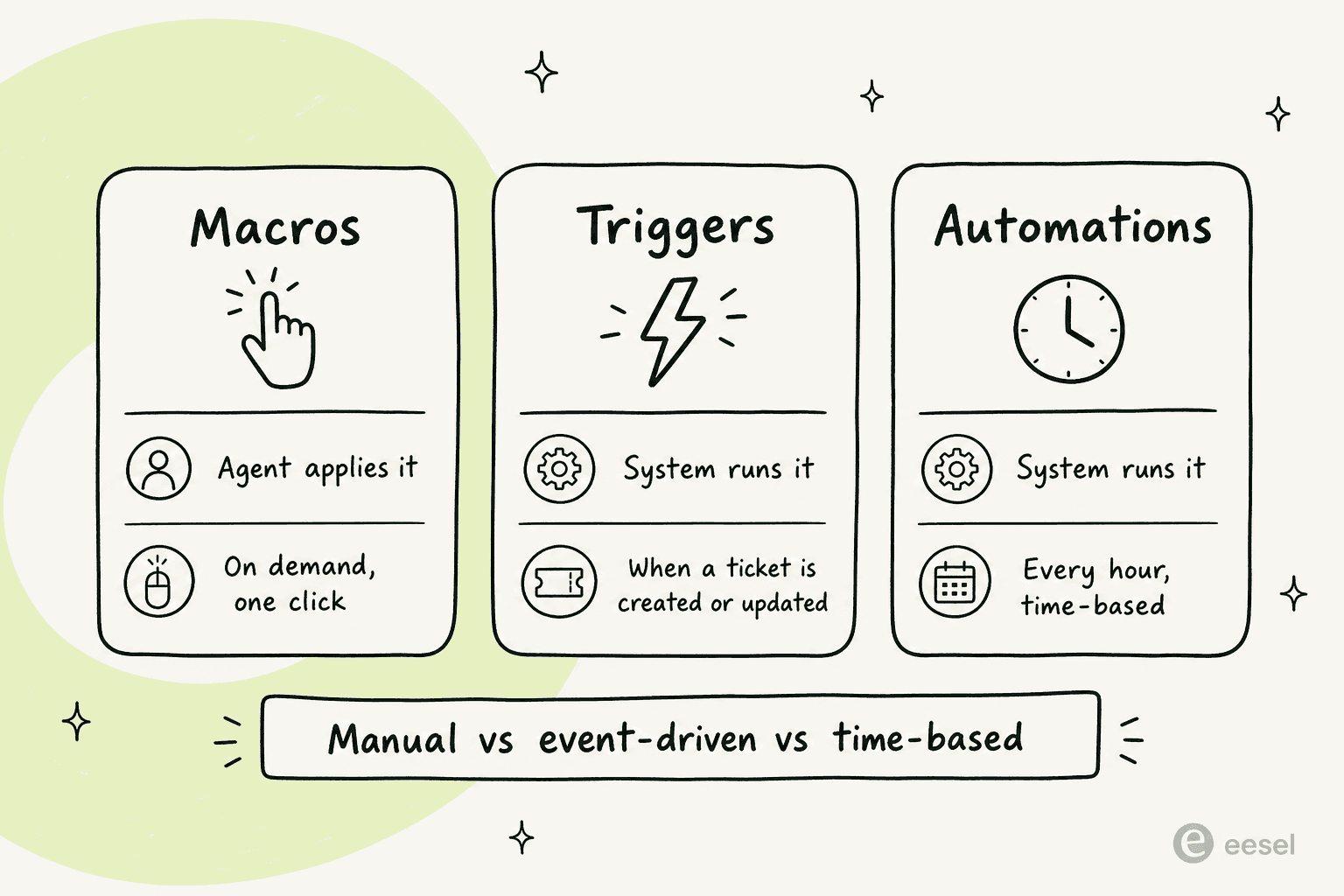
Here is the distinction in one table:
| Macros | Triggers | Automations | |
|---|---|---|---|
| Who fires it | An agent, manually | The system | The system |
| When it runs | On demand, one click | The instant a ticket is created or updated | Every hour, on non-closed tickets |
| Needs conditions | No | Yes | Yes |
| Typical job | Canned replies, one-click categorization | Routing, notifications, tagging, webhooks | Auto-close, SLA escalations, follow-ups |
Zendesk's own rule of thumb is to write your workflow in plain language and look for the verbs. Anything with a time word ("after 48 hours", "every morning") is an automation. Anything that should happen the moment a ticket changes is a trigger. Anything an agent decides to do while reading a ticket is a macro. If you have ever built a trigger to "send a canned apology" and watched it fire on the wrong tickets, this is why: that job wanted a macro.
What a single macro can actually do
The reason macros earn their keep is that one click can carry a whole stack of actions. A good macro does not just paste text. According to Zendesk's macros documentation, a single macro can add a public reply or internal note, update ticket fields, add or remove tags, change the assignee, set the subject, add followers, attach files, and even start a side conversation.
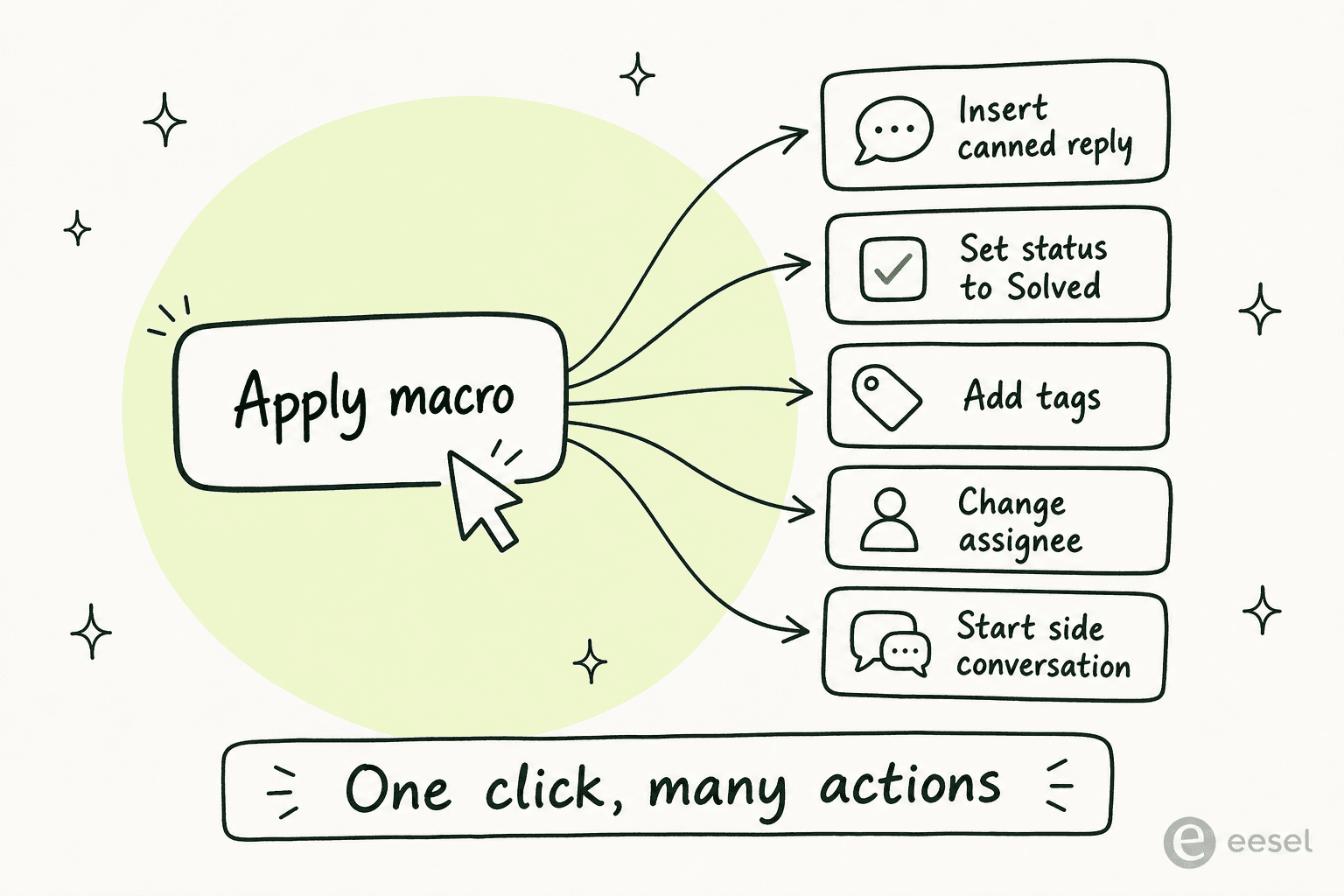
This is the part teams under-use. A macro that only changes a status is half a macro. The ones that pay off bundle the field changes and the message, so a "Close, not reproducible" macro sets the status to solved, tags the ticket, and sends the standard closing note in one move. That is where the handle-time savings actually come from. One thing native macros can't do, worth knowing before you over-invest: they can't set numeric, multiline, or custom text fields, and they can't add non-agent CCs, so a few edge cases still need the Zendesk API or an app.
How to create a macro in Zendesk
Macros all live in one spot now. Go to Admin Center > Workspaces > Agent tools > Macros. That page is your whole macro library, with search, a status filter, and columns for who each macro is available for and how often it has been used.
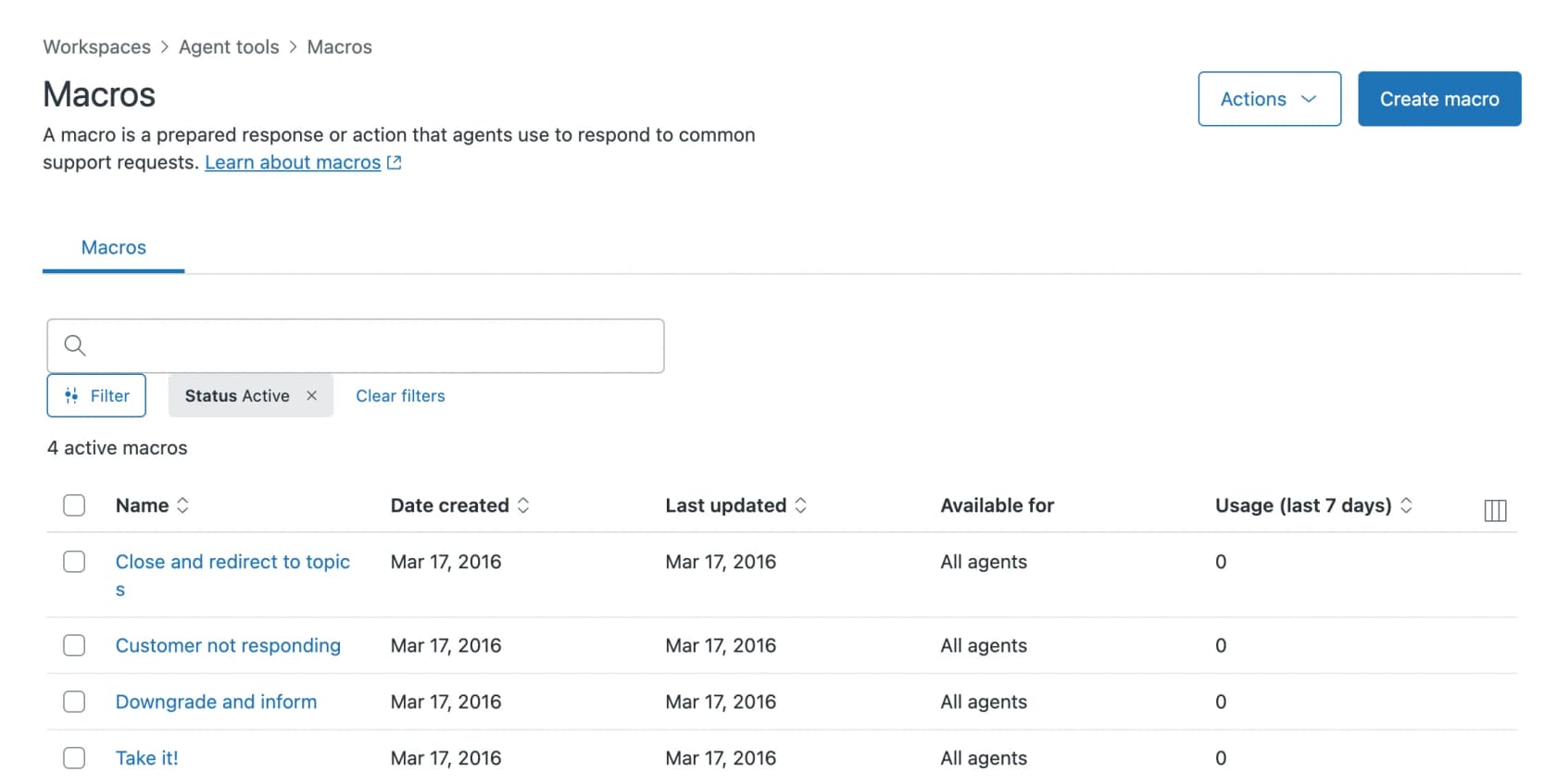
From there:
- Click Create macro.
- Give it a clear name (more on naming below, it matters more than you would think).
- Under Actions, add a Comment/description action and write the reply, then add any field changes you want (status, priority, tags, assignee).
- Set Available for: All agents, a specific group, or just you.
- Save.
The actions builder is where the work happens. The comment supports rich text, inline images, and a plain-text fallback for channels like SMS and messaging that don't render formatting.
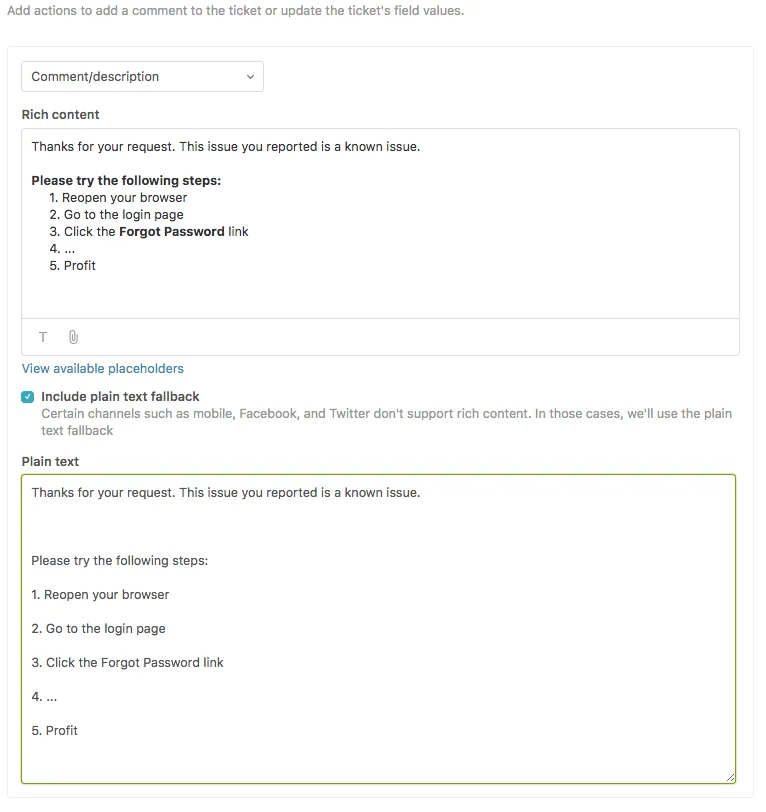
You can attach up to five files per comment, at 50 MB each, though attachments are skipped when a macro is applied during a bulk update.
Using placeholders to personalize macro text
A static canned reply reads like a canned reply. Placeholders fix that. They are data references wrapped in double curly brackets, so {{ticket.requester.first_name}} drops the customer's first name into the message when the agent applies the macro. Click View available placeholders in the comment editor to browse the full list.
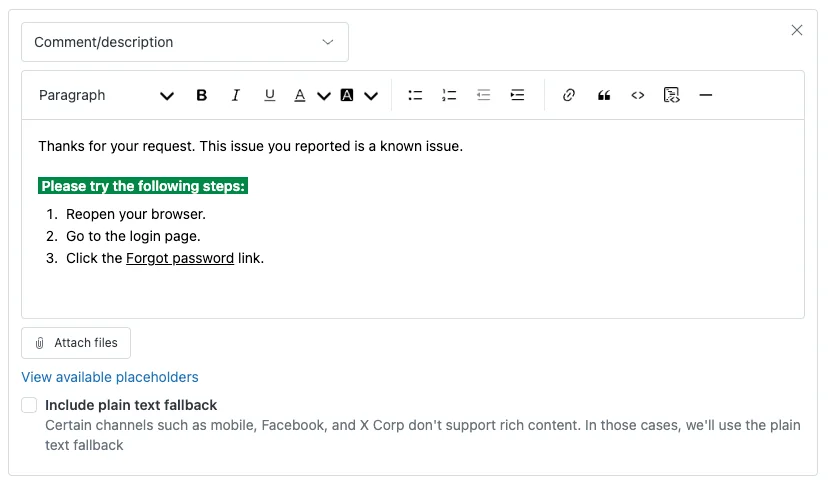
One gotcha that bites people on problem and incident tickets: escape the placeholder with a backslash, like Hello \{{ticket.requester.first_name}}, so it renders per linked ticket at submit time instead of pasting one requester's name across every linked ticket. For the deeper end of this, our guides on setting custom fields with macros and adding followers with triggers or macros walk through the field-level details.
How agents apply macros
Building macros is the admin's job. Applying them is the agent's, and Zendesk gives them two routes inside the Agent Workspace.
The first is the Apply macro button in the ticket's bottom toolbar. Click it, and the list opens with the agent's five most-used macros from the past week floated to the top. The second, faster route is to type a slash (/) in the comment field, which pops the same menu inline without leaving the keyboard.
Before committing, agents can preview exactly what a macro will change. The preview pane shows the field updates and the reply text side by side, so there are no surprises after the click.
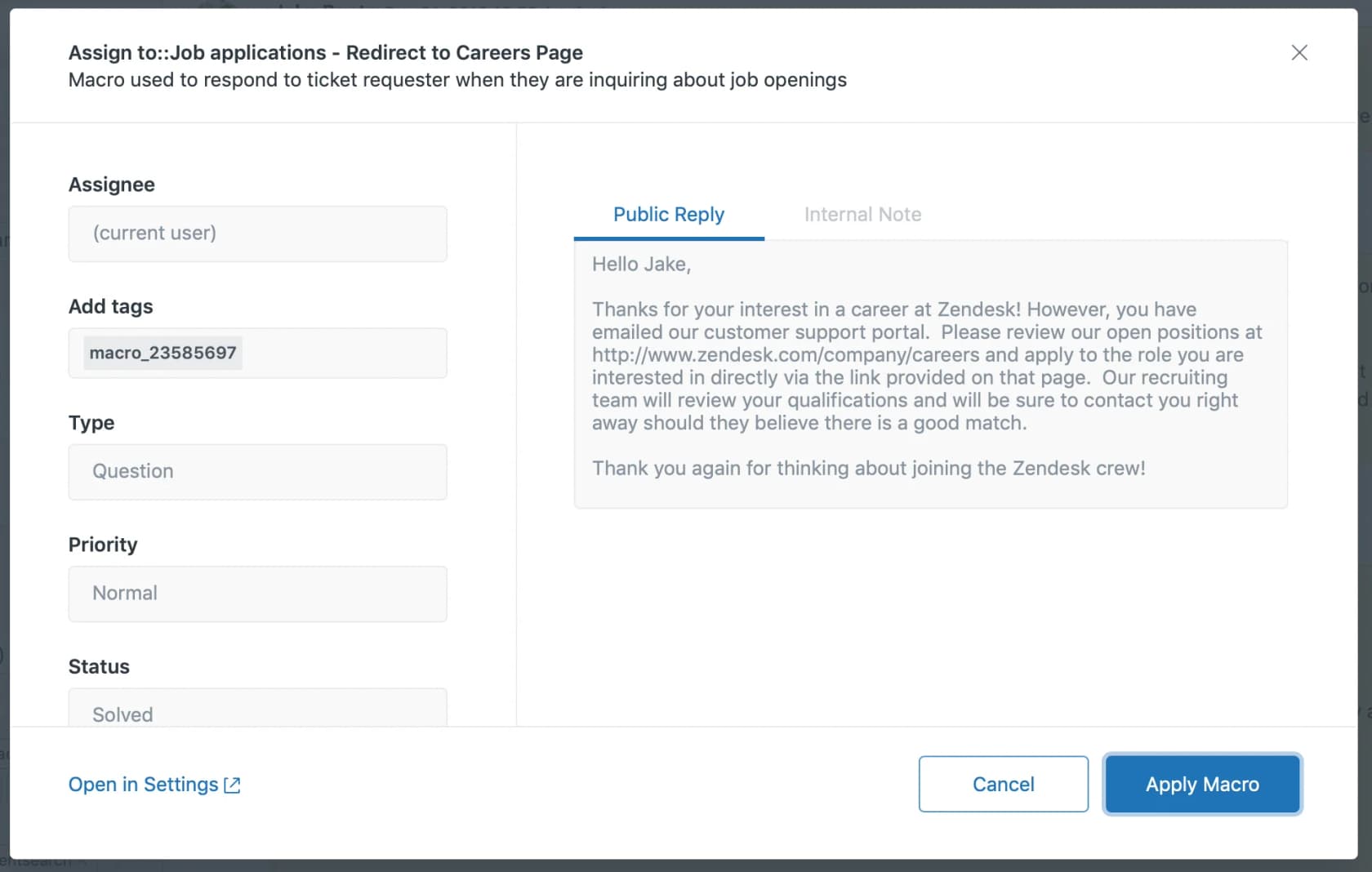
Agents can stack multiple macros on one ticket, and admins can bulk-apply a macro across a whole ticket view. Worth noting: macros can't be restricted to specific channels, so a macro built for email chat will also show up on messaging tickets.
Personal versus shared macros (and the 5,000 limit)
Macros come in two flavors. Personal macros are created by an individual agent for their own use; only the creator can use or edit them, though admins can see them and clone a good one into something the whole team gets. Shared macros are built by admins for all agents or for specific groups.
The hard ceiling is 5,000 shared macros per account. In practice almost no team hits that, so the limit is rarely the issue. The real tension is governance: a flood of personal macros means inconsistent answers across the team, while a tidy library of shared macros is what keeps replies on-brand. Our breakdown of personal versus shared macros digs into where to draw that line. Note that group-scoped shared macros need Suite Growth or Support Professional and up.
Organizing and managing macros at scale
A macro library is only as useful as it is findable. When an agent is mid-ticket, scrolling a list of 300 macros is slower than just typing the reply, which defeats the point.
Two habits keep it tidy. First, categorize using two colons in the macro title: Billing::Refund::Approved nests the macro under Billing > Refund. Second, manage display from Actions > Manage settings, where you can turn on manual ordering, show agents their most-used macros, and toggle suggested macros.
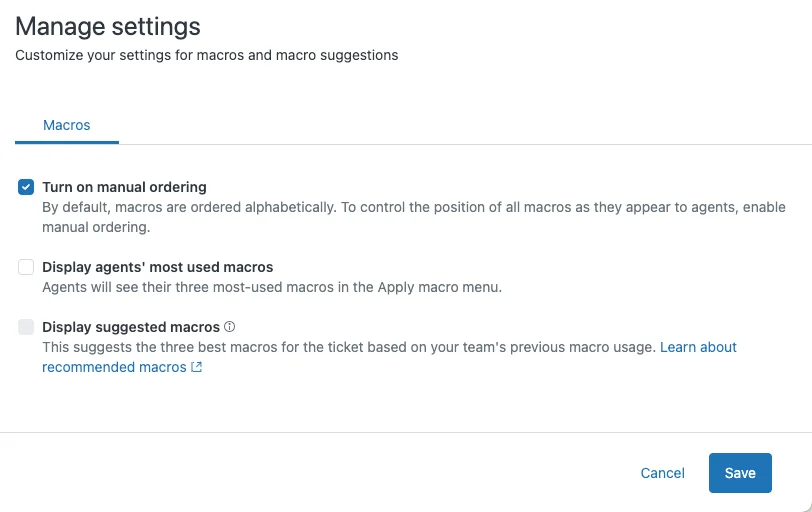
A naming convention does most of the heavy lifting here. Something like [Team] Action - Context keeps search fast. And audit periodically: Zendesk has no native report for macro usage frequency, so a common workaround is having each macro add a tracking tag, then counting that tag in Explore. The fact that the community built a "Macro Analytics Dashboard" app, which has racked up hundreds of views on the Zendesk community, tells you how much teams want native usage data that isn't there yet.
Zendesk's AI macro features: two different things
Zendesk now layers AI onto macros in two ways, and they get conflated constantly. They are not the same feature.
Suggested macros are agent-facing. The AI looks at the ticket an agent is on, compares it to tickets from the last nine months where a macro was applied, and recommends an existing shared macro to use. Only shared macros are ever suggested, never personal ones, and up to three show in a "Suggested for this ticket" section. With the Copilot add-on, each suggestion even carries a confidence level.
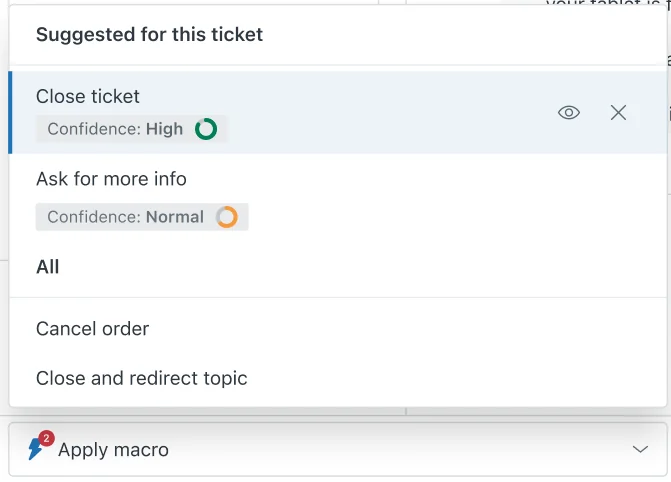
It is off by default, and turning it on has real prerequisites: your account needs at least 100 tickets in the last nine months in a supported channel that had a shared macro applied, plus at least three shared macros each used at least once. New macros take two weeks to enter the model. It is available on Suite Professional and up, or Support Professional and up.
Macro content suggestions (MCS) are admin-facing and do the opposite job: they watch for replies your agents type by hand over and over and suggest creating a brand-new macro from that repeated content. This one is part of the Zendesk AI add-on, uses the previous month's data, and now lives in the Admin Copilot feed.
Both are genuinely useful, and both stay inside the macro paradigm: the AI is helping a human pick or write a macro, not resolving the ticket for them. That distinction is the whole next section.
Where macros hit a ceiling
Macros are a productivity tool, not a deflection tool. Even with AI suggestions humming, the loop is still: a ticket comes in, an agent reads it, the agent (or the AI) picks the right macro, the agent edits and sends. Every ticket still costs an agent's attention. On a team drowning in repetitive questions, faster typing is not the same as fewer tickets to type.
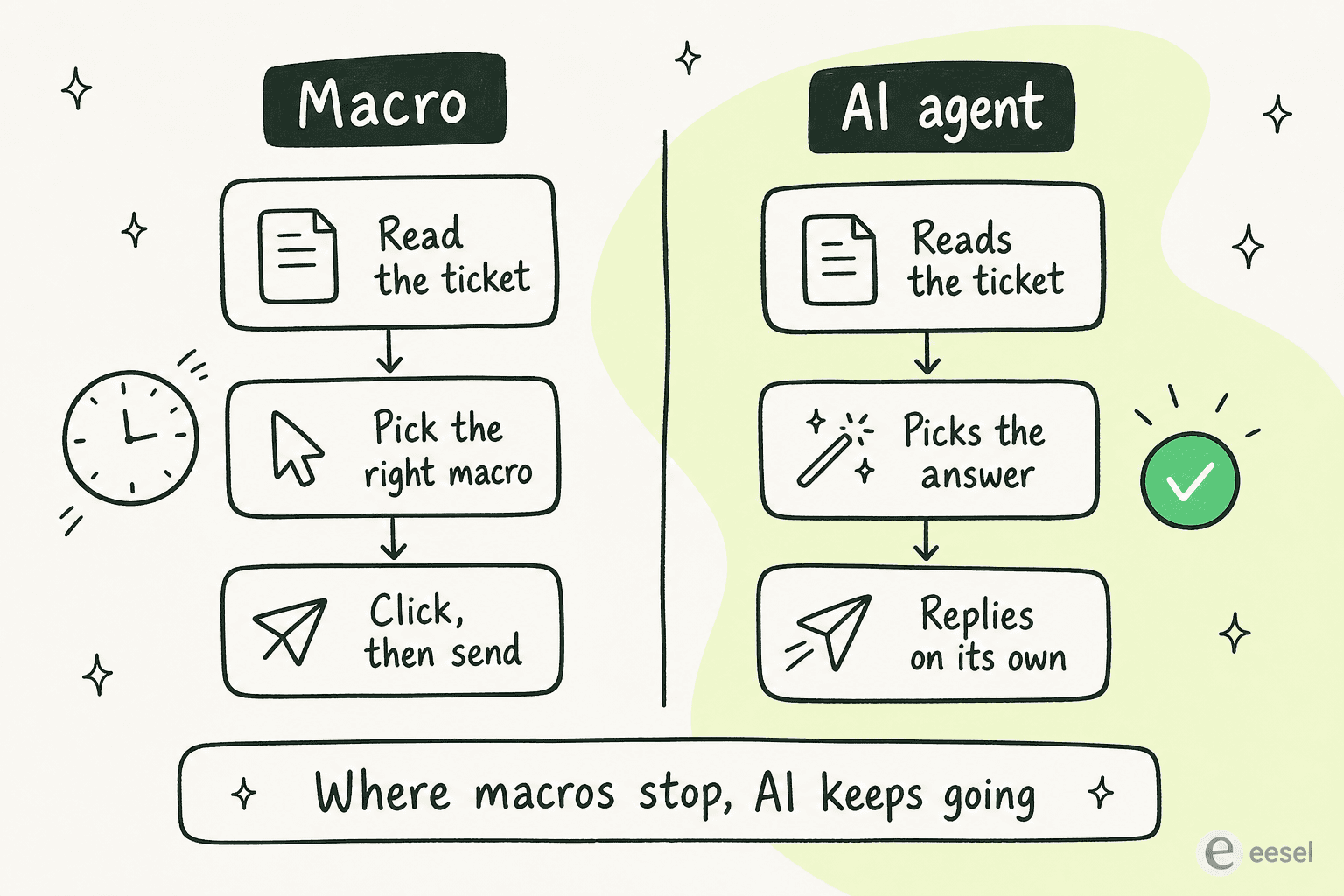
There is also the honest limit that you don't actually want to automate everything. As one DTC supplements CX lead put it to us, the goal is "an AI who is only handling the tickets that it's confident to handle, and all the other ones, leave them alone." Macros can't make that judgment, they apply whatever the agent picks. So the realistic ceiling is two-sided: macros can't resolve a ticket without an agent, and they can't decide which tickets are safe to resolve in the first place.
This is the gap an AI agent fills, and the nice part is that your existing macros are not wasted, they become training material. Our guide on reducing support tickets with AI covers the broader shift, and the free Zendesk AI alternatives roundup is a good starting point if you want to weigh options.
Macro best practices worth stealing
A few rules that separate a macro library people use from one they ignore:
- Bundle actions, don't just paste text. Every reply macro should also set the status, tags, and any fields the workflow needs.
- Name for search, not for you.
[Support] Close - Not reproduciblebeats "Closing reply 3". - Build for your top issues first. Look at your highest-volume ticket types and build the top 10 to 20 macros before chasing edge cases.
- Use placeholders so canned replies don't read as canned.
- Audit quarterly. Retire any macro with zero uses in 90 days. A bloated list slows every agent down.
- Know when to graduate. If a macro is being applied near-identically to hundreds of tickets a week, that workflow is a candidate for full automation, not a faster click.
For the deeper mechanics, the Zendesk macro action reference and our honest Zendesk review both go further than this overview can.
Try eesel for the tickets macros can't close
Macros make your agents faster. eesel makes a chunk of those tickets disappear before an agent ever opens them. eesel AI installs as a native AI agent inside Zendesk and learns from the assets you already have, including your help center articles, your past tickets, and your existing macros, so the work you put into building macros becomes the foundation the AI replies from.
The two things that tend to win Zendesk teams over: you can simulate the AI on thousands of your past tickets before it touches a live one, so you see exactly what it would have done, and pricing is a flat $0.40 per ticket handled with no per-resolution surcharge and no per-seat fees. It also respects your existing triggers, automations, and business-hour rules rather than fighting them.
Teams already running it inside Zendesk describe the fit plainly:
"eesel AI streamlines our workflow, boosts productivity, and ensures a higher level of service consistency."
Melissa Ryan, Zendesk Administrator, Discuss.io, as quoted on the eesel AI for Zendesk page
If your macro library has grown past the point where faster typing moves the needle, that is the signal to let an AI agent take the repetitive tier-1 volume. You can start free and test it against your own tickets first.
Frequently asked questions

Share this article

Article by
Alicia Kirana Utomo
Kira is a writer at eesel AI with a Computer Science background and over a year of hands-on experience evaluating AI-powered customer service tools. She focuses on breaking down how helpdesk platforms and AI agents actually work so that support teams can make better buying decisions.