Zendesk automation: triggers, automations, and macros explained (2026)


Last edited June 13, 2026

Table of Contents
- What "Zendesk automation" actually means
- Triggers: the instant, event-based layer
- Automations: the hourly, time-based layer
- Macros: the manual, one-click layer
- How to decide: triggers vs automations vs macros
- Best practices that save you from a 2am trigger loop
- Where Zendesk's classic automation hits its ceiling
- Adding an AI layer on top: eesel
- Try eesel for Zendesk
What "Zendesk automation" actually means
When someone says they want to "set up automation in Zendesk", they almost always mean one of three different things, and mixing them up is the single most common reason a workflow doesn't behave the way you expected. All three live in the same place, Admin Center > Objects and rules > Business rules, but they run on completely different clocks.
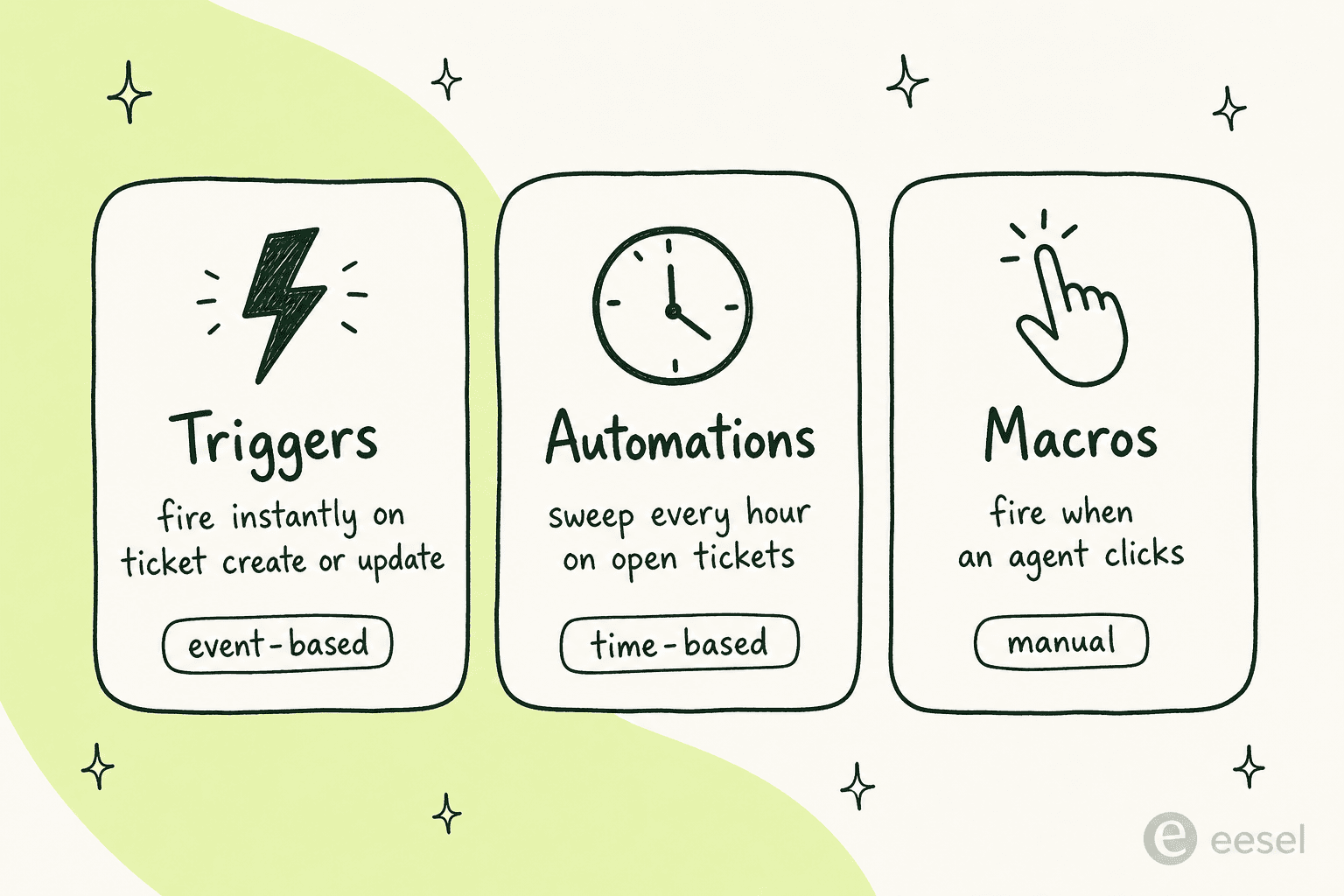
- Triggers are event-based. They fire the instant a ticket is created or updated, and they're your routing, tagging, and notification layer.
- Automations are time-based. They run once every hour on all non-closed tickets and act on conditions like "solved more than 96 hours ago", so they handle escalation, SLA follow-ups, and auto-close.
- Macros are manual. An agent applies one with a click to bundle field changes and a canned reply into a single action.
Get the model straight and the rest of Zendesk's business rules click into place. Get it wrong and you'll spend an afternoon wondering why your "escalate after 24 hours" rule is a trigger that never fires. Let's take each one properly.
Triggers: the instant, event-based layer
A trigger is a classic if-this-then-that rule that Zendesk checks every single time a ticket is created or updated. The "if" is a set of conditions (category | operator | value), and the "then" is one or more actions, set a field, add a tag, send an email, call a webhook. If the conditions are true, the trigger fires immediately.
Out of the box, Zendesk ships a set of standard ticket triggers that handle the basics, notifying a requester their ticket was received, alerting an assignee of a new comment, telling a group when a ticket lands in their queue. These are the email delivery layer of your whole account, which is why Zendesk's own docs warn, in bold, never to deactivate all of them.
The interesting work is in the custom triggers you build on top. The common patterns:
- Routing: send email tickets to one group and chat to another, or auto-assign by sentiment and priority.
- Tagging: drop a
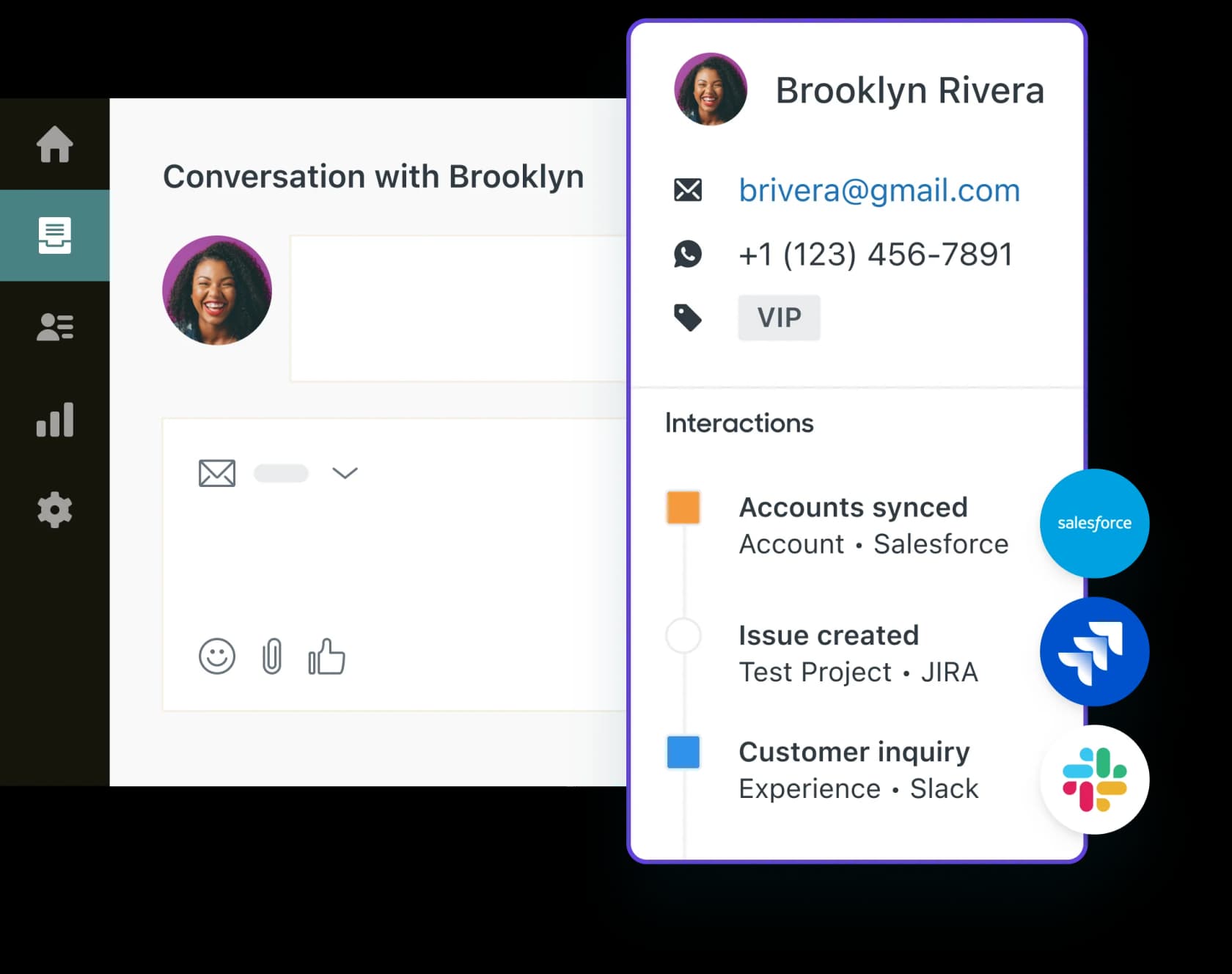
billingoroutagetag based on subject keywords so your ticket tags stay consistent. (If you want this to be smarter than keyword matching, you can tag tickets with intent-detection models.) - Integrations via webhooks: post to Slack when a ticket is tagged
urgent, or open a Jira issue when the type is set to Bug.
The part that trips people up is the trigger cycle. Every create or update runs all your ticket triggers in order, top to bottom. If a trigger fires and changes the ticket, the cycle restarts, and a trigger can be checked several times but only fires once per cycle. That means order matters: a routing trigger that runs before a notification trigger will change who gets notified. Two triggers writing to the same field produce a "last one wins" outcome that's genuinely hard to predict.
A few facts worth keeping in your back pocket: ticket triggers don't run on closed tickets, each trigger must stay under 65 KB, and you can have up to 7,000 active ticket triggers per account. For re-assignment notifications, use the Assignee | Changed condition rather than Ticket | Is | Created, a small gotcha that fills the Zendesk community comments. There's a deeper walkthrough in our Zendesk triggers workflow setup guide.
Automations: the hourly, time-based layer
If triggers are about "the moment something happens", automations are about "a while after it happened". They're the only native tool that can act on the passage of time, and they run on a completely different schedule: once every hour, against every non-closed ticket.
The classic examples are the ones every support team eventually needs:
- Close solved tickets after 96 hours (this is the one standard automation Zendesk ships with).
- Escalate unassigned tickets after they've sat for a few hours.
- Remind a customer after 24 hours pending with no reply, or archive old tickets that have gone quiet.
- Bump priority from Normal to High when a ticket has been open past an SLA-breach condition.
There are two things about automations that bite people, and they're worth internalizing before you build one.
First, every automation needs a way to stop itself. Because it runs every hour, an automation with no off-switch will fire on the same ticket forever. You break the loop one of two ways: an action that nullifies a condition (the standard "close ticket" automation does this, once the status is Closed, the "Solved" condition is no longer true), or a condition that can only be true once. The reliable real-world pattern is a tag: check that a tag is absent, fire, then add the tag as an action so next hour the condition fails.
Second, the hourly clock is imprecise. Automations don't run on the minute, they run "at some point during the hour", and "Hours since X" counts whole hours elapsed, not exact minutes. Here's what that actually looks like:
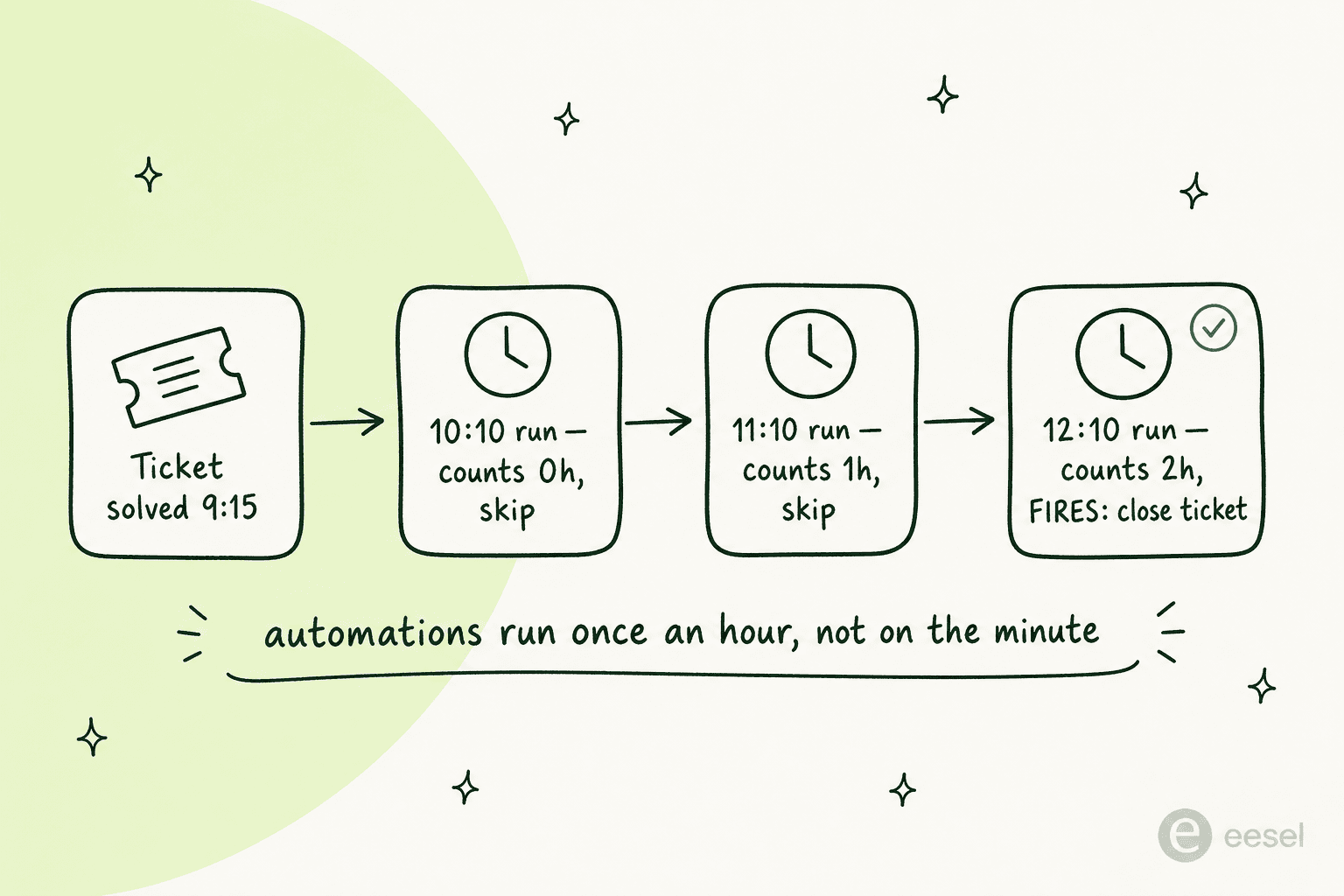
This is why Zendesk's docs and every seasoned admin tell you to prefer Greater than over Is on time conditions. Hours since created | Is | 48 can be skipped entirely if the hourly run misses that exact window, more likely on large accounts; Greater than | 48 fires reliably once the threshold is crossed. The same logic applies to most time-since-status-change conditions.
The caps to know: up to 500 active automations, a maximum of 1,000 tickets processed per automation per hour (extras spill into the next hour), and a hard limit of 100 automation updates per ticket. That last one is a quiet trap, we'll come back to it.
Macros: the manual, one-click layer
Macros are the odd one out, because they don't fire on their own. A macro is a saved bundle of actions, set status, add tags, drop in a canned reply, that an agent applies manually with a click. They're the fastest win in the whole automation stack: build macros for your top 10–20 issue types and you cut real minutes off every repetitive ticket.
The patterns that pay off:
- Reply + field change combos: a macro that marks a ticket Solved and sends the standard closing message. A macro that only changes a status is half-wasted.
- Escalation prep: set priority to Urgent, add an
escalatedtag, assign to the escalation group, and leave an internal note, all in one click. - Categorization: apply the right type, priority, and group for a common issue pattern instantly.
Two practical notes. Macros come in two flavours, personal macros that only the individual agent sees, and shared macros that admins manage for the whole team or a specific group. And because agents search this list on every ticket, organizing macros into categories with a consistent naming convention ([Team] Action - Context) is the difference between a macro library that speeds people up and one they scroll past. There's a fuller treatment in our Zendesk automation and macros guide.
How to decide: triggers vs automations vs macros
Zendesk's own advice is the cleanest decision rule there is: write your workflow out in plain language, then look for the word "after". Anything with a time delay is an automation. Anything that should happen the moment a ticket changes is a trigger. Anything an agent chooses to do is a macro.
| If you want to… | Use | Why |
|---|---|---|
| Email a customer the second their ticket opens | Trigger | Event-based, fires on create |
| Route a ticket to a group by channel or tag | Trigger | Event-based, fires on create/update |
| Escalate a ticket after 48 hours unresolved | Automation | Needs a time condition |
| Close tickets 96 hours after they're solved | Automation | Needs a time condition |
| Send a templated reply and mark solved in one click | Macro | Agent-initiated |
| Apply the right type, priority, and group fast | Macro | Agent-initiated |
| Post to Slack or open a Jira issue | Trigger + webhook | Event-based integration |
If you mostly remember one thing: triggers and macros can't wait, automations can't act instantly. The time delay is the whole tell.
Best practices that save you from a 2am trigger loop
A few habits separate a Zendesk instance that runs itself from one that pages you at 2am. None of them are advanced, they're just the ones people learn the hard way.
- Always narrow trigger scope. Add a
Ticket | Is | CreatedorTicket | Is | Updatedcondition to every trigger. Without it, the trigger evaluates on every single change and bloats the cycle. - Clone before you edit a standard trigger. Deactivate the original, work from the clone. It's your only undo button.
- Use tags as loop-breakers. For both triggers and automations, the "check tag absent → fire → add tag" pattern is the most reliable way to stop a rule re-firing.
- Preview before you save an automation. The "Preview match for the conditions" button shows you exactly which tickets a new automation would hit, so a too-broad condition doesn't quietly update ten thousand tickets in its first hour.
- Tag every automation's action for traceability. This matters more than it sounds, because Zendesk has no native usage analytics for triggers, automations, or macros. A tracking tag plus an Explore query is the only way to see what actually fired, and it's how you detect a ticket that hit the silent 100-update limit.
That last point is the recurring theme in the Zendesk community comments: the engine is powerful, but it's nearly opaque. There's no native report for which macro your team applies most, no simulator to debug a misfiring trigger, no alert when an automation gets throttled at the 1,000-tickets-per-hour cap. You build the observability yourself, with tags. Our guide to SLA and agent-performance tracking leans on exactly this workaround.
Where Zendesk's classic automation hits its ceiling
Here's the honest part, and it's worth saying plainly because it's the thing the official docs never quite will: triggers, automations, and macros are a deterministic rules engine. They are excellent at moving tickets and terrible at answering them. You can route a "where's my order?" ticket to the logistics queue and tag it and notify the team, but not one of these tools will read the customer's order number, check the status, and write the reply. A macro can hold a canned answer, but a human still has to read the ticket and decide which macro applies.
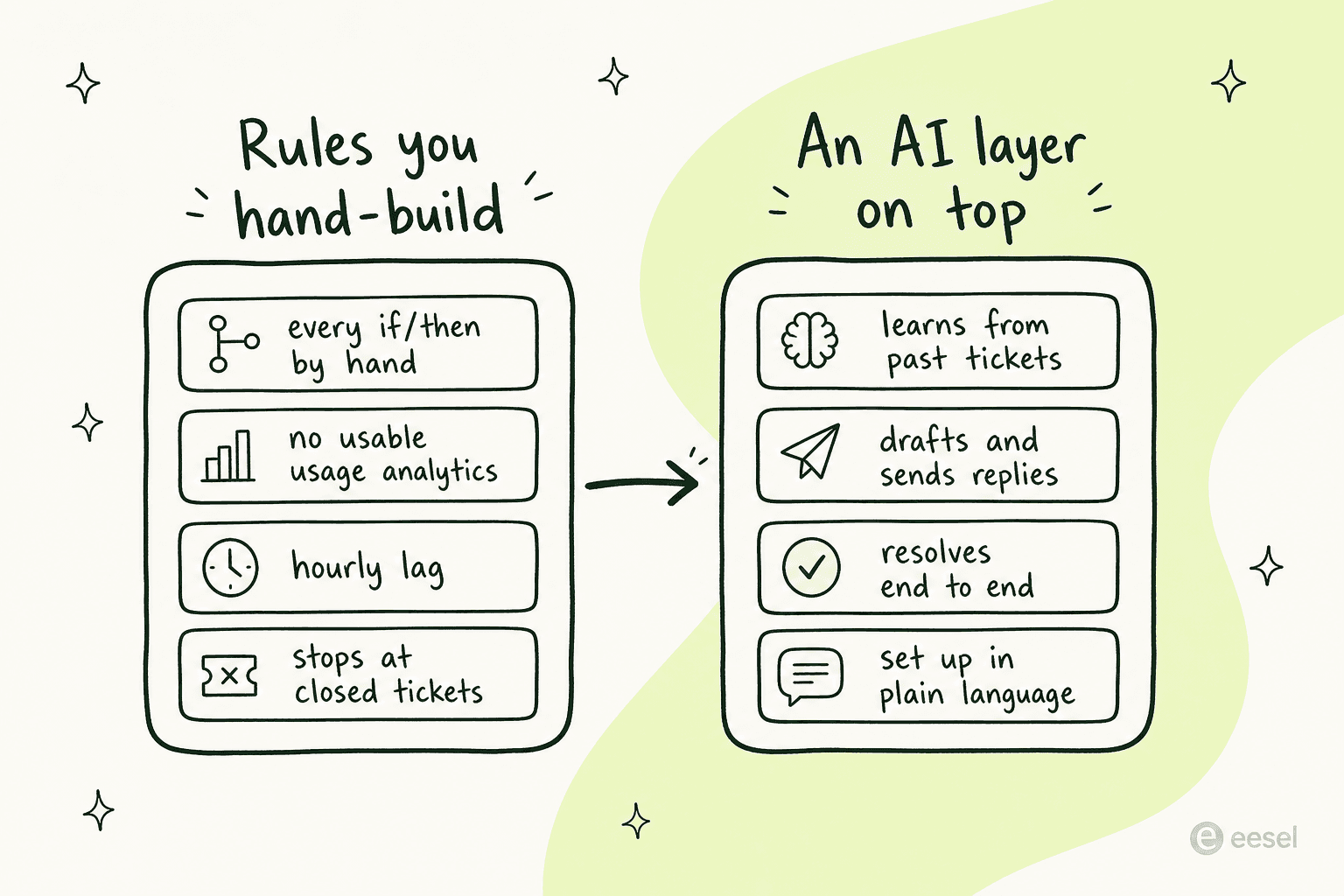
Stack the constraints up and the ceiling is clear:
- You hand-build every branch. Each if/then is a rule you author and maintain. The logic doesn't generalize, it does exactly and only what you wrote.
- The editor lags. The automation condition picker still doesn't let you type to filter. As one admin put it in a March 2026 comment on Zendesk's own automations documentation:
"It's so annoying to work in. We can't start typing to find any of the condition fields. If I need a condition based on a custom ticket field, I have to scroll and scroll."
Admin comment on Zendesk's automations documentation, March 2026
- Silent failures. Hit the 100-update-per-ticket limit and Zendesk adds a system note that isn't searchable in the UI, you need the ticket audit API to find it.
- It stops at closed tickets. Post-close workflows like data cleanup or CSAT need workarounds.
Zendesk's answer to all this is its own AI layer, AI Agents and the Copilot add-on, which can genuinely resolve tickets. The catch is cost: those features bill per automated resolution on top of your subscription, and the bill can run two to three times your base plan once it stacks up. It's common enough that we hear it on sales calls, one US healthcare support team running about 500 Zendesk tickets a month told us they'd "kicked the tires on Zendesk AI solutions and found it largely inadequate and overpriced". Worth pricing carefully with a Zendesk AI pricing calculator before you commit.
Adding an AI layer on top: eesel
The setup we'd actually recommend in 2026 is a split one. Keep your triggers, automations, and macros for the deterministic plumbing, the routing, tagging, escalation, and SLA work they're genuinely good at. Then add an AI layer for the question-answering they can't do.
That's the gap eesel is built for. It installs as a native AI Agent inside Zendesk, not a separate widget or inbox, and it learns from the assets you already have: your past Zendesk tickets, your help center articles, and the macros you've already written. It drafts on-brand replies, updates ticket fields, routes escalations, and respects your existing triggers and business hours, so it slots in alongside your rules engine rather than replacing it.
The two things that tend to matter most to teams coming from native automation:
- You can simulate on past tickets before going live. eesel runs against your historical Zendesk tickets so you can see what it would have resolved, and fill the gaps, before it touches a live conversation. That's the pre-launch confidence the native rules engine never gave you.
- The pricing is per ticket, not per resolution. It's $0.40 per ticket handled, with no platform fee, no per-seat charge, and a spend cap you set, so there's no end-of-month surprise.
Teams using it report it picks up the repetitive work the rules engine can only route. As one Zendesk admin put it:
"In the first month, eesel is resolving 73% of our tier 1 requests. eesel offers easy Zendesk implementation and setup... The platform even includes automations for ticket tagging, assignment, and status updates!"
Kim Simpson, Gridwise (eesel for Zendesk)
If you're weighing this against the native AI features, our roundup of Zendesk AI alternatives lays out the trade-offs, and there's a dedicated guide to automating replies in Zendesk if that's your immediate need.
Try eesel for Zendesk
If you've built out your triggers, automations, and macros and you're still drowning in tickets that need a real answer, that's the line where eesel takes over. It connects to Zendesk in under 30 minutes, learns from your existing tickets, articles, and macros with no manual training, and resolves tier-1 tickets autonomously, with 85%+ tier-1 resolution reported within a week and an honest $0.40 per ticket with no per-resolution games. Start with a free trial (no credit card) and simulate it on your own past tickets before anything goes live.
Frequently Asked Questions

Share this article

Article by
Alicia Kirana Utomo
Kira is a writer at eesel AI with a Computer Science background and over a year of hands-on experience evaluating AI-powered customer service tools. She focuses on breaking down how helpdesk platforms and AI agents actually work so that support teams can make better buying decisions.