A flowchart is a visual representation of a process, workflow, or system. It uses shapes, symbols, and arrows to show steps and their sequence. Flowcharts are widely used in:
Business process planning Programming and algorithms Project management Education and training How to Create a Flowchart in Google Docs Using Add-Ons Follow the below steps to Make the flowchart for google docs:
Step 1: Open Google Docs
Open Google Docs on your desktop and create or open a document. Step 2: Go to Extensions
Click Extensions > Add-ons > Get add-ons. 👁 Flowchart in Google Docs Go to Extensions >> Click on Add-Ons >> Get Add-Ons Step 3: Search for Lucidchart
In the search bar, type Lucidchart and select it from the results. 👁 Flowchart in Google Docs Search "Lucid Chart" Step 4: Install the Add-on
Click Install and grant the required permissions. 👁 Flowchart in Google Docs Click on thee "Install" Step 5: Open Lucidchart
After installation, click the Lucidchart icon on the right sidebar. 👁 Flowchart in Google Docs Click on the "Lucid Chart Icon" Step 6: Create a New Diagram
Click Create New to start a new flowchart. 👁 Flowchart in Google Docs Click on "Create New" Button Step 7: Choose a Template and Edit
Select a flowchart template and customize it using shapes, text, and connectors. 👁 Flowchart in Google Docs Choose Flowchart Template >> Create Flowchart Step 8: Insert the Flowchart
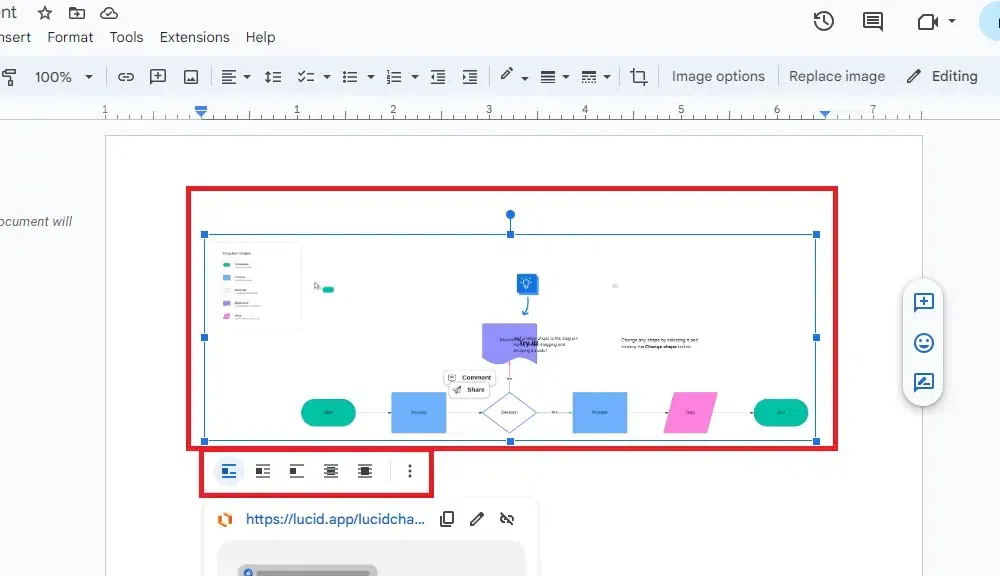
Select your saved diagram and click Insert. 👁 Flowchart in Google Docs Select your Flowchart >> Click "Select" Button Step 9: Flowchart Added
Your flowchart will appear directly in your Google Docs document. 👁 Flowchart in Google Docs Flowchart Inserted How to Make Flowchart in Google Docs Using Drawing Step 1: Open Google Docs
Open your document in Google Docs. Step 2: Open the Drawing Tool
Click Insert > Drawing > New. 👁 Flowchart in Google Docs Go to the Insert Tab >> Select Drawing >> New Step 3: Create the Flowchart Use:
Shapes for steps Arrows for flow direction Text boxes for labels Arrange the elements to form your flowchart.
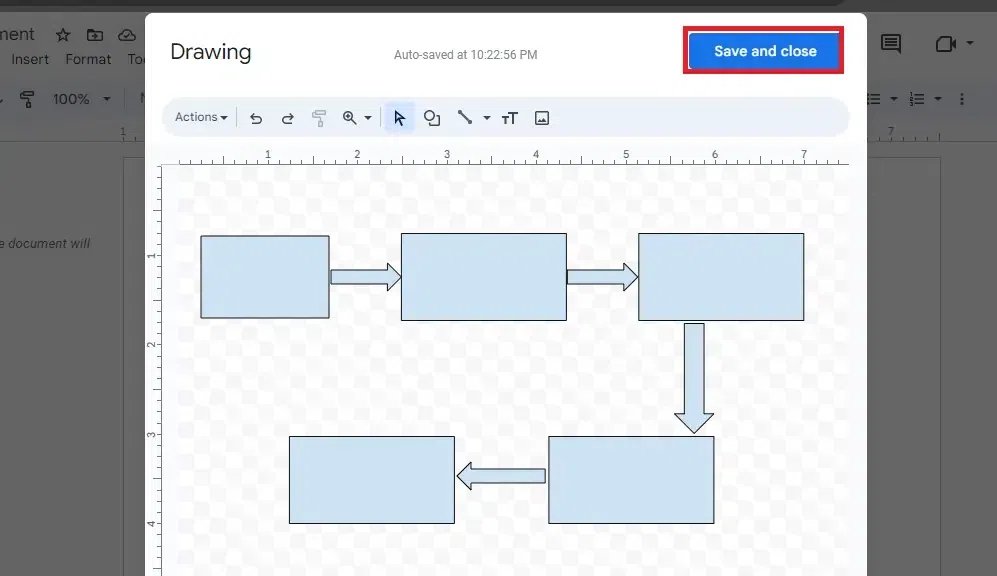
👁 Flowchart in Google Docs Click on "Save and Close" Step 4: Save and Insert
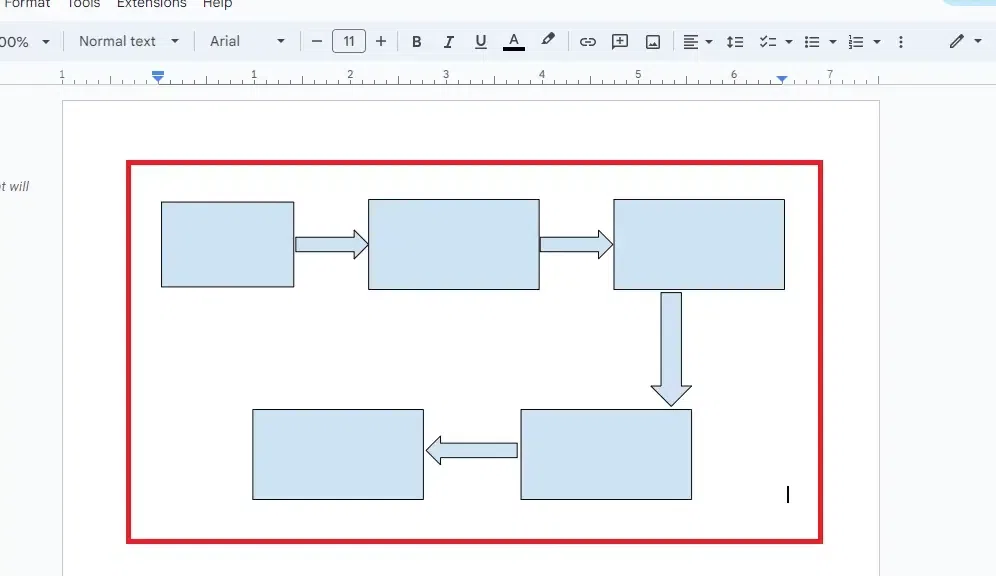
Click Save and Close to insert the flowchart into your document. 👁 Flowchart in Google Docs Flowchart Inserted Also Read: