|
VOOZH | about |
|
VOOZH | about |
Ever thought about making your Google Docs a bit more fun with some stars? Well, you're in luck! It's super easy – like adding a touch of magic to your work. In this quick guide, I'll walk you through turning your regular document into a cool space-themed creation. So, if you're up for making your words shine like stars, let's do it together!
👁 How-To-Add-Stars-In-Google-Docs
In this post, we will walk you through all the possible ways in which you can add stars in Google Docs and enhance the visual and creative appeal of your document.
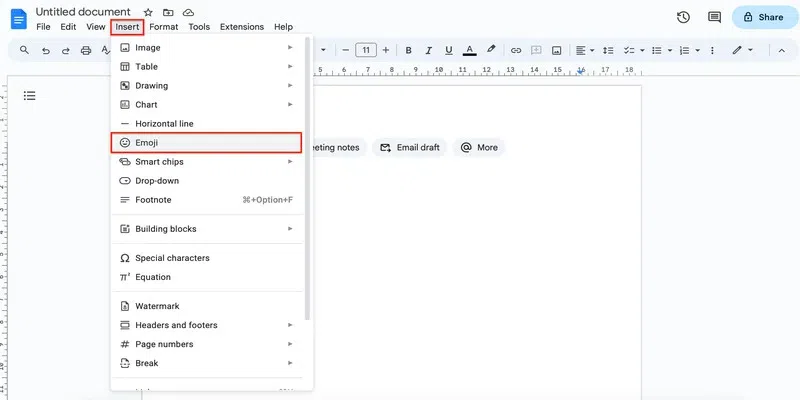
Go to the Insert tab and click on the Emoji option.
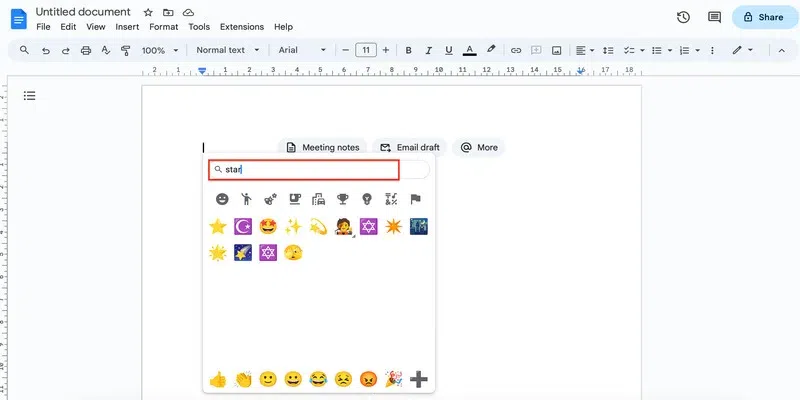
Search for the star emoji in the search box.
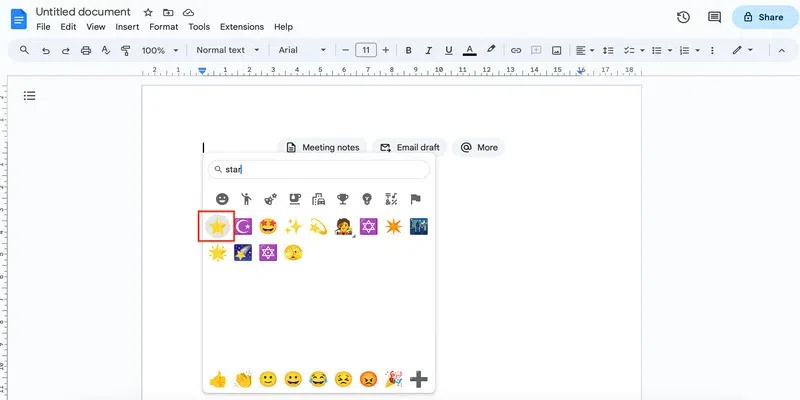
Click on the emoji that you want to insert.
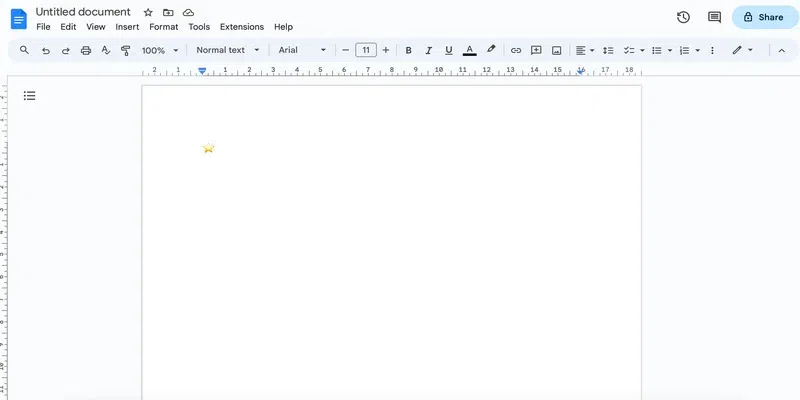
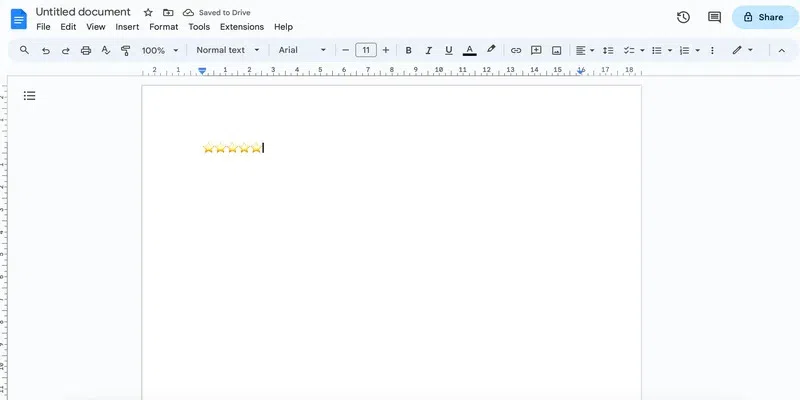
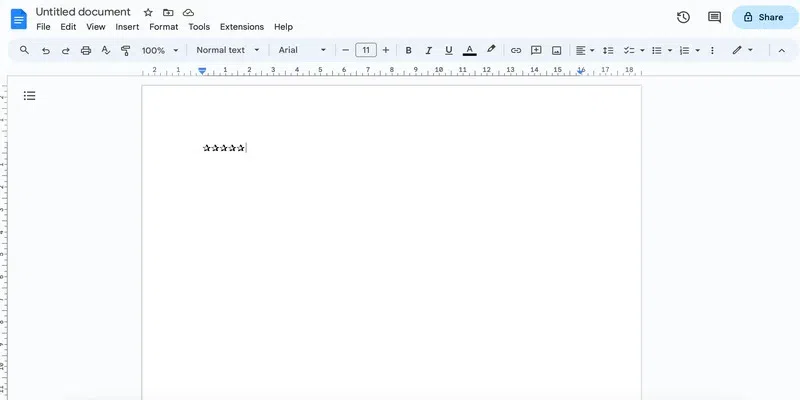
And here you have your star:
To add more stars, you can repeat these steps or simply copy and paste the inserted star emoji:
This method works just like the previous one however, you get a few more varieties of stars if you use this.
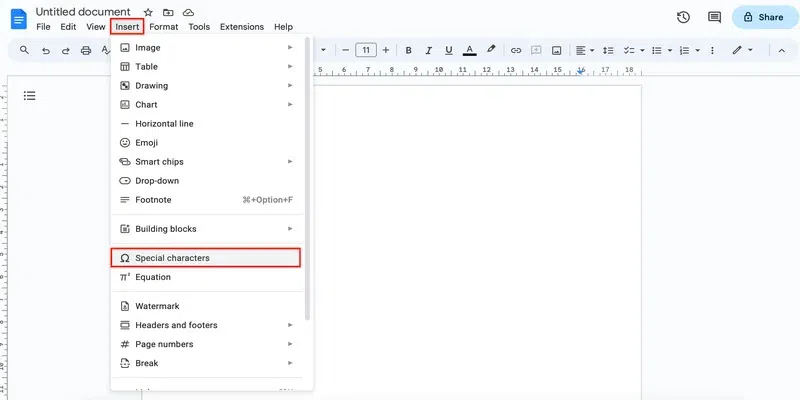
Click on the Insert tab and click on the Special characters option.
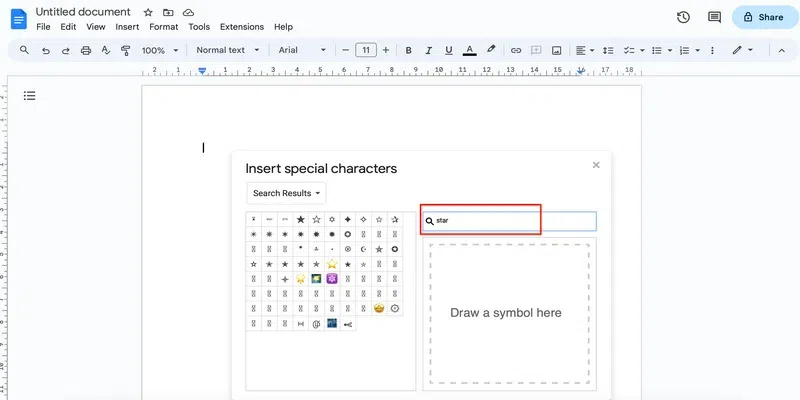
Search for the star symbol in the search box.
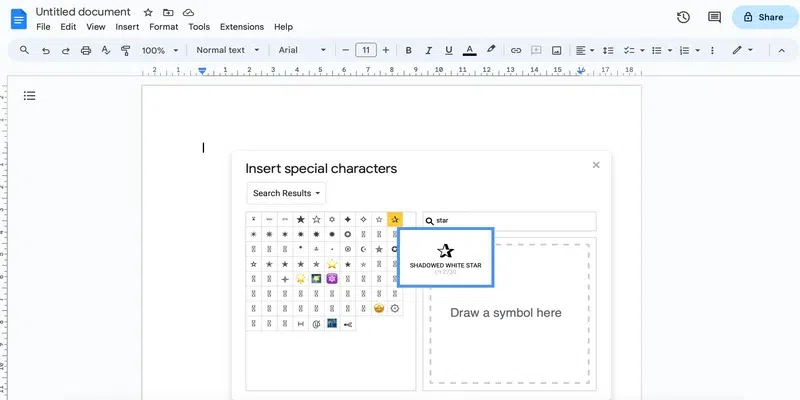
Click on the star that you wish to insert in the document.
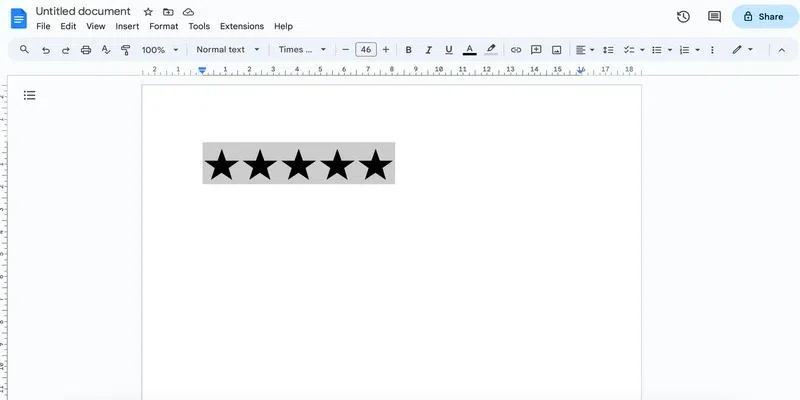
Note that you can click on the symbol as many times as you want to insert it without having to open the Special Characters menu each time:
This by far has to be the easiest option available out there to add stars in Google Docs.
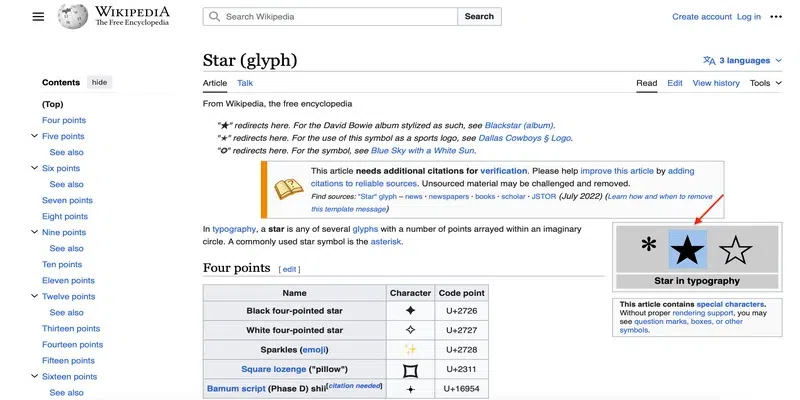
You can find a star symbol from Google and simply copy it using Ctrl + C.
Come back to your Google Docs and paste the star using Ctrl + V. You can repeat this as many times as you want to insert the Star.
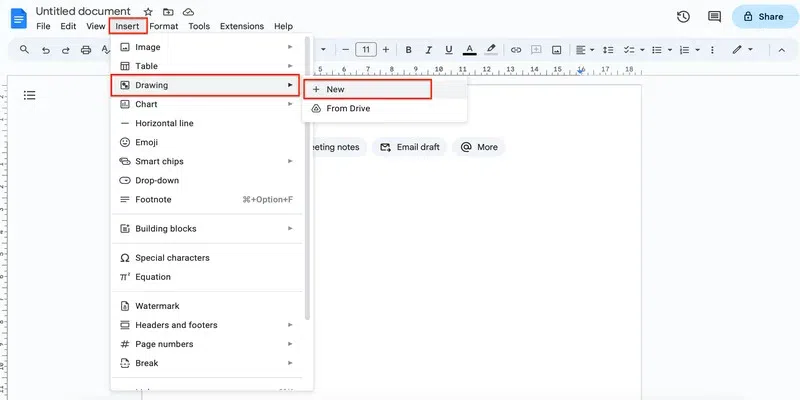
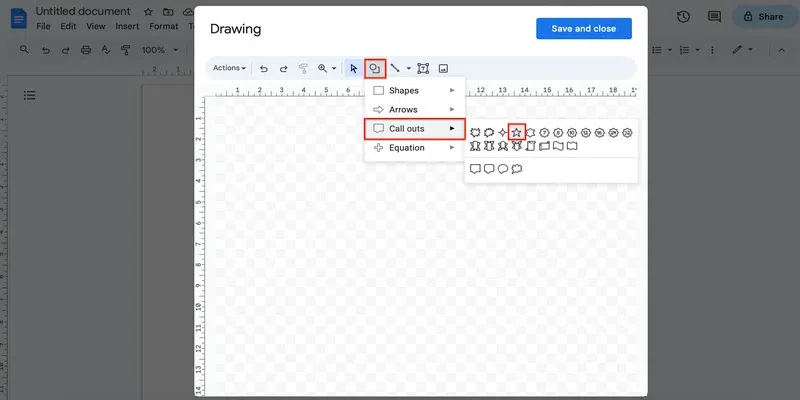
Go to the Insert tab and click on the New option from the Drawing drop-down.
In the drawing pane, go to the Shapes option and select the desired star symbol from the Call-outs drop-down.
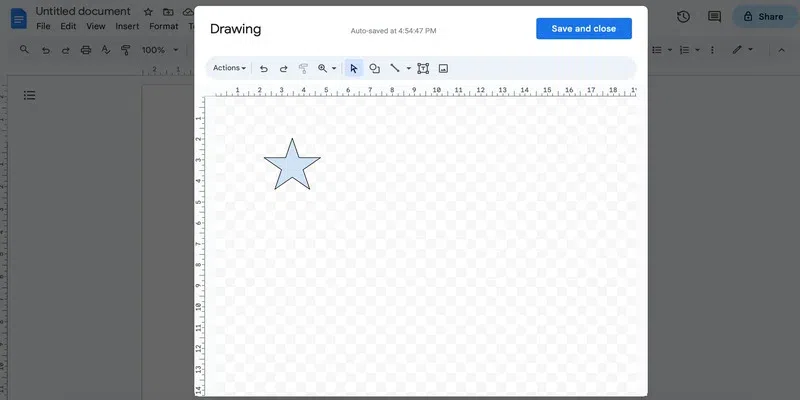
When the cursor changes to a plus sign, you can draw a star of the desired size.
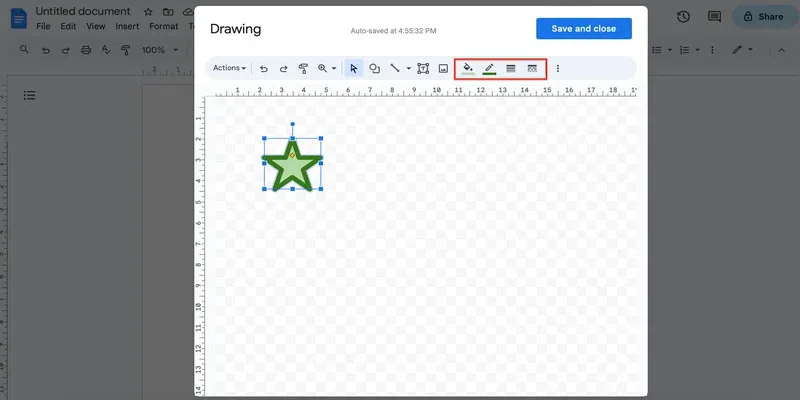
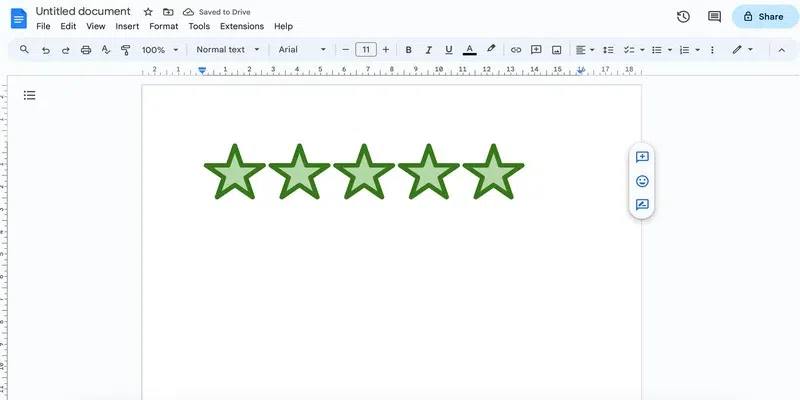
You can further customize the star using color and border options from the menu:
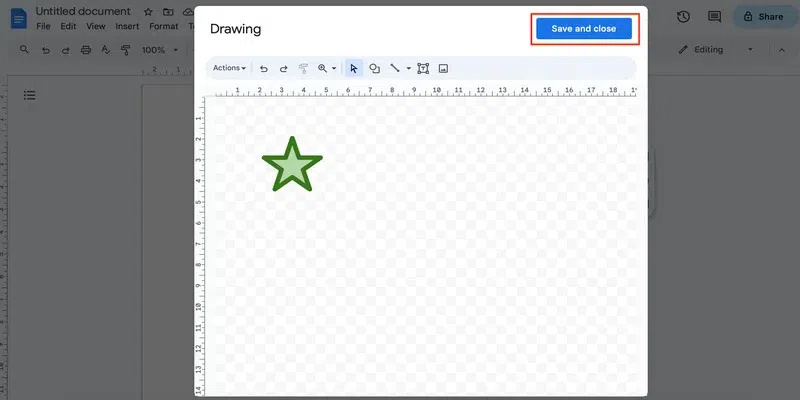
Once you are satisfied with how the star looks, click on save and close to insert the star in the document.
To add more such stars, simply copy and paste:
In this post, we saw how we can add stars in Google Docs. We can use any one of the three built-in direct options or we can simply copy and paste the stars from the internet. Stars are a great tool for adding a creative touch to your document. These come in really handy if you are working on a document that requires some kind of rating or review. In Google Docs, depending on the method that you are using, you can add the stars of your choice. Further, if you use the drawing tool, then you can get really creative and design the star of your choice. You can next check out how to add tally marks in Google Docs.
How to draw a star in Google Docs?
To draw a star in Google Docs, you can use the Google Docs drawing tool. Using this tool, you can customise and design the star to your liking.
How to add a half-star in Google Docs?
To add a half-star in Google Docs, simply copy and paste a half star from the internet. Or you can use the drawing tool. Just make a star and cover it up with a hollow, white bordered rectangle.
How to create stars in Google Docs?
You can create stars in Google Docs using the Google Docs drawing tool.