|
VOOZH | about |
|
VOOZH | about |
is a modern and feature-rich terminal that goes beyond traditional tools like PowerShell or Bash. It is not just a simple terminal for running shell commands; Warp integrates AI-powered assistance to help users resolve issues, generate code, and optimize workflows, making it a powerful tool for developers.
Warp also enables users to share and reuse code snippets easily, enhancing collaboration and productivity. It serves as an all-in-one solution for development needs, functioning as a code editor, AI assistant, collaboration tool, document viewer, and terminal, all while offering cross-platform syncing capabilities.
Warp Terminal is packed with a wide range of features designed specifically for engineers and developers who aim to build, ship, and collaborate faster. Here is what makes Warp stand out:
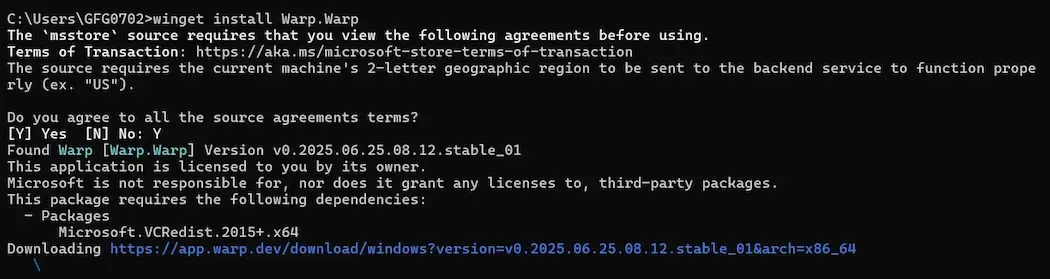
We can install Warp via WinGet or installer.
winget install Warp.Warp
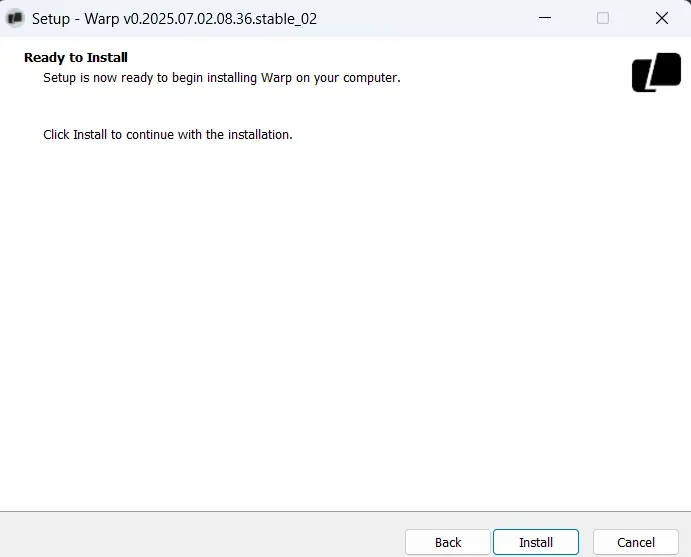
We can also download from the official website. After installation run the .exe file and then complete the installation.
We can install Warp on macOS using the official website or via Homebrew.
brew install --cask warp
Run the command and complete the setup.
We can install Warp via package managers or AppImage.
sudo apt install ./<file>.deb
sudo dnf install ./<file>.rpm
curl -L "https://app.warp.dev/download?package=appimage" -o Warp-x64.AppImage
chmod +x Warp-x64.AppImage
Lets see step by step how we can setup our Warp IDE:
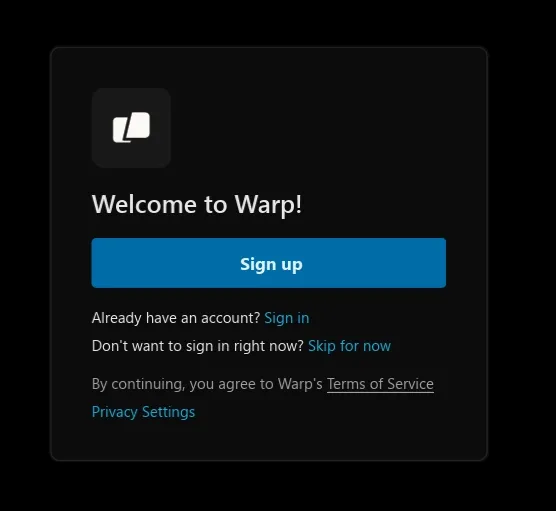
1. Sign In / Sign Up
2. Offline Use
3. Import Settings
4. Choose Your Shell
5. Customize Look
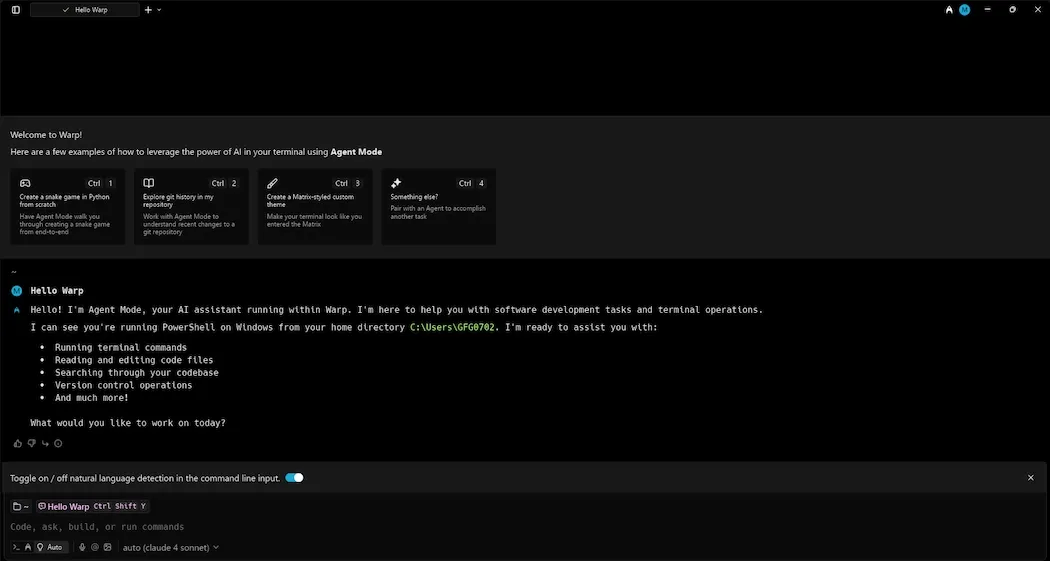
1. Warp Terminal: Warp helps us type commands faster by suggesting completions as we type. After running a command, it groups the input and output into blocks which we can share with our team. We can share a specific block or the entire session. If a command fails, we can use Agent Mode to get help with fixing it.
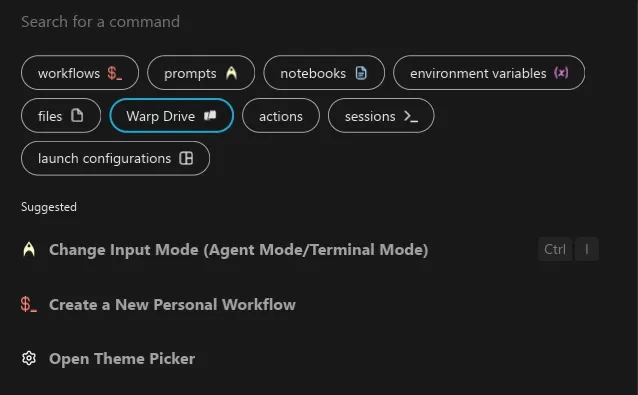
2. Command Palette: Warp’s Command Palette is inspired by modern IDEs allowing you to search for commands, prompts, notebooks, environment variables and more. Simply press Ctrl + Shift + P to open the palette and type your query.
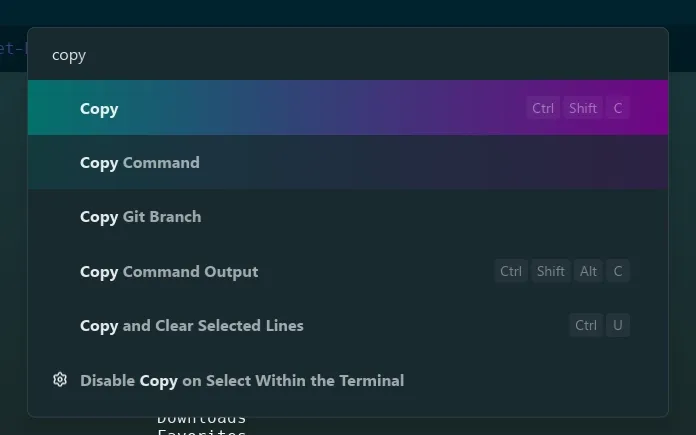
For example, typing "copy" will display options and shortcuts for commands related to copy.
3. Warp settings: Warp is highly customizable allowing you to tailor the terminal to your preferences. You can adjust the background, font, colors and layout and even choose from multiple themes. The setting option includes:
4. Warp AI: Warp Pair mimics the experience of pair programming by actively involving you in decision-making. It can be manually activated using the Ctrl + I keys. We can even type natural language questions instead of commands and it will interpret them and provide solutions. Warp AI also includes:
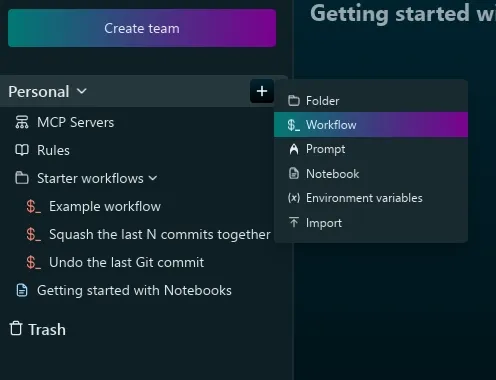
6. Warp Drive: Warp Drive brings the functionality of Jupyter Notebooks to the terminal. It provides a secure space to save and share interactive notebooks, workflows and prompts. These can be accessed via the Command Palette or shared with your team in one click. With Warp Drive we can:
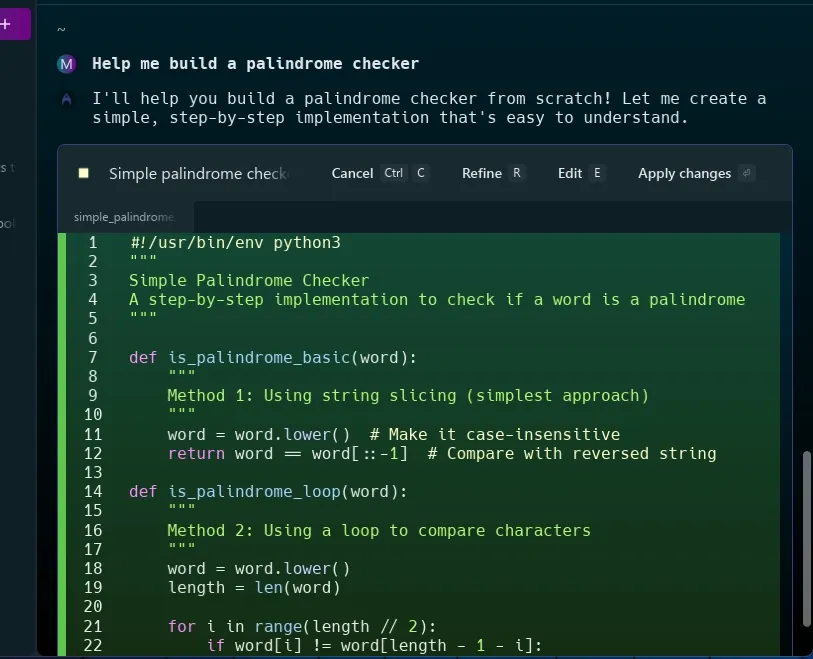
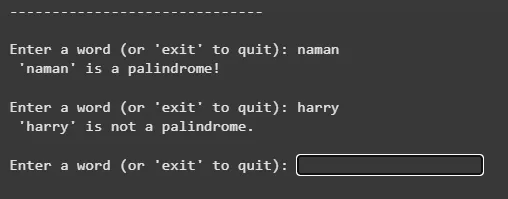
Let's run few commands and check for results. We will give command to get Palindrome series.
And to the prompt given, the Warp agentic AI gave the code in python to generate various palindrome series.