|
VOOZH | about |
|
VOOZH | about |
The NOT function in Google Sheets is a powerful logical tool used to reverse the result of a given condition. By inverting TRUE to FALSE and vice versa, the NOT function is essential for building more complex formulas and logical expressions. It helps refine your calculations, making it easier to create dynamic and flexible spreadsheets. Whether you're combining it with IF, or OR functions, the NOT function simplifies decision-making processes within your data, offering more control and precision over your results.
The NOT function in Google Sheets is a logical function that reverses the logical value of its argument. If the argument is TRUE, it returns FALSE; if the argument is FALSE, it returns TRUE. This function is often used to invert conditions or to apply additional logic in formulas.
=NOT(logical)
The Google Sheets NOT formula is a simple yet powerful tool to reverse logical values. Here’s how to use it effectively with examples of the NOT function:
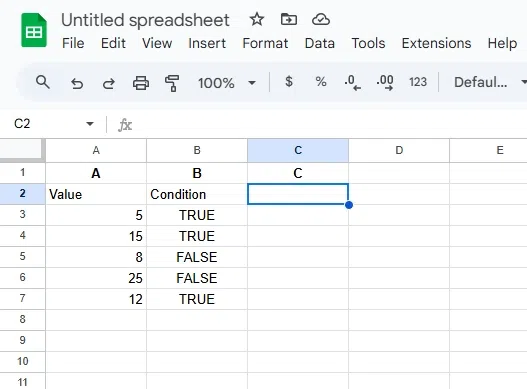
Click on the cell where you want to display the result of the formula.
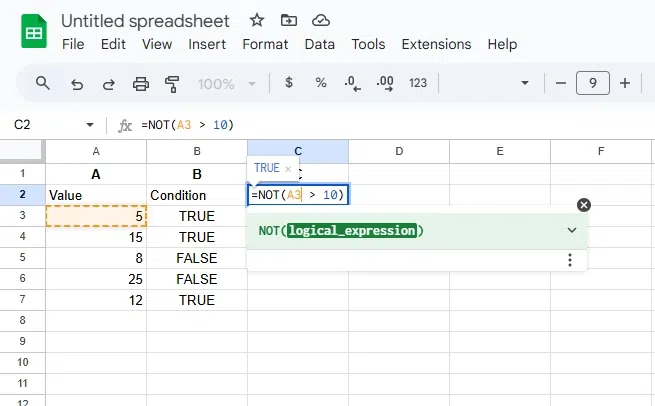
In the selected cell, type the formula:
=NOT(A3 > 10)
This formula will return FALSE if the condition A1 > 10 is true, and TRUE otherwise.
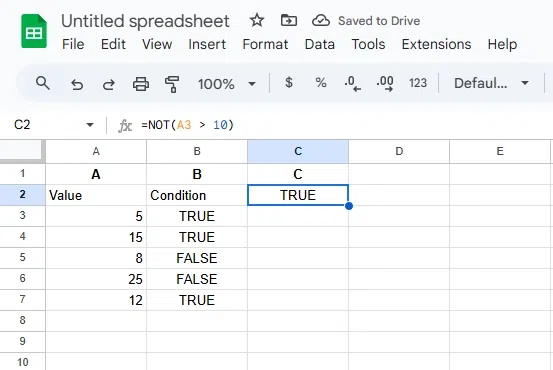
Hit Enter to apply the formula. The result will display TRUE or FALSE based on the logical condition.
The NOT function in Google Sheets is a versatile logical operator that reverses any condition, making it perfect for refining complex formulas. It works seamlessly with functions like IF, OR, and ISBLANK to create smarter, condition-based calculations. Here we will use NOT function with IF and OR making it complex to solve other problems.
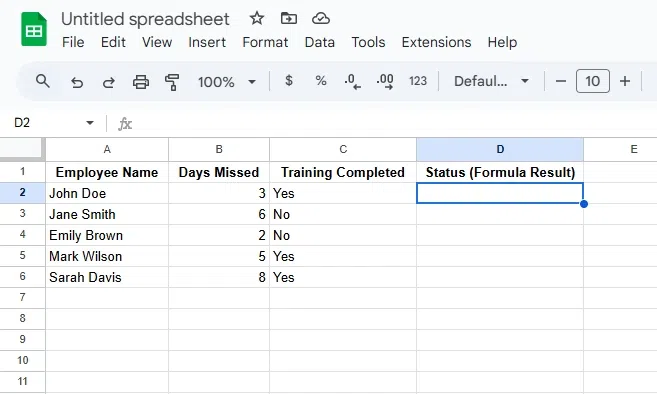
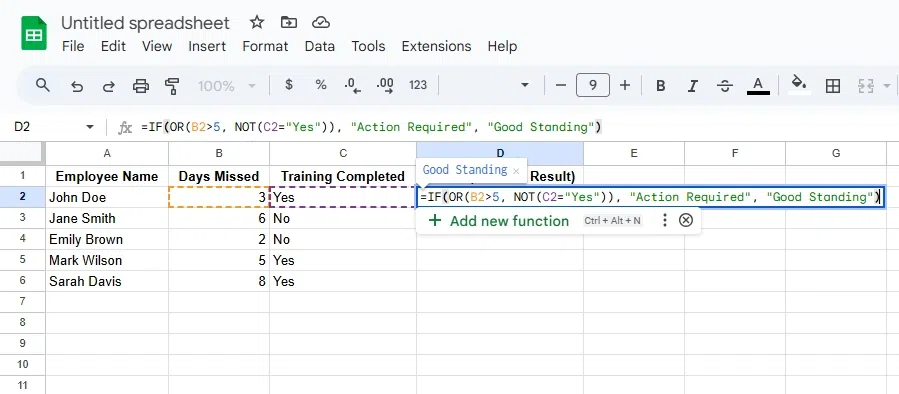
Create a table with columns for employee names, days missed, and training status. For instance:
In a new column (e.g., Column D), enter the following formula:
=IF(OR(B2>5, NOT(C2="Yes")), "Action Required", "Good Standing")
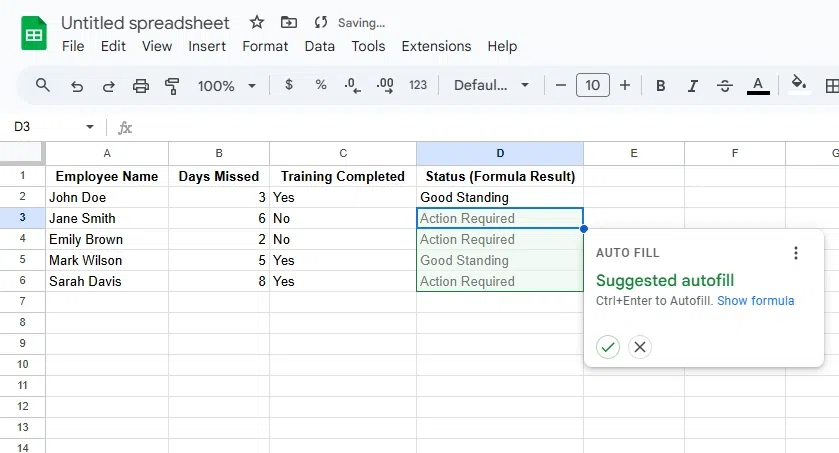
Drag the formula down the column to evaluate all employees.
With the Google Sheets NOT formula, you can handle data logic efficiently and customize spreadsheet workflows.
Also Read: