|
VOOZH | about |
|
VOOZH | about |
The OR function in Google Sheets is a logical function that helps evaluate multiple conditions within your dataset. It is particularly useful in data analysis and decision-making, as it allows you to assess whether any given criteria are true. By combining it with other logical functions in Google Sheets, like IF, you can create more dynamic and efficient formulas to handle complex scenarios, such as filtering data or creating conditional calculations.
The OR function in Google Sheets is a logical function that evaluates multiple conditions (criteria) and returns TRUE if at least one of the conditions is true, and FALSE if none are true. It is commonly used in combination with other functions like IF, allowing you to perform actions based on whether one or more conditions are met.
OR vs. AND: While OR returns TRUE if any condition is true, AND requires all conditions to be true.
=OR(A1>50, B1>50) checks if either is greater than 50.=AND(A1>50, B1>50) checks if both are greater than 50.Other Logical Operators: OR works well with other logical functions like NOT and IF to build complex formulas. For example, =IF(OR(A1>50, B1>50), "Pass", "Fail") combines logical operations for actionable outputs.
Here is the Google Sheets OR formula:
OR(logical_expression1, [logical_expression2,])
A1>50).B1<30). You can add as many conditions as needed.=OR(A1>50, B1<30)TRUE if A1 is greater than 50 or B1 is less than 30.=OR(TRUE, FALSE, A2="Yes")TRUE if any condition is true.=OR()FALSE because no conditions are provided.=OR("text", A1:A5)By understanding its syntax and valid use cases, you can effectively apply the OR function for logical evaluations in Google Sheets.
The OR function in Google Sheets is a powerful tool for decision-making with OR, as it helps you evaluate multiple conditions in a single formula. Follow these simple steps to use it effectively:
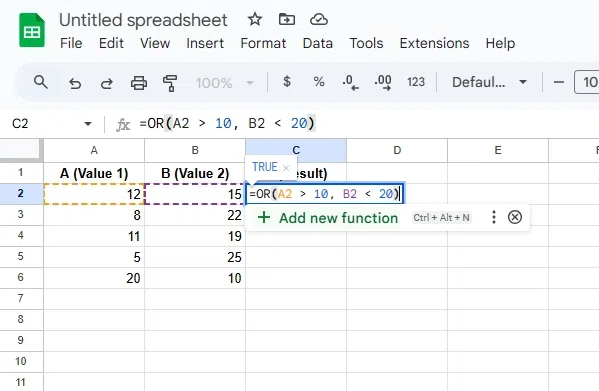
Choose the cell where you want to display the result of the formula, for example, C2.
Type the formula:
=OR(A2 > 10, B2 < 20)
The formula evaluates both conditions and returns:
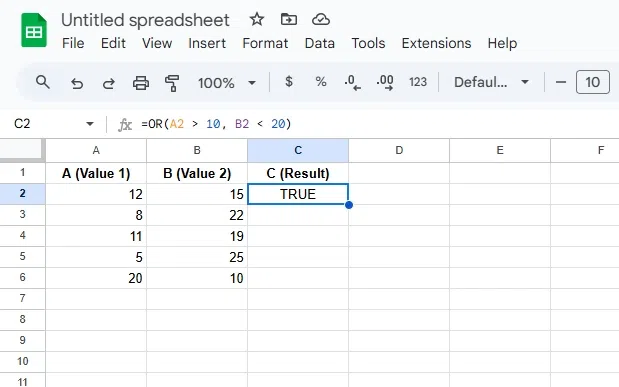
TRUE: If at least one condition is true.FALSE: If both conditions are false.Press Enter to apply the formula. Google Sheets will evaluate the conditions specified in the formula and display the result in the selected cell (C2 in this example).
A2 > 10 or B2 < 20 is true, the result in C2 will show TRUE.FALSE.The OR function in Google Sheets becomes even more powerful when combined with the IF function. This allows you to perform conditional logic using multiple criteria. By pairing these two logical functions in Google Sheets, you can create dynamic formulas that return specific results based on multiple conditions. Follow these simple steps to use it effectively:
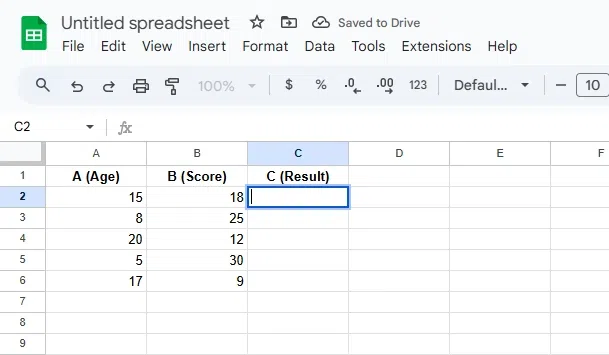
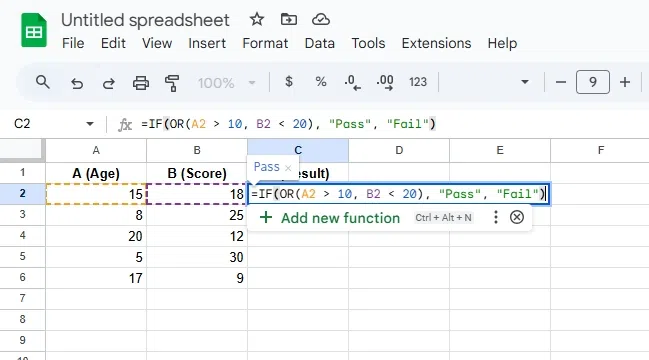
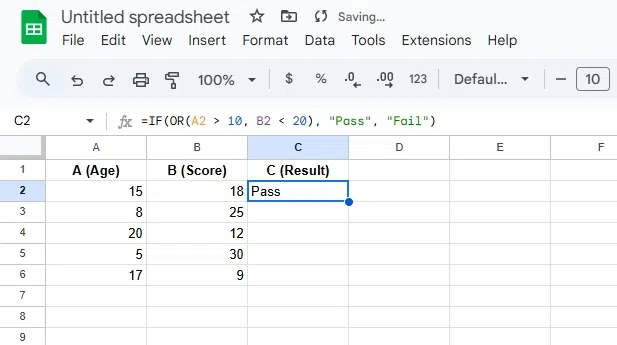
Choose the cell where you want the outcome, for example, C2. This will be the location where the outcome ("Pass" or "Fail") is displayed based on the conditions.
Type the formula:
=IF(OR(A2 > 10, B2 < 20), "Pass", "Fail")
OR(A2 > 10, B2 < 20): The OR function checks if either of the conditions is true:
A2 is greater than 10.B2 is less than 20.IF function returns "Pass" if at least one of the conditions in the OR function is true.IF function returns "Fail" if none of the conditions in the OR function are true.Hit Enter to apply the formula. Google Sheets evaluates the conditions and displays the result in the selected cell (C2 in this example):
A2 > 10 or B2 < 20 is true.FALSE UnexpectedlyThis happens when none of the conditions in the formula evaluate to TRUE. Double-check the logical expressions and ensure they reference the correct data and ranges.
Blank cells in logical tests are treated as FALSE, which can lead to unintended outcomes. Use the ISBLANK function to explicitly handle blank cells, e.g.,
=OR(A1>50, NOT(ISBLANK(A2)))
The OR function requires logical expressions like comparisons (A1>50). If text or unsupported data types are used in the formula, it may return errors. Ensure your data and conditions are compatible.
Using invalid ranges or omitting conditions can cause the function to fail. For example, =OR() without arguments returns FALSE. Always include at least one valid condition.
By addressing these issues, you can ensure the OR function works as intended in Google Sheets.
Also Read: