|
VOOZH | about |
|
VOOZH | about |
The AND function in Google Sheets is a logical tool that enables users to evaluate multiple conditions simultaneously. Whether you're creating complex formulas or performing data analysis, the AND function in Google Sheets allows you to test if all conditions are true at once. By returning TRUE Only when every condition is met, this function is essential for anyone looking to streamline their data management and improve decision-making in Google Sheets.
The AND function in Google Sheets is a logical function that evaluates multiple conditions and returns TRUE only if all the conditions are true. If any of the conditions is false, it returns FALSE. The AND function is frequently used in combination with other functions like IF to perform actions when multiple criteria are met.
To use the Google Sheets AND formula copy the below formula:
AND(logical_expression1, [logical_expression2,])
The AND function in Google Sheets helps you check multiple conditions at once. In this Google Sheets AND formula tutorial, you’ll learn how to use it to evaluate if all given conditions are true. Here's an example of how to combine the AND function in Google Sheets with examples to perform conditional checks across your data.
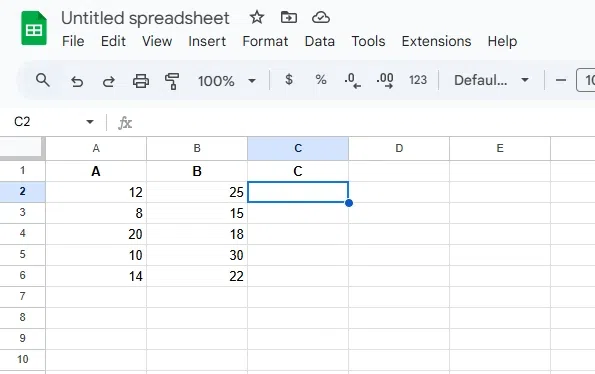
Choose the cell where you want to display the result of the formula. For example, C2.
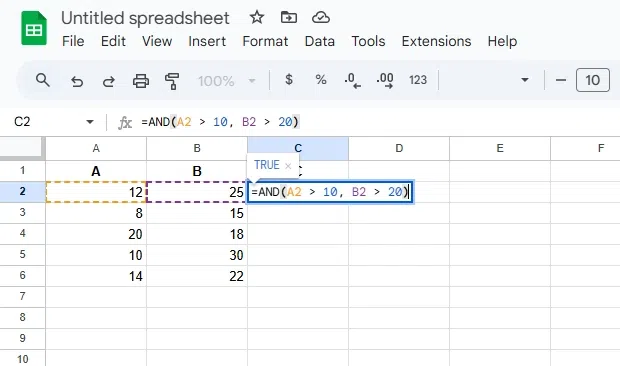
Type the formula:
=AND(A2 > 10, B2 > 20)
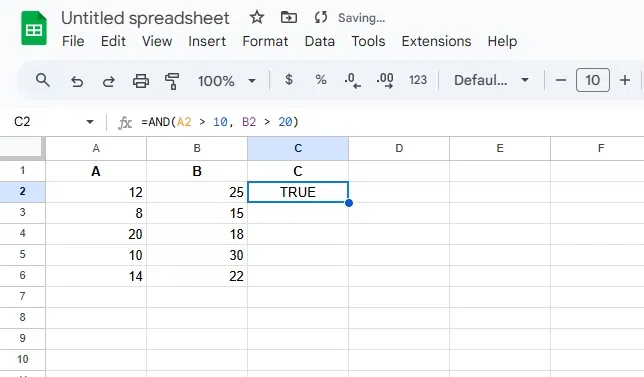
Press Enter to apply the formula. The cell will display TRUE if both conditions are true, otherwise FALSE.
Also Read: