|
VOOZH | about |
|
VOOZH | about |
Managing large datasets in Google Sheets can become overwhelming, especially when dealing with unnecessary or sensitive information. The ability to hide columns in Google Sheets helps keep your workspace clean and focused while unhiding columns in Google Sheets ensures you can access the data when needed. Whether you’re organizing a project or protecting confidential details, these features are essential for efficient spreadsheet management. In this guide, we’ll walk through how to hide, unhide, and even collapse columns, along with advanced tips for better column management.
Table of Content
Hidden columns in Google Sheets are columns that are temporarily concealed from view without deleting their data or affecting the spreadsheet's functionality. This feature is useful for organizing data and focusing on specific parts of a sheet without distractions.
You’re working on a financial report and want to hide raw data columns (like detailed calculations) while presenting summarized data to your team. Hiding columns allows you to declutter the sheet without permanently altering the layout.
Hidden columns are a practical tool for managing large datasets and improving workflow efficiency in Google Sheets.
To efficiently hide columns in Google Sheets and keep your data organized, follow these simple steps:
Click on the column letters (e.g., A, B, C) to select the columns you want to hide.
Right-click on the selected column letters to open the context menu. From the menu, click Hide columns. The selected columns will now be hidden.
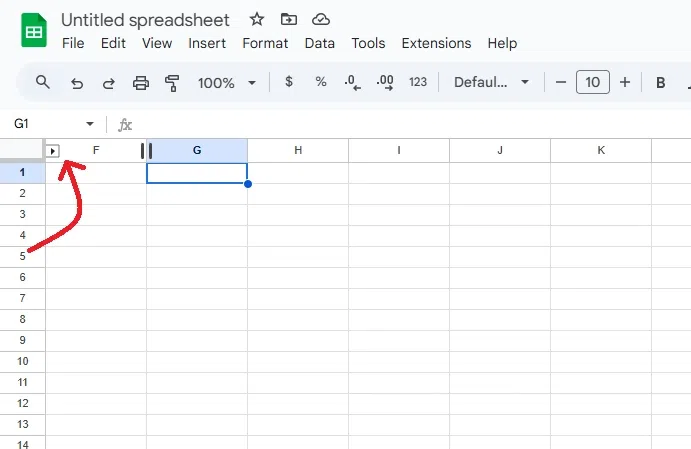
The hidden columns will now be replaced with a small arrow indicator (⯈⯇) between the adjacent column letters.
These steps ensure your selected columns are successfully hidden while keeping their data intact.
Follow these simple steps to show hidden columns in Google Sheets and make them visible again:
Alternatively, select the surrounding columns, right-click, and choose Unhide columns from the menu.
The previously hidden columns will now reappear, restoring the full data view in your sheet.
With these steps, you can easily unhide columns in Google Sheets and access the data you need.
Master Google Sheets column management with these advanced tips to hide, unhide, and collapse columns effectively:
Step 1: Protect and Hide Columns
Step 2: Share with View-Only Access
These advanced techniques make managing columns in Google Sheets more efficient, helping you customize visibility and organization for specific workflows.
Also Read:
Hiding and unhiding columns in Google Sheets offers a simple yet powerful way to maintain clarity and efficiency in your spreadsheets. By mastering these techniques, you can keep your workspace organized, focus on relevant data, and protect sensitive information. Once you’re comfortable with these features, consider exploring advanced tools like filtering, conditional formatting, or data validation to further enhance your data management skills.