|
VOOZH | about |
|
VOOZH | about |
The YEAR function in Google Sheets is a straightforward yet essential tool for working with date-related data. It allows users to quickly extract the year from a date, making it invaluable for tasks like organizing data by year, tracking trends over time, or generating time-based reports.
The YEAR function in Google Sheets allows you to extract the year from a given date. It’s especially useful when you’re analyzing date-specific trends, organizing data by year, or preparing yearly reports.
The YEAR function extracts the year from a given date by converting the date into its numeric year value.
=YEAR(date)Parameters:
Let’s go through how to use the YEAR function to extract the year from a given date in Google Sheets.
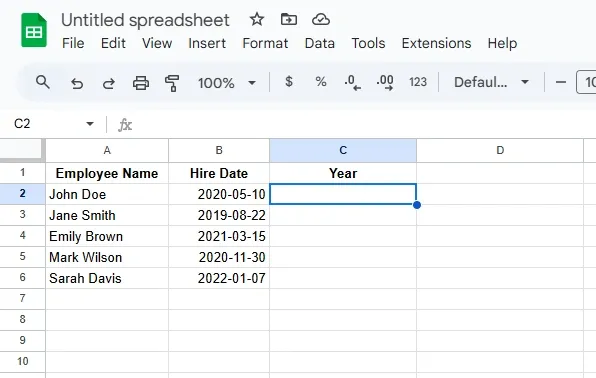
Create a table with sample dates and select a cell to enter the formula.
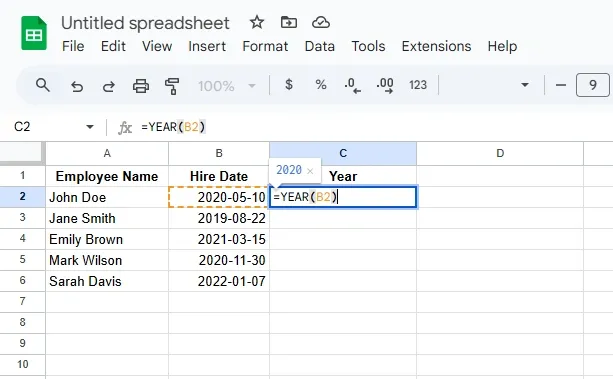
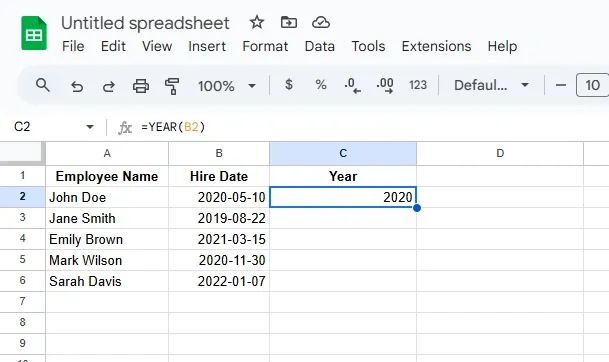
In a new column (e.g., Column C), use the YEAR function to extract the year from the "Hire Date" column. Enter the following formula in cell C2:
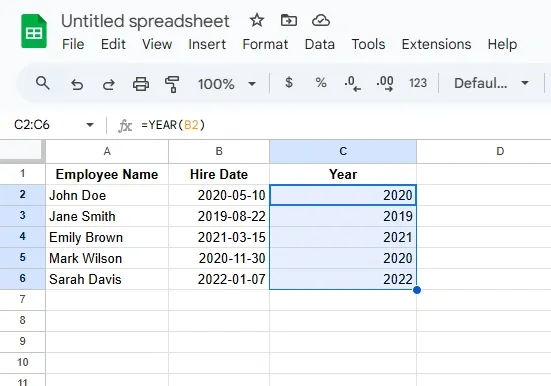
=YEAR(B2)Click and drag the fill handle (bottom-right corner of C2) to apply the formula to the rest of the rows. This will extract the year from each "Hire Date" and display it in the new column.
The new column will display the year extracted from each "Hire Date" value.
Also Read:
The YEAR function in Google Sheets extracts the year from a date, allowing you to isolate and work with just the year portion of a date. It’s especially useful for organizing data by year, creating time-based reports, and analyzing trends over time.
To use the YEAR function, simply type:
=YEAR(date)
Replace date with the cell reference or a date you want to extract the year from. For example, =YEAR(A1) will return the year from the date in cell A1.
Yes, the YEAR function can handle various date formats in Google Sheets, including dates in text format. However, it's important to ensure that the cell contains a valid date format so that the YEAR function can correctly extract the year.
To extract the year from a date, use the YEAR function. For example, if cell A1 contains "2023-05-15", the formula =YEAR(A1) will return 2023.
Absolutely! The YEAR function can be combined with other functions like IF, COUNTIF, and FILTER to create more advanced calculations. For instance, you could use =IF(YEAR(A1)=2023, "This year", "Other year") to categorize data based on the year.