|
VOOZH | about |
|
VOOZH | about |
The MODE function in Google Sheets is used to find the most frequent number in a dataset. It helps you quickly identify the value that appears most often, which can be useful for analyzing trends, identifying patterns, or summarizing data.
Here is the syntax of the MODE function in Google Sheets
=MODE(value1, [value2, ])
To use the Google Sheets MODE function follow the steps given below:
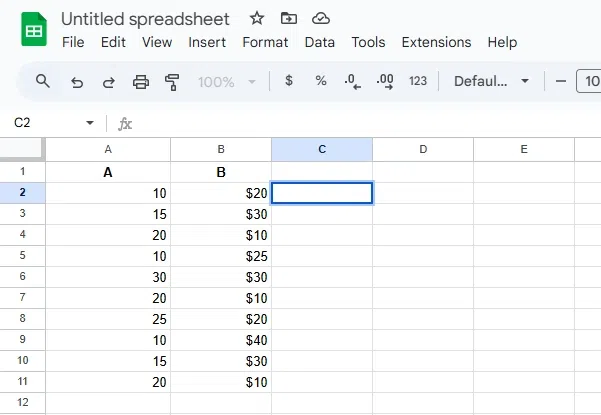
Click on the cell where you want the result (most frequent value) to appear.
Type the following formula:
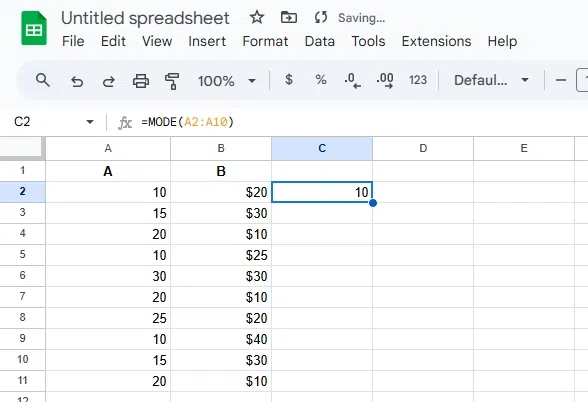
=MODE(A2:A10)
For example, =MODE(A2:A10) to find the most frequent value in the range A2 to A10.
Press Enter. The most frequently occurring value in the specified range will be displayed in the selected cell.
The MODE.SNGL function returns the most frequently occurring value (mode) from a dataset. If multiple values have the same frequency, it will return the first one it encounters. This function is useful for identifying a single trend or common value in your data.
=MODE.SNGL(value1, [value2,])
where,
The MODE.SNGL function in Google Sheets helps you find the most frequent value in a dataset. Follow these steps to use it effectively:
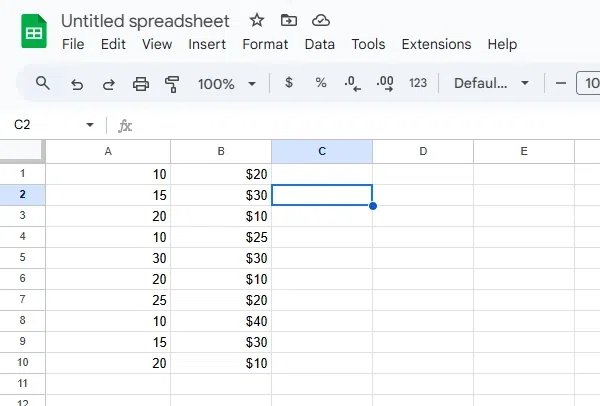
Click on the cell where you want the result to appear (e.g., C1).
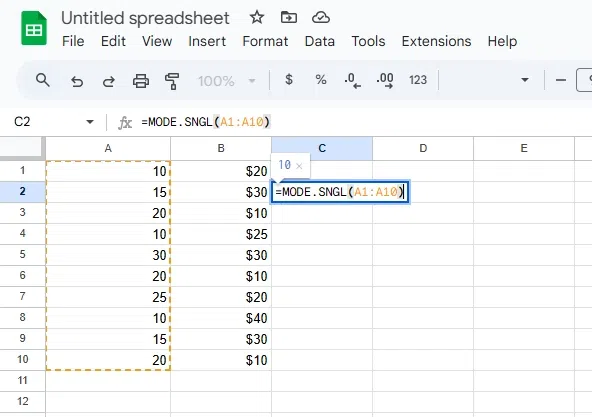
Type the formula:
=MODE.SNGL(A1:A10)
This will calculate the most frequent value in column A.
Press Enter. The most frequent value in column A (which is 10) will appear in the selected cell.
The MODE.MULT function returns an array of all values that occur most frequently in a dataset. If multiple values share the same highest frequency, it will list all of them. This is useful for analyzing datasets with multiple modes. Note: MODE.MULT is available in Excel but not in Google Sheets natively.
=MODE.MULT(value1, [value2,])
The MODE.MULT function in Google Sheets helps you find all the most frequent values in a dataset, making it ideal for analyzing datasets with multiple modes. Here's how to use it:
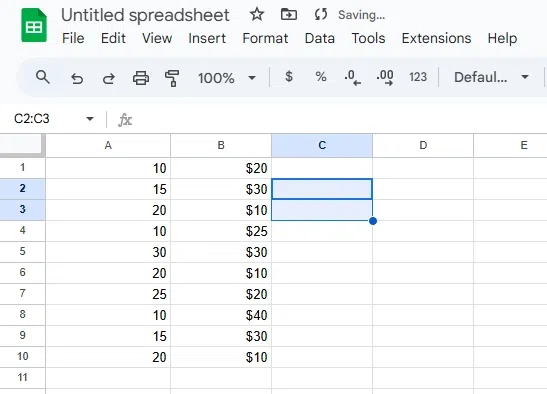
Select multiple adjacent cells where you want to display all the modes (e.g., C1:C2).
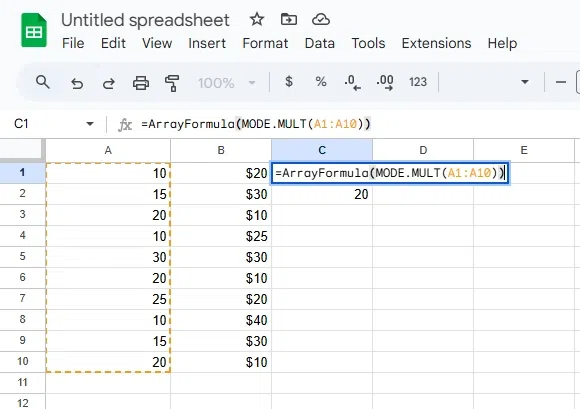
Type the formula:
=MODE.MULT(A1:A10)
This will calculate all modes in column A.
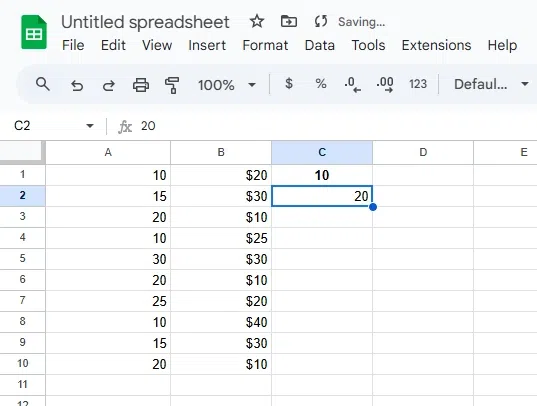
Press Ctrl+Shift+Enter instead of just Enter. The result will display all modes as an array in the selected cells.
While using the MODE function in Google Sheets, you might encounter some common errors. Here are a few to watch out for:
The MODE function returns a #N/A error if there are no repeating values in the dataset. Ensure the range contains at least one value that occurs more than once.
The MODE function ignores non-numeric data, but including such cells can lead to unexpected results or errors. Double-check your range for text or blank cells.
If the specified range is empty, the function will return a #N/A error. Ensure your dataset has valid numbers.
The MODE function in Google Sheets (equivalent to MODE.SNGL) only displays the first mode it encounters. For datasets with multiple modes, consider additional techniques or workarounds
Also Read: