|
VOOZH | about |
|
VOOZH | about |
Anaconda is a popular open-source distribution of Python and R and is widely used in the field of data science, machine learning and scientific computing. It contains Jupyter, Sypder, etc. that are well capable of handling a large number of data sets and processes as per user's need. It helps in simplifying package management and deployment, which promotes a robust environment for various data-related tasks. In this guide, we're going to walk you through the steps to install Anaconda on Windows OS.
Table of Content
We will start the process by downloading the Anaconda Installer by following these three simple steps as mentioned below:
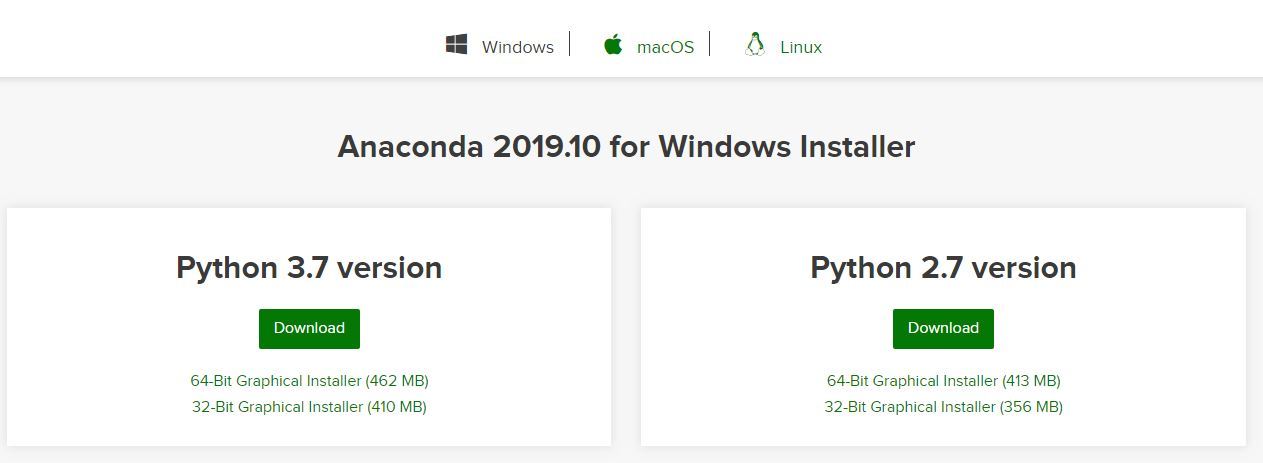
Head over to anaconda.com and install the latest version of Anaconda. Make sure to download the “Python 3.13.1 Version” for the appropriate architecture.
👁 Anaconda-version-download-WindowsChoose the appropriate installer (based on your system's architecture) i.e. 64-bit (for modern systems) or 32-bit (for older systems).
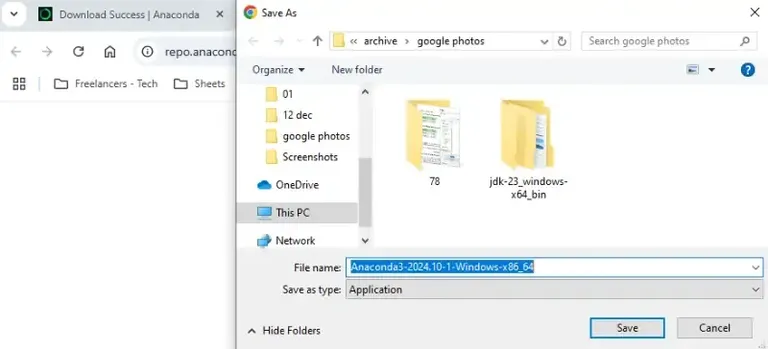
Select the location where you want to save the file and click "Save" to start the downloading process.
Once the installation is completed, now we will see how to setup Ananconda Installer in your Windows PC. Let's check it out:
Navigate to the downloaded file, make a double-click on the .exe file and start the installation process.👁 Getting-Started-with-Installation
Follow the on-screen instructions, read the license terms & agreement and proceed ahead.
Select Just Me if you want the software to be used by a single User else you can select All Users (for all users on the system) 👁 Installation-Type
Select the path where you wish to install the file extractor and click "Next" to proceed ahead.
Choose whether to add Anaconda to your system PATH environment variable. Also note that adding Anaconda to the PATH can interfere with other software and decide whether to register Anaconda as the default Python.
Click Install to start the Anaconda Installation process.
During the installation, it will ask you to visit the official site to get PyCharm in your Windows PC. You can choose to visit or may skip as well.
Once the installation gets complete, click Finish to complete the process.
Once the installation gets completed, you may verify the installation by following these steps.
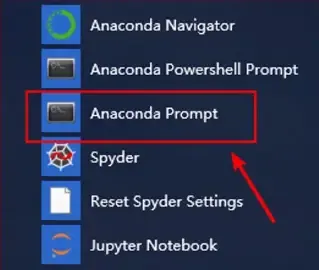
Click on the Start Menu and search for "Anaconda Prompt" and click to open it.
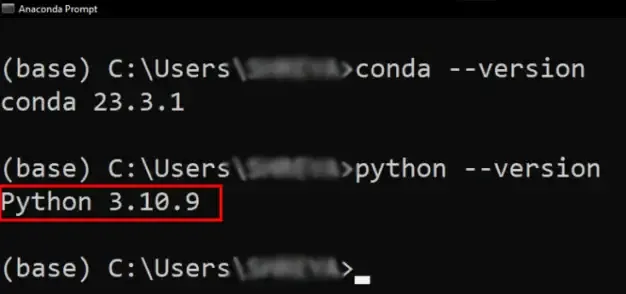
Type the following command to check for the installed version of conda:
conda --versionOnce the downloading, installing and verification of the Anaconda for Windows PC is competed, you can start exploring and get familiar with its features.
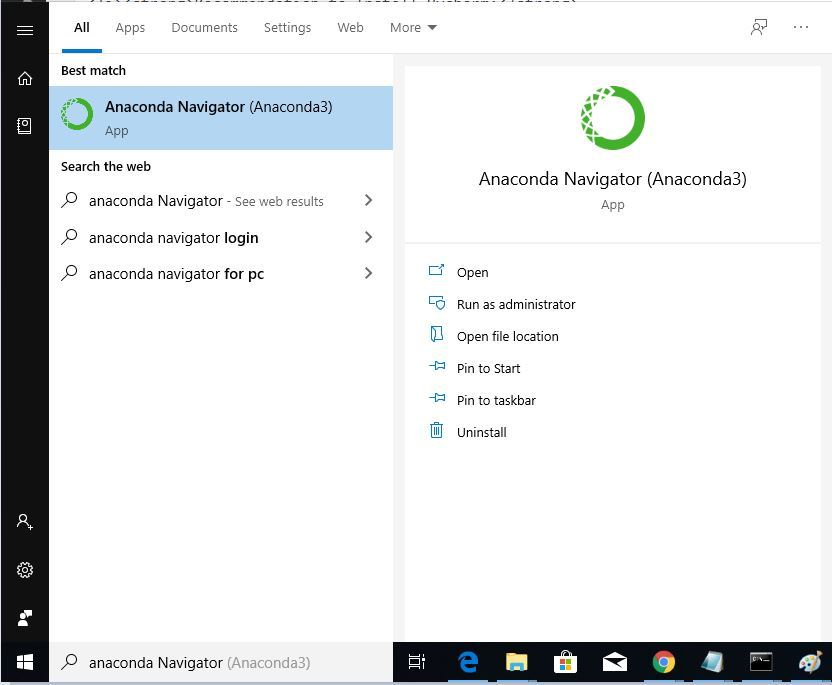
Once the installation process is done, Anaconda can be used to perform multiple operations. To begin using Anaconda, search for Anaconda Navigator from the Start Menu in Windows PC.
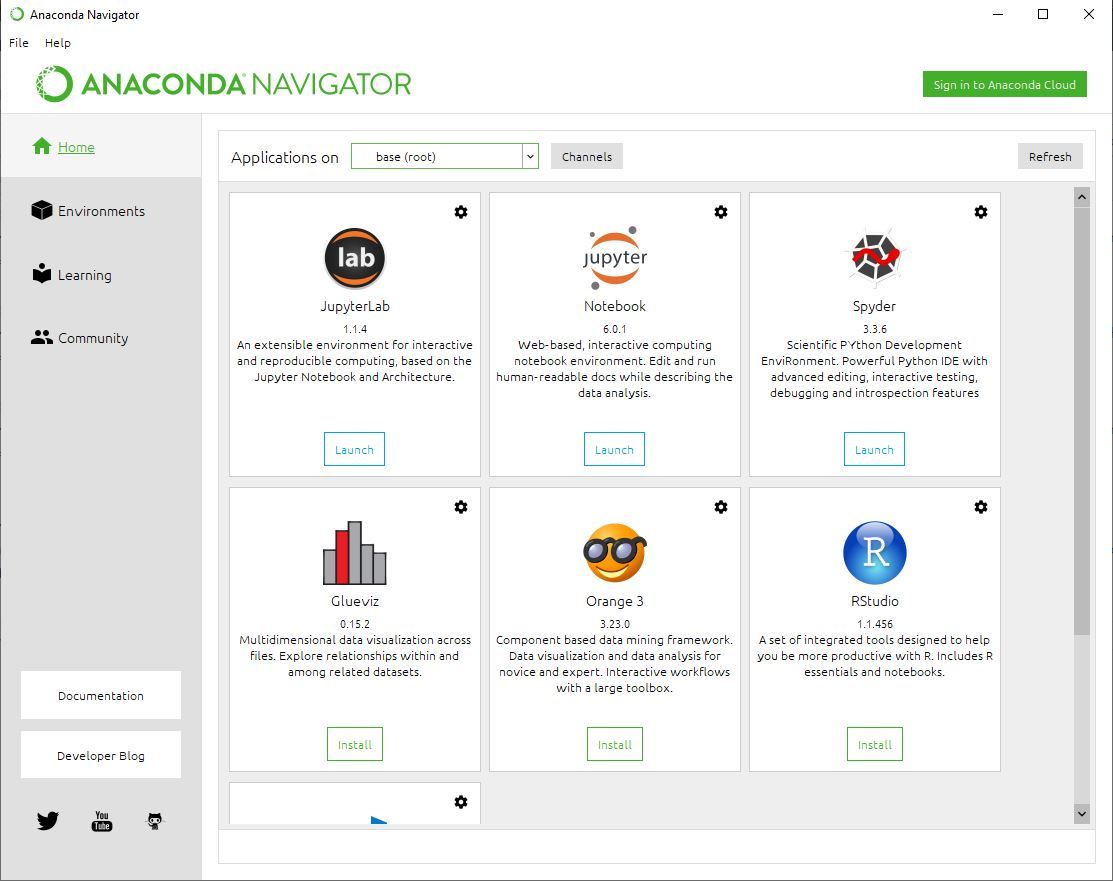
👁 Anaconda-Navigator-SearchYou can use navigator to create new environments, install packages, and launch applications without using the command line.
👁 Anaconda-Navigator-WindowBy following the above mentioned steps in this guide, you can now easily Download, Install, Verify and Start working on Anaconda on your Windows system. It is one of the most powerful tool for data scientists, analysts, and is also very helpful in machine learning projects with its wide range of tools and libraries. You can start working on this and create different projects seamlessly.