IntelliJ IDEA is one of the most popular Integrated Development Environments (IDE) used for Java development. It provides features like code completion, debugging, refactoring, and project management that make Java programming easier and faster. IntelliJ IDEA supports programming languages such as Java, Kotlin, Scala, and Groovy.
- Provides smart code completion and debugging tools.
- Helps in project management and JAR file creation.
- Available for Windows, Linux, and macOS platforms.
Procedure
- Start a project
- Create a package and Java class
- Write and run the Java program
- Package the project into a JAR file
- Configure the JAR application
- Execute the JAR file
Step-by-Step Implementation of First Java Application
Step 1: Start a New Project
- Open IntelliJ IDEA.
- Click on New Project from the welcome screen.
👁 ImageName the project as 'GeeksForGeeks' (you can choose any name), and then clicks finish.
👁 ImageStep 2: Create Package and Java Class
- On the left-hand side of the project window, select src -> new -> java class
- Enter the package and class name: GeeksForGeeks.gfg
👁 ImageStep 3: Write the Java Program
Write the following Java program inside the class file:
Example: Java demo program to print message on the console
Step 4: Run the Java Program
- Click the Run button present at the top-right corner of IntelliJ IDEA.
- The output will appear in the console window.
👁 ImageAfter writing the above code you may check if it is finishing with exit code '0' or not.
Step 5: Package the Project into JAR File
- Go to:
File -> Project Structure -> Artifacts
👁 ImageClick on the addition sign(+) as you can see in the following image.
👁 ImageStep 6: Build the Artifact
- Navigate to: Build -> Build Artifacts
👁 ImageStep 7: Configure JAR Application
- Select Edit Configurations from the toolbar.
- Click the + icon and choose JAR Application.
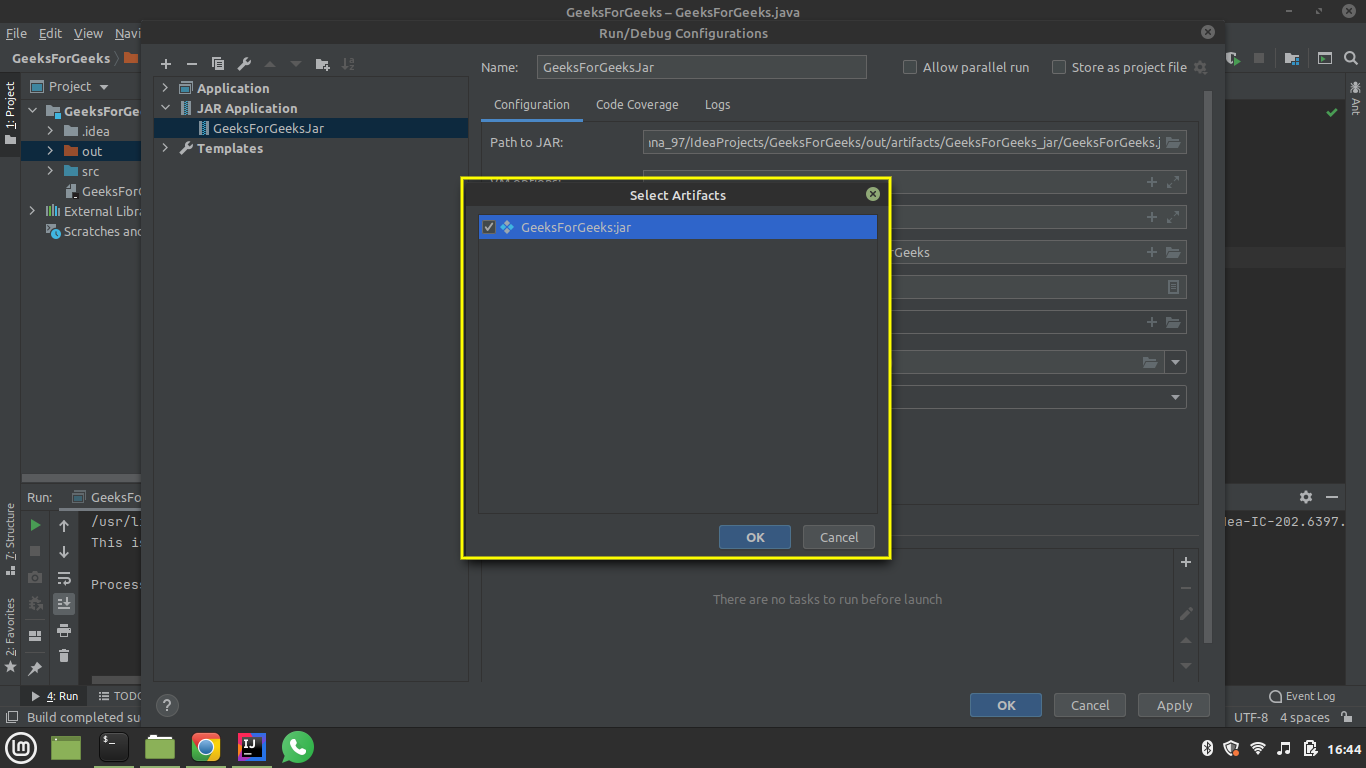
👁 Image👁 ImageChoose the output directory for the .jar file.
👁 ImageSelect GeeksForGeeks : jar from the menu and press OK.
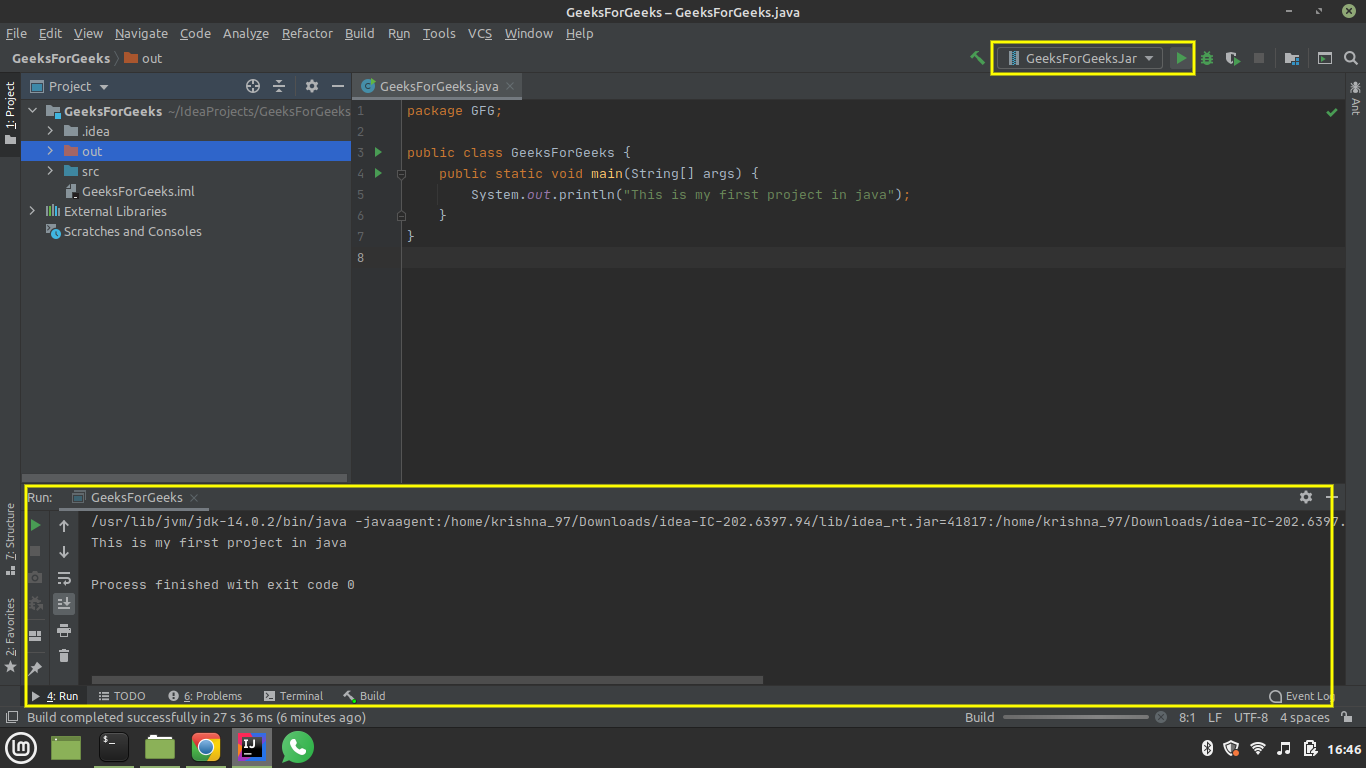
👁 ImageStep 8: Execute the JAR File
- Select the JAR configuration from the toolbar.
- Click Run.
👁 Image