JavaFX is a modern Java GUI toolkit used for building desktop, web, and rich internet applications. It provides a wide range of UI controls, multimedia support, animations, charts, and 3D graphics. JavaFX follows a scene-based architecture and offers cross-platform compatibility across Windows, macOS, and Linux.
Used for creating rich graphical user interfaces (GUI).
Supports CSS styling and FXML-based UI design.
Provides built-in animation, effects, and multimedia features.
Architecture of JavaFX
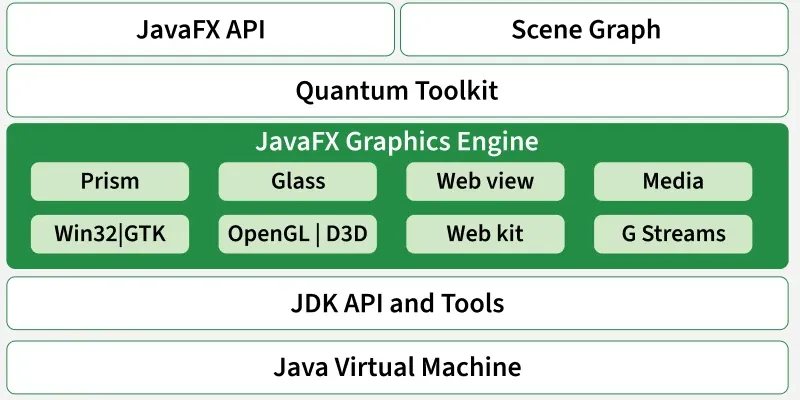
JavaFX architecture is layered to support the development of rich, cross-platform GUI and web applications.
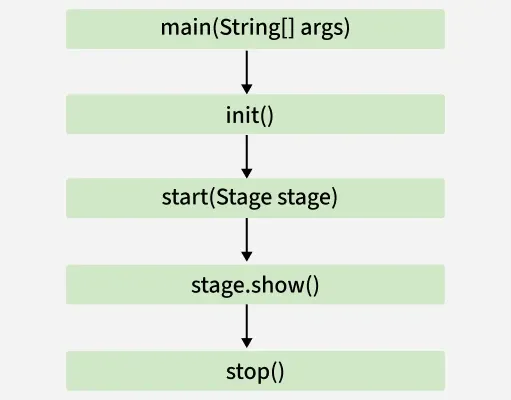
init(): Runs first on a non-GUI thread; used for initialization (e.g., loading resources).
start(Stage primaryStage): Main entry point; create scenes, UI, event handlers and show the stage.
Running: Application event loop handles user interactions and animations.
stop(): Called on exit; used for cleanup and resource release.
JavaFX 2D Shapes
2D shapes are geometrical figures represented on the X-Y plane (e.g., line, circle, rectangle, ellipse). In JavaFX, these shapes are part of the javafx.scene.shape package, with the Shape class as their root.
Steps to create a 2D shape
Instantiate the shape class (e.g., Line line = new Line();).
Set properties like coordinates or dimensions using setters (e.g., line.setStartX(0); line.setEndX(100);).
Add to Group and display (root.getChildren().add(line);).
Common 2D Shape Classes
Line: Connects two points (Line).
Rectangle: Four sides with right angles (Rectangle).
Ellipse: Curve with two focal points (Ellipse).
Circle: Special ellipse with coinciding foci (Circle).
Arc: Portion of a circle/ellipse (Arc).
Polygon: Shape formed by connecting line segments (Polygon).
CubicCurve: Degree 3 curve (CubicCurve).
QuadCurve: Degree 2 curve (QuadCurve).
JavaFX 3D Shapes
3D shapes are solid geometrical figures represented using X, Y, Z coordinates. Unlike 2D shapes, 3D shapes require a Z coordinate. JavaFX supports 3D shapes through the javafx.scene.shape package, with Shape3D as the base class.
Types of 3D Shapes
1. Predefined 3D Shapes: Built-in classes:
Sphere: Perfectly round object (Sphere).
Box: Rectangular prism with height, width, depth (Box).
Cylinder: Solid with circular bases (Cylinder).
2. User-defined 3D Shapes: Using TriangleMesh to define custom points, faces and textures.
PerspectiveCamera cam = new PerspectiveCamera(); scene.setCamera(cam);
4. Add to scene graph and stage:
Group root = new Group(); root.getChildren().add(box); Scene scene = new Scene(root,500,500); primaryStage.setScene(scene); primaryStage.show();
JavaFX Effects
Effects in JavaFX enhance the visual appearance of nodes. They belong to the javafx.scene.effect package, with Effect as the root class. Effects are applied to nodes using the setEffect() method.
Steps to apply an effect
Create the node (e.g., ImageView).
Instantiate the effect class (e.g., Glow glow = new Glow();).
Set effect properties (e.g., glow.setLevel(0.9);).
Apply to node (imgView.setEffect(glow);).
Common JavaFX Effects
Blend: Combines pixels of two inputs.
Glow: Brightens pixels for a glowing effect.
Bloom: Similar to Glow, highlights bright areas.
Shadow: Creates a blurred duplicate behind a node.
Text in JavaFX is represented by the Text class (javafx.scene.text), which also extends the Shape class, allowing both text-specific and shape properties.
Steps to Create text
Instantiate the Text class -> Text txt = new Text();
Set properties -> txt.setText("Hello"); txt.setX(50); txt.setY(50);
Add to group -> root.getChildren().add(txt);
Key Properties
Font: setFont(Font value)
Line Spacing: setLineSpacing(double)
Text Content: setText(String)
Underline: setUnderline(boolean)
Coordinates: setX(double), setY(double)
JavaFX Animations
Animations in JavaFX simulate motion by applying sequential transformations to nodes. All animation classes extend javafx.animation.Animation and are in the javafx.animation package.
Steps to apply an animation
Create the node -> e.g., Square sqr = new Square(100,100,100,100); sqr.setFill(Color.GREEN);
Instantiate the animation -> e.g., RotateTransition rotate = new RotateTransition();
Set animation properties -> duration, axis, cycle count, etc.
Attach target node -> rotate.setNode(sqr);
Play animation -> rotate.play();
Common Animation Classes
ScaleTransition: Animates scaling of a node.
TranslateTransition: Moves a node from one location to another.
RotateTransition: Rotates a node around a specified axis.
FadeTransition: Animates node opacity over time.
StrokeTransition: Animates node stroke color between two values.
FillTransition: Animates node fill color between two values.
PathTransition: Moves a node along a specified path.
ParallelTransition: Runs multiple animations on a node simultaneously.
JavaFX Transformations
Transformations modify the appearance or position of nodes, such as translation, rotation, scaling and shearing. All transformation classes belong to javafx.scene.transform.
Common Transformation Classes
Rotate: Rotates a node by a specific angle (Rotate).
Translate: Moves a node in X/Y/Z directions (Translate).
Scale: Changes the size of a node (Scale).
Shear: Slants the node along X/Y axes (Shear).
JavaFX UI Controls
JavaFX provides a rich set of UI controls (buttons, text fields, lists, tables, etc.) for building interactive applications. All controls are part of the javafx.scene.control package and extend the Control class.
Common JavaFX Controls:
Button: Clickable button for user actions.
Label: Displays text or images .
TextField: Single-line text input
TextArea: Multi-line text input.
CheckBox: Selectable box .
RadioButton: Selectable option within a group.
ComboBox: Drop-down list (ComboBox).
ListView: Displays a scrollable list of items (ListView).
TableView: Displays tabular data.
Slider: Selects a numeric value from a range (Slider).
Layouts in JavaFX are top-level container classes that manage the arrangement of UI elements (scene-graph nodes). They act as parent nodes for all other nodes. All layout classes belong to the javafx.scene.layout package, with Pane as the root class.
BorderPane: Arranges nodes in top, bottom, left, right, center. (javafx.scene.layout.BorderPane)
GridPane: Arranges nodes in a grid of rows and columns (ideal for forms). (javafx.scene.layout.GridPane)
FlowPane: Arranges nodes in a flow, wrapping horizontally or vertically. (javafx.scene.layout.FlowPane)
StackPane: Arranges nodes on top of each other like a stack. (javafx.scene.layout.StackPane)
JavaFX Event Handling
JavaFX allows user interaction with applications through events, which are notifications that something has happened (e.g., mouse click, key press, scroll). Handling events efficiently is key for responsive applications.
Processing Events
Events inform the application about user actions.
All events are instances of javafx.event.Event or its subclasses.
Common event classes include MouseEvent, KeyEvent, ScrollEvent, DragEvent.
Users can also create custom events by extending Event.
Types of Events
Foreground Events: Triggered by direct user interaction (clicks, key presses, selection, scrolling).
Background Events: Triggered without user action (e.g., OS interrupts, operation completion).