|
VOOZH | about |
|
VOOZH | about |
Spring Boot CLI (Command Line Interface) is a command line software or tool. This tool is provided by the Spring framework for quickly developing and testing Spring Boot applications from the command prompt. In this article, we will discuss the command line runner interface in the spring boot.
The Spring Boot CLI (Command Line Interface) is present in the dependency of the org.springframework.boot that is used to quickly bootstrap the spring boot application. CLI in Spring Boot contains a run method() that is executed after the application startup. Geeks, if you do find it not easy to grasp then do have a prior understanding of Spring Initializr.
Method Invoked: Overridden run()
void run(String ..arg)
We do use it because if it's associative advantages of using the command line runner interface as described. Debugging is very easy using the command-line runner interface because we don't need to explicitly call the particular resources via API calls, we can call them using the run method of the command-line runner interface that is executed immediately once the application is executed successfully.
Let's understand the functionality of this interface using an example, so Spring Initializr is basically a web-based tool using which we can easily generate the structure of the Spring Boot project. It also provides various different features for the projects expressed in a metadata model. This model allows us to configure the list of dependencies that are supported by JVM. Here, we will create the structure of an application using a spring initializer, therefore, to do this, the following steps as depicted below media sequentially as follows:
Step 1: Go to Spring Initializr
Step 2: Fill in the details as per the requirements. For this application:
Project: Maven
Language: Java
Spring Boot: 3.2.0
Packaging: JAR
Java: 17
Dependencies: Spring Web
Step 3: Click on Generate which will download the starter project.
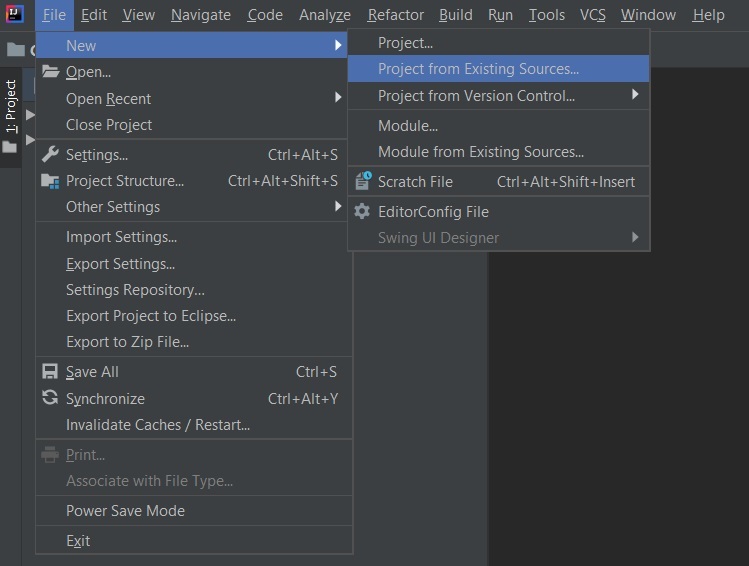
Step 4: Extract the zip file. Now open a suitable IDE and then go to File->New->Project from existing sources->Spring-boot-app and select pom.xml. Click on import changes on prompt and wait for the project to sync.
Note: In the Import Project for Maven window, make sure you choose the same version of JDK which you selected while creating the project.
Step 5: Go to src -> main -> java -> SpringBootAppApplication
SpringBootAppApplication.java
This application is now ready to run.
Step 6: Run the SpringBootAppApplication class and wait for the Tomcat server to start where the default port is already set.
Tip: The default port of the Tomcat server is 8080 and can be changed in the application.properties file.
If we want to print something, we have to call using API that is why the command-line runner interface is helpful.

.png)