|
VOOZH | about |
|
VOOZH | about |
A CheckBox is a special kind of button in Android which has two states either checked or unchecked. The Checkbox is a very common widget to be used in Android. There are many other uses of the CheckBox widget like offering a list of options to the user to choose from and the options are mutually exclusive i.e., the user can select more than one option. This feature of the CheckBox makes it a better option to be used in designing multiple-choice questions application or survey application in android.
kotlin.Any
↳android.view.View
↳ android.view.TextView
↳ android.widget.Button
↳ android.widget.CompoundButton
↳ android.widget.CheckBox
| XML Attributes | Description |
|---|---|
| android:id | Used to uniquely identify a CheckBox |
| android:checked | To set the default state of a CheckBox as checked or unchechek |
| android:background | To set the background color of a CheckBox |
| android:text | Used to store a text inside the CheckBox |
| android:fontFamily | To set the font of the text of the CheckBox |
| android:textSize | To set the CheckBox text size |
| android:layout_width | To set the CheckBox width |
| android:layout_height | To set the CheckBox height |
| android:gravity | Used to adjust the CheckBox text alignment |
| android:padding | Used to adjust the left, right, top and bottom padding of the CheckBox |
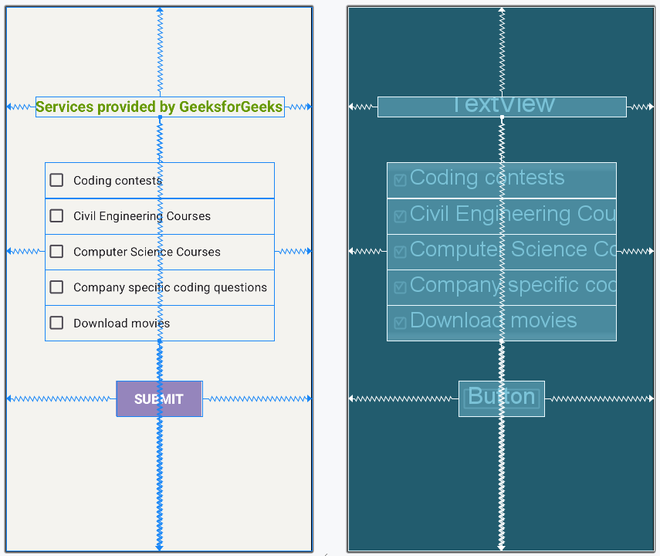
This example demonstrates the steps involved in designing an activity that consists of 5 CheckBox and an additional submit button to display a toast message that user response has been recorded.
Note: Following steps are performed on Android Studio version 4.0
We will understand the CheckBox Implementation in Android Kotlin with a example. Below is the Step by Step implementation for it.
Below is the code for activity_main.xml file to add 5 CheckBox. A normal "submit" button is also added to display a toast message that user response has been recorded.
Below is the code for MainActivity.kt file to access CheckBox widget in Kotlin file and show a proper message whenever the submit button is clicked by the user.