Android
ChronoMeter is user interface control which shows timer in the view. We can easily start up or down counter with base time using the chronometer widget. By default,
start() method can assume base time and starts the counter.
Generally, we can create use
ChronoMeter widget in XML layout but we can do it programmatically also.
First we create a
new project by following the below steps:
- Click on File, then New => New Project.
- After that include the Kotlin support and click on next.
- Select the minimum SDK as per convenience and click next button.
- Then select the Empty activity => next => finish.
Modify activity_main.xml file
In this file, we use the LinearLayout widget along with a button to start or stop the meter and also set attributes for both of them.
Update strings.xml file
Here, we update the name of the application using the string tag. We also other strings which can be used in MainActivity.kt file.
Create ChronoMeter in MainActivity.kt file
First, we declare a variable
meter to create the Chronometer in Kotlin file.
val meter = Chronometer(this)
 // set color and size of the text
 meter.setTextColor(Color.BLUE)
 meter.setTextSize(TypedValue.COMPLEX_UNIT_IN,0.25f)
also, add the chronometer in layout using
val linearLayout = findViewById
then, we access the button from the xml file and set
setOnClickListener to start and stop the timer.
val btn = findViewById<Button>(R.id.btn)
 btn?.setOnClickListener(object : View.OnClickListener {...}
AndroidManifest.xml file
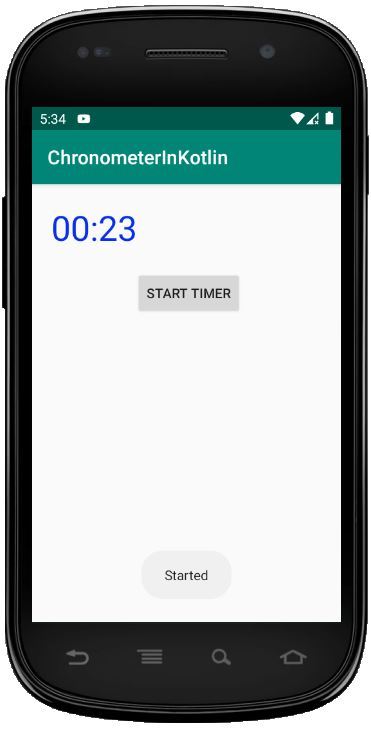
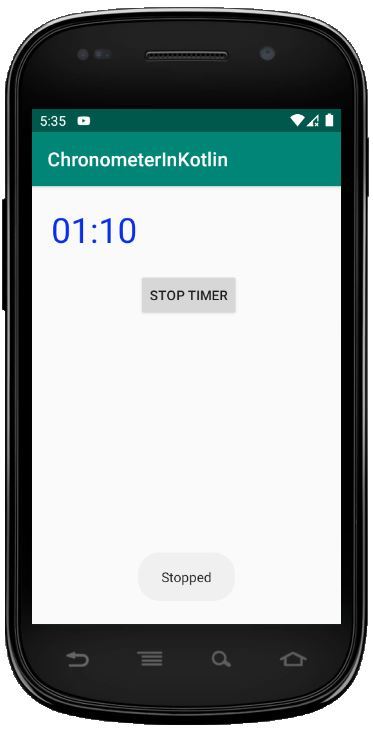
Run as Emulator: