|
VOOZH | about |
|
VOOZH | about |
Android Radio Button is bi-state button which can either be checked or unchecked. Also, it's working is same as Checkbox except that radio button can not allow to be unchecked once it was selected. Generally, we use RadioButton controls to allow users to select one option from multiple options. By default, the RadioButton in OFF (Unchecked) state but we can change the default state of RadioButton by using android:checked attribute.
Following steps to create new project:
| XML Attributes | Description |
|---|---|
| android:id | Used to uniquely identify the control |
| android:gravity | Used to specify how to align the text like left, right, center, top, etc. |
| android:checked | Used to specify the current state of radio button |
| android:onClick | It’s a name of the method to invoke when the radio button clicked. |
| android:textSize | Used to set size of the text. |
| android:textColor | Used to set color of the text. |
| android:textStyle | Used to set style of the text. For example, bold, italic, bolditalic etc. |
| android:maxWidth | Used to make the view be at most this many pixels wide. |
| android:minWidth | Used to make the view be at least this many pixels wide. |
| android:background | Used to set the background of the radio button control. |
| android:visibility | Used to control the visibility. |
We will follow some steps to demonstration of application using Radio Button, follow the steps mentioned below:
In android, we use radio buttons inside RadioGroup to combine set of radio buttons into single group and it will make sure that user can select only button from the group of buttons.
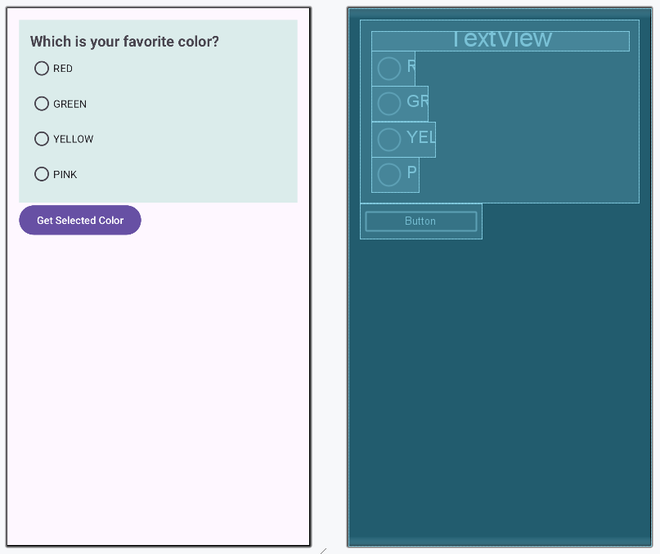
Here, we are trying to implement a scenario where you need to select your favorite color. So, in activity_main.xml file, we have added 4 radio buttons inside a radio group. Each button represent a color. Now, only one radio button can be selected at a time.
Now, we will access this widget in kotlin file and show a proper message whenever a radio button is selected.
In MainActivity.kt file, we have accessed radio group in which I have added four radio buttons. Then, we have set a listener to display toast message whenever radio button selection changes. Since AndroidManifest.xml file is very important in any android application, we are also going to mention it here.