|
VOOZH | about |
|
VOOZH | about |
Kotlin Multiplatform or KMP is a technology that allows you to write code once and run it anywhere natively. This native feature motivates developers to prefer KMP over other cross-platform frameworks. KMP supports mobile operating systems such as Android and IOS, web, and desktop operating systems such as Windows, macOS and Linux. It is an open-source, cross-platform development tool created by JetBrains that allows developers to create apps for multiple platforms while still reusing code.
Kotlin Multiplatform Mobile (KMM) which later was updated to just Kotlin Multiplatform (KMP) was announced as a mistake by Hadid Hariri, in Droidcon Berlin 2023, where he stated that "Kotlin Multiplatform Mobile (KMM) was a mistake because it was misleading, and from now on we should only refer to Kotlin Multiplatform (KMP)".
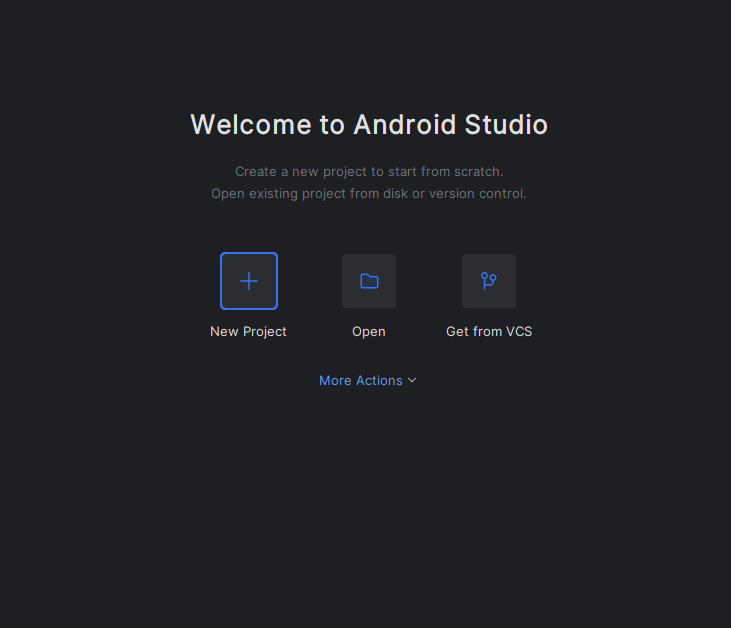
Step 1: Start Android Studio and create a new project.
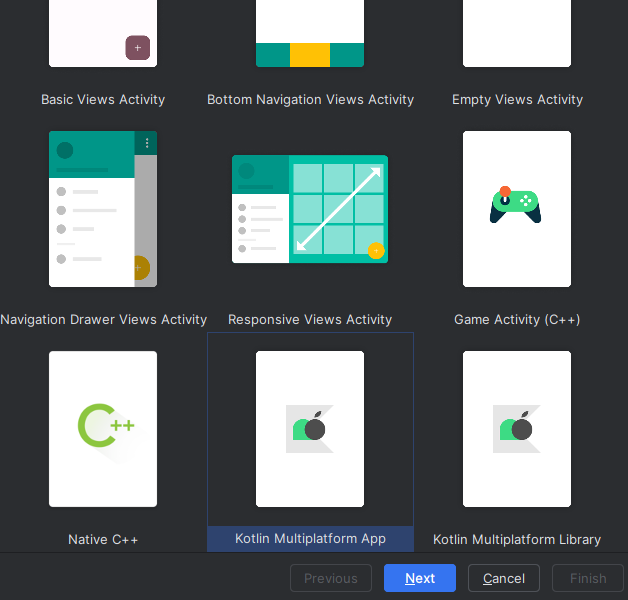
Step 2: Choose the option Kotlin Multiplatform App from the given list of templates and then click Next.
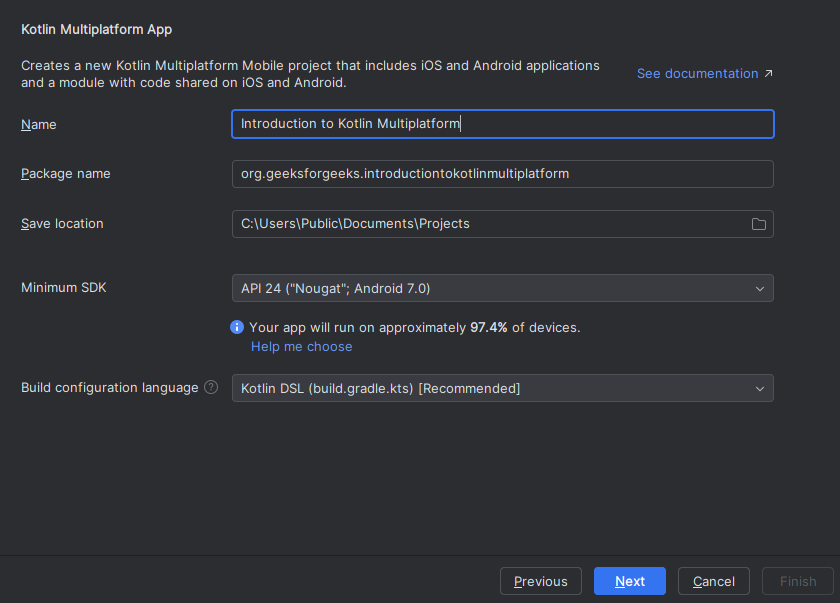
Step 3: Configure the initial details such as Project name, Package name, Save location and Minimum SDK and click Next.
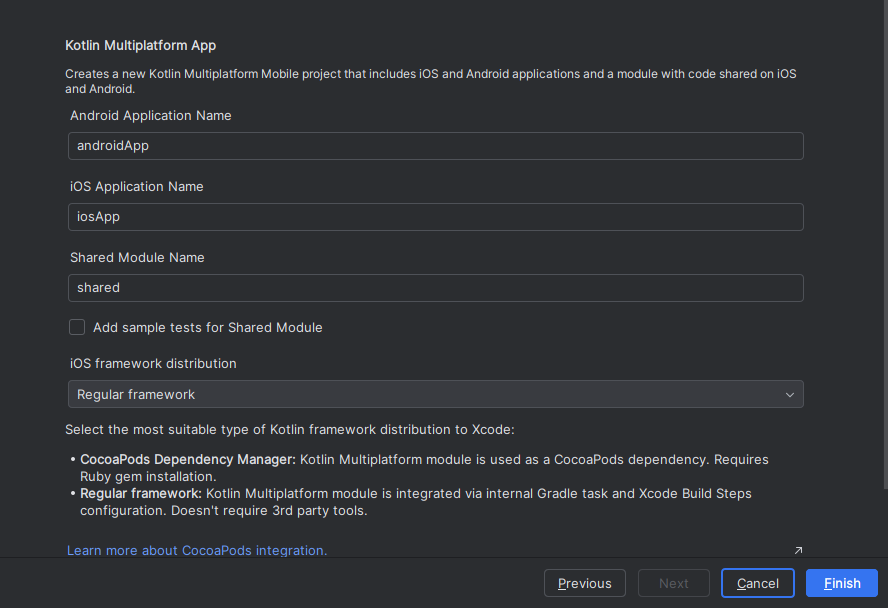
Step 4: Configure project details such choosing a name under the Android Application Name, iOS Application Name and Shared Module Name (The most preferred is androidApp, iosApp and shared respectively). Choose Regular framework (recommended) under the iOS framework distribution label and then click Finish.
Step 5: Now let Android Studio build and setup the project.
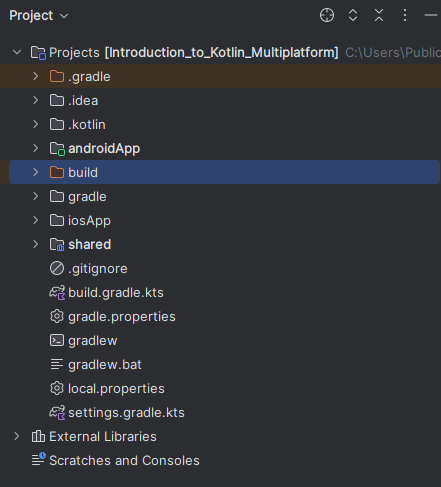
Step 6: After the project setup is finished, you can build and run the project by either clicking on the "Run" button on the top bar of the screen or by pressing the keyboard shortcut Shift + F10. The below image shows the basic folder structure of the project that includes the android, iOS, and shared module.
Step 7: Ensure the dependencies are up-to-date by navigating to the two files build.grade.kts (Module :androidApp) and libs.versions.toml
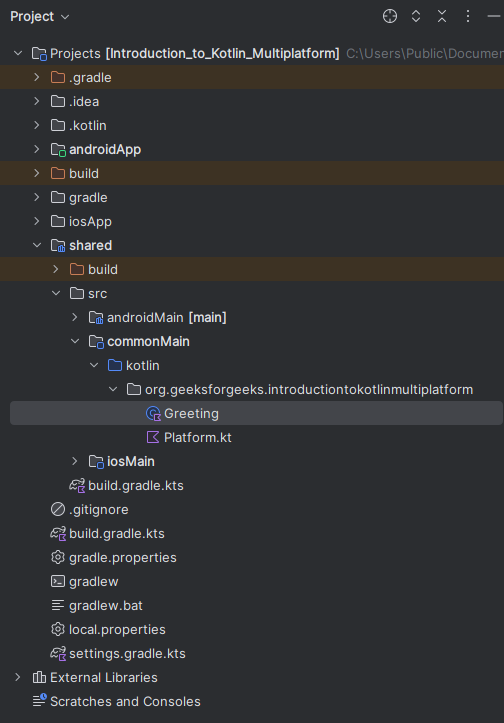
Step 8: To make changes to the app, navigate to Projects > shared > src > commonMain > kotlin > {package-name-directory} > Greeting.kt
Step 9: In the file Greeting.kt, make the following changes.
Step 10: Now build and run the project by clicking on the run button or pressing Shift+F10 on the keyboard.
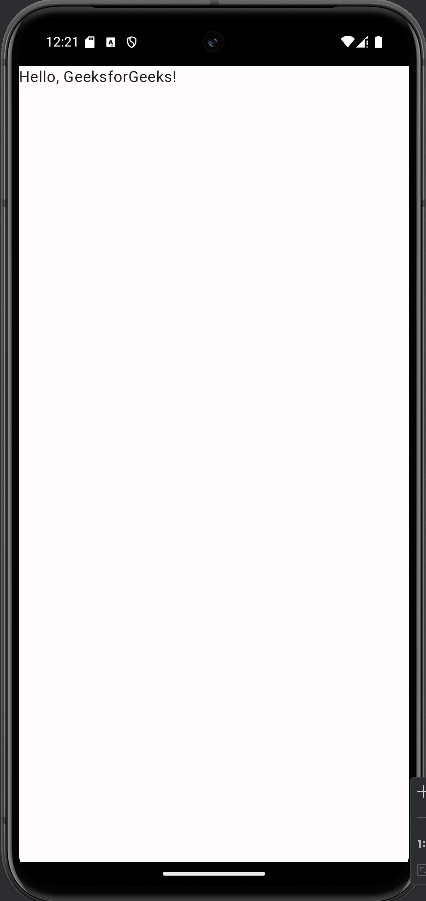
Step 11: After the project is built and the emulator has the finished setup, the below image shows the result of the build.
KMP | Flutter | React Native | |
|---|---|---|---|
Programming language | Kotlin | Dart | JavaScript / TypeScript |
Code Sharing | Can share business logic but UI is platform specific | Shares the entire codebase including UI | Can share most of the code but often requires native module for advanced features |
Performance | Allows near-native performance by using native APIs | Uses it's own custom engine to provide high performance but is not fully native | Usage of JavaScript bridge results is slightly lower performance for complex apps |
Integrated Development Environment (IDE) | Android Studio/IntelliJ Idea and Xcode | Android Studio, IntelliJ Idea and VS Code | VS Code |
Community Support | New to the community therefore it's getting adapted gradually | Has a rapidly growing community with extensive documentations and libraries | Huge popularity of JavaScript has led to its huge community but may lack some libraries and packages |
Ease of Migration | Better of android developers to switch because it is based on Kotlin | Better for new and amateur developers since it has a fast development life cycle and vast resources | Better for web developers to switch because it is based on JavaScript |