|
VOOZH | about |
|
VOOZH | about |
A vital part of efficiently handling and provisioning cloud resources is infrastructure as code, or IaC. HashiCorp's open-source Terraform tool has become a top option for infrastructure-as-a-service (IaC) due to its ease of use, adaptability, and wide range of support for cloud providers and services. Terraform is crucial for learning, regardless of your experience level with cloud automation as a DevOps engineer. In this comprehensive tutorial, We will walk you through the installation of Terraform on Linux and Windows computers.
By the moment you finish this lesson, your Terraform installation will be fully operational and ready to improve your infrastructure provisioning processes in various situations. Now let us begin and see how Terraform may help you simplify your infrastructure management duties.
Terraform is a tool or software program that helps to work with different cloud platforms at a time. Each cloud platform has its own set of rules, syntax, and commands to work with, Terraform makes it easy for us to work with all such clouds at the same time. Terraform uses different plugins for different cloud platforms. So if you use Terraform you do not need to learn the different syntax, commands, or rules required by the platforms. Terraform will automatically connect to platforms without you being worried.
xcode-select --install /bin/bash -c "$(curl -fsSL https://raw.githubusercontent.com/Homebrew/install/HEAD/install.sh)" curl for downloading and unzip for extracting the files. These are usually included with macOS, but you can confirm they’re installed with:curl --version
unzip --version
brew install curl unzip sudo privileges to create directories and move files to system-level locations, like /opt.The professional instructions for installing Terraform on a Windows computer are below:
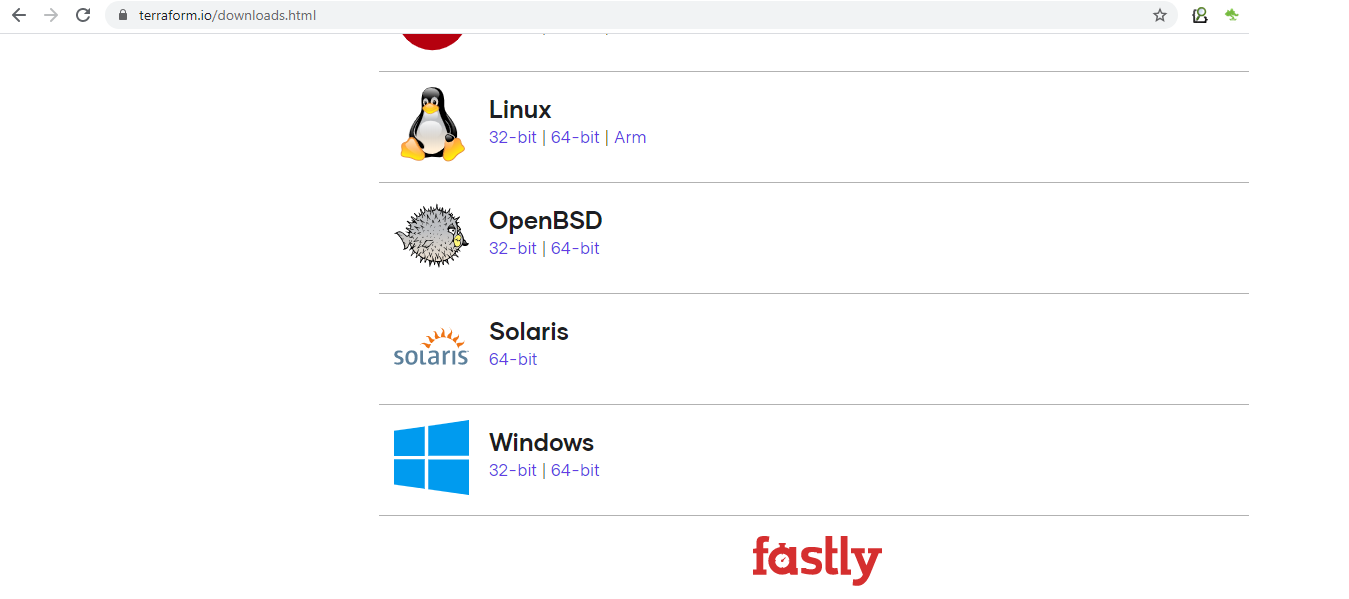
Visit terraform.io/downloads.html, HashiCorp's official website, to download Terraform for Windows. Download the Terraform executable file (terraform.exe) and pick the Windows version which is appropriate for you.
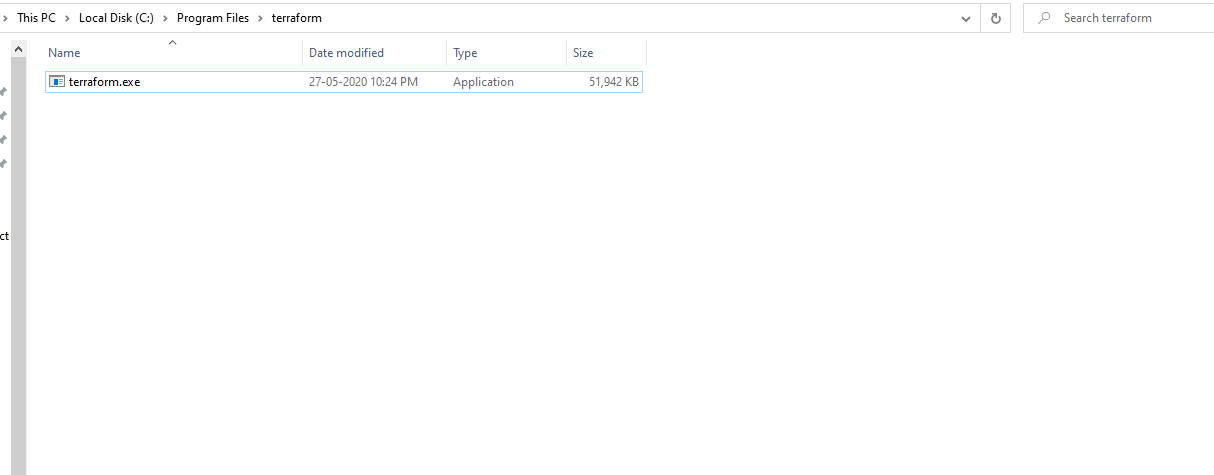
👁 terraform-downloadAfter download the Terraform executable (terraform.exe), open the saved directory. On your machine with Windows, move the terraform.exe file to the desired location. A frequently utilized folder path is "C:\Program Files\terraform."
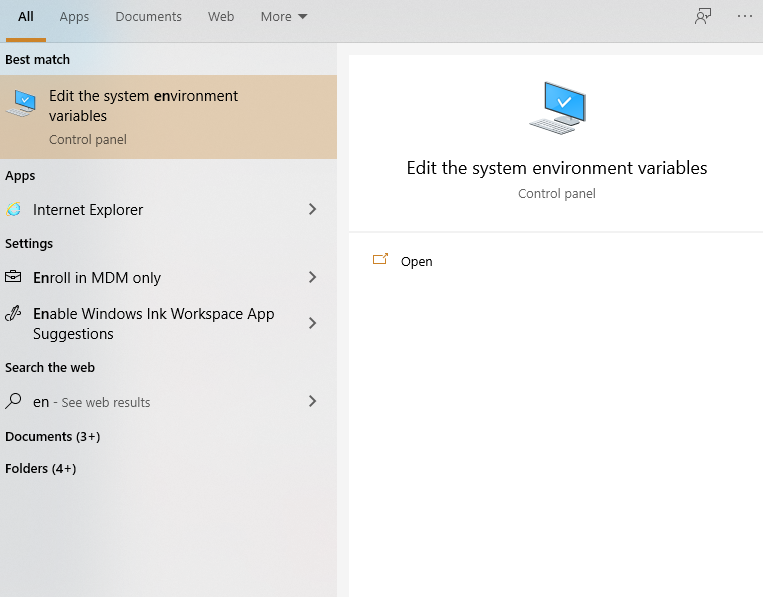
👁 Execute-the-terraformOne must add the directory containing the terraform.exe file to the system's PATH environment variable if you want to execute Terraform from any directory in PowerShell or the command prompt (cmd).
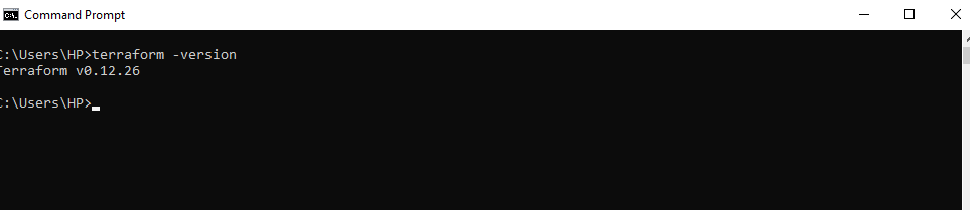
Run the following command in a new PowerShell window or Command Prompt window to verify that Terraform has been installed correctly:
terraform --version👁 Terraform-via-cmdThese are the thorough, expertly written directions for running Terraform on a Linux machine:
The Terraform binary zip file can be obtained using wget by using this command to go to the official HashiCorp releases website. Adapt the URL's version number to your favorite level of customization.
sudo wget https://releases.hashicorp.com/terraform/1.14.3/terraform_1.14.3_linux_amd64.zipWith the assistance of this command, you may extract the downloaded Terraform binary zip file and preserve the executable in the /usr/local/bin/ directory. Change the file name's version number accordingly.
sudo unzip terraform_1.14.3_linux_amd64.zip -d /usr/local/bin/If wget or unzip have not been set up and those instructions fail to execute, you can install them with the package manager.
yum install wget unzipsudo apt install wget unzipThrough doing this, you can make sure your system have the tools required for downloading and extracting files installed.
When the installation procedure has concluded, you may use this command to make sure Terraform is installed correctly. The installed version of Terraform on the computer ought to be displayed.
terraform --versionTerraform can be set up on various operating systems, like Windows, macOS, and different Linux distributions. Choosing Ubuntu to install Terraform is not a basic requirement, However, it has certain key features which differentiate it from other Linux distributions. The benefits of Ubuntu are illustrated below:
For a more detailed guide on installing Terraform on Ubuntu, please refer to this link.
Installing Terraform on macOS is a simple process if you follow these clear steps. Here's how you can do it manually by downloading and configuring the Terraform binary.
First, set up a folder to store the Terraform executable. Run this command in your terminal:
sudo mkdir -p /opt/terraform Move into the folder you just created to keep all installation steps organized:
cd /opt/terraform Go to the official Terraform Downloads page. Locate the macOS version of Terraform, then copy the link for the zip file.
Now, use the link you copied to download the Terraform binary directly into the directory:
sudo curl -O <paste_download_link_here> Once the zip file has downloaded, unzip its contents into the current directory:
sudo unzip <file_name>.zip This will extract the Terraform binary into /opt/terraform.
To run Terraform from any location in the terminal, you need to add its directory to your system's PATH. Open your .bash_profile for editing:
sudo vi ~/.bash_profile In the editor, add the following lines to the file:
PATH="/opt/terraform:${PATH}"export PATH
After updating the .bash_profile, make the changes take effect by running:
source ~/.bash_profile Check that Terraform is installed correctly by running:
terraform --version This command should display the installed version of Terraform.