|
VOOZH | about |
|
VOOZH | about |
Windows Powershell is a powerful command-line shell and scripting language devised for administrators and professionals. PowerShell with administrative privileges in Windows 11 makes it possible to carry out tasks with superior permissions. This article will discuss several ways of opening Windows PowerShell as admin.
👁 How-to-Open-Windows-PowerShell-as-an-Admin-in-Windows-11
The Windows PowerShell is a Command Line Interface and Scripting Language based on the .NET framework. Windows is an important tool that offers an active command line interface for automation of jobs and configuration management. PowerShell can run administrative commands and as such, provide administrator access.
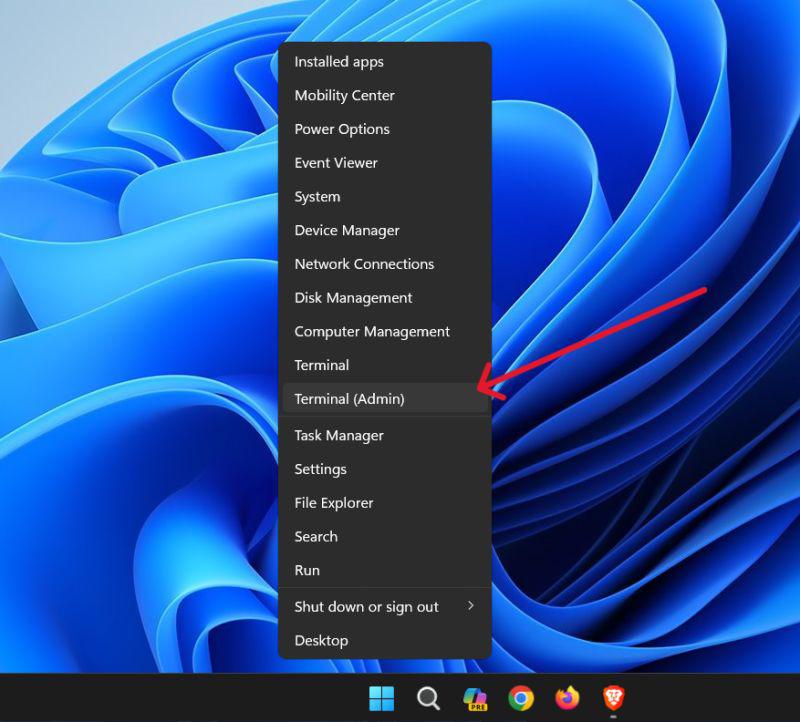
Step 1: To open the quick access menu, right-click on Start or use the keyboard shortcut Win + X.
Step 2: Then, from the context menu, select "Terminal (Admin)".
Step 3: In user account control click on "Yes"
Step 1: Click on the start button, then the search box, and type "Windows tools".
Step 2: Then, Right-click on "Windows PowerShell" from the list.
Step 3: Choose "Run as administrator."
👁 Windows-PowerShell-as-an-Administrator-From-the-Start-Menu
Step 4: In user account control click on "Yes"
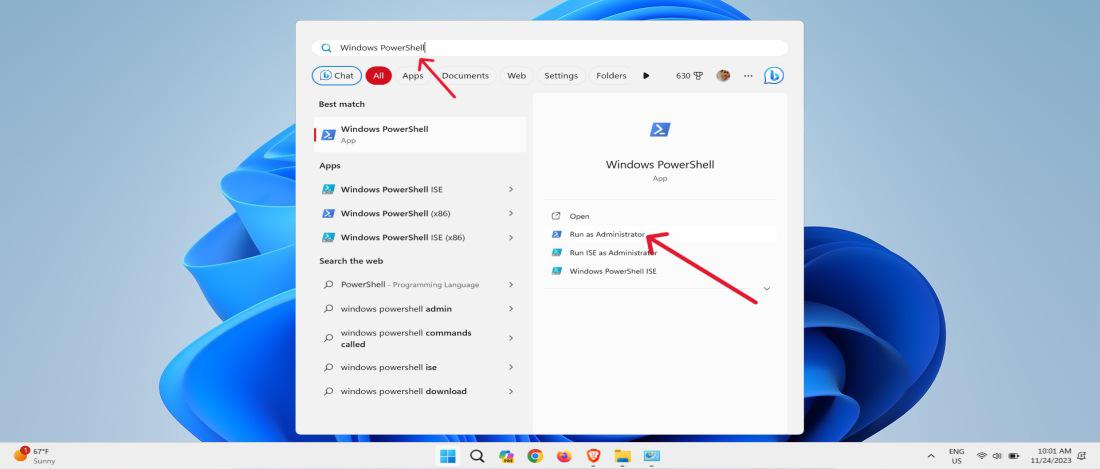
Step 1: Type "Windows PowerShell" in the Windows Search bar.
Step 2: Choose "Run as administrator" from the context menu
👁 How-to-Open-PowerShell-as-Admin-Using-Windows-Search
Step 3: In user account control click on "Yes"
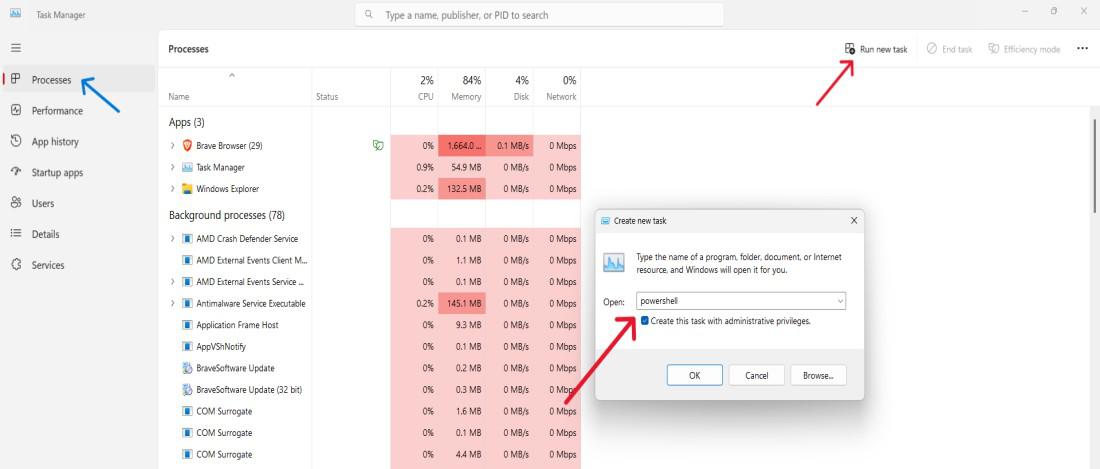
Step 1: Type “Task Manager” in the search bar or press Ctrl + Shift + Esc to open Task Manager.
Step 2: Choose "Run new task."
Step 3: Select Powershell, and tick administrative privilege.
👁 How-to-Run-Windows-PowerShell-Using-Task-Manager
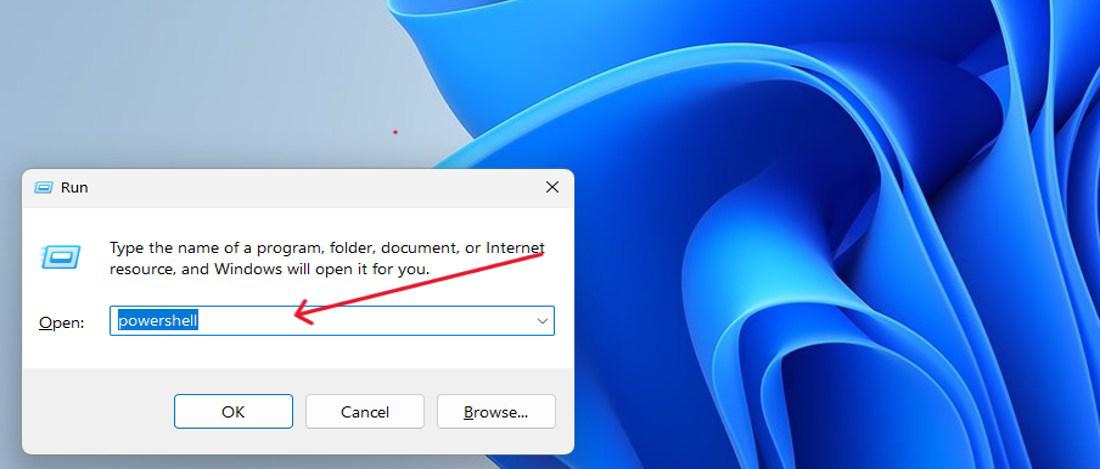
Step 1: Press Win + R to open the Run dialog.
Step 2: Type "PowerShelland " and press Ctrl + Shift + Enter to run as administrator. Do not click on OK button
👁 How-to-Open-PowerShell-as-Admin-Using-Run-Dialog
Step 3: In user account control click on "Yes"
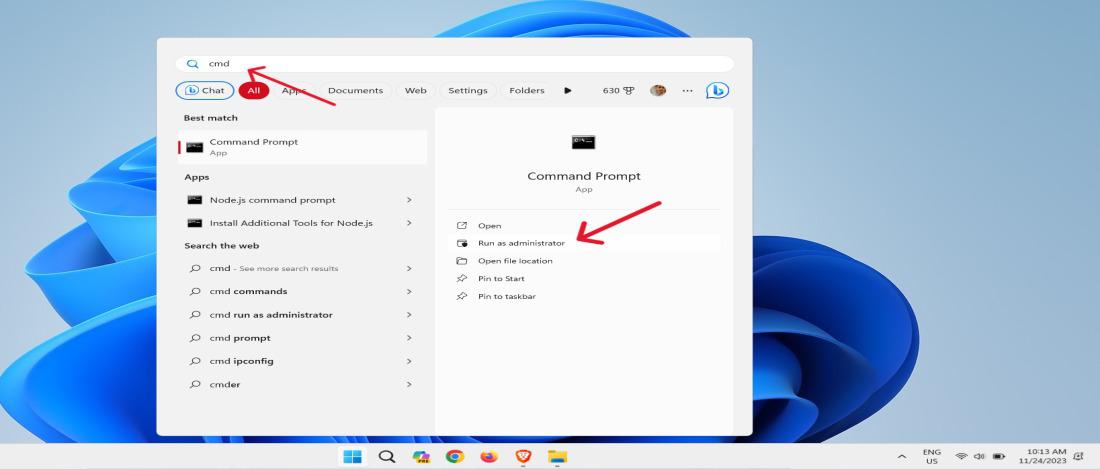
Step 1: Open Command Prompt as an administrator.
👁 How-to-Run-PowerShell-as-Admin-from-CMD
Step 2: In user account control click on "Yes"
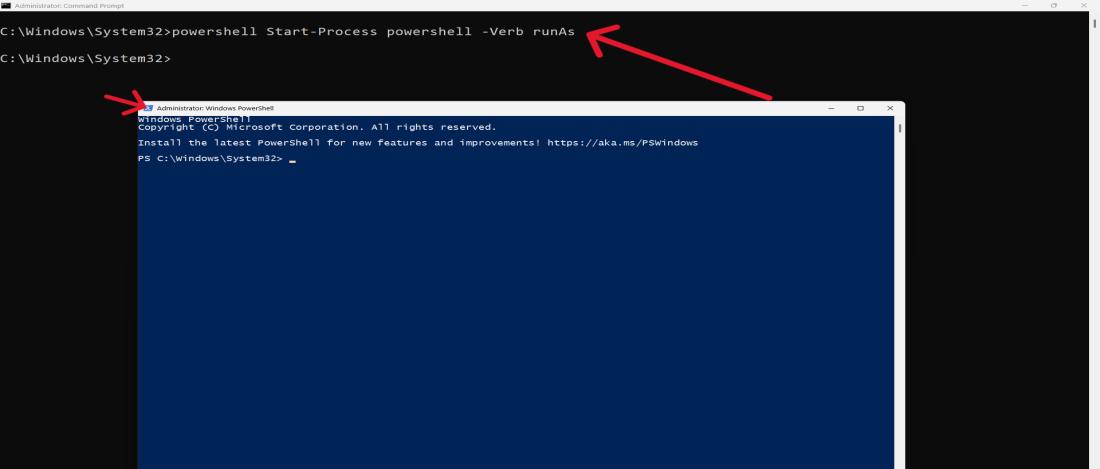
Step 3: Type
powershell Start-Process powershell -Verb runAs
👁 How-to-Run-PowerShell-as-Admin-from-CMD-1
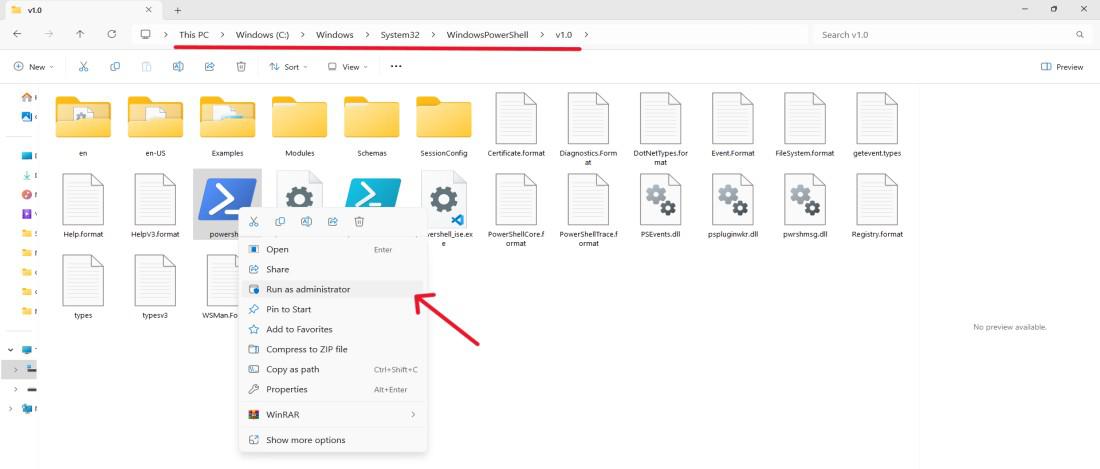
Step 1: Open file explores by using the shortcut Win + E or type "File Explorer" on search bar
Step 2: Type the command in the File Explorer address bar and press Enter.
C:\Windows\System32\WindowsPowerShell\v1.0\
Step 3: Right click on Powershell then click on "run as administrator".
👁 How-to-Open-PowerShell-as-Admin-Using-Windows-File-Explorer
Step 4: In user account control click on "Yes"
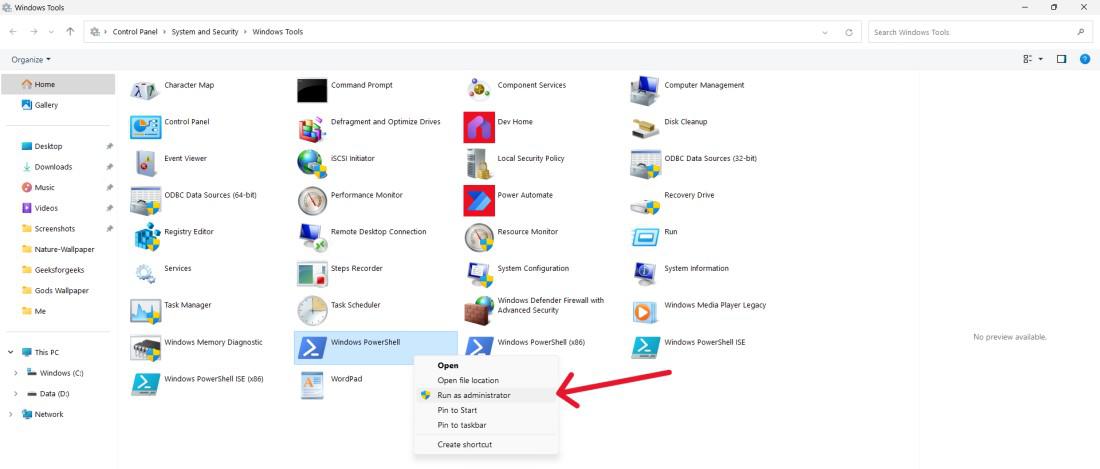
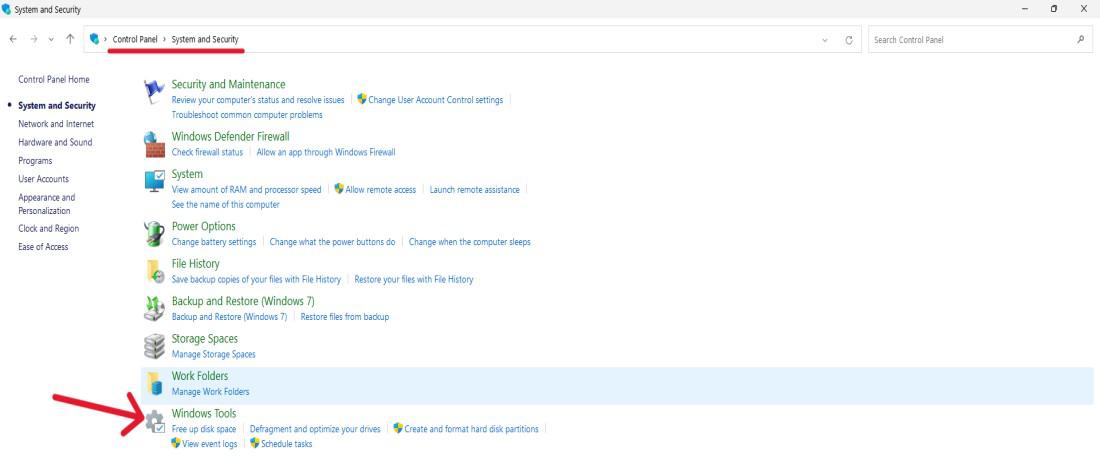
Step 1: Open the Control Panel.
Step 2: Go to "System and Security" > "Windows Tools."
👁 How-to-Open-PowerShell-as-Admin-Using-Control-Panel
Step 3: Right-click on "Windows PowerShell ISE (x86)" or "Windows PowerShell" with administrative privileges.
Step 4: In user account control click on "Yes"
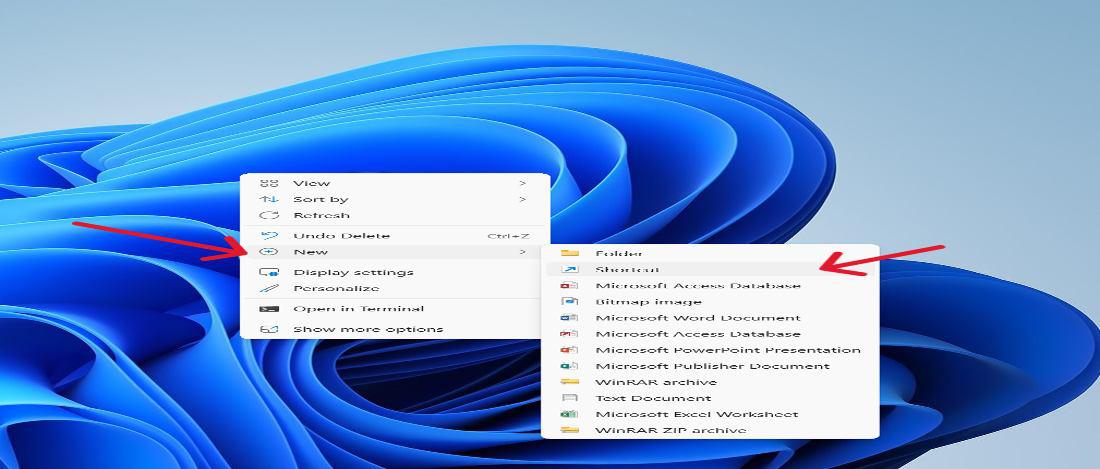
Step 1: Right-click on the desktop.
Step 2: Choose "New" > "Shortcut."
👁 How-to-Open-PowerShell-as-Admin-With-a-Desktop-Shortcut
Step 3: Enter "powershell.exe" as the location.
Step 4: Click "Next" and give your shortcut a name.
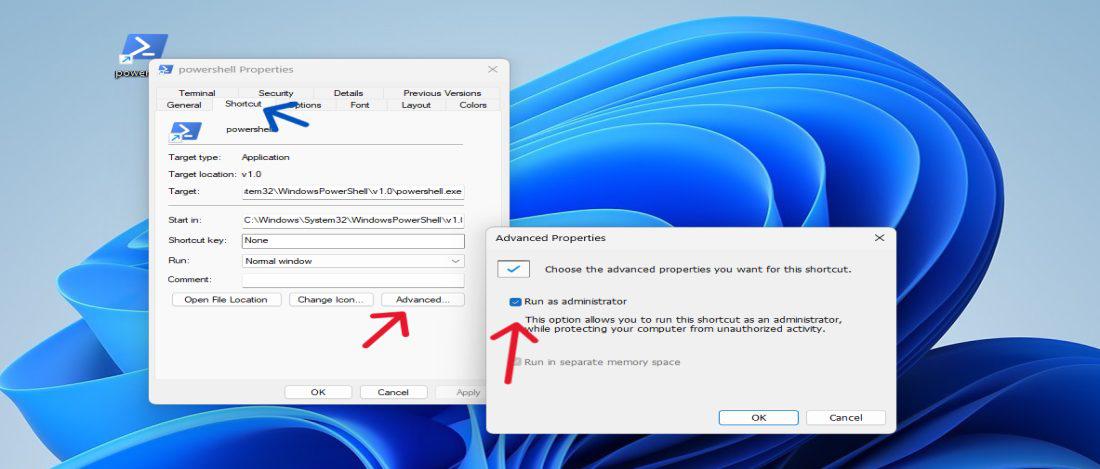
Step 5: Right-click on the shortcut, go to "Properties," and under the "Shortcut" tab, click "Advanced" and check "Run as administrator."
👁 How-to-Open-PowerShell-as-Admin-With-a-Desktop-Shortcut--1
There are different ways to launch Windows PowerShell with administrative rights in Windows 11 such that you may choose what best suits you. You can use different approaches through which the PowerShell is executed with its administrative access. These means include the use of keyboard shortcuts and the Start Menu among others since it’s an elevated command used in system-level tasks. Adopt these processes within your workflow to simplify your administrative duties in Microsoft Windows 11.