|
VOOZH | about |
|
VOOZH | about |
Working in Command Prompt (CMD) or Windows Terminal can quickly fill your screen with old commands and output. Clearing the screen gives you a fresh uncluttered view so you can focus on what you're doing right now.
Here are the fastest and most reliable ways to clear the screen from one-keystroke shortcuts to useful extras.
In the below section, we are going to discuss different approaches to clearing the command prompt (CMD) screen. So keep reading the section and find the best method.
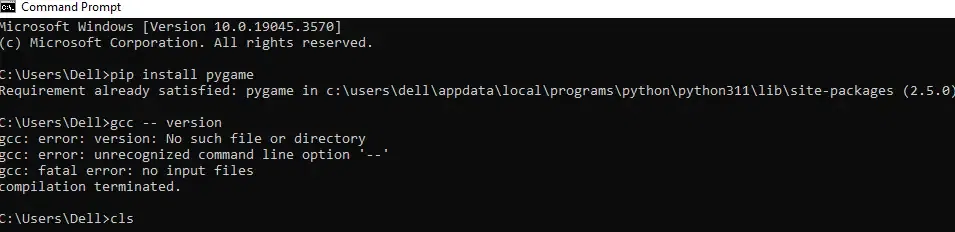
The easiest way to clear the Command Prompt screen is by using the "cls" command in the following manner.
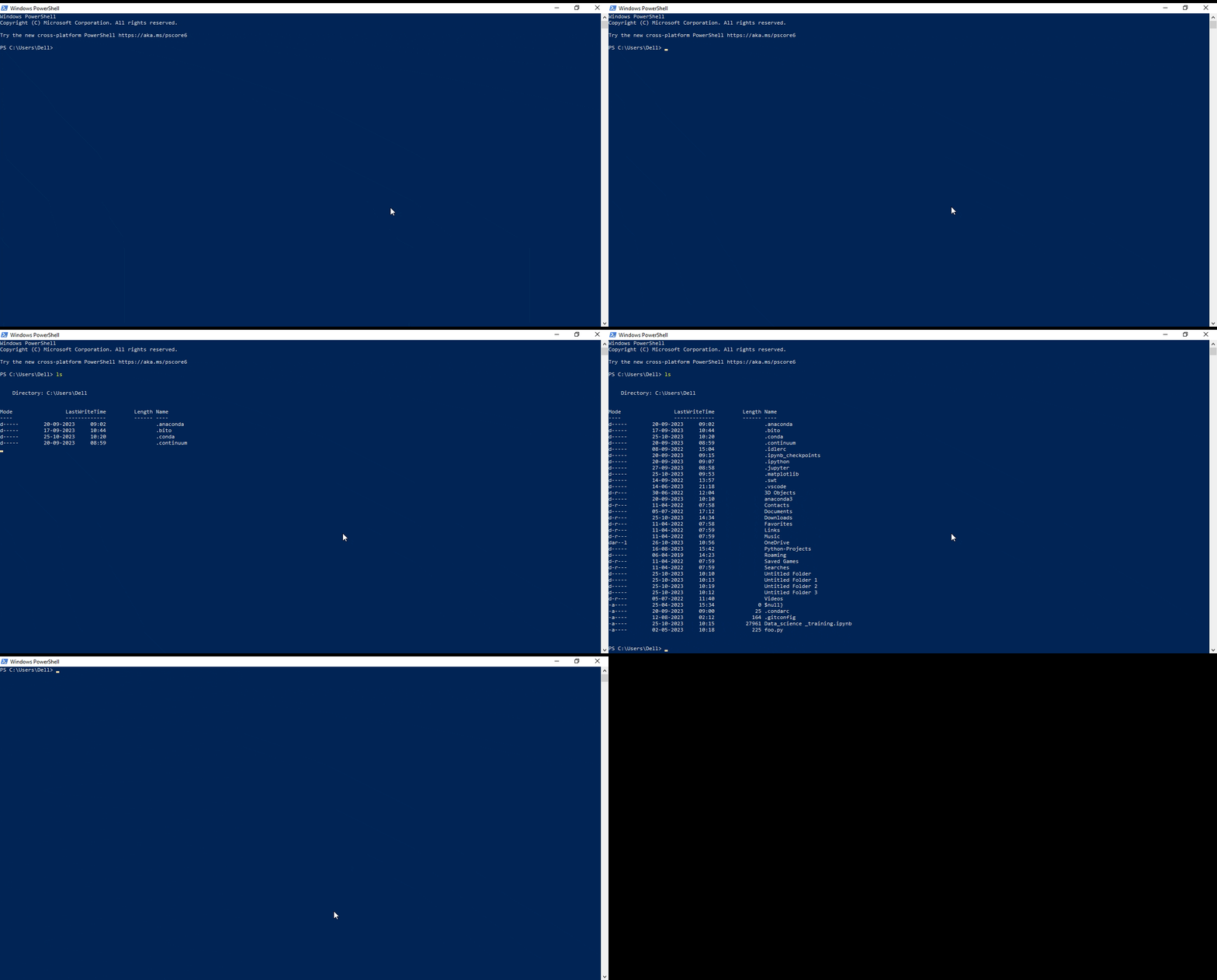
Note: Windows PowerShell can also be used instead of cmd as well.
Example: We are downloading the Python library using cmd and then will clear the screen.
Output:
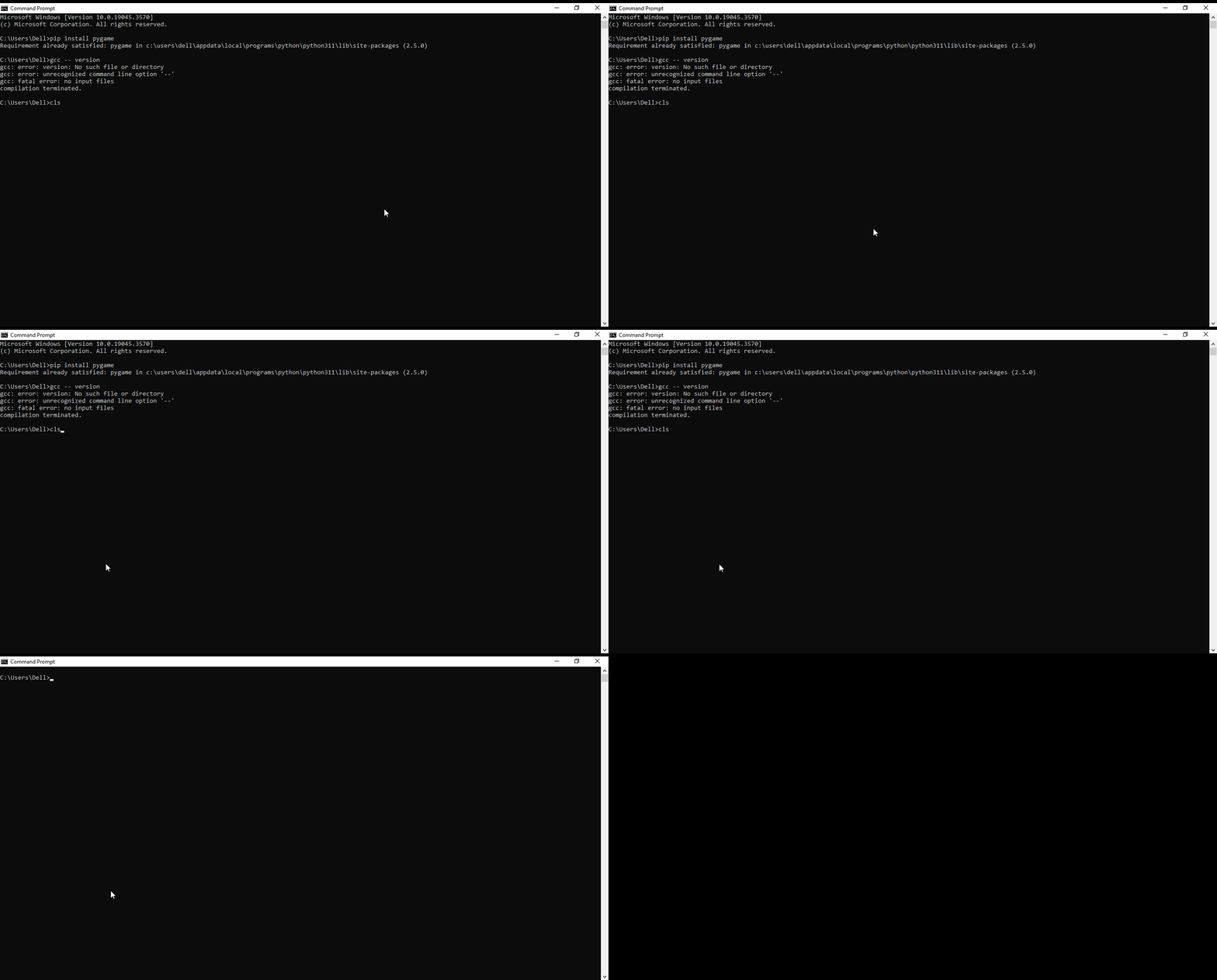
👁 Clear-CMD-Screen-Using-the-cls-command_2
Some systems allow keyboard shortcuts for clearing the Command Prompt screen. By pressing "Ctrl+L", we can clear our screen. This shortcut is a time-saver.
Example:
👁 Clear-CMD-Screen-Using-Shortcut-Key_1
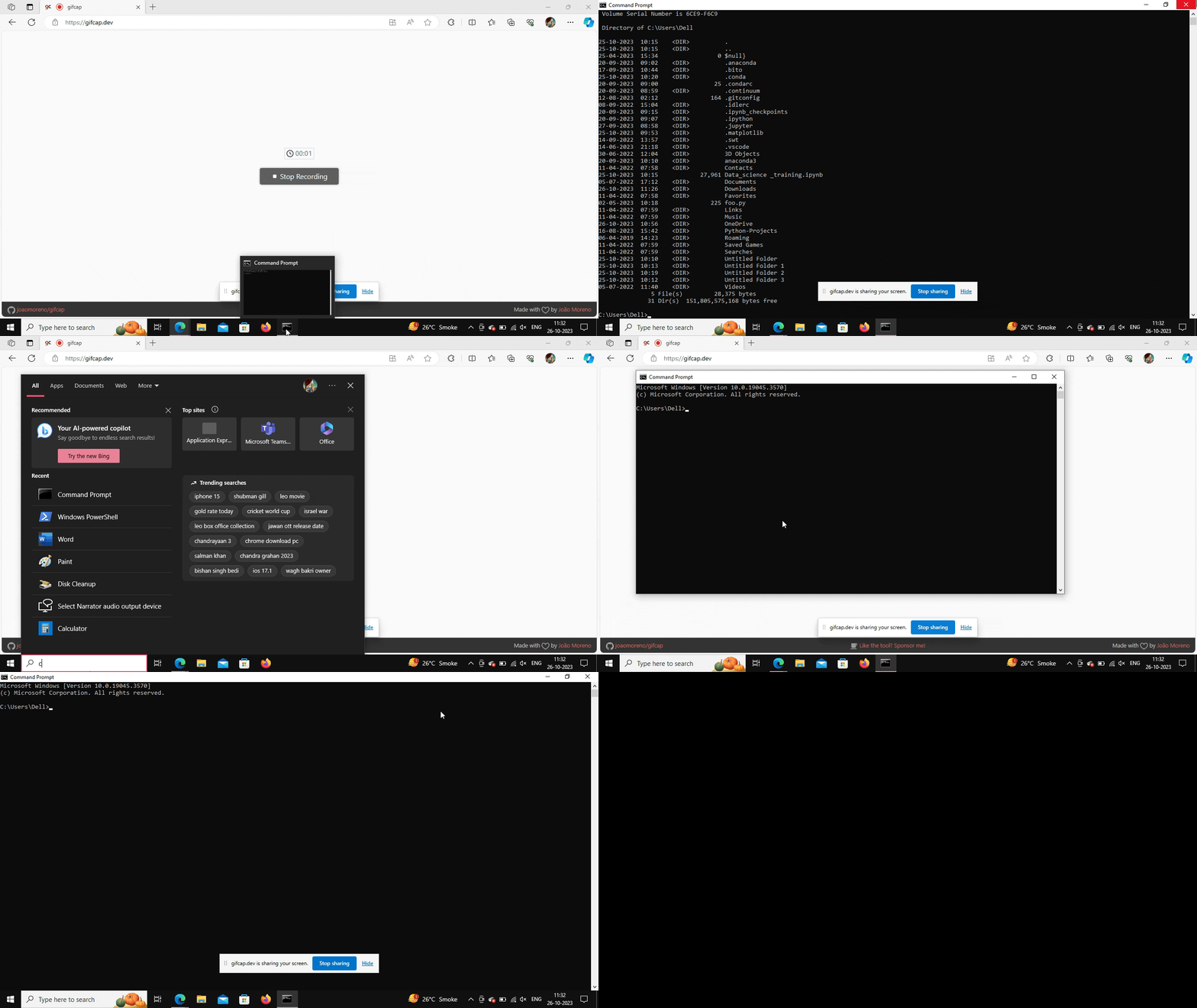
While this approach is not very efficient as compared to the other two, it can be used in cases when other methods are not available or during system default or error. All one can do is close the current cmd screen and reopen it to get a clear screen.
Example:
👁 Recording-2023-10-26-at-113415
To clear the Command Prompt (CMD) screen using a system reboot, you can't directly do it because rebooting the system closes all running programs, including the Command Prompt window. It's like turning off your computer and turning it back on, which resets everything. Make sure you have saved all your ongoing work before this. Here's a step-by-step guide on how you might approach this:
Example:
Additionally, you can also view your command prompt history using the F7 shortcut key. All the previously used commands can be found by pressing the "F7" key. Pressing it will give a list of recently used commands, making it easier to reuse them in your current session.
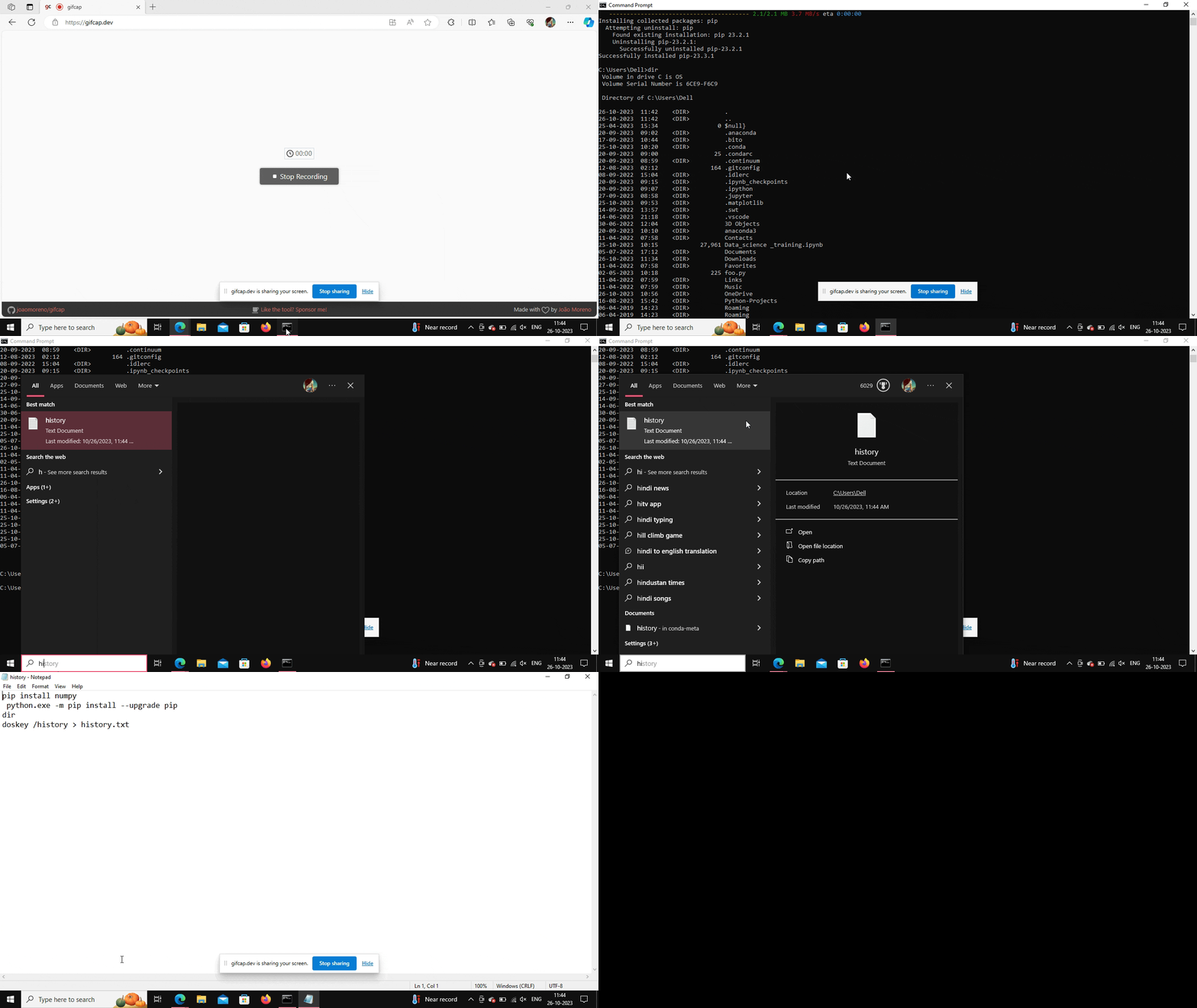
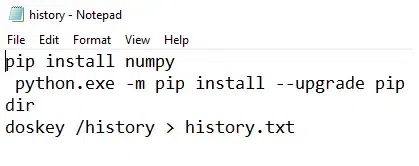
Also, you can save the command history in the form of a text file in cmd in the following manner:
Example:
👁 Recording-2023-10-26-at-114605
Output: The txt file will look like this.
To sum up, it's very important to keep our cmd screen clean and organized as it makes the system more efficient and also provides ease of use for users, thus, we should know about all these methods. As mentioned, we can use any method given above according to our convenience and need.