|
VOOZH | about |
|
VOOZH | about |
The message “This copy of Windows is not genuine” can be frustrating. It usually appears when Windows is unable to verify the authenticity of your operating system. As a result, some features may be disabled, and a watermark may appear on your desktop.
This issue commonly occurs due to:
In any Windows version like 11,10,8 or 7 go to Settings and Vista, and use the Control Panel to modify your Windows product key to select the application systems. The registry tool is used to modify the Windows XP product key for the internal system.
The safest and official way to fix this issue is to activate Windows using a genuine product key.
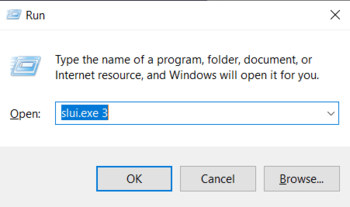
slui.exe 3
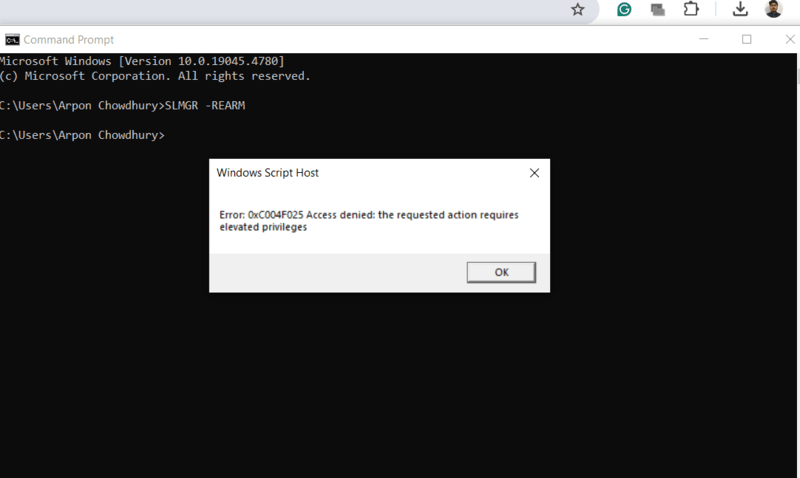
If activation files are corrupted, resetting them may help.
slmgr -rearm
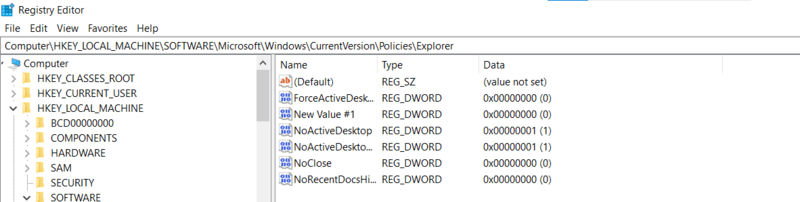
Disabling the system's Plug and Play Group Policy object can help you resolve the "not genuine" problem to simplify. If the virtual Network Service account lacks the necessary authorization to access the HKU\S-1-5-20 registry key, this could be the situation to implement the management tools.
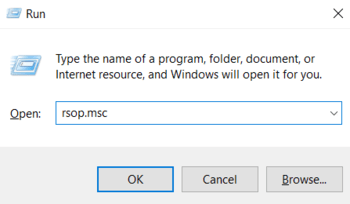
rsop.mscgpupdate /forceIf the issue concerning Windows is not being authentic or resolved by the aforementioned actions, you may try modifying the permissions and modifications that the Network Service has to access a certain registry key manually.
Also Read