|
VOOZH | about |
|
VOOZH | about |
Encountering the 0x800f8001 Windows Update error can be frustrating, especially when you're trying to keep your system up-to-date. This error often appears during the update process, preventing your system from installing important updates. In this article, we'll walk you through various methods to fix the 0x800f8001 Windows Update error, ensuring your system remains secure and up-to-date. By following these steps, you can effectively resolve the 0x800f8001 error and get your Windows updates back on track.
Before Exploring the methods to fix 0x800f8001 Windows Update Error let us understand this error and its causes.
Table of Content
The Windows Update Error code 0x800f8001 typically occurs when facing a problem related to your Windows updates. Either your Windows update is incomplete or your system's update files are corrupted.
Rather than the regular updates windows also provides a feature called Windows Insider program where the user can opt to get advanced updates in Windows to test the features that are currently in experimental mode. Windows provides this feature to test the user experience on a large scale. So sometimes if the user selects to be a member of the Windows Insider program then he/she will get updates which may sometimes have some bugs which results in the error code 0x800f8001.
Here are some common reasons for encountering this error:
Sometimes the problems related to Windows updates can be resolved through the Windows update troubleshooter.
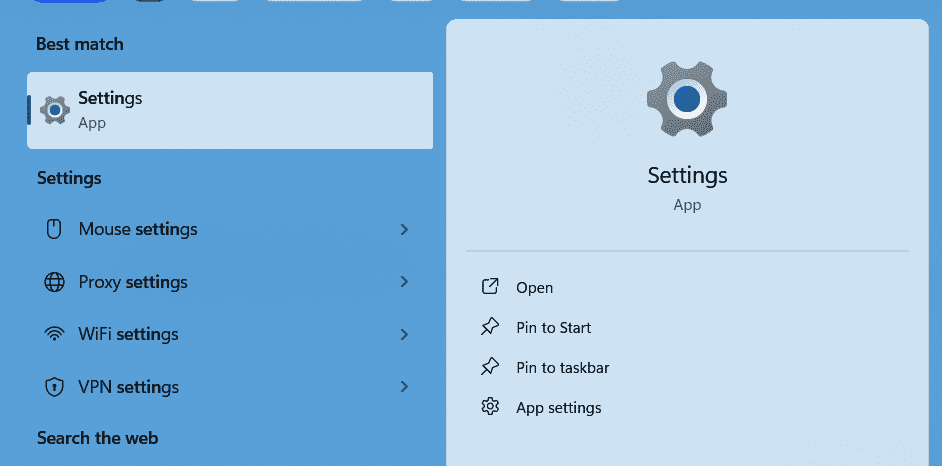
Step 1: Go to settings
👁 Method1_Run_TroubleShooter_Pic1
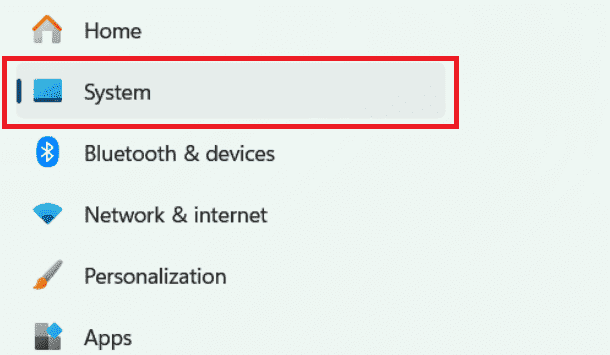
Step 2: Select the System tab
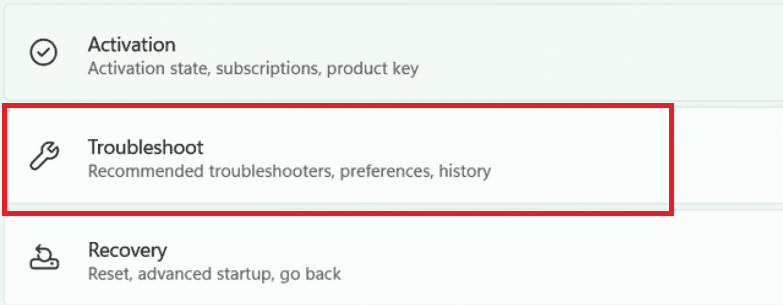
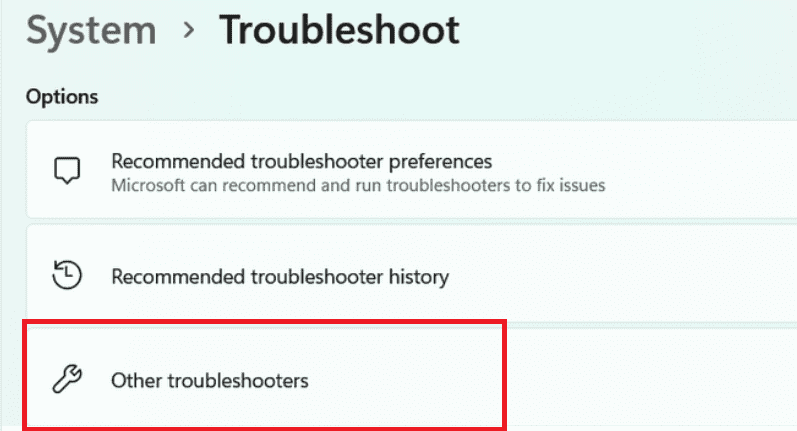
Step 3: Scroll down a little bit and click on the troubleshootingtab.
👁 Method1_Run_TroubleShooter_Pic3
Step 4: Click on other troubleshooters.
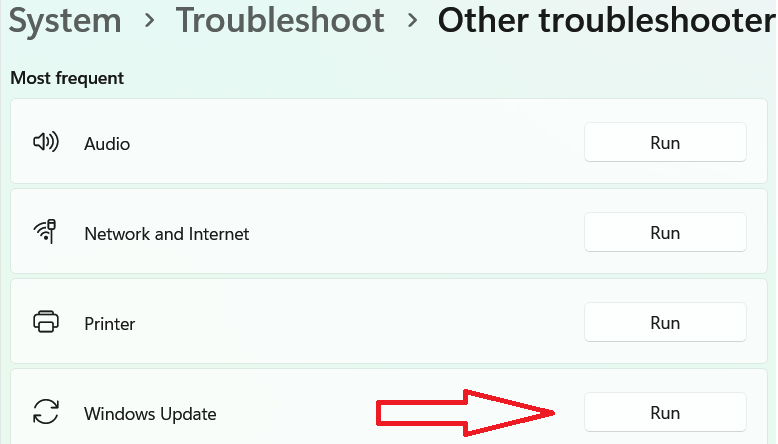
Step 5: Under the most frequent section click on the run the present in the right of the Windows update option.
👁 Method1_Run_TroubleShooter_Pic5
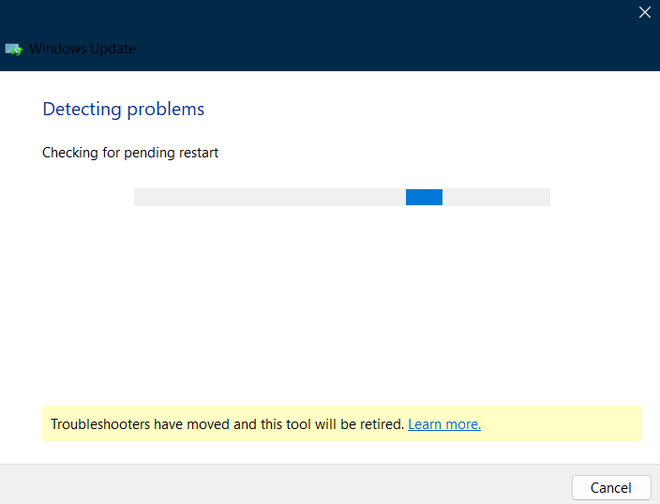
Step 6: The troubleshooter will start detecting the problems.
Step 7: If any Windows Updates problems are found by the troubleshooter then, the troubleshooter will fix them automatically. When the process is done, retry to update Windows to see if the 0x800f8001 Windows Update Error disappears.
Sometimes our system files may get corrupted during a Windows update due to interruptions to the update. We can uninstall the latest update to go back to the safe state and then we can try to reinstall the latest updates to fix the error.
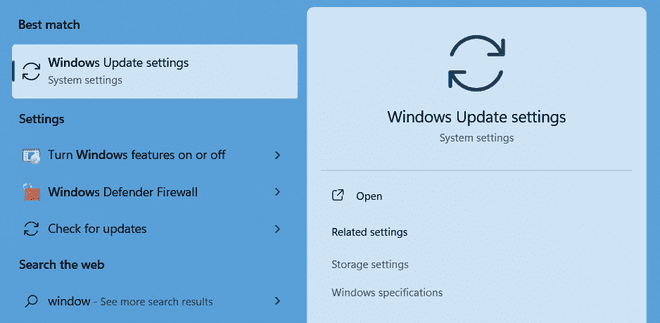
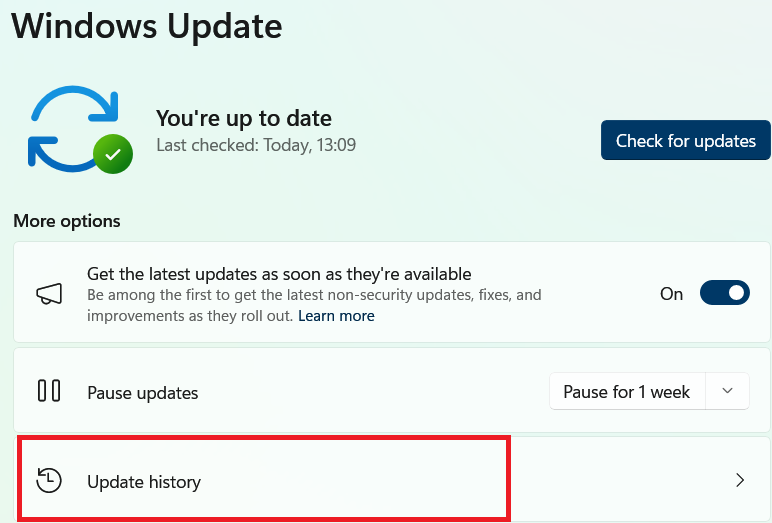
Step 1: Go to Windows update settings
👁 Method2_Uninstall_updates_Pic1
Step 2: Click on updates history.
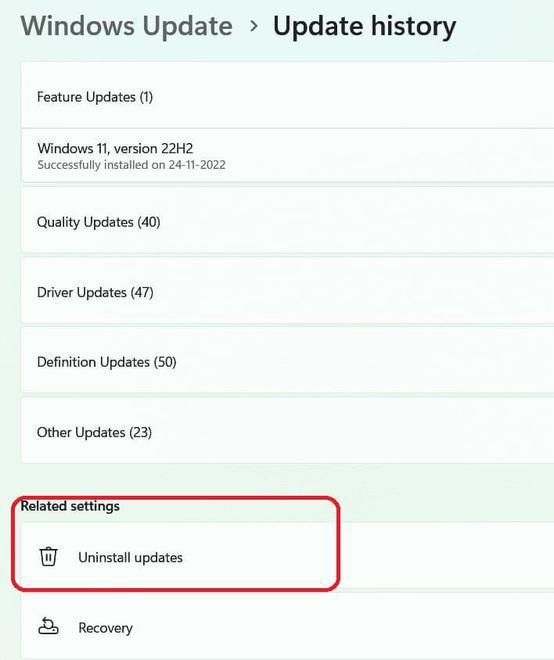
Step 3: Click on uninstall updates.
👁 Method2_Uninstall_updates_Pic3
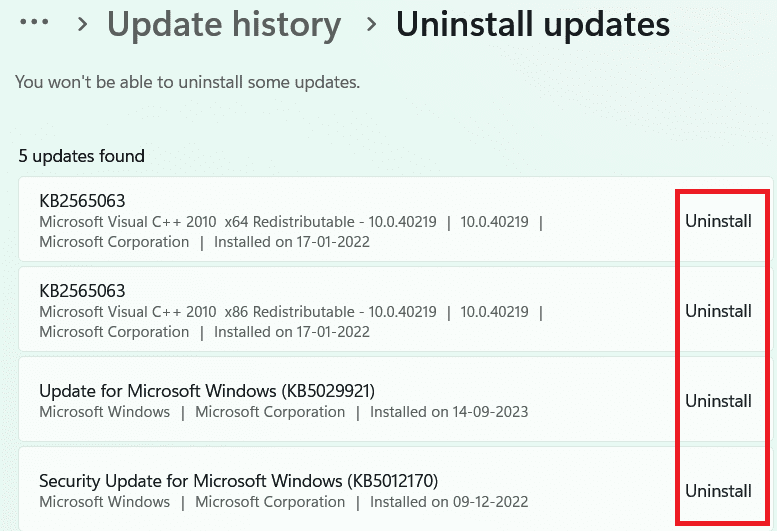
Step 4: Uninstall the latest updates that you have installed by clicking on uninstall present on the right of each update that was installed earlier.
👁 Method2_Uninstall_updates_Pic4
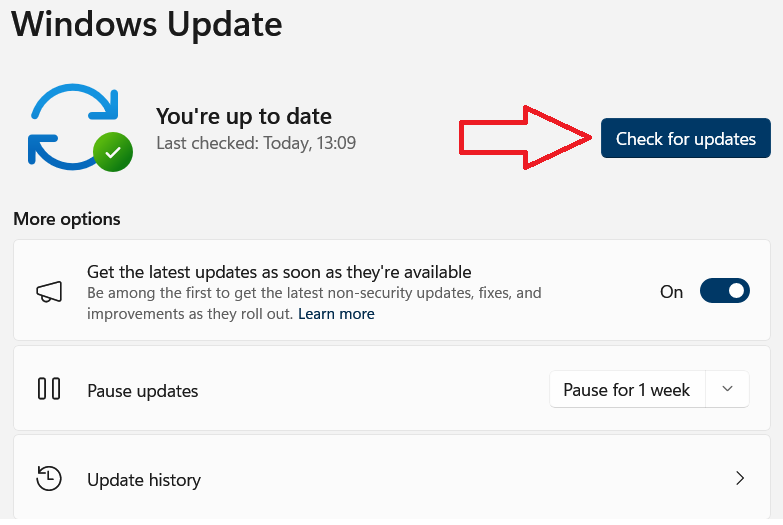
Step5: After removing all the latest updates go back to Windows update and again click on check for updates to install the latest update for Windows.
Step 6: Once the updation is complete the 0x800f8001 Windows Update Error will disappear hopefully.
If the above 2 methods fail to work then we can use the System File Checker (SFC) and Deployment Imaging Service and Management Tool (DISM) to scan and repair corrupted system files that are causing errors for the Windows update.
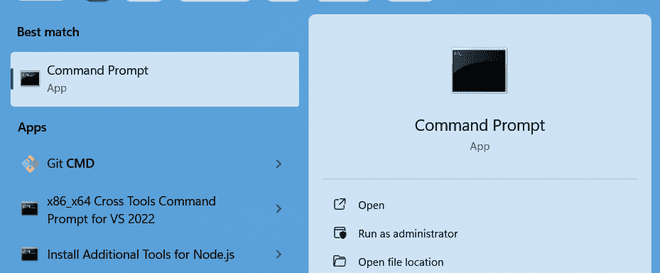
Step 1: Open command prompt in run as administrator mode:
👁 Method3_Repair_file_pic1
Step 2: Type the following commands in the command prompt
sfc /scannow
dism /online /cleanup-image /restorehealth
Step 3: Once the commands are executed restart your pc.
Step 4: Go to Windows update now and try to reinstall the updates.
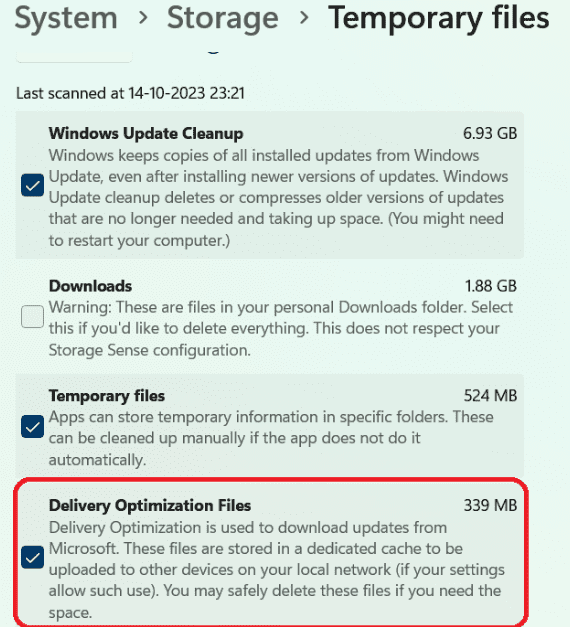
Delivery optimization files are those files that allow windows to extract the Windows files from another system connected to the same network. These files help you to update Windows faster.
But in a few cases, these files might be corrupted and when you try to update the windows these files may cause the 0x800f8001 Windows Update Error. So to fix this error we will delete all of these delivery optimization files and try to update Windows freshly. Follow the below steps to delete the delivery optimization files.
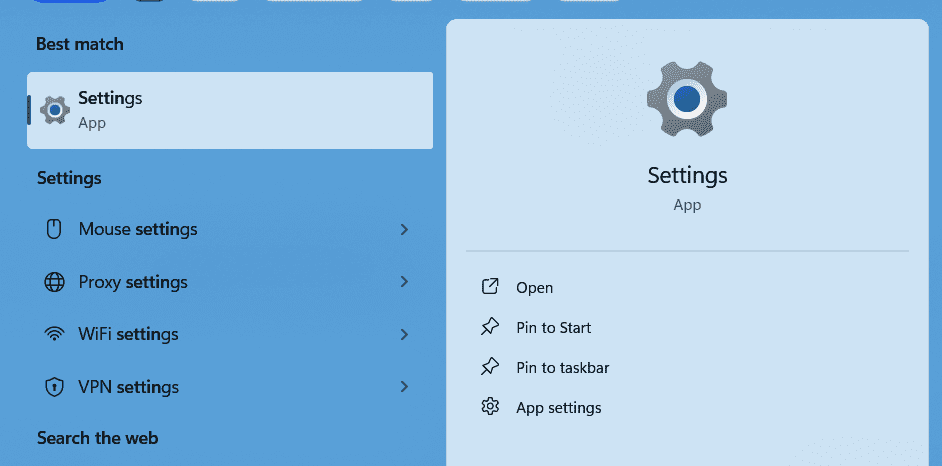
Step 1: Go to settings.
👁 Method4_Delete_Delivery_Optimization_Files_Pic1
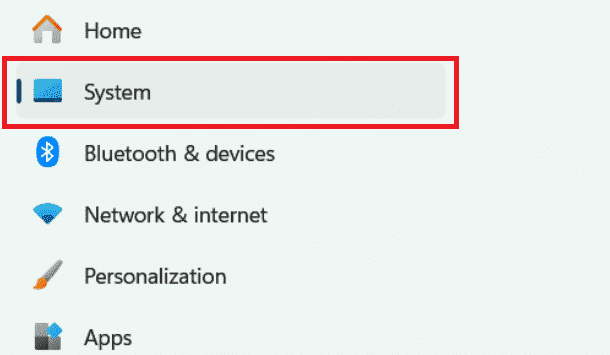
Step 2: Go to system.
👁 Method4_Delete_Delivery_Optimization_Files_Pic2
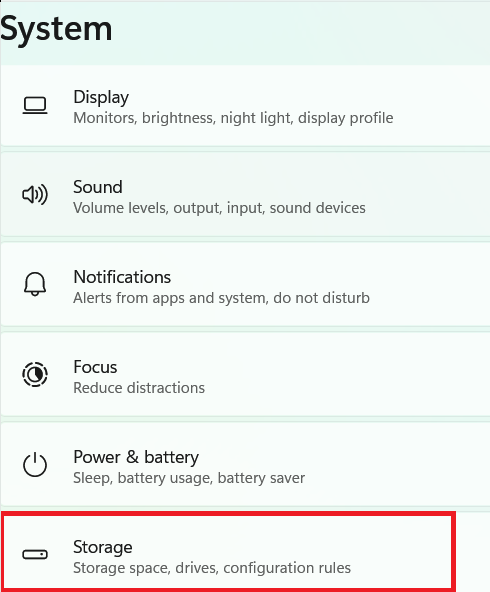
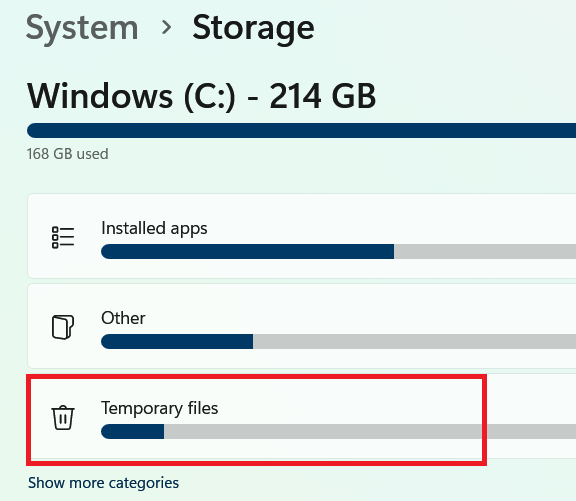
Step 3: Select the storage option.
👁 Method4_Delete_Delivery_Optimization_Files_Pic3
Step 4: Go to temporary files.
👁 Method4_Delete_Delivery_Optimization_Files_Pic4
Step 5: Select the delivery optimization files option.
👁 Method4_Delete_Delivery_Optimization_Files_Pic5
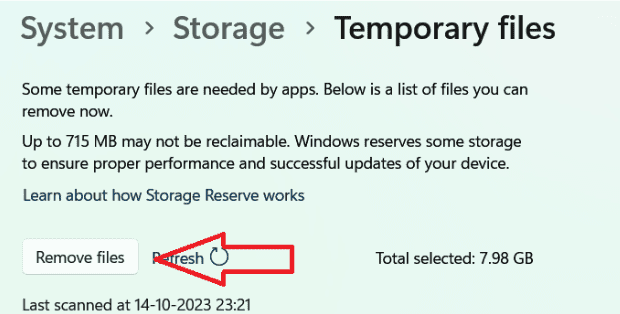
Step 6: Click on remove files.
👁 Method4_Delete_Delivery_Optimization_Files_Pic6
Step 7: Try to update Windows now the error will be resolved.
Ultimately, we hope that the methods and solutions we've suggested in this article will prove helpful in resolving your '0x800f8001 Windows Update Error'.
Resolving the 0x800f8001 Windows Update error is crucial for maintaining the security and performance of your system. By applying the troubleshooting steps outlined in this guide, you can quickly fix the 0x800f8001 error and ensure that your Windows updates proceed without any issues. Regular maintenance and keeping your system up-to-date can help prevent such errors in the future.