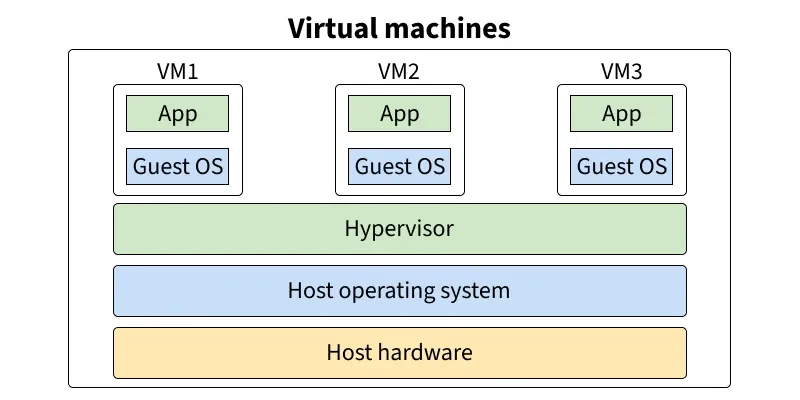
A Virtual Machine (VM) is a software-based computer that runs within a physical computer (known as the host). It emulates the behavior of a physical machine and can run its own operating system (guest OS) and applications independently just like a real computer.
For example, you can run a Linux VM inside a Windows PC using tools like VirtualBox or VMware.
Working of Virtual Machines A VM uses virtualization technology to abstract the hardware of a physical machine (CPU, memory, storage, etc.) into a virtual environment. This is managed by a special software called a hypervisor, which allocates system resources to multiple VMs.
Each VM behaves like a separate computer, even though it's running on shared hardware. It includes:
Virtual CPU Virtual memory Virtual disk (storage) Network interface card (NIC) Example : When you run multiple processes on a regular OS, they appear to have separate CPUs and memory (thanks to CPU scheduling and virtual memory). A VM extends this illusion to the OS level itself.
👁 virtual_machines Virtual Machines Diagram Types of Virtual Machines There are two main types of VMs:
1. Process Virtual Machine
Designed to run a single application (or process). Example: Java Virtual Machine (JVM), which allows Java programs to run on any platform. 2. System Virtual Machine
Emulates an entire physical machine. Can run a full OS like Linux, Windows, or macOS. Example: VMs created using VirtualBox, VMware, or Hyper-V. ➣Learn More About : Types of Virtual Machines
How to Set Up a Virtual Machine Setting up a VM involves the following steps (example for installing a Linux VM):
Create a new virtual machine Allocate virtual disk space Attach a virtual network adapter Install the guest operating system (Linux) Register and activate the VM (if needed) Install necessary drivers or guest additions Most platforms like VirtualBox or VMware offer wizards to simplify this setup.
Uses of Virtual Machines Running multiple OSs on a single machine Testing new software or OS safely (sandboxed) Running legacy applications Server virtualization (hosting multiple VMs on a single server) Secure development and debugging (isolate risky tasks) Hypervisor A hypervisor is software (sometimes firmware or hardware-based) that enables virtualization by separating physical resources from VMs.
There are two types :
Type 1 (Bare Metal) : Runs directly on hardware (e.g., VMware ESXi, Microsoft Hyper-V) Type 2 (Hosted) : Runs on top of a host OS (e.g., VirtualBox, VMware Workstation) The hypervisor is responsible for assigning CPU, memory, disk, and network to each VM.
Advantages of Virtual Machines Isolation : Each VM is fully independent and secure from others. Flexibility : Run different OSs on one device. Cost & energy saving : Multiple VMs can run on a single machine. Disaster recovery : Easy to back up, clone, and restore. Legacy support : Run old apps on modern hardware. Simplified testing : Perfect for software development and security testing. Types of Virtualization (Beyond VM) Virtualization is not limited to just virtual machines. Here are 5 major types:
1. Hardware Virtualization (Server Virtualization) Hardware virtualization is the process of creating multiple virtual machines (VMs) that run on a single physical server using a hypervisor .
A hypervisor (like VMware ESXi or Microsoft Hyper-V) directly interacts with the physical hardware. It allocates physical resources (CPU, memory, storage) to each VM. Each VM operates independently with its own OS and applications. Benefits :
Efficient hardware utilization. Cost savings (fewer physical servers needed). Scalability and easier deployment of services. Fault isolation: if one VM crashes, others remain unaffected. 2. Software Virtualization Software virtualization allows an operating system or application to run in an environment that is different from its native platform.
A software layer mimics the required hardware or operating system. Example: Running Android OS on a Windows PC using an emulator like BlueStacks. Benefits :
Cross-platform compatibility. Testing apps on different OS versions. Reduced software conflicts 3. Storage Virtualization Storage virtualization combines multiple physical storage devices into a single logical storage pool , making management easier and more flexible.
Software abstracts the physical storage from multiple devices. The system presents the unified storage as a single resource to users and applications. Benefits :
Centralized storage management. Better performance through load balancing. Easier scaling and disaster recovery. 4. Network Virtualization Network virtualization abstracts network resources, allowing multiple virtual networks to be created on a single physical infrastructure.
Combines hardware (switches, routers) and software resources into a virtual network. Divides bandwidth into independent channels for better resource allocation. Benefits :
Improved network efficiency and security. Easier management and scaling. Dynamic provisioning of network resources. 5. Desktop Virtualization Desktop virtualization separates the desktop environment from the physical machine and stores it on a remote server.
Users access their virtual desktop over a network using any device (PC, tablet, thin client). All processing and data remain on the central server. Benefits :
Centralized control and security. Easier software updates and patches. Flexibility for remote work.