|
VOOZH | about |
|
VOOZH | about |
Ruby on Rails, commonly known as Rails, is a popular web application framework written in the Ruby programming language. It follows the Model-View-Controller (MVC) architectural pattern, which separates the application's data, logic, and user interface components. Rails emphasizes convention over configuration, which means it provides sensible defaults for getting started quickly without having to configure every aspect of the application.
Before proceeding to the steps, make sure Ruby on Rails is installed on the system.
Step 1: Open the rails terminal, if you're using Windows the terminal name will be 'Ubuntu(WSL)'. Now run the following command. It will create a default project named 'myapp' in the current directory.
rails new myapp
Step 2: Use this command to get into your project directory.
cd myapp
Step 3: Execute the below command in the terminal. It will create a controller file (home_controller.rb) in 'app/controllers' and corresponding view file (index.html.erb) which is our webpage in 'app/views/home'. It will also create a route in 'app/config/routes.rb' which is needed for every webpage.
rails generate controller home index
Step 4: Initially, when running the server, it gives the default welcome page as output. To display our home page, make changes in the 'app/config/routes.rb' file. Adding the following line in the file will set our home page as root.
root 'home#index'
Step 5: Run the server using the command below and view the output at 'http://localhost:3000/'. You can also view the default web page if you don't make any change in 'routes.rb'.
rails server
Output:
Open the browser and paste the link 'http://localhost:3000/'.
You can create buttons using HTML '<button>' or '<input>' elements directly within your Rails views. For example,
<button type="button">Click Me</button>
<input type="submit" value="Submit">
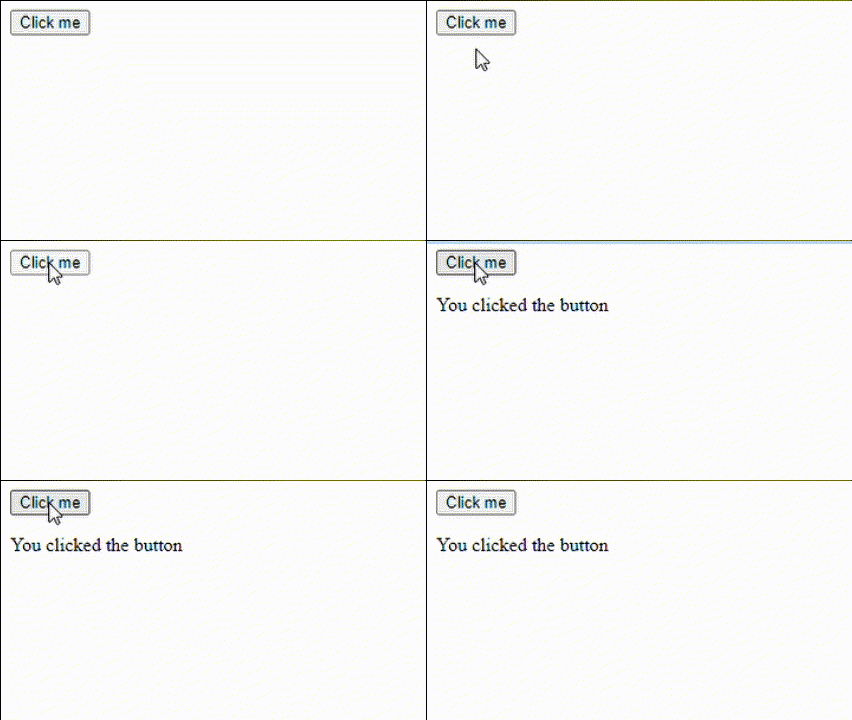
The code given below creates a button called "Click Me" and prints "You clicked the button" when it is clicked. Use this code in 'index.html.erb' file and run the 'rails server' command.
Output:
'button_to' is primarily used to create buttons that submit forms in Ruby on Rails applications. It is used when you need a button to perform an action that requires form submission, such as submitting data to a controller action. For example,
<%= button_to "Delete", some_path, method: :delete, class: "btn" %>
Step 1: Open your home_controller file '(app/controllers/pages_controller.rb)' and add the following action:
Step 2: Open the 'app/views/home' directory and add the following content to 'index.html.erb'
This code will generate a button labeled "Click Me". When clicked, it will submit a POST request to the 'handle_click' action asynchronously.
Step 3: In your 'routes.rb' file, use the 'post' method to define a route for 'handle_click' action. Use 'rails server' at the end.
post 'home/handle_click'
Output:
'button_tag' is used when you need to create a custom button for UI interactions or other client-side actions that don't involve form submission. It works as a standalone button. For example,
<%= button_tag "Click me", class: "btn" %>
Step 1: Open your home_controller file '(app/controllers/pages_controller.rb)' and write the below code:
Step 2: Open the 'app/views/home' directory and add the following content to 'index.html.erb'.
Step 3: Your 'routes.rb' file in 'config' directory should look like this.
Output:
The 'link_to' method is used to generate HTML links (<a> tags) within your views. It's a helper method provided by Rails to simplify the process of creating links to other pages or resources within your application. For example,
<%= link_to "Link Text", "path_to_destination" %>
Step 1: Open the 'app/views/home' directory and add a 'link_to' button in 'index.html.erb' with the path to another page.
Step 2: Create the new page in 'app/views/home' with the name 'clicked.html.erb' where the button will navigate.
Step 3: Create the controller action for new page in 'home_controller.rb'.
Step 4: Finally define the route and run the server using 'rails server'.
Output:
The 'form_tag' helper is used to create a form without binding it to any specific model object. It generates a basic HTML form element and allows you to define form fields manually. For example,
<%= form_tag some_path do %>
<%= text_field_tag :username %>
<%= password_field_tag :password %>
<%= submit_tag "Submit" %>
<% end %>
Step 1: Open the 'app/views/home' directory and add the below content in 'index.html.erb'.
Step 2: Create the new page in 'app/views/home' with the name 'submit.html.erb' where the button will navigate and heading will display for successful form submission.
Step 3: Create the controller action for new page in 'home_controller.rb'.
Step 4: Finally define the route and run the server using 'rails server'.
Output:
The 'form_for' helper is used when you want to create a form that is associated with a specific model object. It generates form fields based on the attributes of the model object. For example,
<%= form_for @user do |f| %>
<%= f.text_field :username %>
<%= f.password_field :password %>
<%= f.submit "Submit" %>
<% end %>
Step 1: Change the code in 'index.html.erb' as follows:
The rest of the code will remain as it is. In this code, :user is a symbol representing the model object. When 'form_for' is used with a symbol like :user, Rails will generate form fields based on the attributes of the model object represented by that symbol.
Output:
Regardless of the method chosen, it's essential to consider usability and accessibility when designing buttons in Rails applications. Buttons should have clear labels, appropriate styling, and be accessible to users of all abilities.

-modified-660.png)
-modified-660.png)
-modified-660.png)
-modified-660.png)
-modified-660.png)
-modified-660.png)