|
VOOZH | about |
|
VOOZH | about |
In this article, we are going to scrape LinkedIn using Selenium and Beautiful Soup libraries in Python.
First of all, we need to install some libraries. Execute the following commands in the terminal.
pip install selenium
pip install beautifulsoup4
In order to use selenium, we also need a web driver. You can download the web driver of either Internet Explorer, Firefox, or Chrome. In this article, we will be using the Chrome web driver.
Note: While following along with this article, if you get an error, there are most likely 2 possible reasons for that.
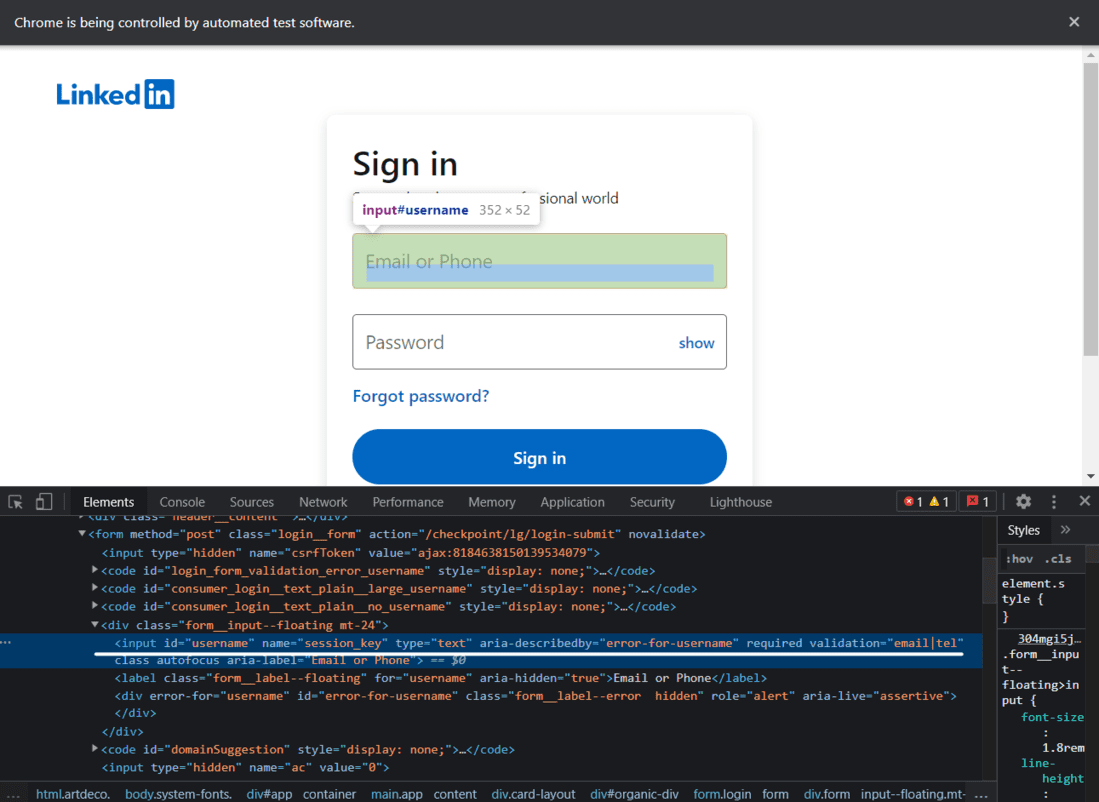
Here we will write code for login into Linkedin, First, we need to initiate the web driver using selenium and send a get request to the URL and Identify the HTML document and find the input tags and button tags that accept username/email, password, and sign-in button.
Code:
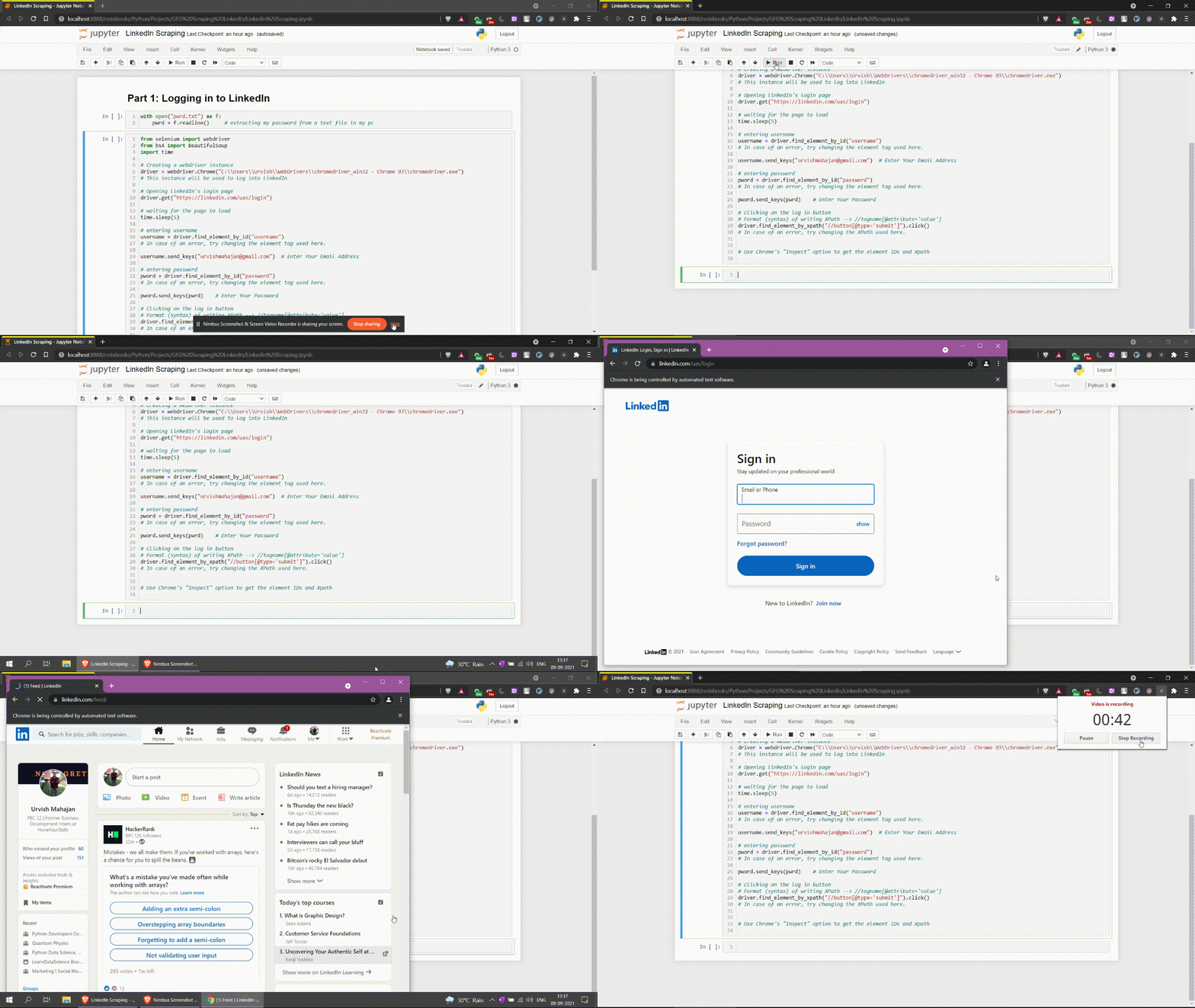
After executing the above command, you will be logged into your LinkedIn profile. Here is what it would look like.
Here is the video of the execution of the complete code.
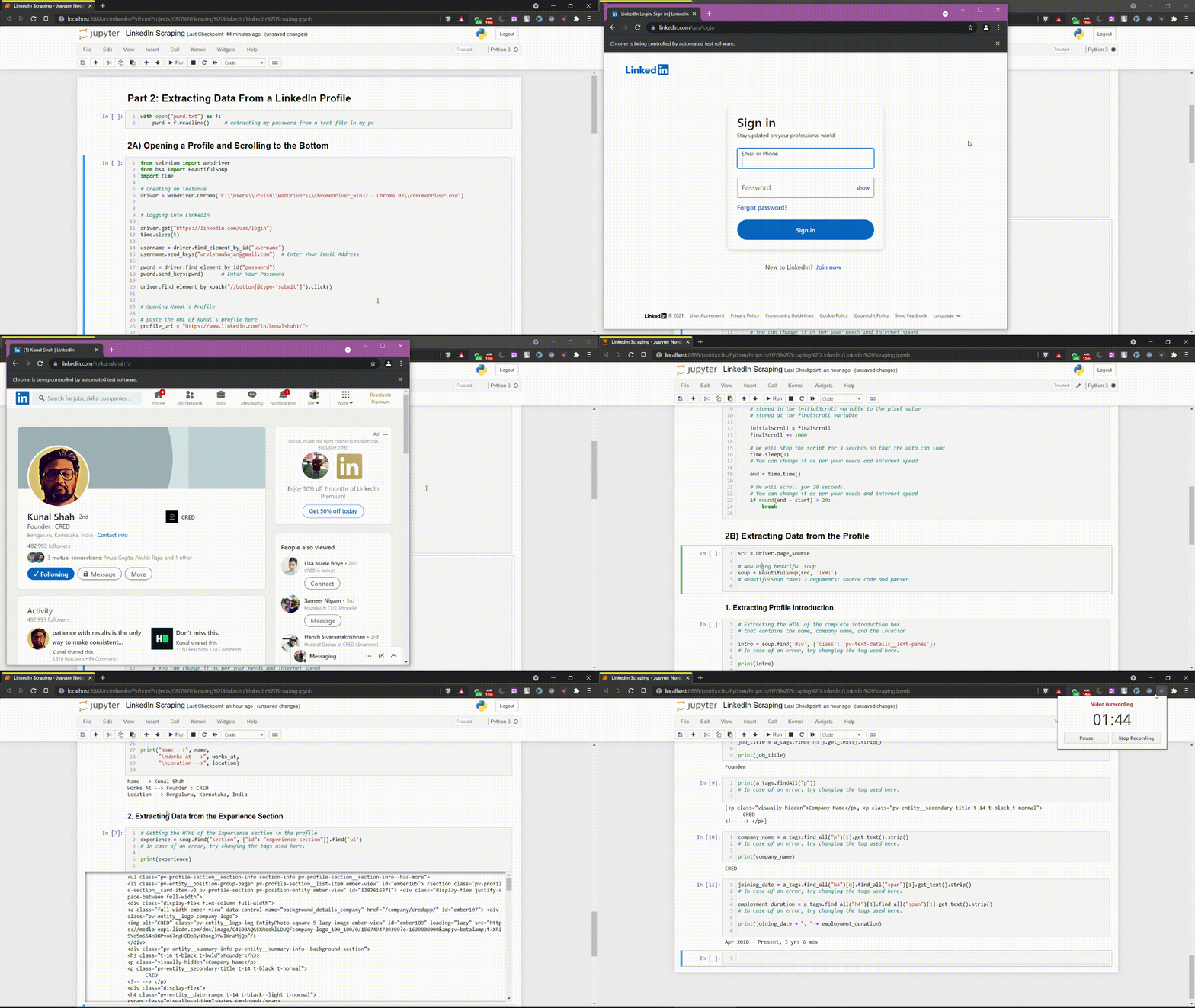
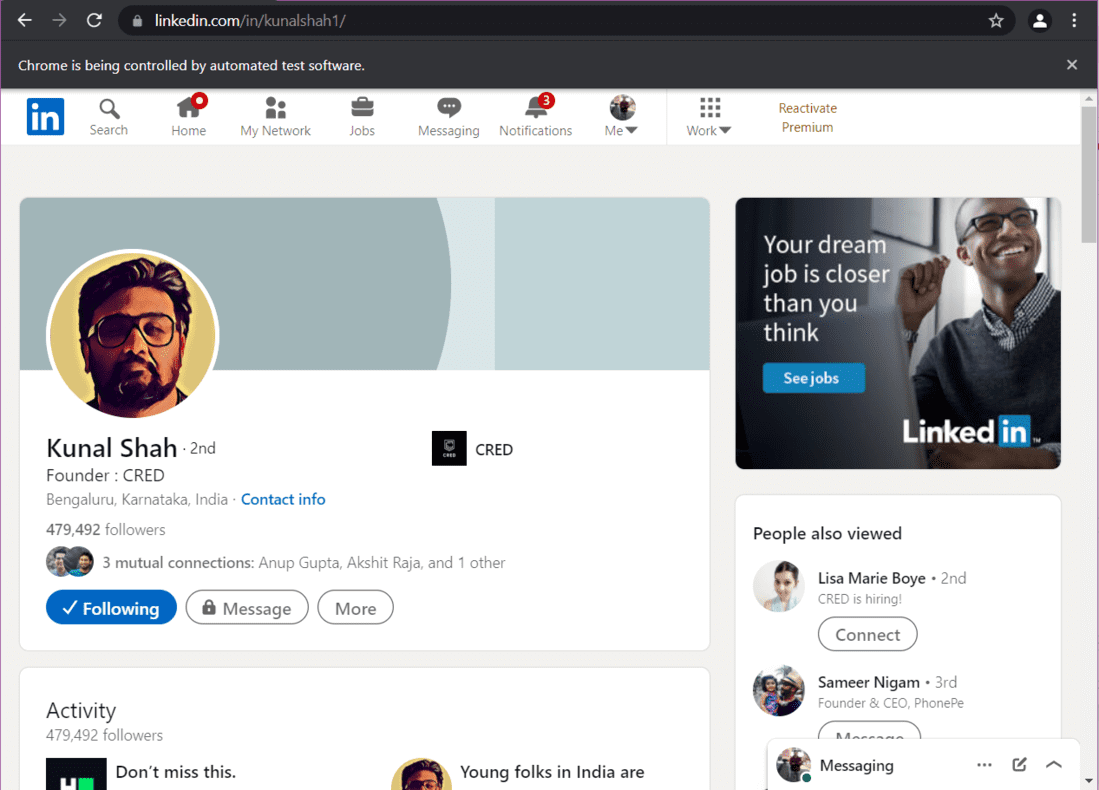
Let us say that you want to extract data from Kunal Shah's LinkedIn profile. First of all, we need to open his profile using the URL of his profile. Then we have to scroll to the bottom of the web page so that the complete data gets loaded.
Output:
Now, we need to scroll to the bottom. Here is the code to do that:
The page is now scrolled to the bottom. As the page is completely loaded, we will scrape the data we want.
To extract data, firstly, store the source code of the web page in a variable. Then, use this source code to create a Beautiful Soup object.
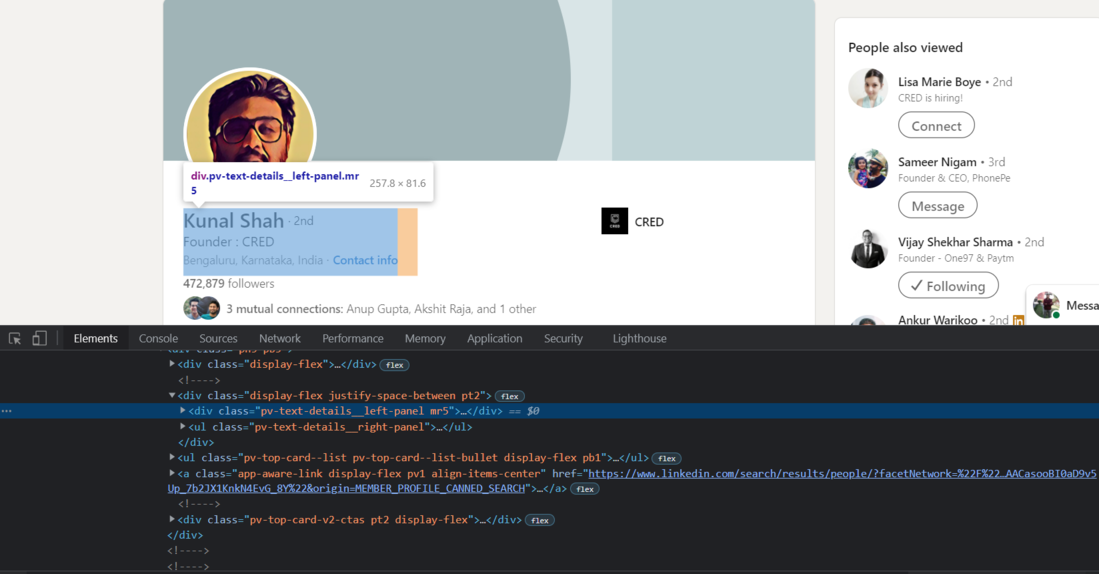
To extract the profile introduction, i.e., the name, the company name, and the location, we need to find the source code of each element. First, we will find the source code of the div tag that contains the profile introduction.
Now, we will use Beautiful Soup to import this div tag into python.
Output:
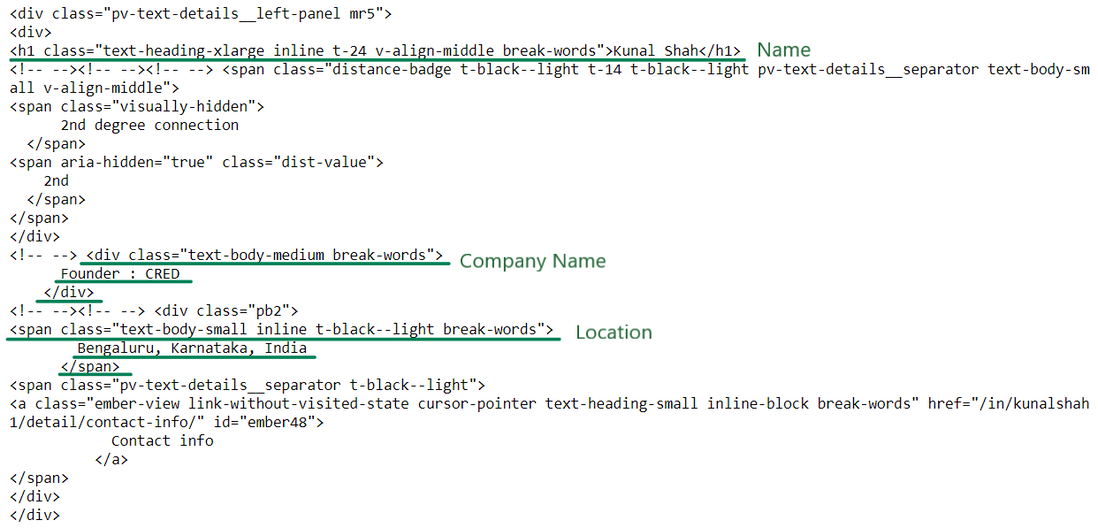
We now have the required HTML to extract the name, company name, and location. Let's extract the information now:
Output:
Name --> Kunal Shah
Works At --> Founder : CRED
Location --> Bengaluru, Karnataka, India
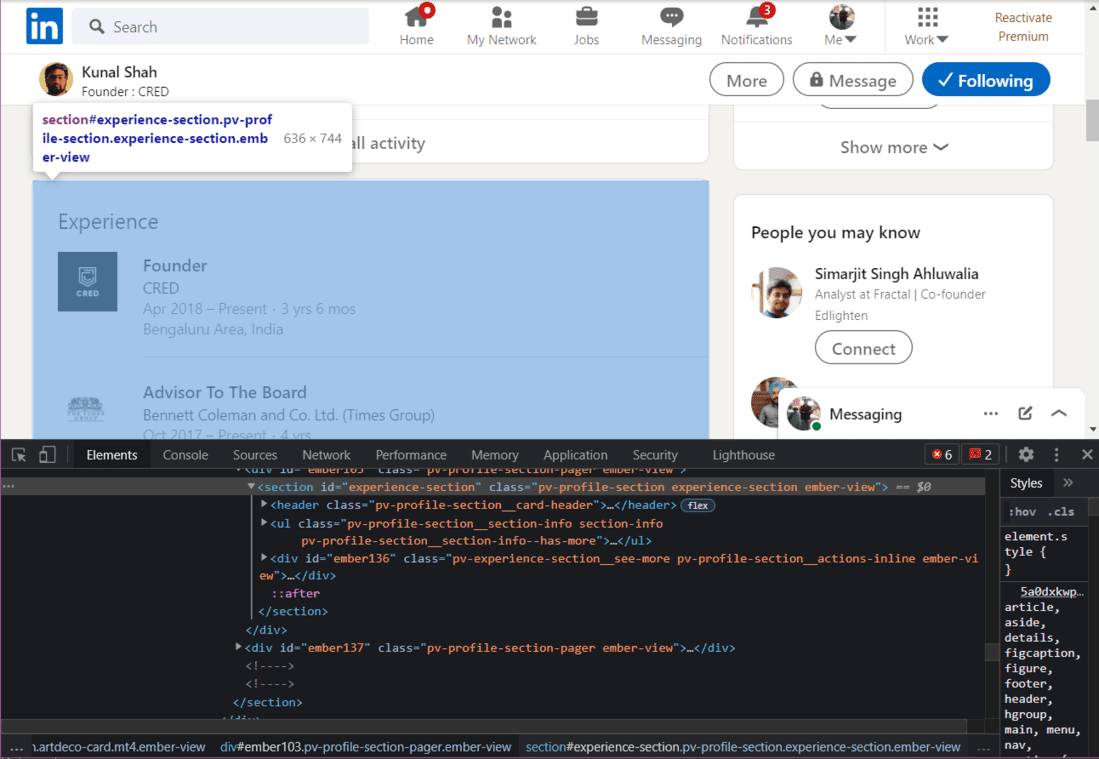
Next, we will extract the Experience from the profile.
Output:
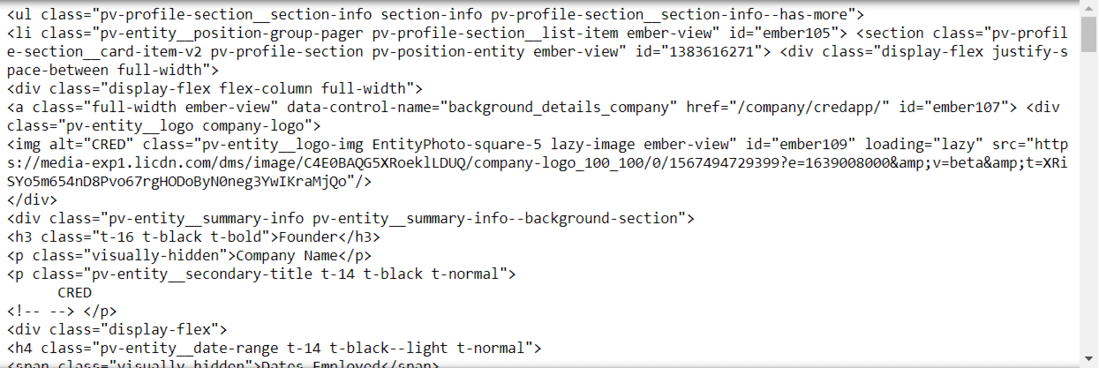
We have to go inside the HTML tags until we find our desired information. In the above image, we can see the HTML to extract the current job title and the name of the company. We now need to go inside each tag to extract the data
Output:
'Founder'
'CRED'
Apr 2018 – Present, 3 yrs 6 mos
We will use selenium to open the jobs page.
Now that the jobs page is open, we will create a BeautifulSoup object to scrape the data.
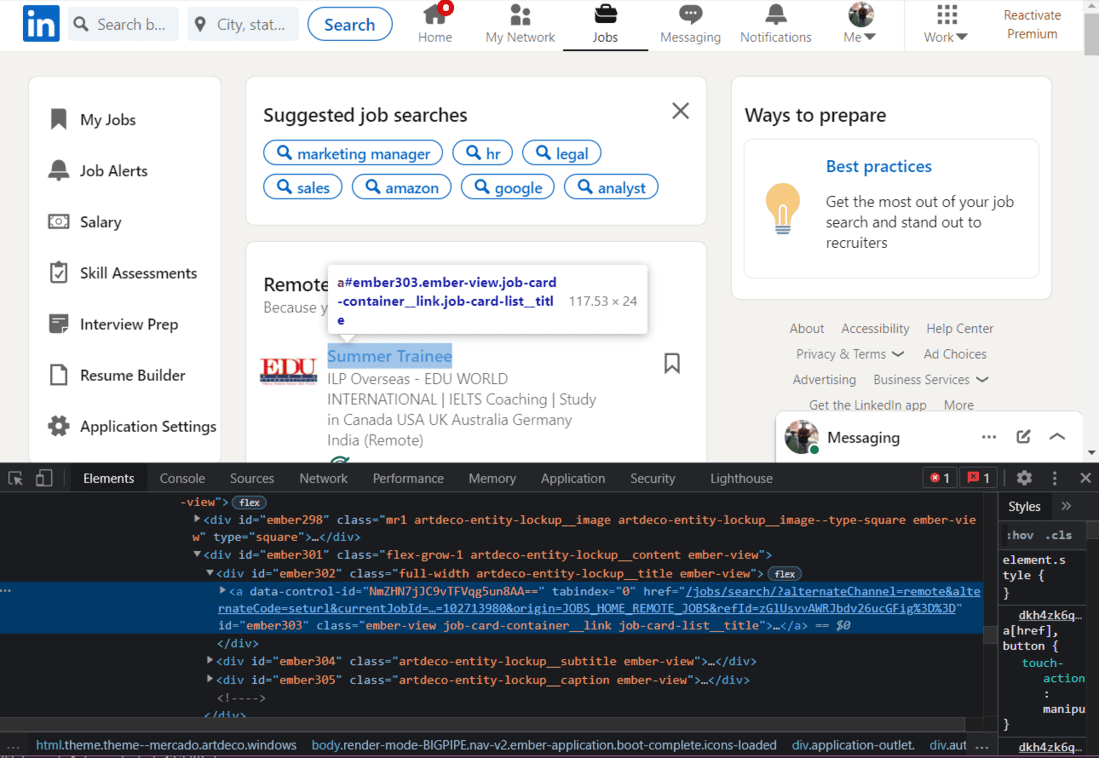
First of all, we will scrape the Job Titles.
On skimming through the HTML of this page, we will find that each Job Title has the class name "job-card-list__title". We will use this class name to extract the job titles.
Output:
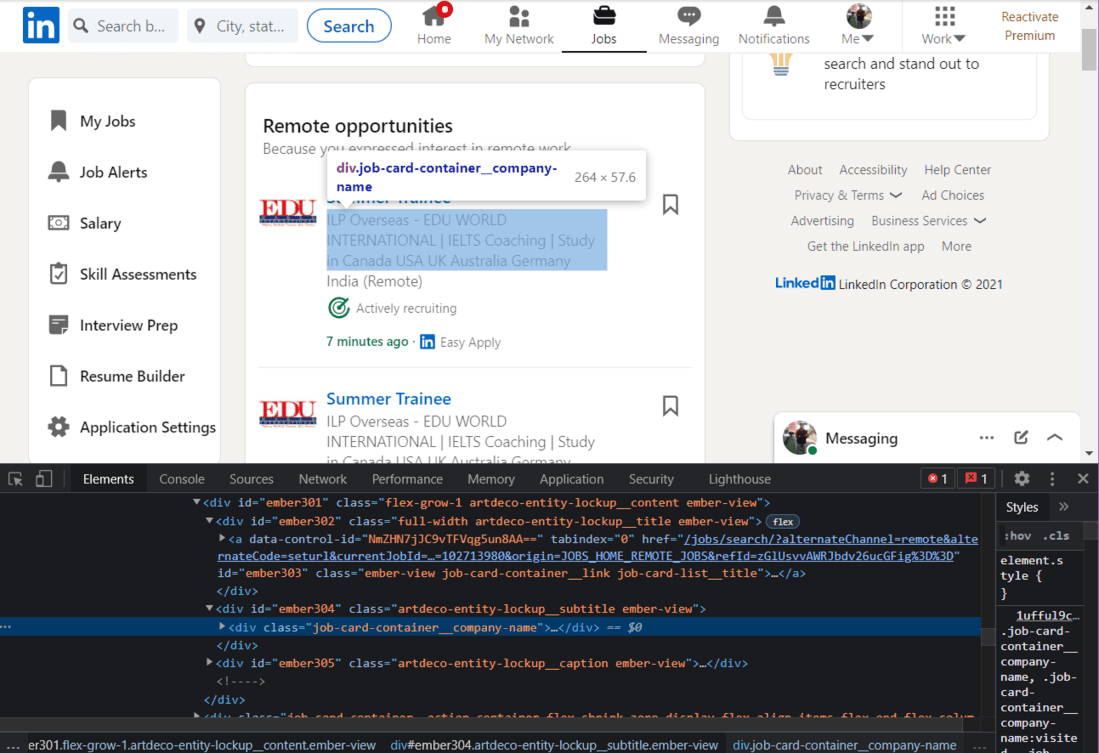
Next, we will extract the Company Name.
We will use the class name to extract the names of the companies:
Output:
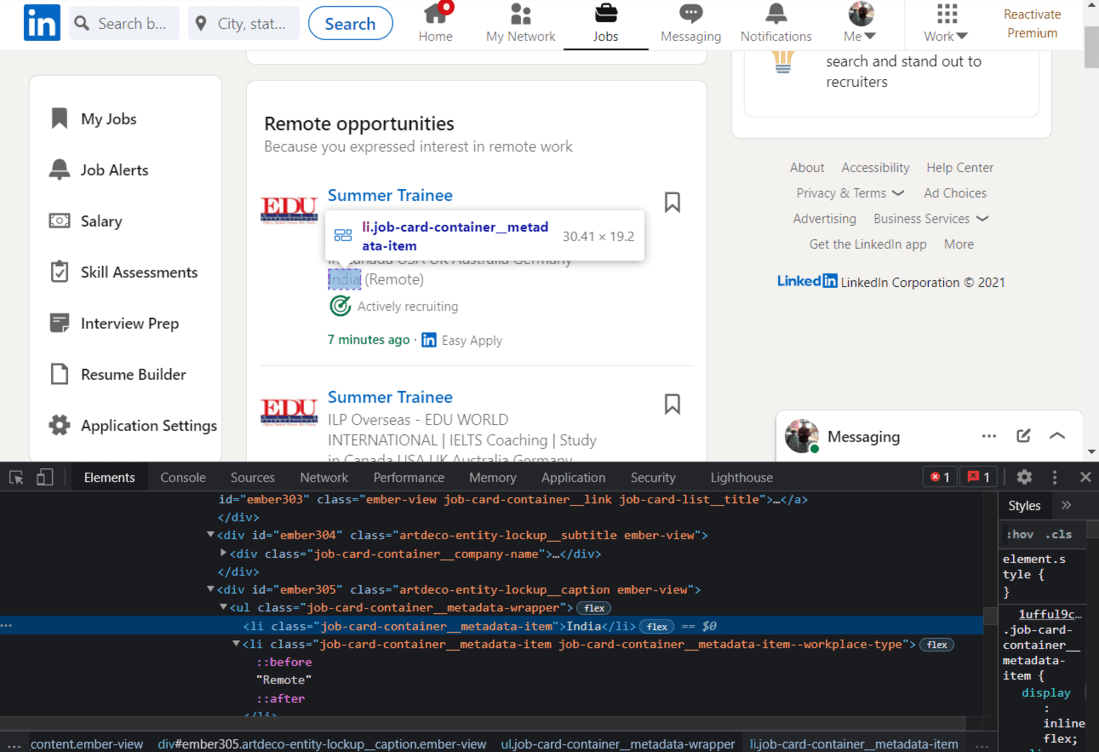
Finally, we will extract the Job Location.
Once again, we will use the class name to extract the location.
Output: