|
VOOZH | about |
|
VOOZH | about |
How to Make Discord Emotes - Quick steps
- Open Discord App or Web App
- Select a Server > Open a Text Channel
- Click on Emoji's icon > Select your Emoji.
- Click Send button
Discord is open-source free platform where you can communicate with your friends using text and voice channels. Using Discord, you can build a strong relation between your friends and communities. Discord is easy to use and is user friendly, it helps the user by its lot of inbuilt features such as custom emojis, easy navigation and so on. In discord we can use emojis to our text to make it representable or enhanced, emojis in discord can be used in an easy way. In this article we will know how we can make emojis on discord when texting.
👁 How-to-Make-Discord-Emotes-and-Custom-Emojis
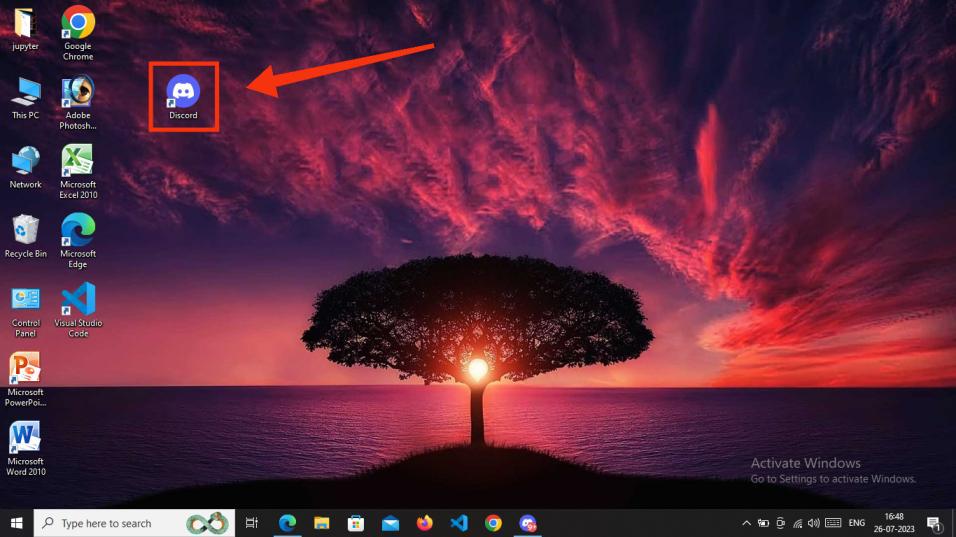
To launch the Discord App, locate the Discord icon and give it a click.
If you are not having Discord App you can login on Discord Web App using any of your Web Browser.
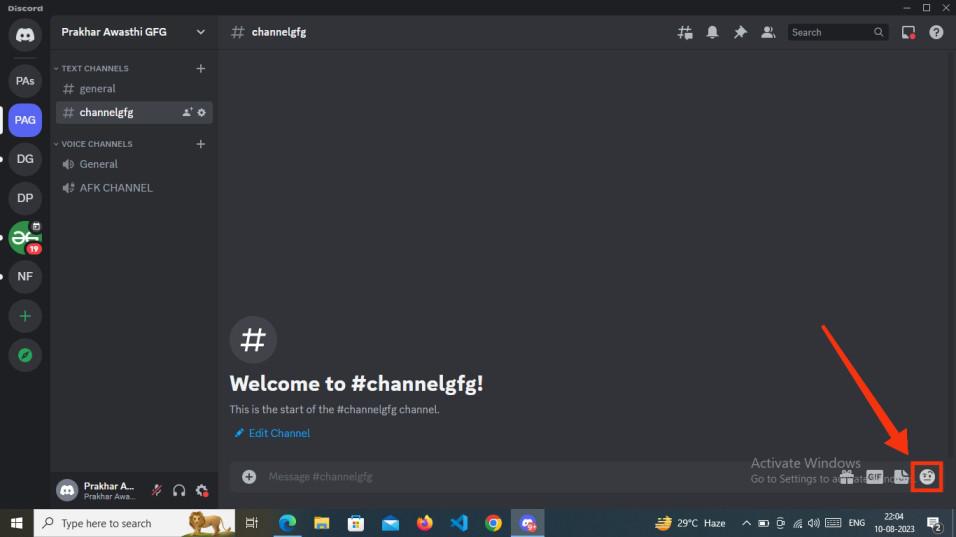
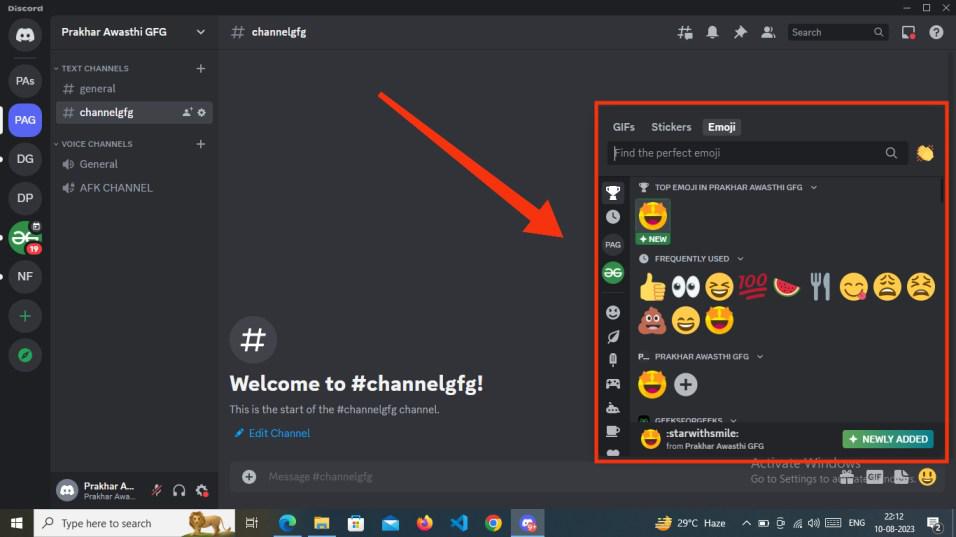
Choose a server and navigate to a text channel where you intend to share an emoji. Crafting emojis directly within Discord is a breeze – simply click on the "Emoji" icon situated on the right side of the text box where you type your message. This action will open an extensive collection of emojis, allowing you to effortlessly find and send the emoji that resonates with your message.
Once you've accessed the emoji section, pick out the emoji that best suits your intent, and press "Enter" to send it within the text channel.
Note: Don't hesitate to integrate emojis into your text; they not only enhance your message but also lend it a more expressive and engaging dimension.
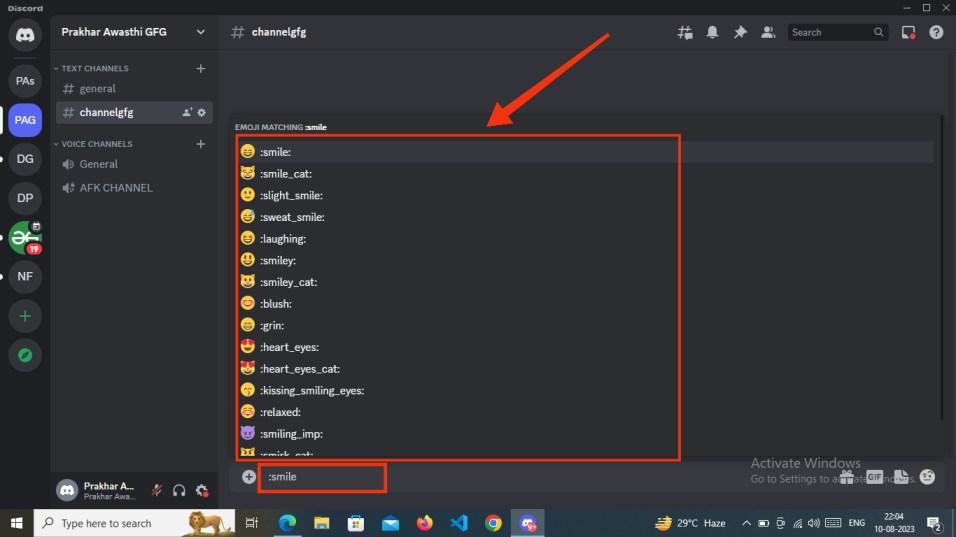
Emojis can also be generated using a shortcut method by simply typing the emoji name enclosed between two colons (:). For this you need to be familiar with the generic emoji names that are widely used on various platform and devices.
Example > :emoji name:
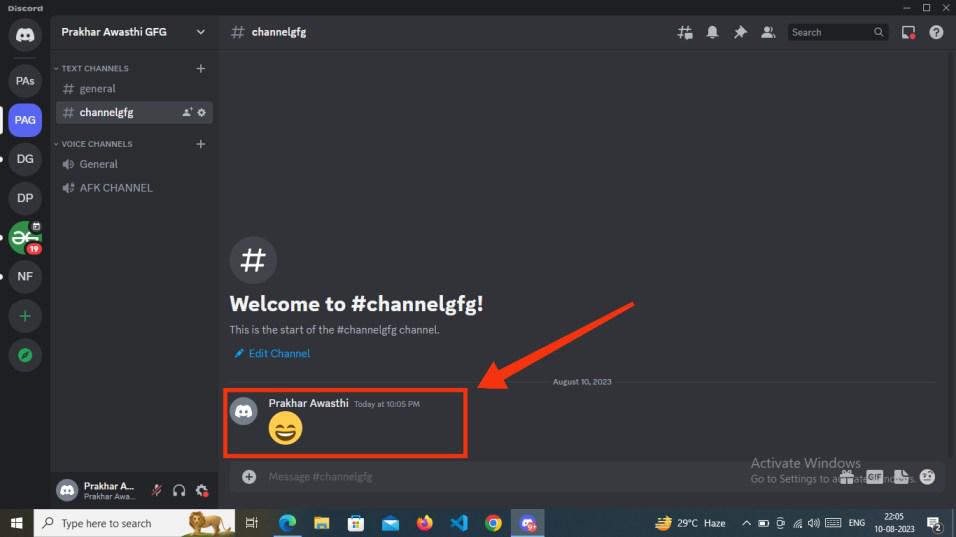
Once you've typed the emoji name starting with a colon (:), you can proceed to press "Enter" to send the emoji as a message. Alternatively, you can also utilize the same method to reply to any text with your chosen emoji.
To launch the Discord App, locate the Discord icon and give it a click.
If you are not having Discord App you can login on Discord Web App using any of your Web Browser.
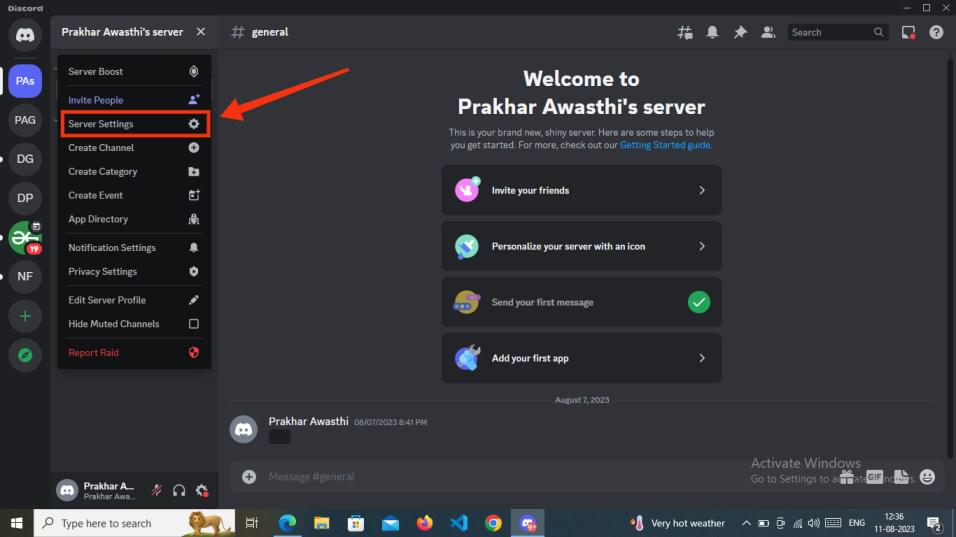
Now open your desired server where you want to upload the emojis. Go to the server settings of your server by clicking on the arrow button in front of the server's name and select "Server settings".
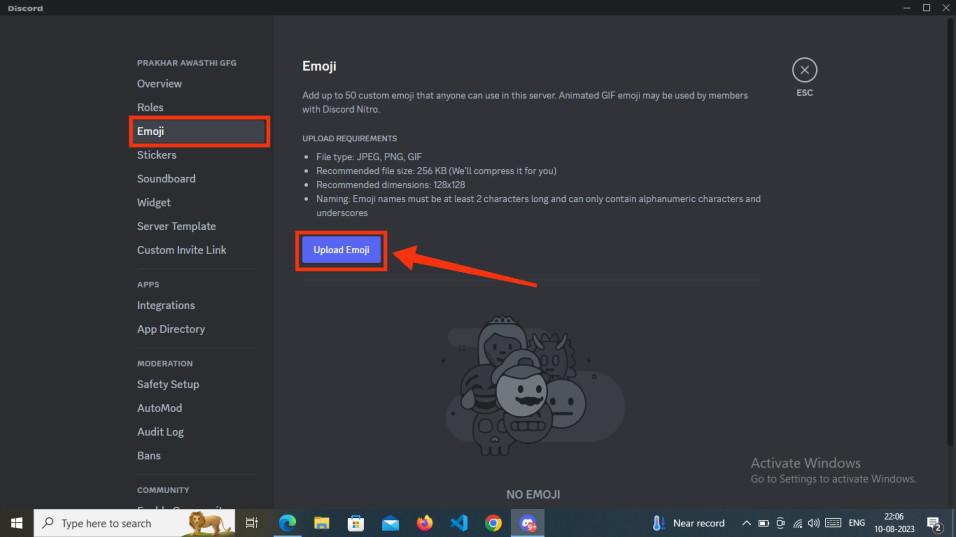
After entering in the server settings of your desired server select the "Emoji" tab which is located on the left side of the interface and click on "Upload Emojis" button to upload your custom emoji. A window will appear of uploading emojis just select your emoji and select "Open".
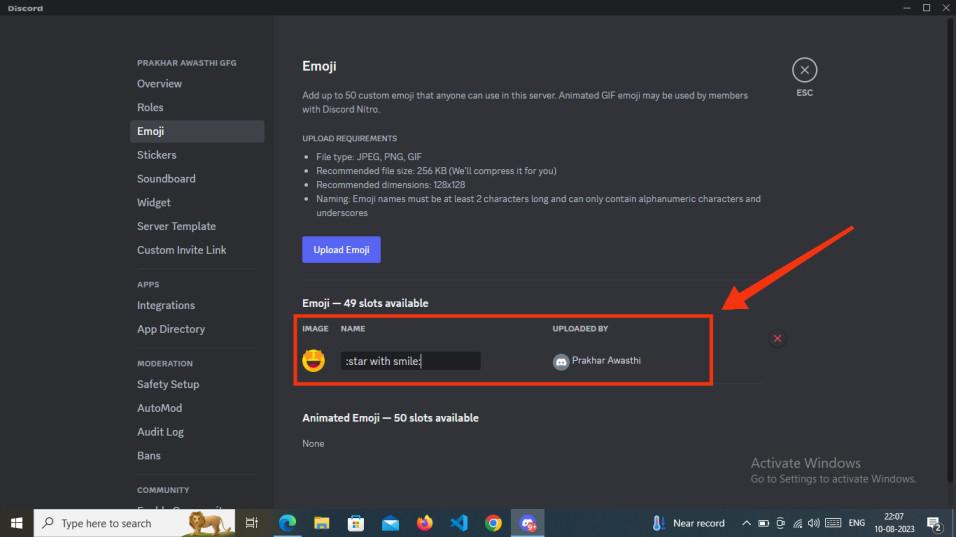
After uploading your emoji to your server, your emoji will be appeared to the "Emoji" tab and then you can give a name to your emoji by which it will be used in the text channel.
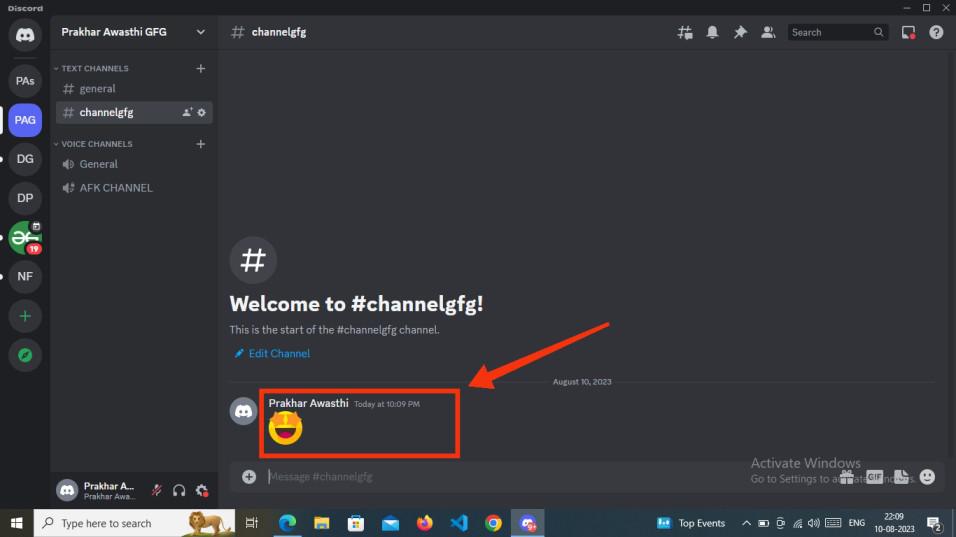
Now come to your text channel where you want to make emoji and type your emoji name between two colons (:), when you are typing discord will give you a hint and select your emoji.
After selecting your emoji press "Enter" to send your emoji to your text channel. Your emoji will sent.
To launch your Discord App, locate the icon and give it a click.
Select you desired text channel from your server to make emojis.
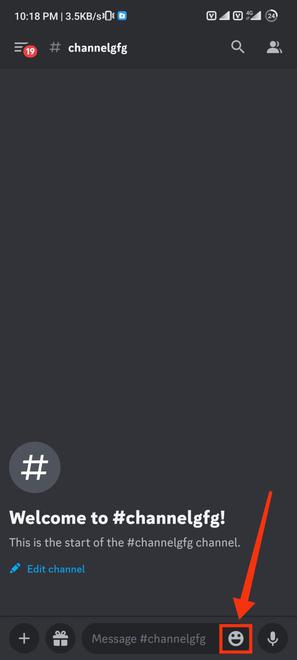
After selecting your desired server come to the text channel and click on the "Emoji" icon to display all the emoji of the discord.
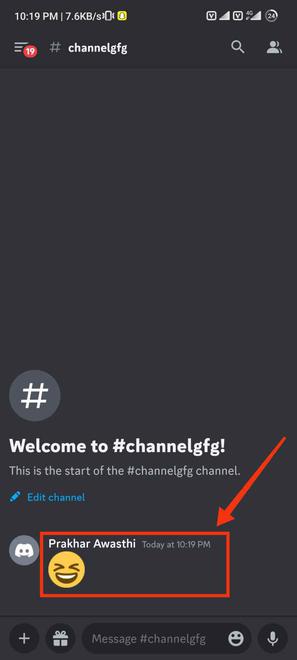
Now a vast collection if emojis will appear on your screen among them select your desired emoji and click on the "Send" button to send the emoji on your text channel.
Your emoji has been sent now to your text channel, you can also select two or more emojis at time and can send to the text channel.
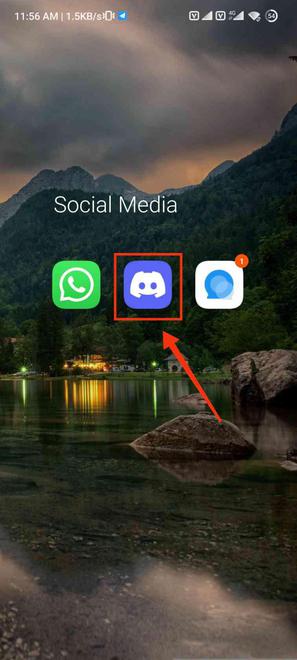
To launch your Discord App, locate the icon and give it a click.
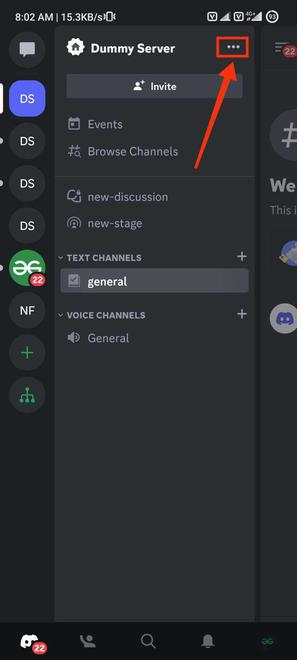
Select your server in which you want to add your custom emojis and click on three-dots present next to your server's name.
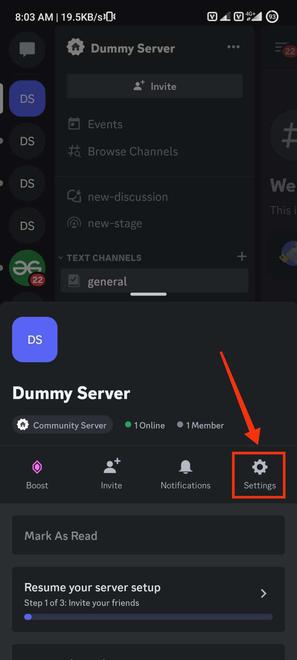
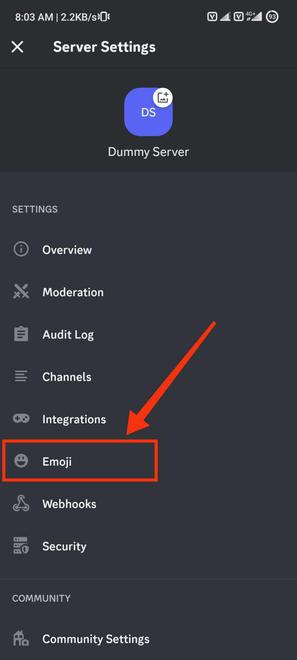
Click on the Settings icon to open the server settings of the selected server.
After opening the server settings, scroll down and select "Emoji" tab.
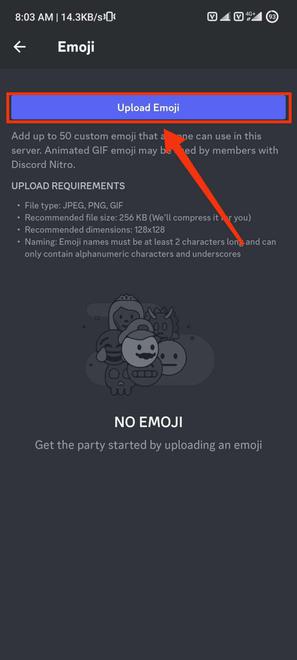
Now click on upload emoji button to upload emojis from your mobile phone.
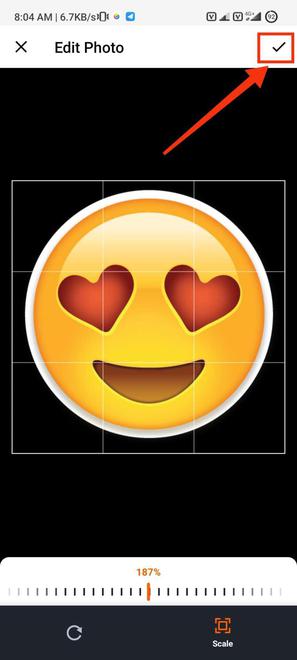
Please choose an emoji or image that is in PNG format, then press the checkmark button to upload it onto the server.
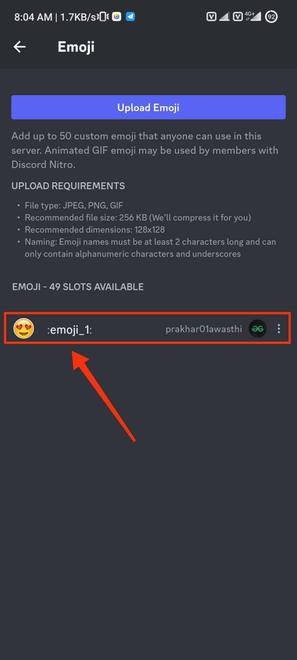
Now your emoji has been uploaded and you can confirm it in the emoji section.
To launch the Discord mobile app, locate the discord icon and give it a click.
Select your server in which you want to add your custom emojis and click on three-dots present next to your server's name.
Click on the Settings icon to open the server settings of the selected server.
After coming to the server settings select the "Emojis" tab.
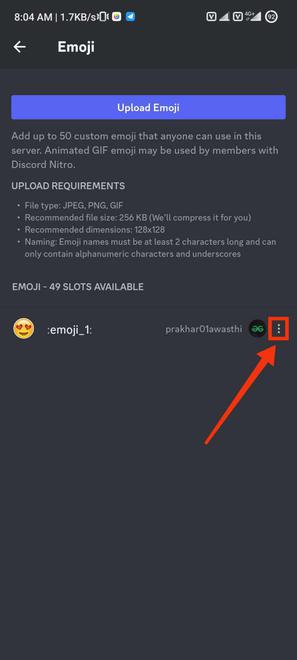
Locate the emoji you wish to remove from your server and click on the three dots beside the emoji to access the delete option.
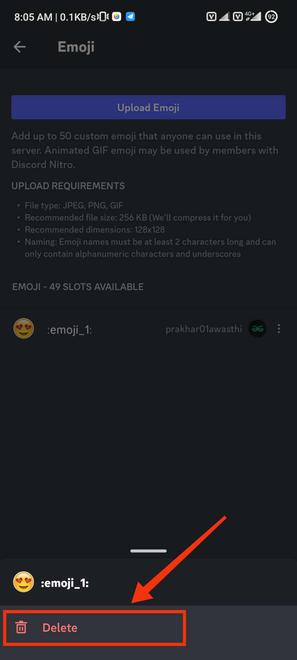
Once you've clicked on the three dots, select the Delete option to eliminate the emoji from your server. This action will result in the removal of your emoji.
In conclusion, Discord offers a range of advantages for effective communication, with emojis playing a pivotal role in enhancing the visual appeal and representation of messages. This article has outlines the simple process of creating emojis on Discord. Whether opting for the default available emojis by clicking on the "Emoji" icon or crafting custom emojis by uploading them through the server settings, Discord provides user-friendly methods for expression. Using custom emojis involves typing the emoji's name enclosed in double colons and then selecting it to be sent with a quick click on the "Send" button. These emojis not only add vibrancy to messages but also allow for personalization and creativity in Discord interactions. Embrace the power of emojis to elevate your communication on Discord, making your messages not only informative but also visually engaging and expressive.

.jpg)
-660.jpg)
-660.jpg)
-660.jpg)