 |
VOOZH | about |
|
VOOZH | about |
Want to update your name on Facebook, either to correct a typo or reflect a recent change? Whether it’s a personal profile name or a business page name, Facebook makes it easy to edit your name through a few simple steps. Understanding how to change your name on Facebook ensures your profile stays current and matches your identity or brand.
This guide will walk you through all the methods, whether you’re updating your profile name, fixing a spelling error, or adjusting the name on a Facebook page. No matter the reason, these steps will help you navigate the process on both desktop and mobile.
Disclaimer: Facebook has name change policies, so ensure your new name complies with their standards to avoid restrictions.
Table of Content
Facebook has specific rules about what names can be used. This ensures profiles remain authentic and do not violate community standards.
Pro Tip: To regain access to your account, use a name that matches your ID or a document on Facebook's approved list.
Changing your name on Facebook is simple and can be done using various methods, whether on a desktop, mobile app, or for a business page. Below are the best and proven methods to change your fb name quickly and efficiently. Follow the steps under each method to align with Facebook’s naming policies while avoiding errors.
This method is ideal to change fb page name using a computer browser. It’s perfect for personal accounts and ensures you comply with Facebook’s policies.
Open the Facebook app on your desktop or laptop and log in to your account. Tap your profile picture on the top right corner of the screen.
👁 How to Change Your Name on Facebook
Select 'Settings and Privacy.' Under this, choose 'Settings.'
👁 How to Change Your Name on Facebook
Go to the Meta Accounts Centre section on the left side of the page and click 'See more in Accounts Center.'
👁 How to Change Your Name on Facebook
Tap 'Profiles' and click on your Facebook profile.
👁 How to Change Your Name on Facebook
As you click on your personal profile, you get 4 options- Name, Username, Profile Picture and Avatar. Now, to change the name, we click on Name.
👁 How to Change Your Name on Facebook
Enter the new name and click 'Review change.'
👁 How to Change Your Name on Facebook
You can also select the order you want your name to appear and tap 'Done' to save it.
You can also change your Facebook profile name on Mobile. Here we will cover the steps for mobile (iPhone/Android):
Here are the steps on how to change your name on Facebook on iPhone:
Open the Facebook app on your iPhone.
Note: All the screenshots listed below are taken on an iPhone. However, if you have Android, you must follow the same steps as iOS.
Tap 'Menu' at the bottom right of the screen.
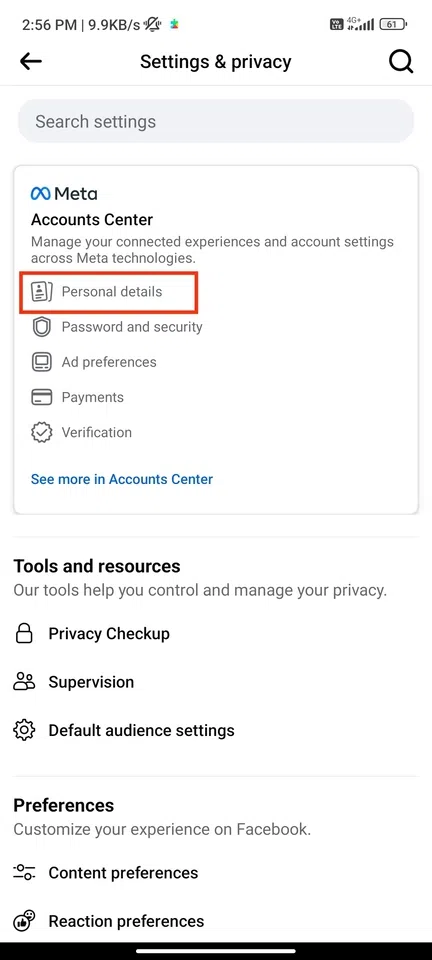
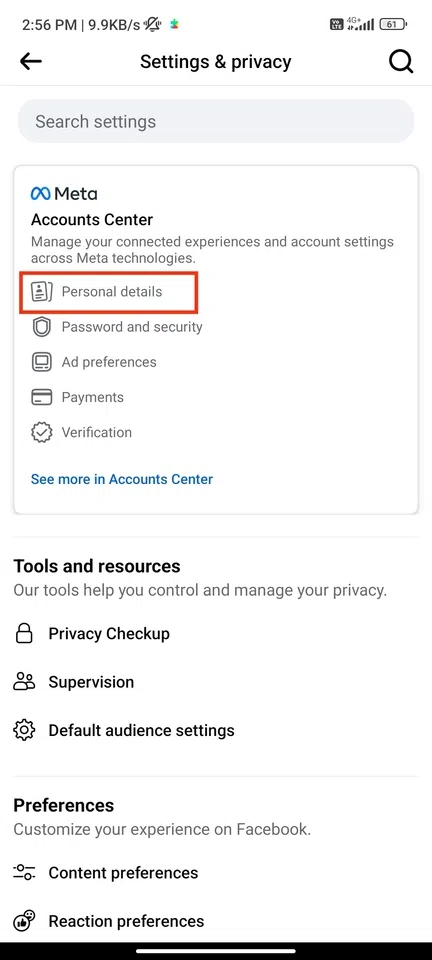
Click on the 'Settings and Privacy' drop-down. This section will provide a few options such as Settings, Privacy shortcuts, Your time on Facebook, and more. Choose Settings.
👁 How to Change Your Name on Facebook
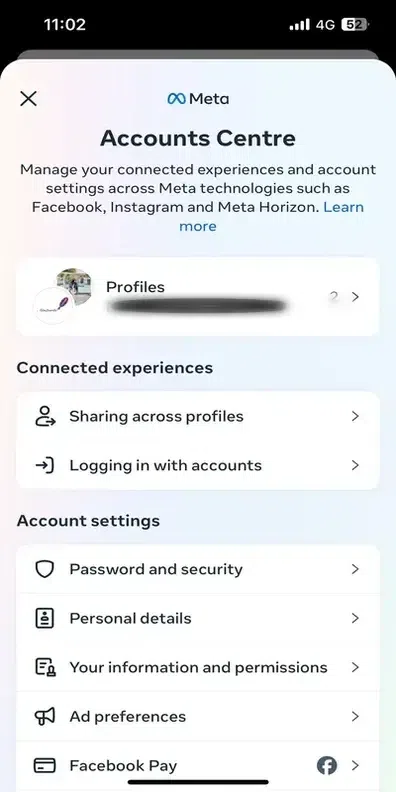
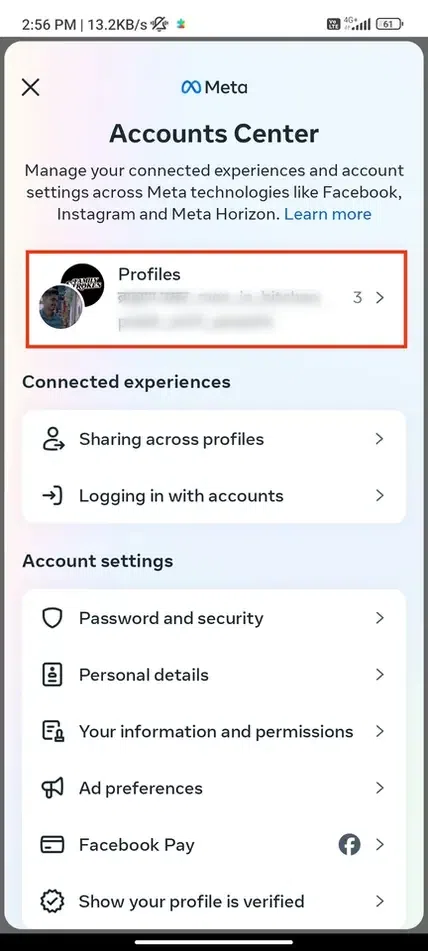
Select 'See more in Accounts Centre' and click 'Profiles.'
👁 How to Change Your Name on Facebook
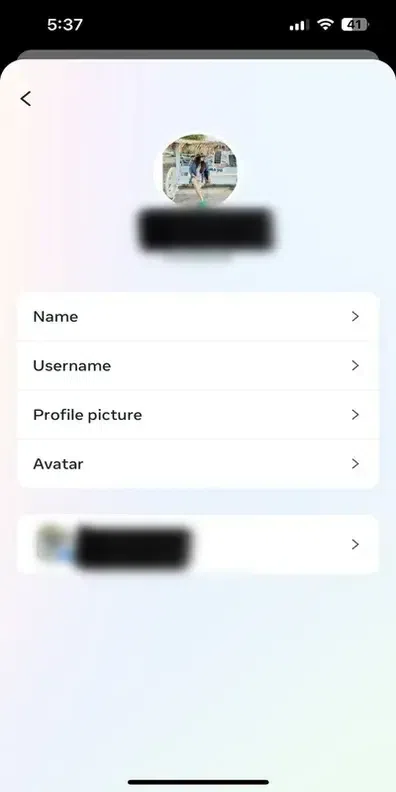
Click on the Profile to changes the name.
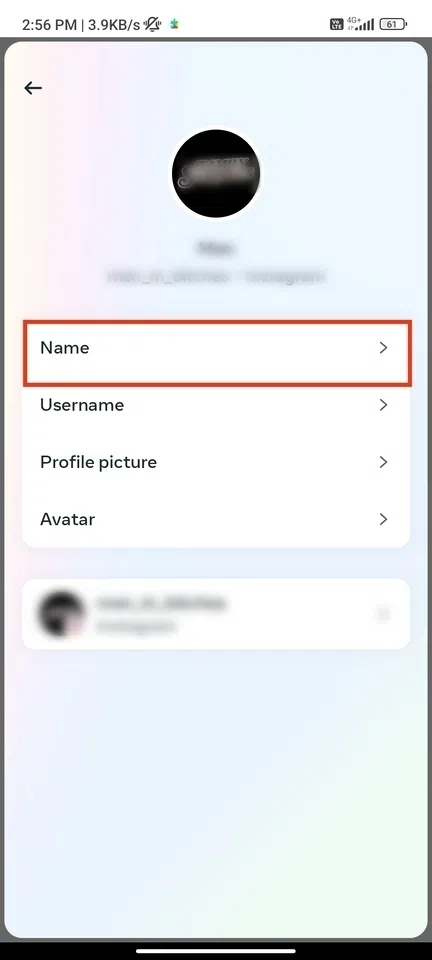
Now, you will get 4 options- Name, Username, Profile Picture and Avatar. You can change any of these by clicking any of the 4 options. Now, as we change the name on Facebook, we will select 'Name' here.
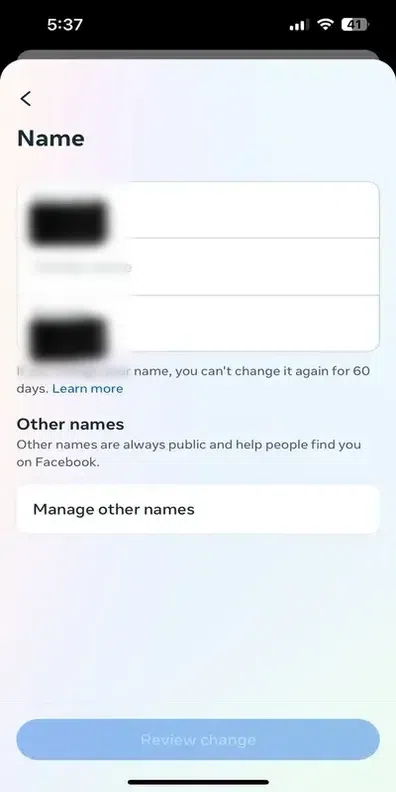
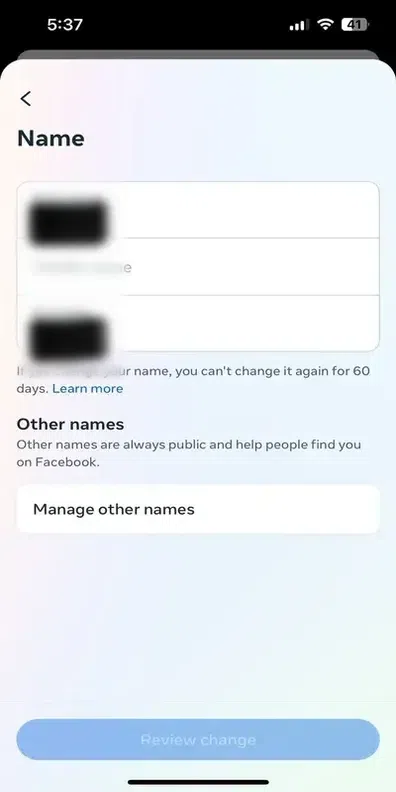
Enter the new name and click 'Review change.'
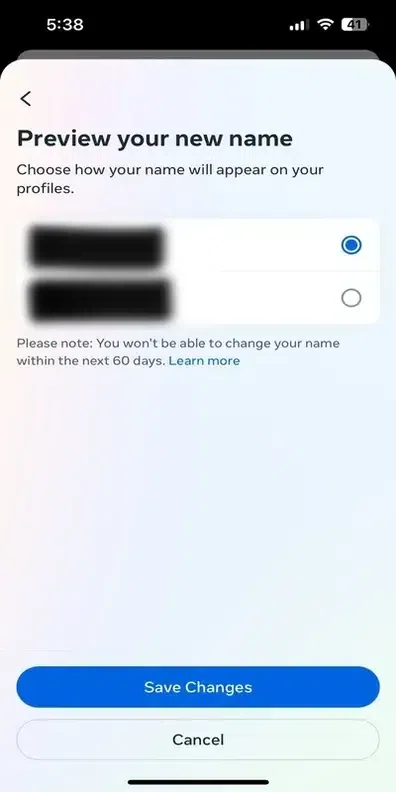
You can also select the order you want your name to appear and tap 'Done' to save it.
If you need to change your name on Android then follow the steps given below:
Open the Facebook app on your device.
After opening the app click on the Three Bars located at the top right corner of the interface.
Click on the Gear icon located at top-right side of the interface.
Now in the Settings and Privacy section click on the Profile Details.
Select your profile of which you want to change name.
As you are changing the name so you need to click on the Name.
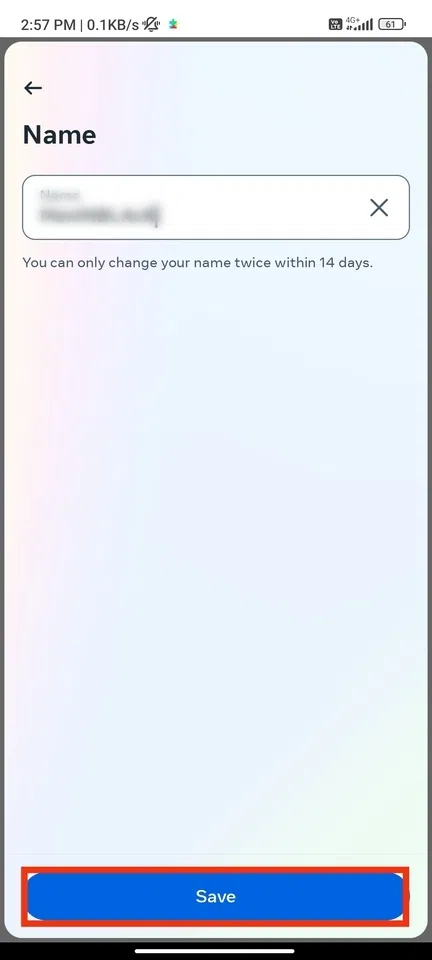
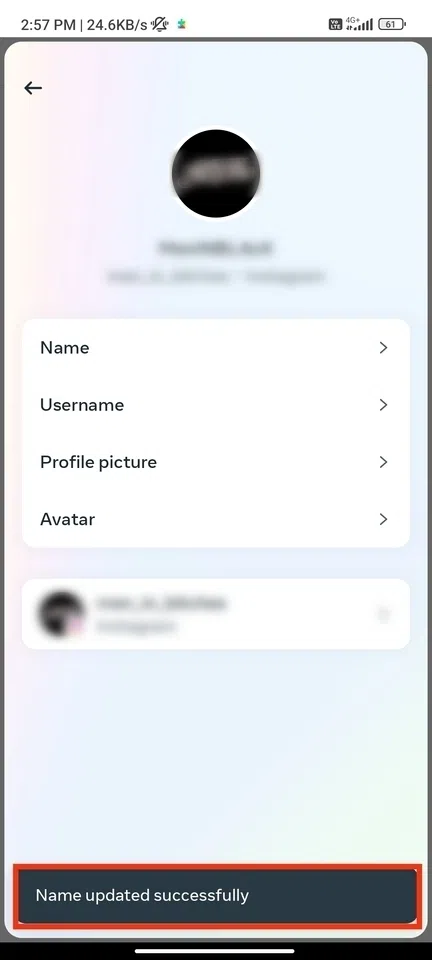
Now enter the name that you want to replace with the previous one. and click on the Save.
Congrats! You have now successfully changed the name on your Facebook profile.
This method is ideal for rebranding or updating your Facebook business or community page name.
Here are the following steps to change a Facebook page name:
Navigate to the page you manage.
Click on Settings from the left-hand menu.
Select Page Info and click Edit next to the current page name.
Input your updated business name and click Save Changes.
Facebook may review the change, which can take up to 3 days. If approved, the name will update.
Your username (URL) is unique to your profile and can also be updated for better personalization.
Nicknames can be used if you meet Facebook's community standards and policies. Follow these steps if you want to use a nickname on Facebook:
Once you open the Facebook app on your iPhone or Android, tap the 'Menu' icon at the bottom right of the screen.
Note: All the screenshots listed below are taken on an iPhone. However, if you have Android, you must follow the same steps as iOS.
Scroll down the list and choose 'Settings and Privacy'. Then, you will get other options; select 'Settings.'
👁 How to Change Your Name on Facebook
Click on 'See more in Accounts Center.'
👁 How to Change Your Name on Facebook
Select the option 'Profiles' which will open your Facebook Profile.
Select 'Name' and then 'Manage other Names.'
Now, you only need to tap 'Name Type' (it could be your nickname, former spelling,birth name, alternative spelling, father's name, maiden name, etc.) and click on 'Save'.
👁 How to Change Your Name on Facebook
Also Read:
Changing your name on Facebook, whether for your profile or a business page, is a straightforward process when you follow these steps. Keeping your profile or page up-to-date ensures it reflects your identity or brand accurately. Use this guide to make changes confidently, and enjoy a seamless experience across the platform!


.webp)


.webp)






.webp)
.webp)
.webp)