|
VOOZH | about |
|
VOOZH | about |
How to Turn a PDF into a Google Doc - Quick Steps
- Open Google Drive
- Click on Upload > Upload the PDF
- Locate the PDF > Perform a Right-click
- Select "Open With" > Google Docs
- Go to File Menu in Google Docs > Download as Google Docs
Looking to convert a PDF into an accessible Google Doc? Converting a PDF to a Google Doc is a quick and effective way to edit, collaborate, or repurpose content directly within Google Docs. Whether you need to update a document, extract text, or share it for real-time collaboration, Google Docs offers a seamless way to import and convert PDFs. This article will walk you through how to convert a PDF to Google Doc, ensuring that your document keeps its content and formatting as accurate as possible. With this feature, you can save time and effort while transforming static PDFs into editable Google Docs.
Table of Content
Converting a PDF to a Google Doc is essential when you want to:
Converting a PDF file to a Google Doc is a very simple task which requires minimum efforts. If you need to know how to save a pdf as a google doc file then you can follow the following mentioned steps and you will be able to save pdf in google docs.
There are mainly two ways in which you can explore how to turn pdf into Google Docs and we will be covering both the ways below:
Follow the below steps on how to make a PDF to a Google Doc with Formatting:
Go to the Google Drive and login in with your credentials.
Click on the New Button just below the Drive icon on the left hand side of screen. If the file is already available in your google drive account then you can jump to Step 5 directly.
Now after clicking on the New button a drop-down menu will appear on the screen which will consist of upload file option, creating a new folder and list of other cloud platforms . Now as we need to upload the PDF file of our choice so we need to select the File upload option.
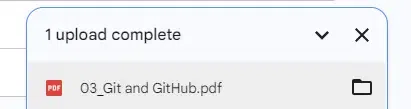
After you have selected File Upload option then you will be directed to your system's file manager where you have to choose the PDF file you want to convert. After selecting the PDF file click on Open Button to upload the file. As an example here is a sample PDF file uploading for your reference.
Right click on the uploaded file and then select Open With option and then select Google Docs. The file will now open in the Google Docs where you can work on your file.
Now a Google document will be created with the content of the PDF you have just uploaded. You can now work on this file by making use of tools and services provided by the Google Docs and create a well formatted document by showing your level of creativity.
Go to the File option and Select Make a Copy button to save the file.
Follow the steps below to know how to make a pdf a Google Doc without Formatting:
Visit the Google Drive Official Website by any of your web browsers.
Now upload the PDF to the Google Drive and then simply by selecting "Open With" > "Google Docs" open the PDf into Google Docs.
Now go to the Format menu and select "Remove Formatting" to remove all the formatting of the document.
To download the PDF go to the File menu and select "Download" button to specify the format.
If you have crucial information to share in your document, consider this approach to convert PDF pages as images. After learning how to convert pdf into google doc, this method allows you to effectively present essential content visually within your Google Doc. Follow the below steps know how to convert your PDF to Google Docs as a image:
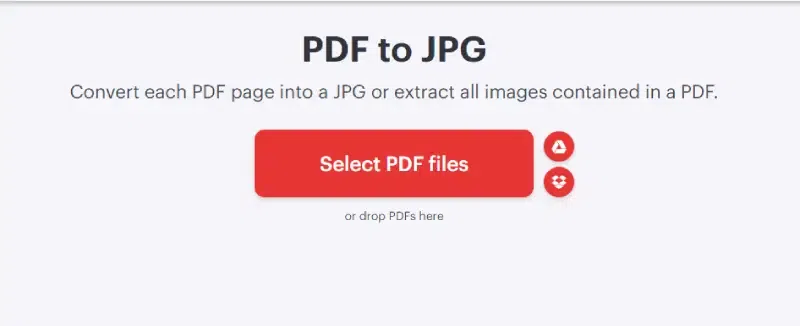
Pick any of your tool to convert PDF file into JPG.
Click on the Upload button and upload any of your PDF file to the tool.
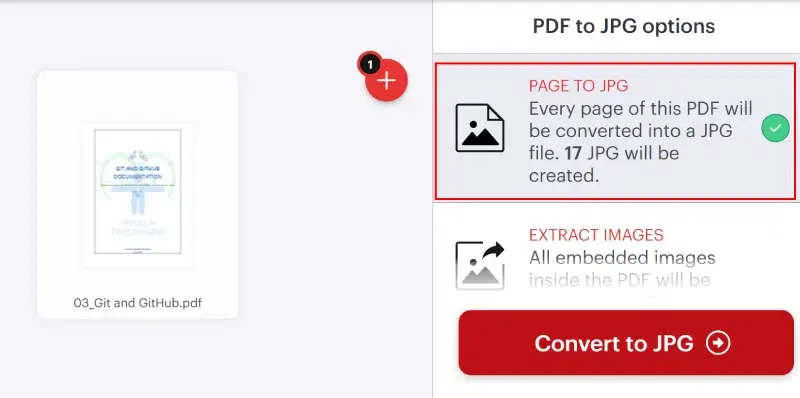
Choose "Page to JPG" to convert each page of the PDF into a separate JPG image, or opt for "Extract Images" to convert all images embedded within the PDF into JPG format.
Press the "Convert" button to convert the PDF to JPG.
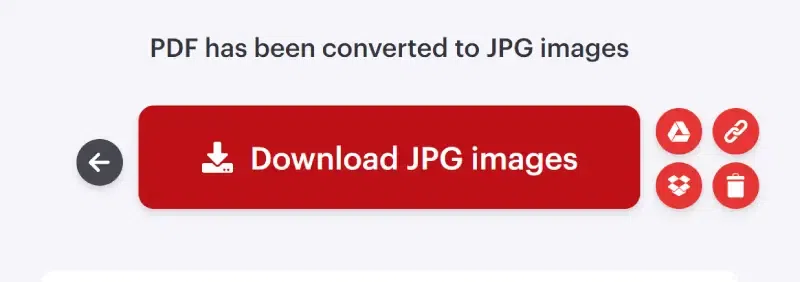
Now download the images by clicking on the "Download" button.
Navigate to the Google Docs from any of your web browsers.
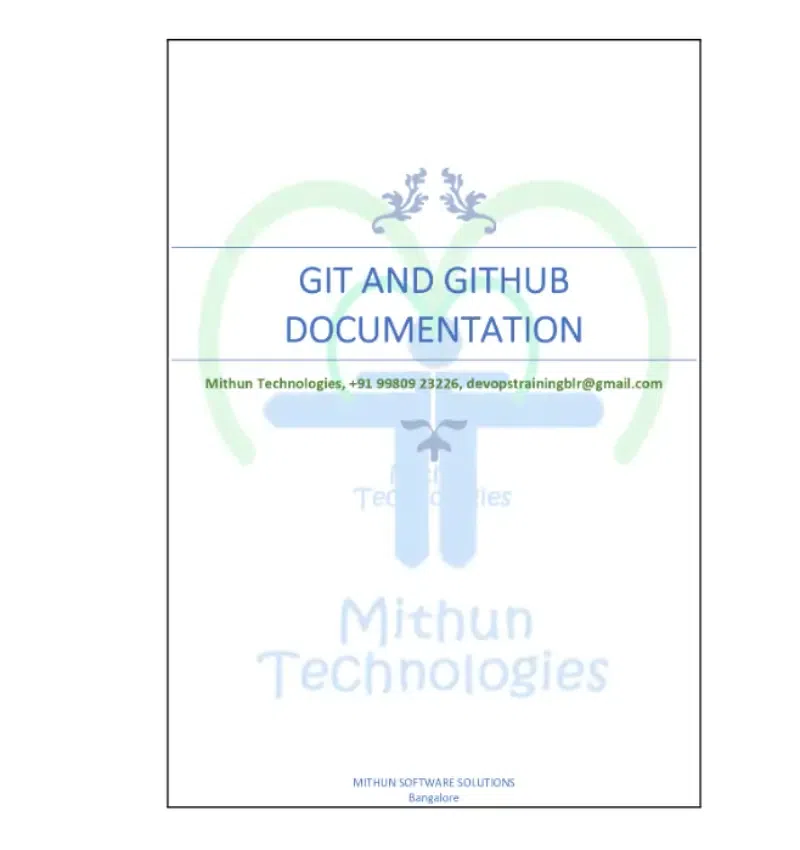
Upload the image to the Google Docs by going to the Insert menu.
You can upload a PDF to your Google Doc through Google Drive. This method allows you to share the information in the PDFs without actually inserting the pages into your document. To add a PDF link to your Google Doc:
If you haven’t done so yet, upload the PDF file to your Google Drive.
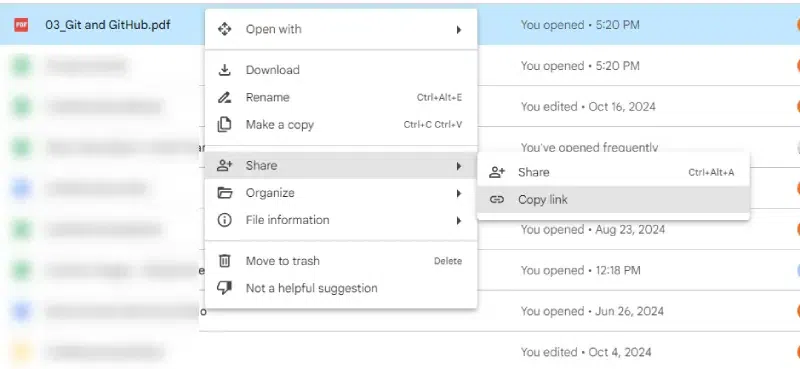
Find the PDF file you wish to share within your Google Drive. Performa right click on the PDf and select the "Share" button and then click on the "Copy Link" to copy the link.
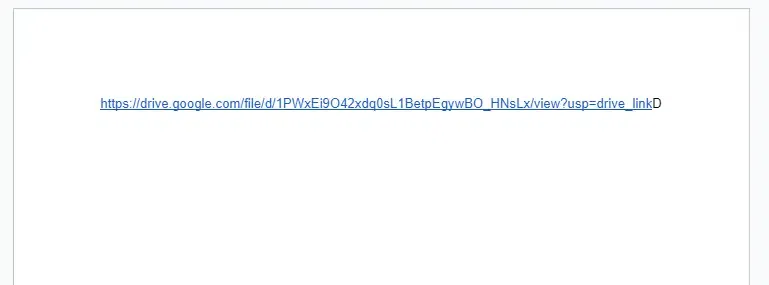
Open the Google Doc where you want to add the link and paste it in. Now, clicking the hyperlink will open the PDF in a new window.
Also Read:
Converting a PDF into a Google Doc is simple and highly efficient, whether you're on a Mac, iPad, iPhone, Chromebook, or any other device. By uploading your PDF to Google Drive and using the Open with Google Docs option, you can seamlessly edit and manage your document. For those wondering, how do you convert a PDF to a Google Doc, the steps are straightforward and allow you to maintain flexibility across devices. With these methods, you can easily transition between formats and work collaboratively, all while leveraging Google Docs' powerful editing tools.


.webp)