|
VOOZH | about |
|
VOOZH | about |
Google Forms is a powerful and versatile tool widely used for creating surveys, quizzes, and various data collection forms. It allows users to gather responses efficiently, but there often arises a need to convert these responses into a more portable and shareable format, such as PDF. Converting Google Forms responses to PDF can be useful for documentation, reporting, or archival purposes.
In this article, we will learn how to convert Google Forms responses to PDFs, ensuring your data is easily accessible and presentable.
👁 How To Convert Google Forms Responses To Pdf
The reason why there is a need to convert Google Forms into PDFs are:
Table of Content
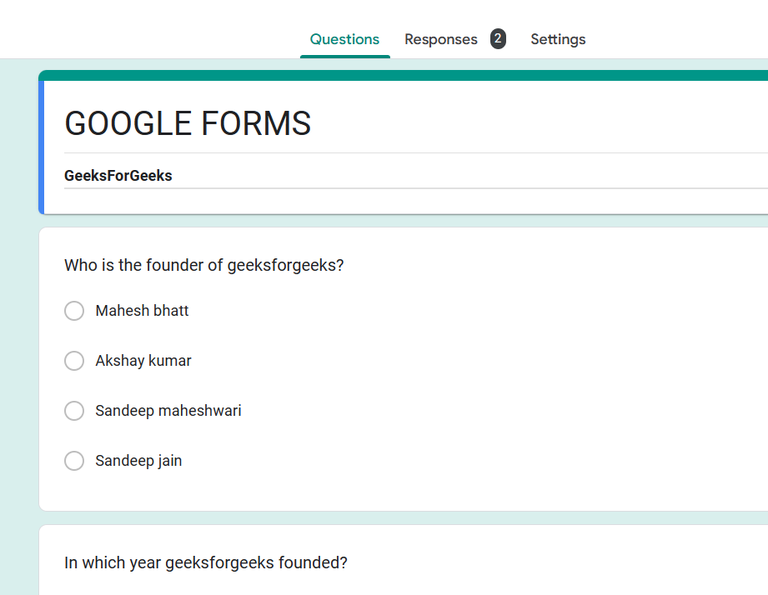
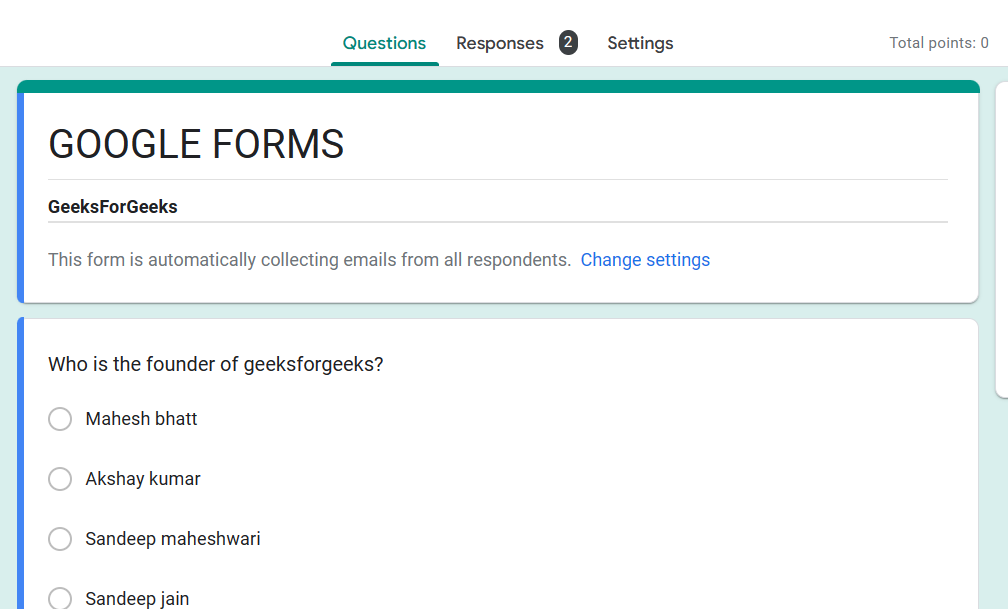
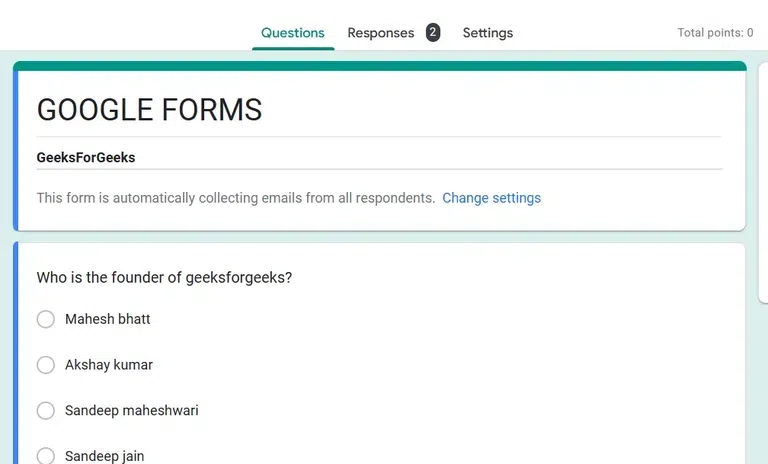
Access the Google Form for which you wish to obtain responses in PDF format.
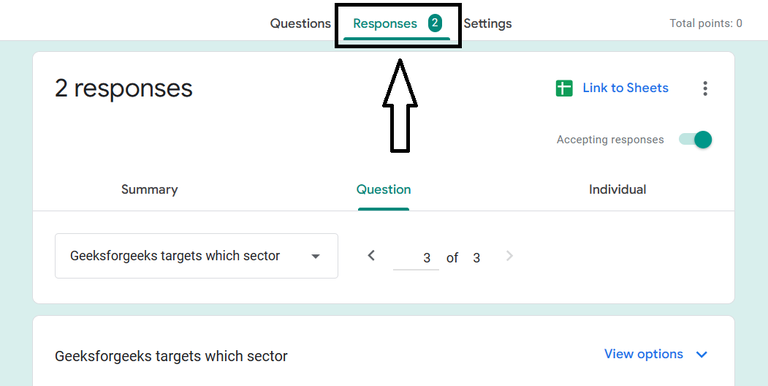
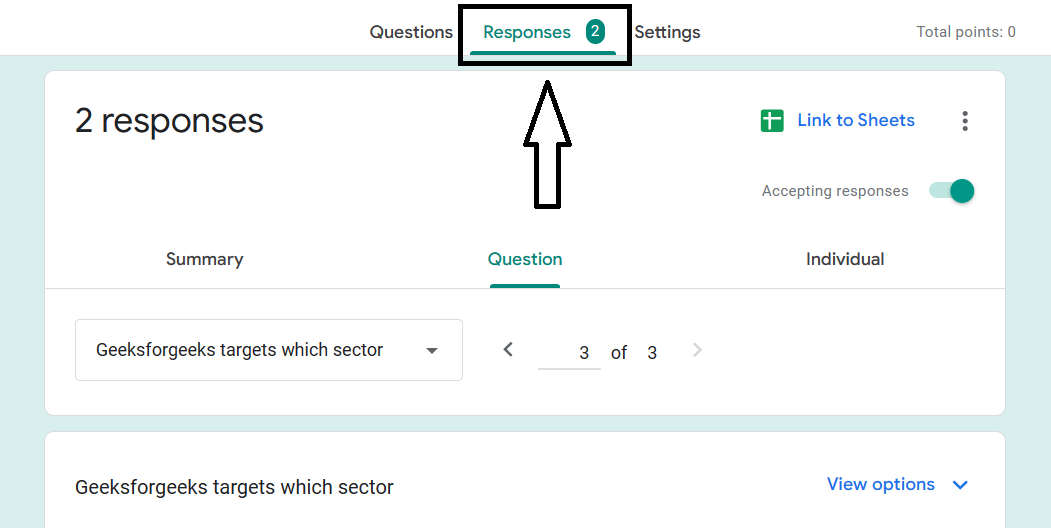
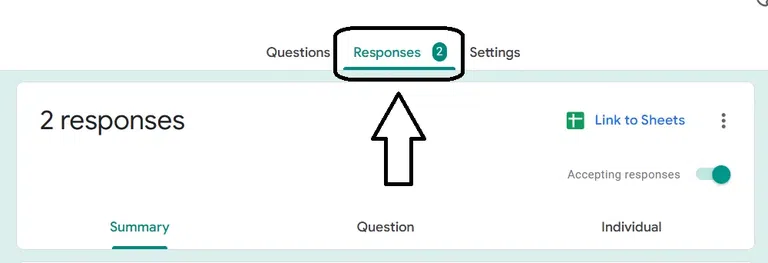
Select the Responses tab to access all the collected responses.
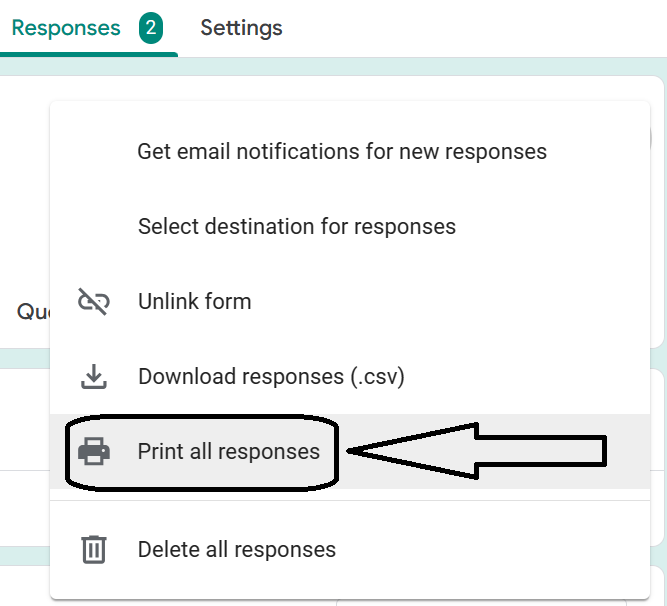
👁 Click on Print all Responses (Icon)
You have successfully saved a Google Form as a PDF.
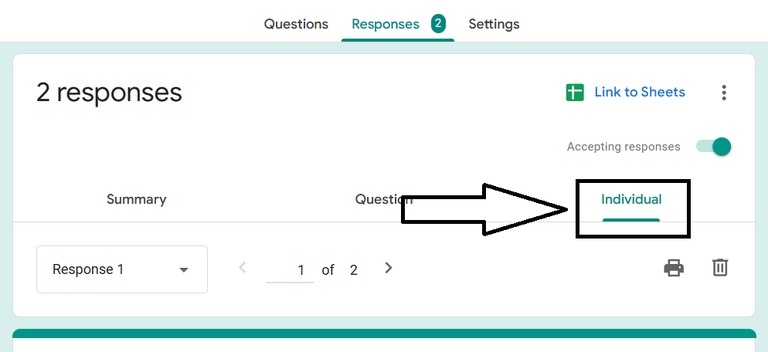
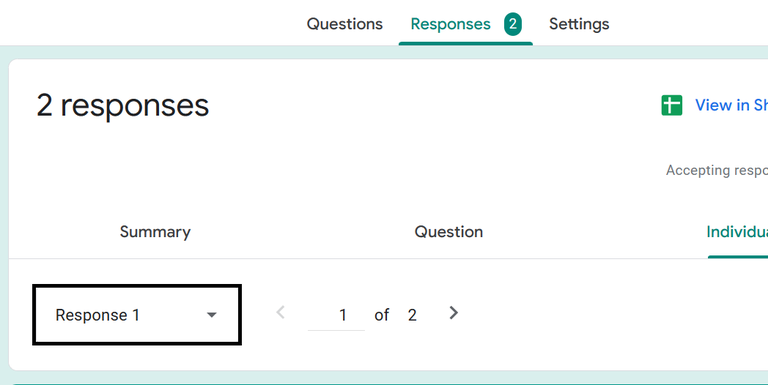
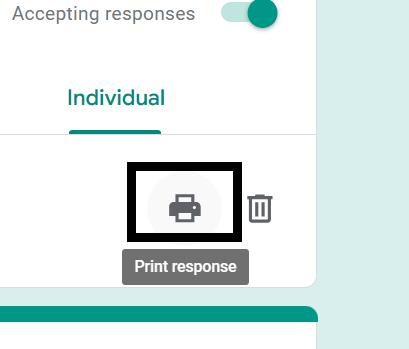
You can also save the individual response as a pdf.
You have successfully Saved an Individual Responses as PDF in Google Forms.
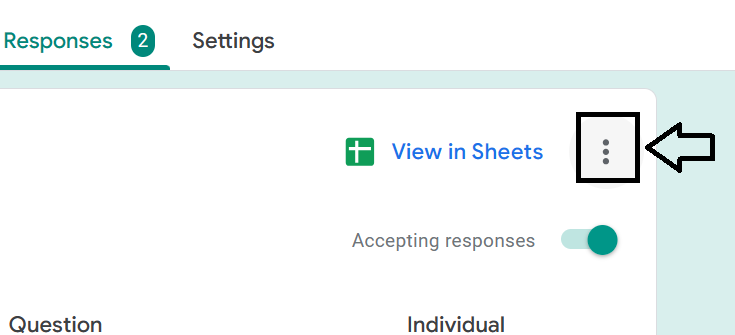
Click the More (three dots) Icon in the top right corner of the form.
👁 Click the More (three dots) Icon
👁 Select "Print all responses" from the menu
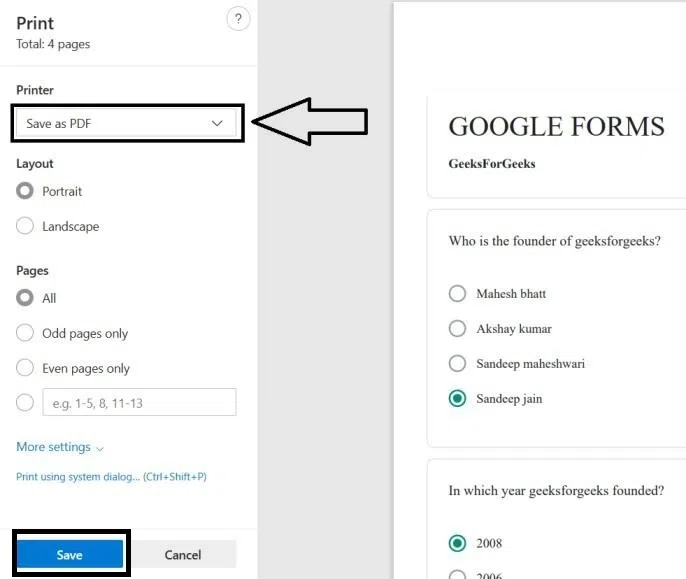
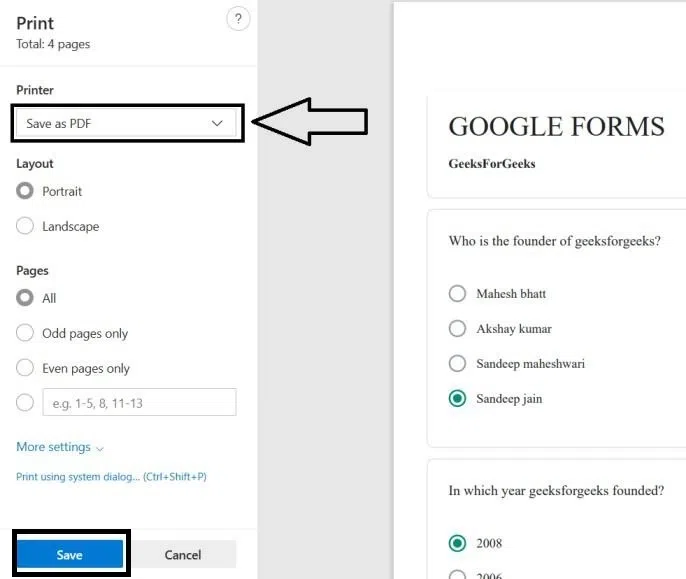
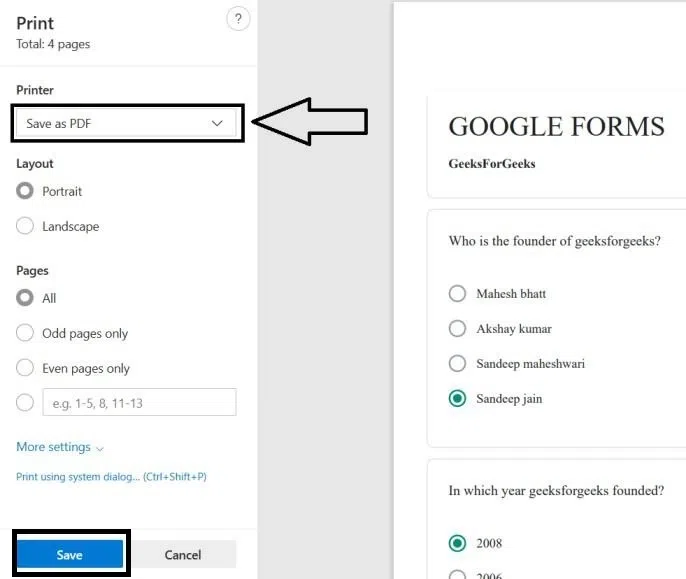
In the print dialog box, select "Save as PDF" from the "Destination" dropdown menu.
You have successfully converted Google Form responses to PDFs.
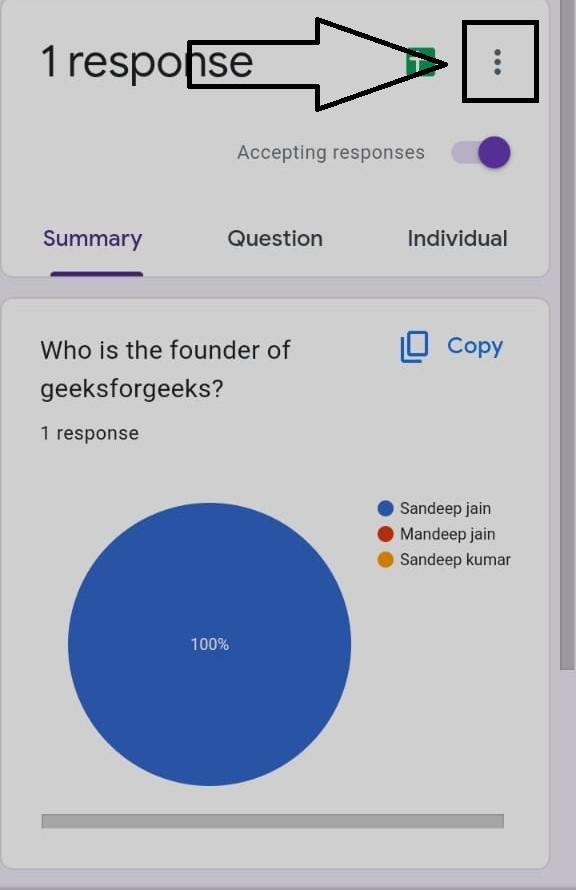
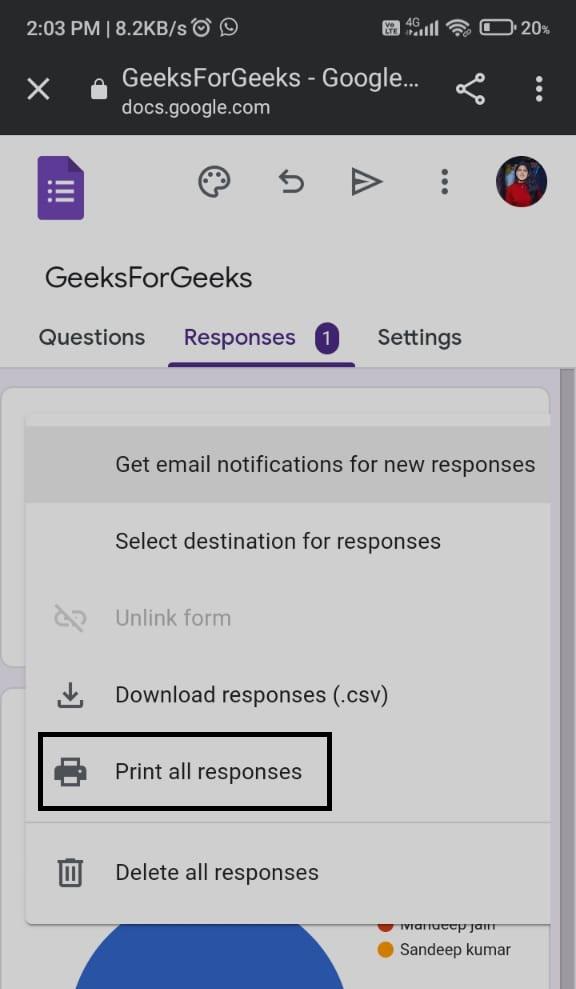
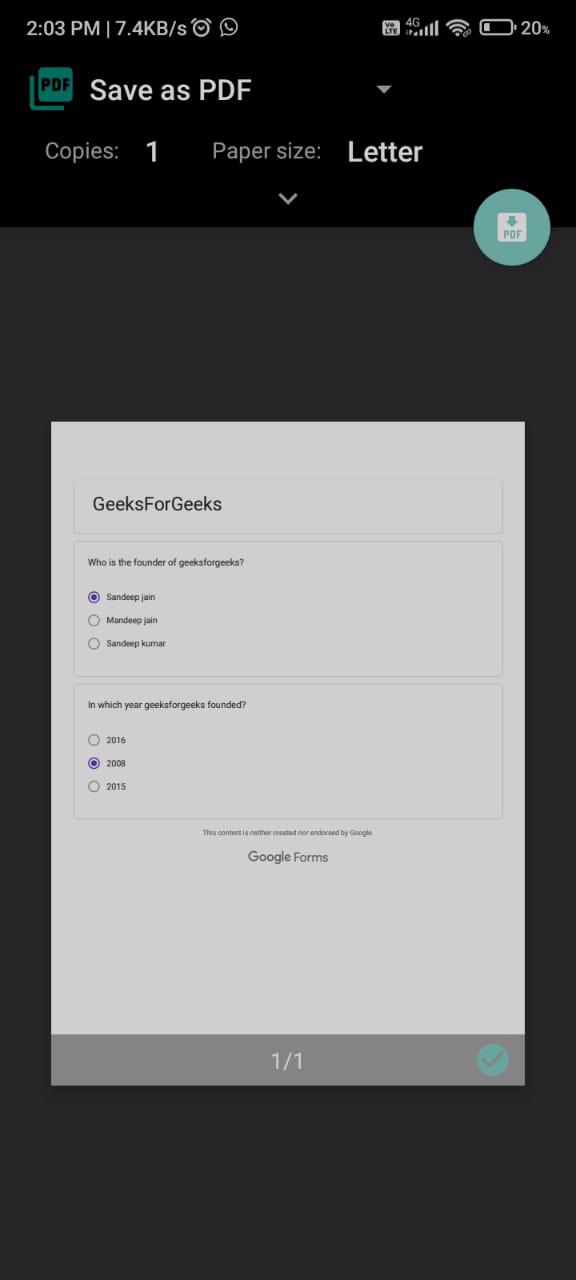
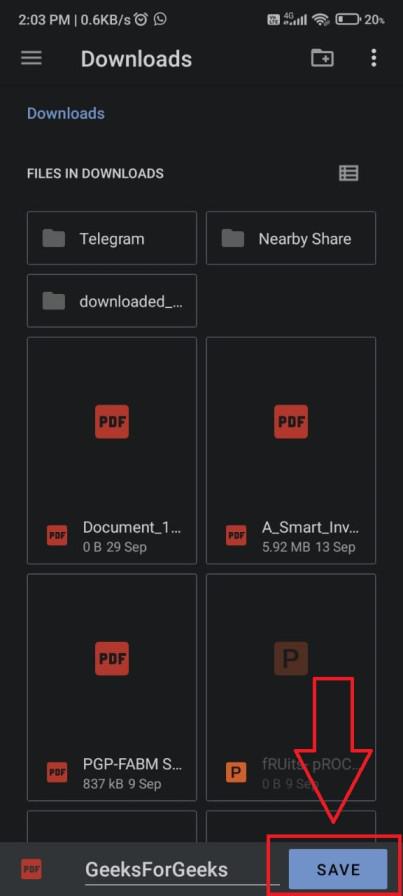
For converting a Google form to a PDF on a phone, follow the steps that are mentioned below:
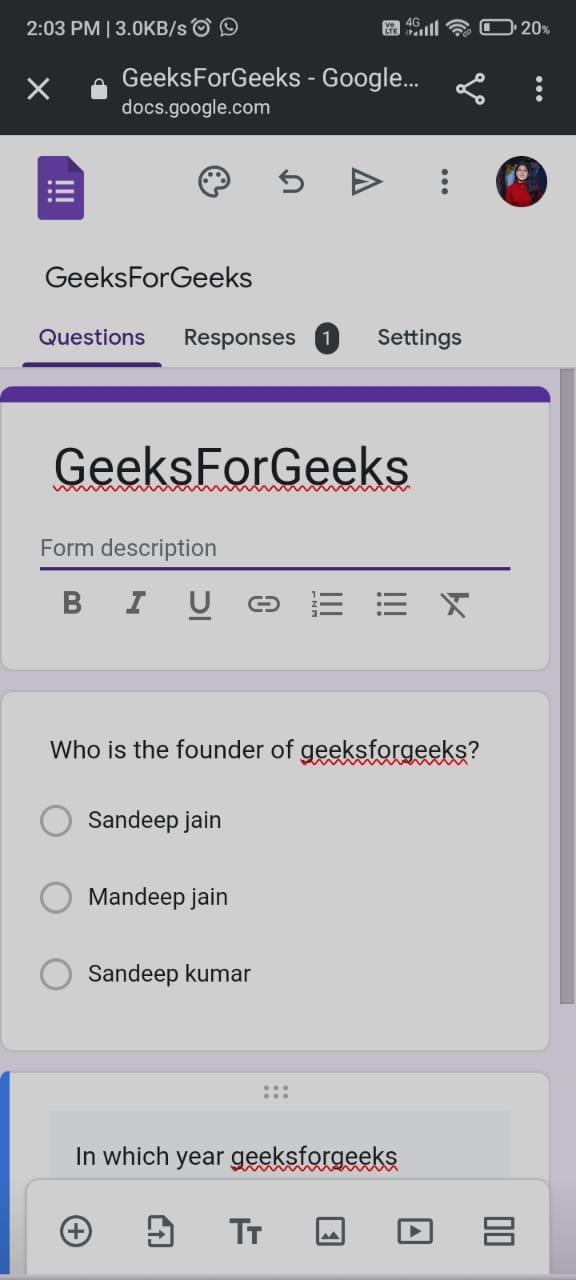
👁 Open Google Forms on your phone.
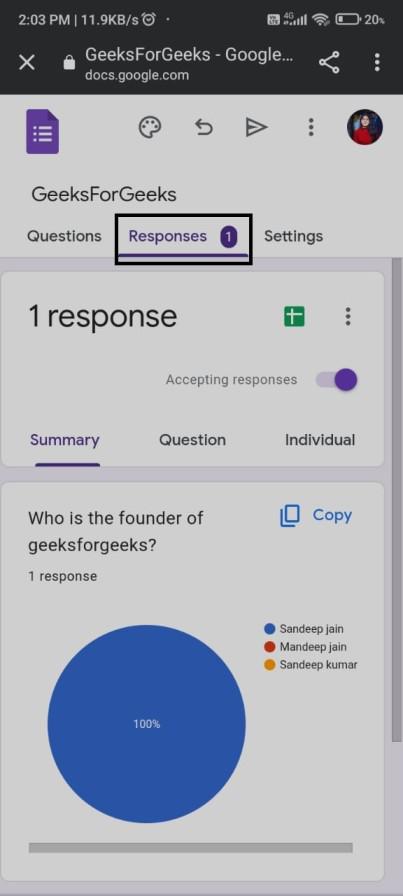
👁 click on “three dots” on the left side
👁 Click the option of “print all the responses”
👁 select the location and save it as a pdf.
You have successfully converted a Google form to a PDF on Mobile.
To export responses from Google Forms, you can follow these steps:
👁 Open the Google Form that you want to export the responses from.
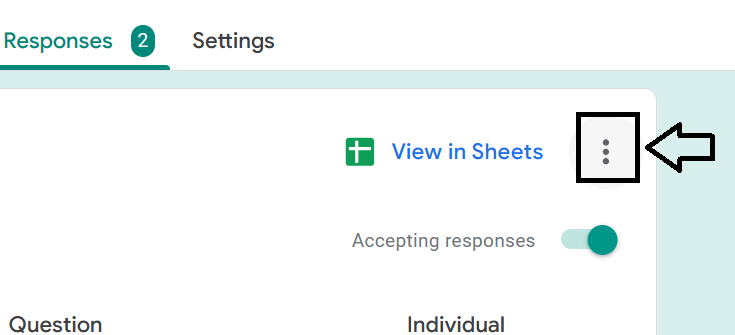
👁 Click the More button (three dots) in the top right corner
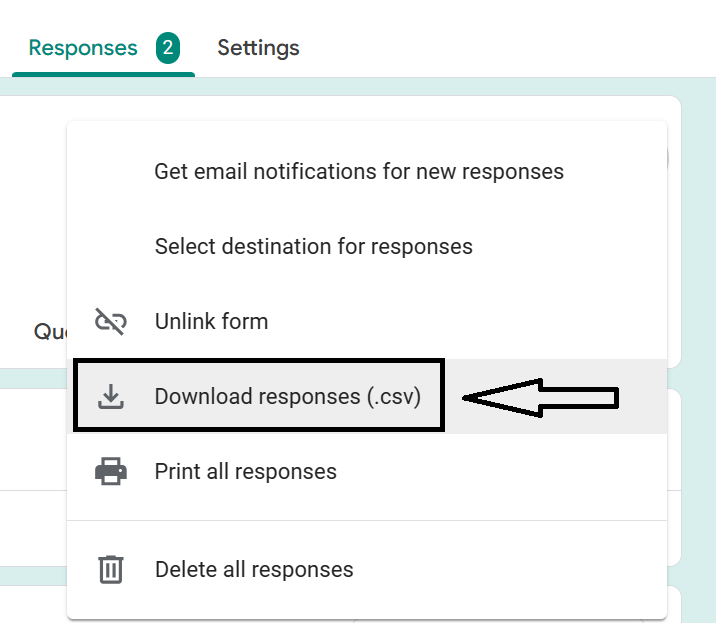
👁 Select Download responses (.csv)
After this, your responses will be saved in your PC and then the CSV file will contain all of the responses to your form, in a table format. You can then open the CSV file in a spreadsheet program, such as Google Sheets or Microsoft Excel, to analyze the data.
For converting Google Form responses to documents, we need to export your Google Form responses to CSV and then convert the CSV file to Word:
👁 Open the Google Form that you want to convert the responses from.
👁 Click the More button (three dots) in the top right corner.
👁 Select Download responses (.csv).
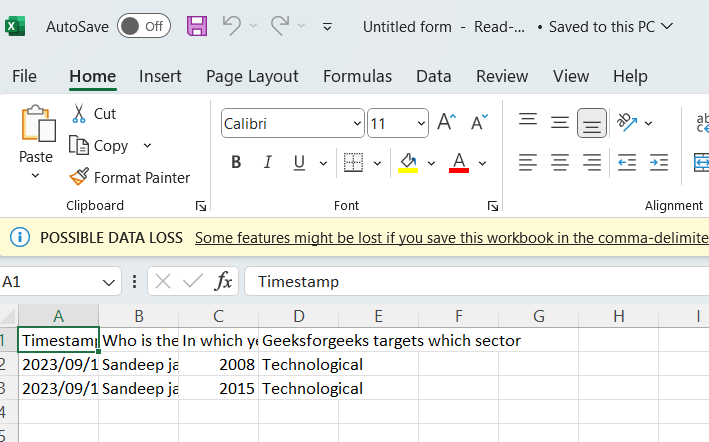
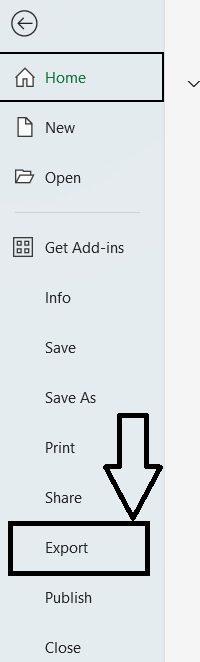
👁 Open the CSV file in a spreadsheet program
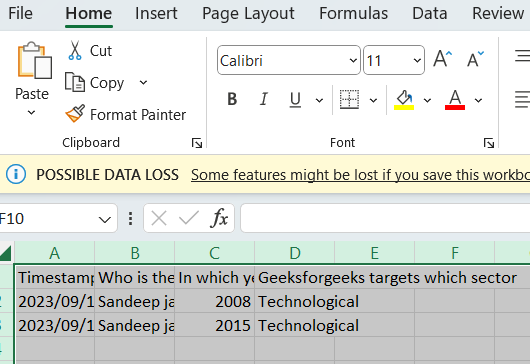
👁 Select all the data (Ctrl+A)
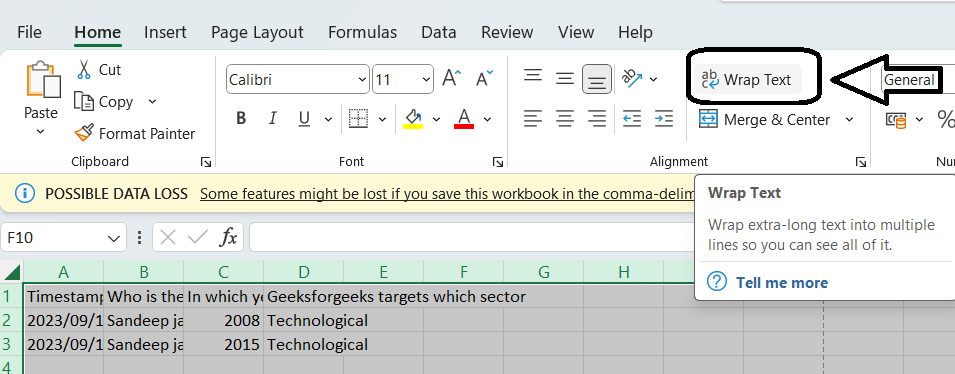
👁 Click on the option "wrap text"
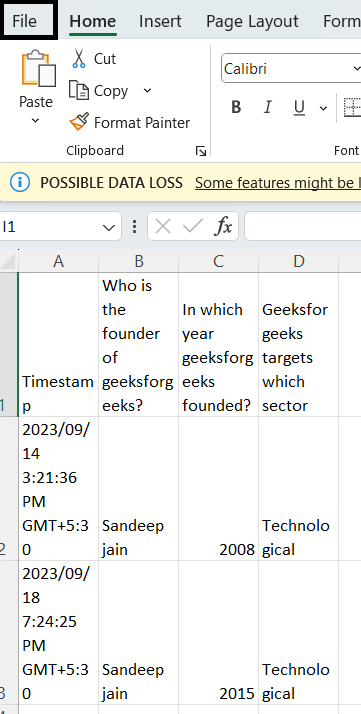
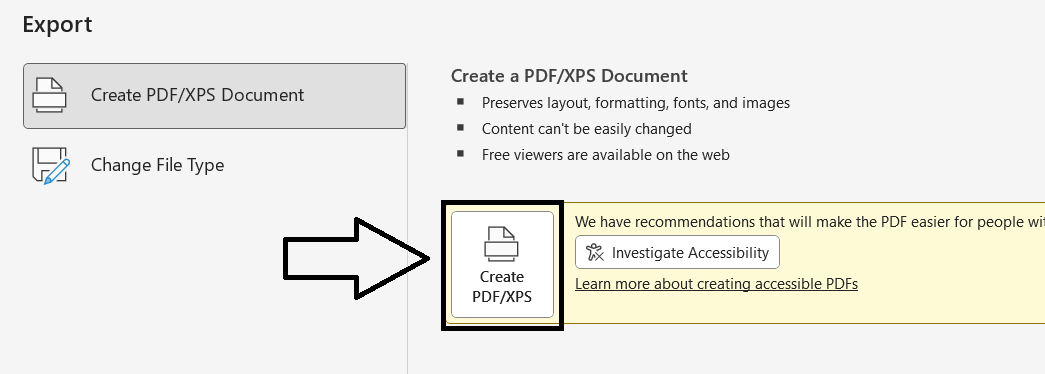
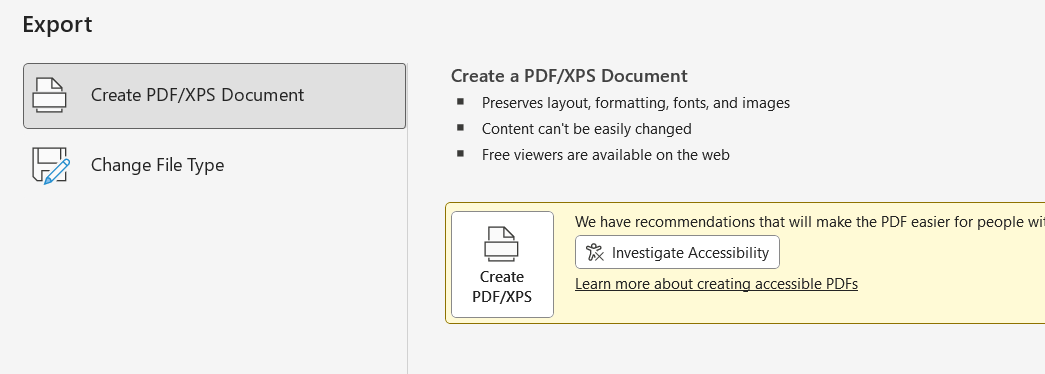
👁 Click on the option "Create PDF/XPS"
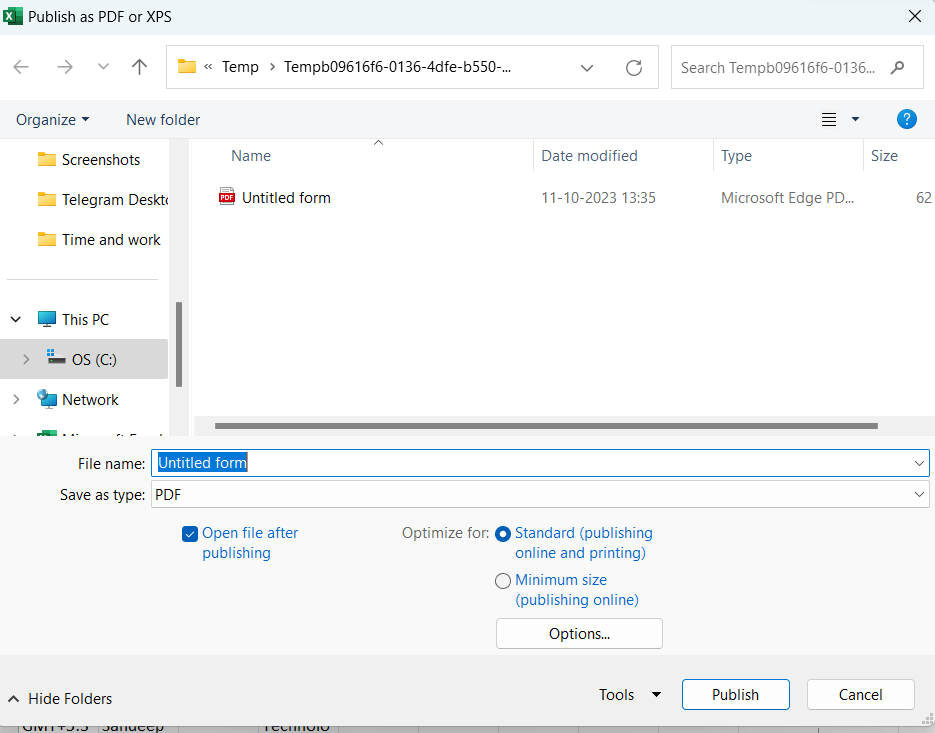
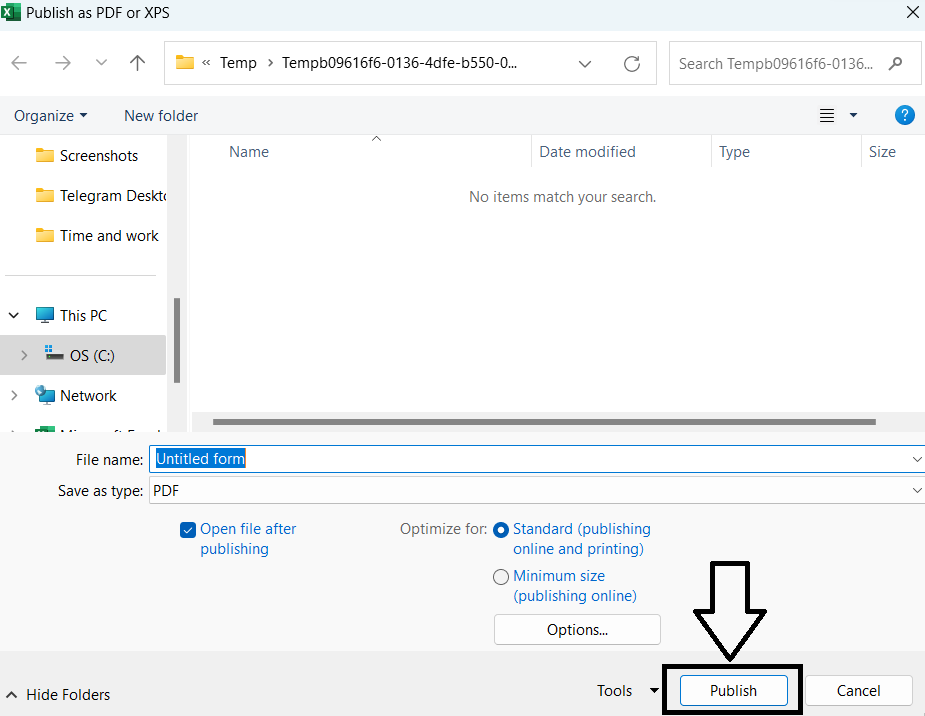
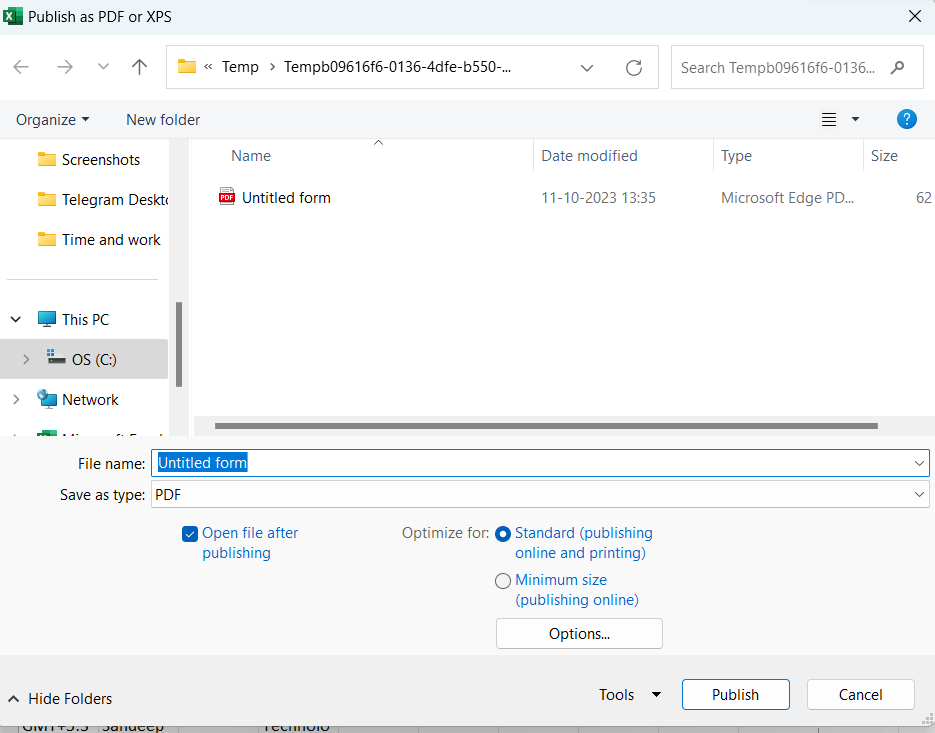
👁 Name the file whatever you wish and then click on the option publish
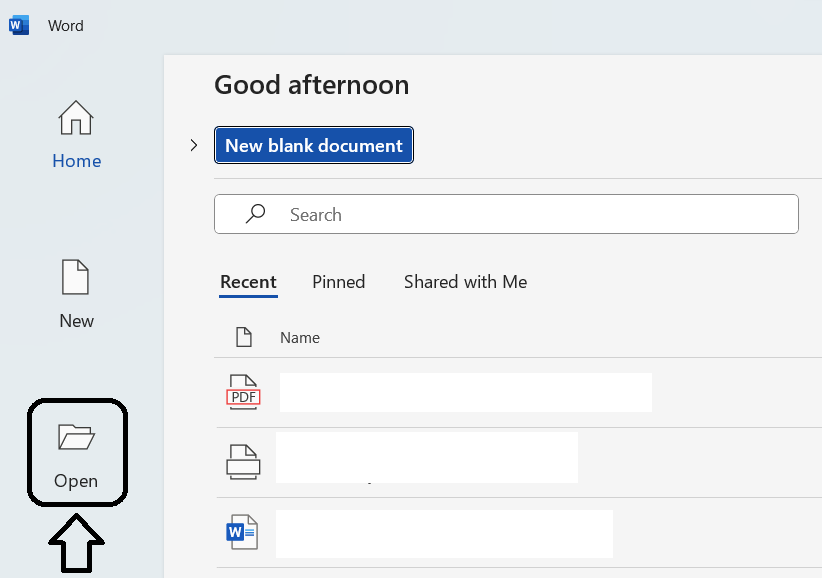
👁 go to Microsoft Word and open the file you saved.
👁 Now open the file where you saved it.
After this Click on Okay and your Google responses will be converted into Word.
For converting Google Form responses to documents, we need to export your Google Form responses to CSV and then convert the CSV file to Word:
👁 Open the Google Form that you want to convert the responses from.
👁 Click the More button (three dots) in the top right corner
👁 Select Download responses (.csv).
👁 Open the CSV file in a spreadsheet program
👁 Select all the data (Ctrl+A)
👁 Click on the option "wrap text"
👁 Screenshot-2023-10-11-134723
👁 Click on the option "Create PDF/XPS"
👁 Name the file whatever you wish and then click on the option publish.
👁 Screenshot-2023-10-11-133506
After this, your Google responses will be saved as a document.
Individual submission PDF results can be styled in one of two ways:
Method 1: For styling the PDF results, you can use multiple apps, but there is an app called Google Apps Script that allows us to design a unique script that can be used to style the PDF files in the way that you want. For example, you can write a script to modify many things, including the font, size, and color of the text, and even add a header or footer to your PDF files. But to do this all, you need a basic knowledge of coding.
Method 2: If you don’t know coding, you can go to the other options, which are third-party apps. There are many third-party apps present, but the best one, to my knowledge, is the PDF editor from JotForm. It can help you change the appearance, structure, and branding of your PDF files. You can do the modification just by exporting the results of each submission as a PDF file to the PDF editor. When you have done all the modifications, you can save the document.
Tips for Effective PDF Conversion:
- Ensure your data is clean and well-organized before converting.
- Apply consistent formatting to improve readability.
- Use page breaks to avoid splitting important information across pages
Converting Google Forms into PDF is essential for effective data management. By following the above mentioned steps, you can ensure your data is well-preserved and easily shareable. For advanced styling, Google Apps Script provides customization options, while third-party tools like JotForm's PDF editor offer user-friendly alternatives.

-768.webp)