|
VOOZH | about |
|
VOOZH | about |
Figma has become one of the most popular tools for UI/UX designers, offering a collaborative platform to create stunning designs for websites, mobile apps, and digital products. With its easy-to-use interface, real-time collaboration features, and powerful design tools, Figma helps designers bring their creative ideas to life quickly and efficiently. Whether you're a beginner looking to learn the basics or an experienced designer seeking to optimize your workflow, understanding how to use Figma effectively can greatly enhance your design process and results.
Figma is an online tool used for designing websites, apps, and other digital products. It's popular among designers because it allows multiple people to work on a project together in real-time, making collaboration easy. Figma offers a variety of features, like drag-and-drop tools, templates, and the ability to create interactive prototypes, which help designers bring their ideas to life quickly. It's available on different platforms like Windows, Mac, and even directly in a web browser, so you don't need to download anything to use it.
Following are some of the best practices that every Designers should follow:
Typography refers to the font style and one must always use simple typography for websites belonging to font families, such as Poppins, Sans Serif or Montserrat. This helps in keeping the website readable and too heavy fonts can be used only for headings or special texts. This is because using too fancy fonts for the paragraph texts make the website look very distracting & instigating. Thus, always prefer simple & beautiful font style.
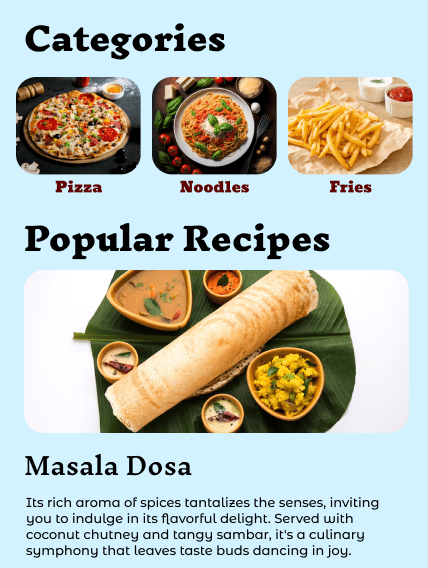
In the image given below, the fonts used are Poppins, Mont etc, that make it look simple, yet beautiful.
A website design is supposed to be for both website & small screen devices. if we prepare a website on the frame of a desktop or mac book, we must try and fit it in another frames of smaller screen devices as well as this creates the website accommodable in all kinds of screen sizes which is necessary & also improves the responsiveness of the website.
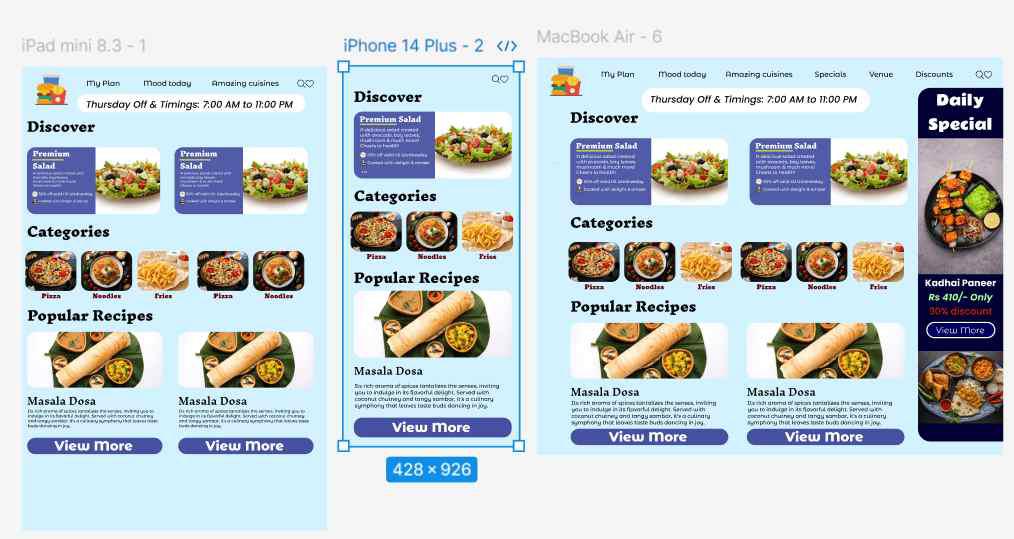
In the image given below, the website has been placed in multiple frames of different sizes, such that on deploying, the web design is available on both mobile screen sizes and desktop frames. Here, the design is accessible in all types of screens: Ipad, Iphone, MacBook.
Prototyping refers to the UX (User Experience) design of a website. The prototype tab is an essential part of website designing as it helps increase the user interactivity with the website. For eg. The kind of functionalities that get initiated on the click of a button, or the change in the behaviour of a certain element on a certain event is a part of the UX, as in how is the user experiencing the features of the website. And every good website consists of good prototyping elements.
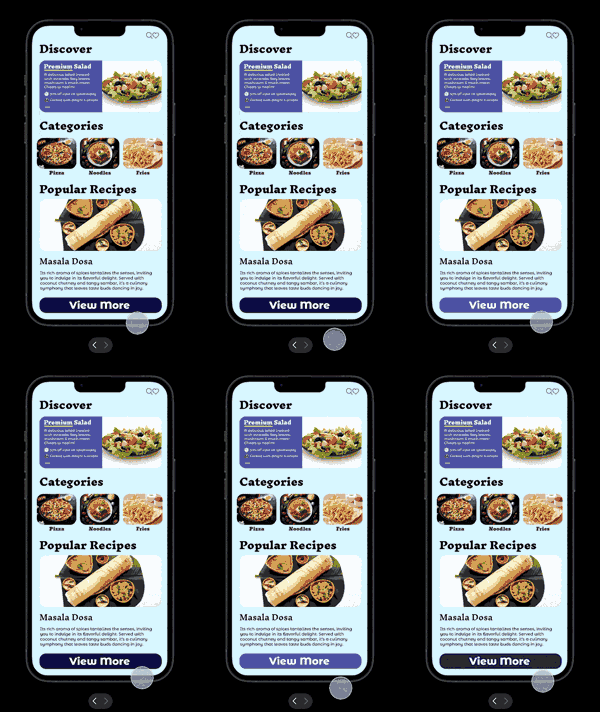
In the image given below, prototyping such as hover effects have been applied to increase interactivity with the user.
Color Theory is an essential part to learn about before getting into designing. Colors are essential in any website as they make it look beautiful & one should have the idea of contrasting colors, too bright colors or subtle colors etc. The website must not look either too bright or too dull, it should just be perfect with a mild touch of every color.
In the image given below, the colors that have been used are contrasting in terms of bluish color.
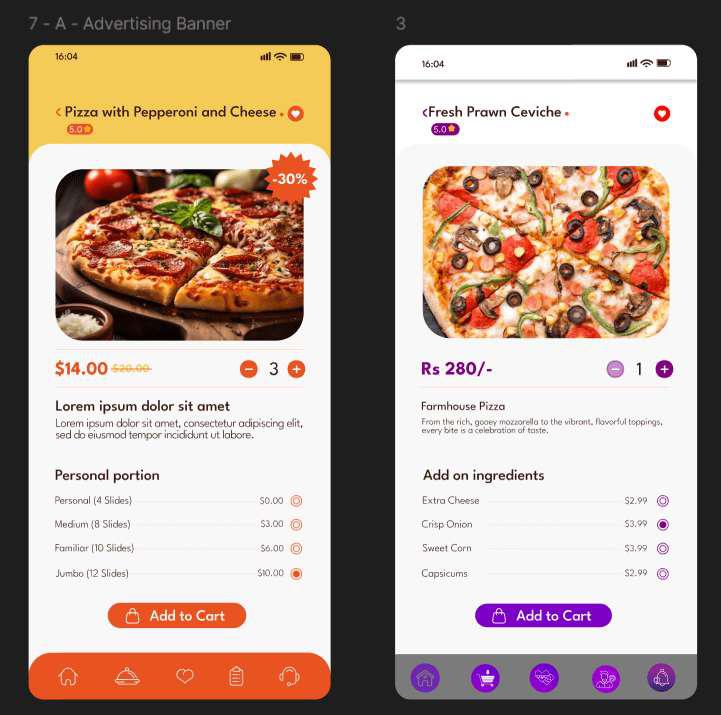
For a good website, images & other infographic elements are essential as they help create a long lasting impression of the user. The images should be in the best possible format & should not bee too bright, or too dull or too blur. It should have a high quality resolution to attract people.
In the image given below, the images that have been used are of high quality.
Plugins form an essential part in Figma as they are the literal development into designing converting masters. Community plugins consist of softwares that help ease the process of anything. For eg. If we want to convert a design into code of React, HTML, CSS, Tailwind CSS, it will do in 1-2 mins then what would require to create the website from scratch.
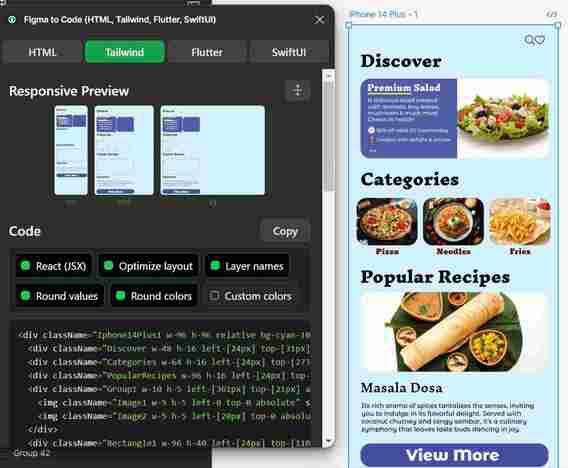
In the image given below, plugin has been used to generate code for the designs.
The community group, consisting of good plugins also have great design templates, taking ideas from which we can create one of our own. It is a much easier task to do so, but just don't copy the exact same content, make changes to it.
In the image given below, a design has been picked up from the community page & changes have been made to it.
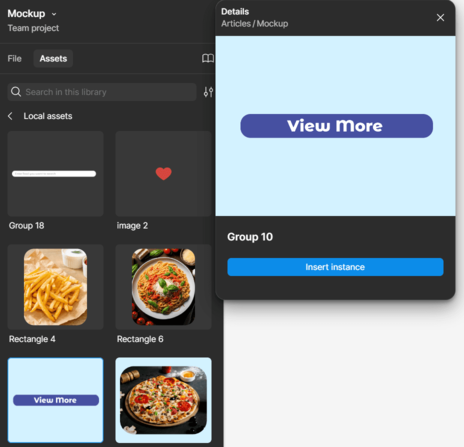
To reduce the dependencies & increase reusability in easy terms, components are created in Figma for any element. For eg. If we take the example of a button, we can create a component of it and make a few changes to them for hover, active effects such that we can use it as a component through the components tab in multiple pages of designs.
In the image given below, components have been made to reuse them as instances in the design file.
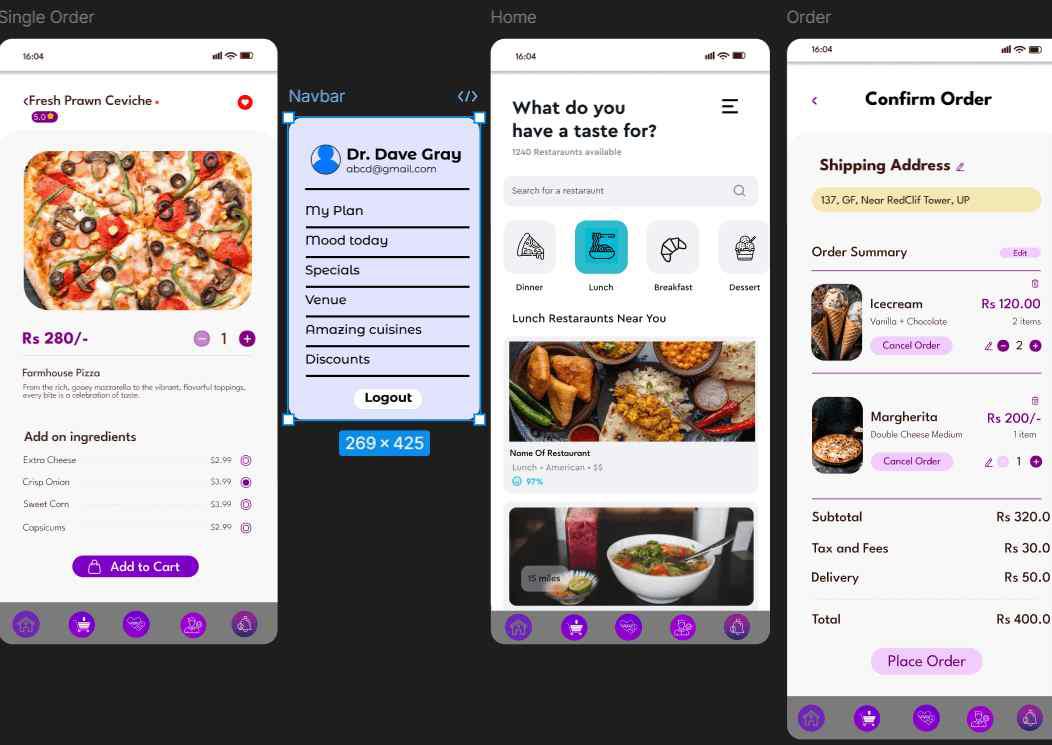
Always ensure a correct naming of frames & pages to avoid confusion after creating a large number of pages. This provides an idea about uniqueness of every page & that how every page should hold a new element of observation & design.
In the image given below, to ensure good managing of pages, every frame has been named according to their design & page structure.
Figma is a versatile and powerful design tool that can significantly improve your UI/UX projects. By learning to use its features effectively, from organizing layers to collaborating in real-time, you can create beautiful, functional designs that meet user needs and expectations. While it has some limitations, such as requiring an internet connection, its many advantages make it a top choice for designers worldwide. Embracing Figma's capabilities will not only streamline your workflow but also help you deliver high-quality designs that stand out in a competitive digital landscape.