|
VOOZH | about |
|
VOOZH | about |
Handling large datasets often requires tools that can provide specific insights, and the AVERAGEIFS function in Google Sheets is an excellent option for targeted data analysis. This function calculates the average of values that meet multiple criteria, making it especially useful for complex scenarios like evaluating trends or comparing data points across various categories. In this guide, we’ll explore how the AVERAGEIFS function works, its syntax, and tips to maximize its utility in Google Sheets.
The AVERAGEIFS function in Google Sheets calculates the average of a range of numbers based on multiple criteria. It is ideal for filtering and analyzing data when you need to apply more than one condition, such as average sales for a specific region and date range simultaneously.
Below is the syntax of the AVERAGEIFS Function in Google Sheets:
AVERAGEIFS(average_range, criteria_range1, criterion1, [criteria_range2, criterion2, ...])To apply AVERAGEIFS formula in the Google Sheets follow the steps given below:
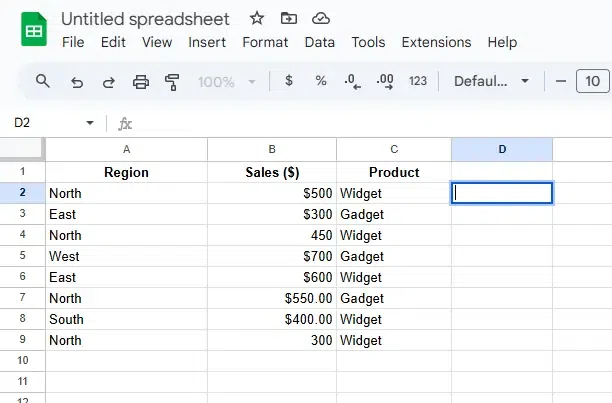
Choose the cell where you want the average result to appear, e.g., D2.
Determine the following:
Decide the conditions for filtering your data:
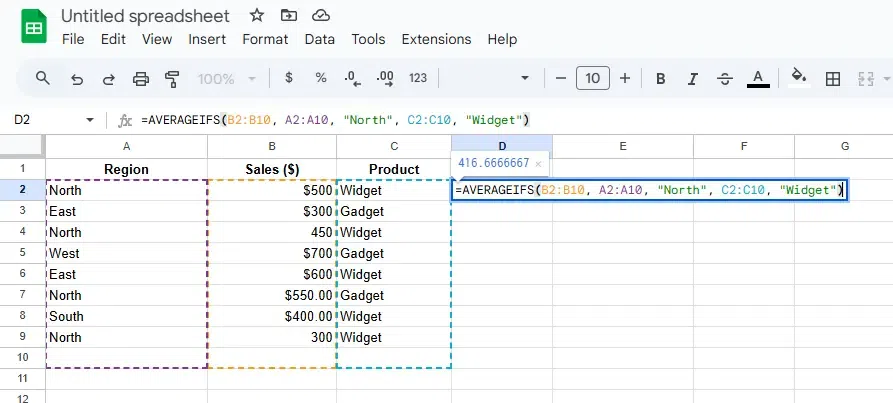
"North" for the range A2:A10."Widget" for the range C2:C10.In the selected cell (e.g., D2), type the formula:
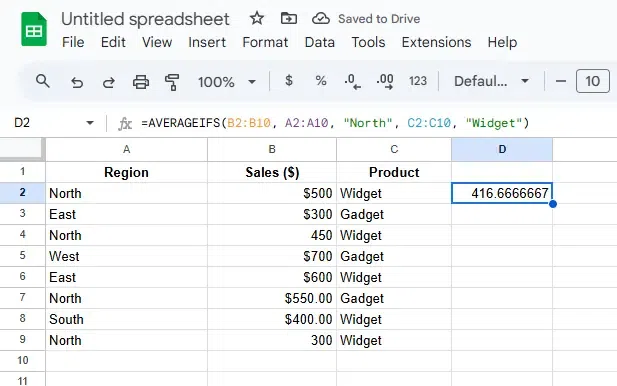
=AVERAGEIFS(B2:B10, A2:A10, "North", C2:C10, "Widget")Press Enter to apply the formula. The cell will display the average of the values in B2:B10 that meet both conditions ("North" in A2:A10 and "Widget" in C2:C10).
1. Case Sensitivity: AVERAGEIFS is not case-sensitive for text criteria.
2. Multiple Criteria: You can add more criteria ranges and conditions by extending the formula:
=AVERAGEIFS(B2:B10, A2:A10, "North", C2:C10, "Widget", D2:D10, ">100")3. Handling Errors: If no data matches the criteria, the formula returns #DIV/0!. Use IFERROR to handle it:
=IFERROR(AVERAGEIFS(B2:B10, A2:A10, "North", C2:C10, "Widget"), "No matching data")Also Read:
The AVERAGEIFS function in Google Sheets is an essential feature for analyzing data with multiple conditions. By applying this function effectively, you can focus on specific subsets of data, allowing for more meaningful insights and improved decision-making. With a clear understanding of its syntax and practical examples, you can harness the full potential of this tool for both simple and advanced data analysis needs.