|
VOOZH | about |
|
VOOZH | about |
Managing multiple email accounts in one platform can significantly improve your productivity, and adding a mailbox in Outlook is an excellent way to achieve this. Whether you’re using Outlook 365, the Classic Outlook version, or Outlook Web, each method provides a way to easily incorporate additional mailboxes into your interface.
In this guide, we’ll explore how to add a shared mailbox in Outlook 365, walk through the process of adding mailboxes in the Classic Outlook version, and explain how to integrate a mailbox in Outlook Web. By the end of this article, you’ll have a clear understanding of how to efficiently manage multiple accounts within Outlook.
Adding a shared mailbox in Outlook 365 (New Outlook) is useful for businesses and teams that need access to a common inbox for handling emails efficiently. Instead of forwarding emails manually, users can access shared messages directly in their Outlook interface. Follow these steps to add a shared mailbox in Outlook 365 or New Outlook:
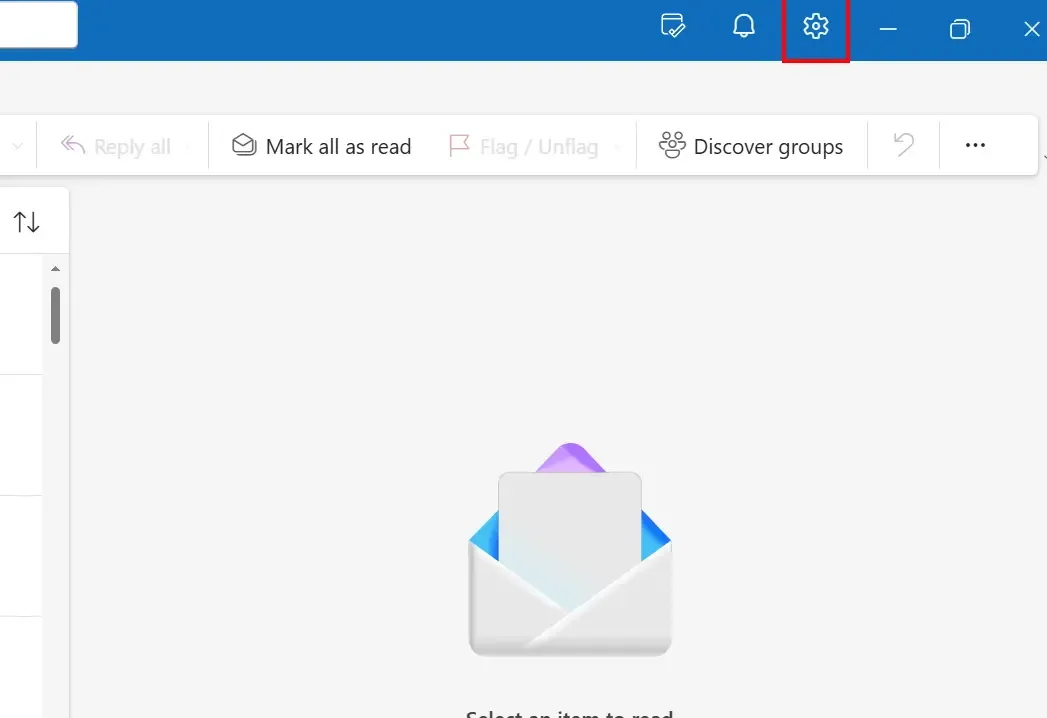
Launch the New Outlook on your PC or Mac.
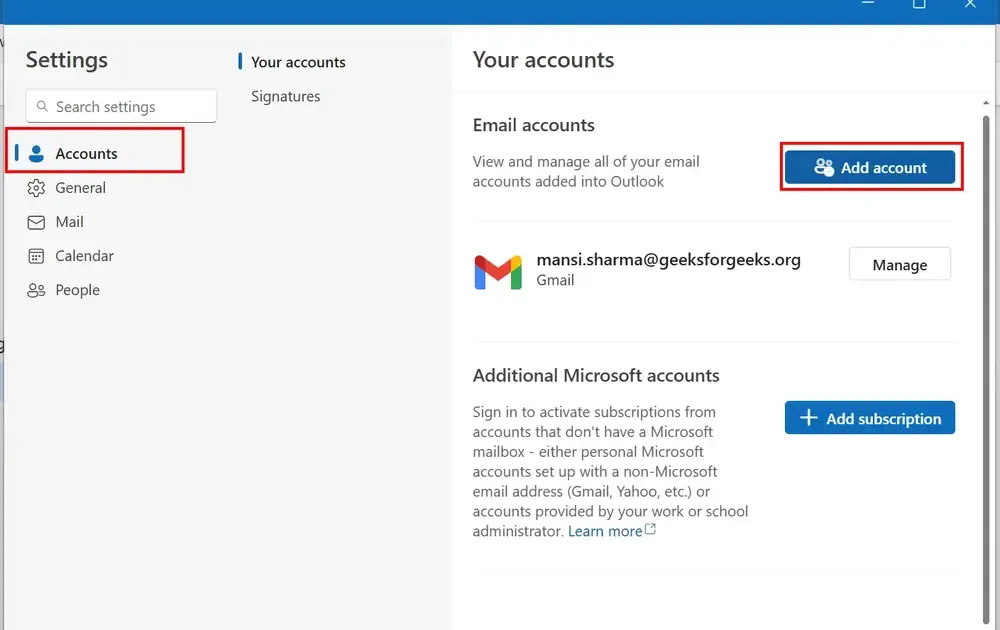
In the settings menu, go to Accountstab. Under Connected Accounts, click on Add Account and enter the email address and credentials for the mailbox you want to add.
Follow the prompts to finish adding the mailbox. The mailbox will appear in your account list and be available for use in the New Outlook interface.
Pro Tip: If the shared mailbox is not appearing, restart Outlook or check your Microsoft 365 admin settings.
If you use Classic Outlook (Desktop Version), you can add multiple mailboxes for seamless email access without logging in and out of different accounts. Follow these steps to add a new mailbox in Classic Outlook and access all your emails in one place:
Launch Outlook on your desktop.
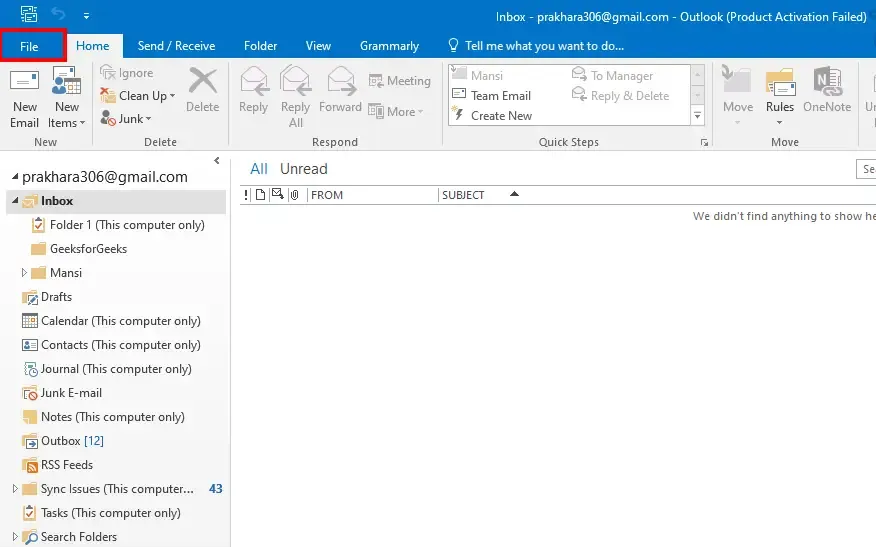
Click on the File tab in the top-left corner.
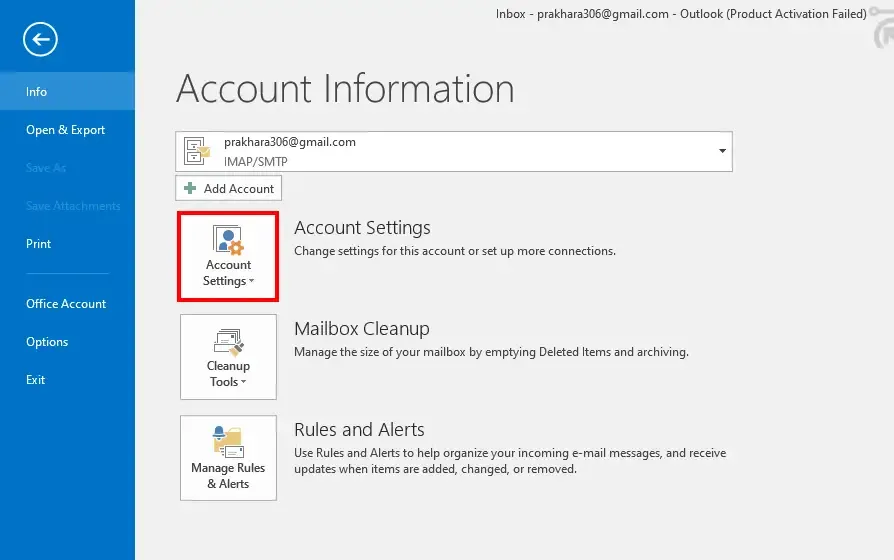
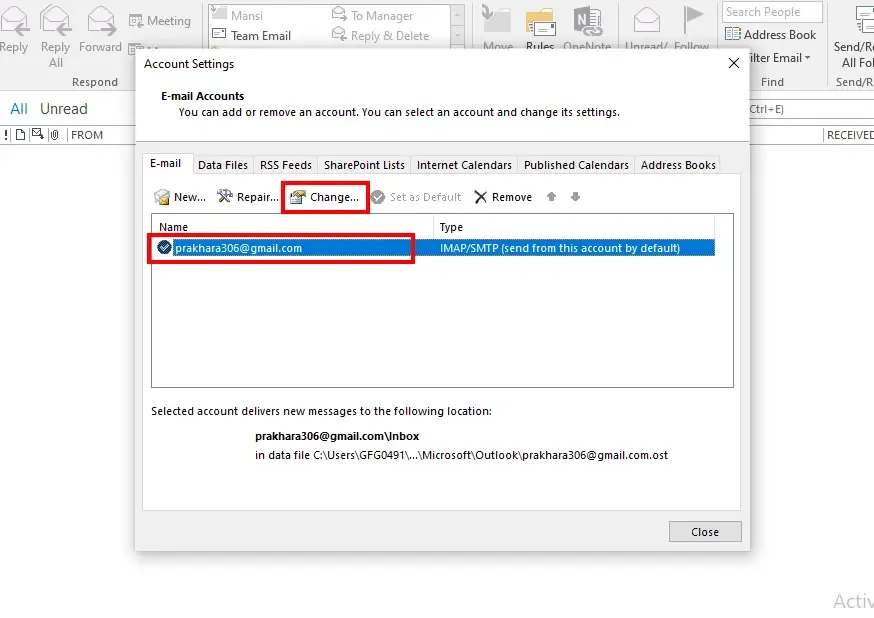
Click on Account Settings, and then select Account Settings again from the dropdown.
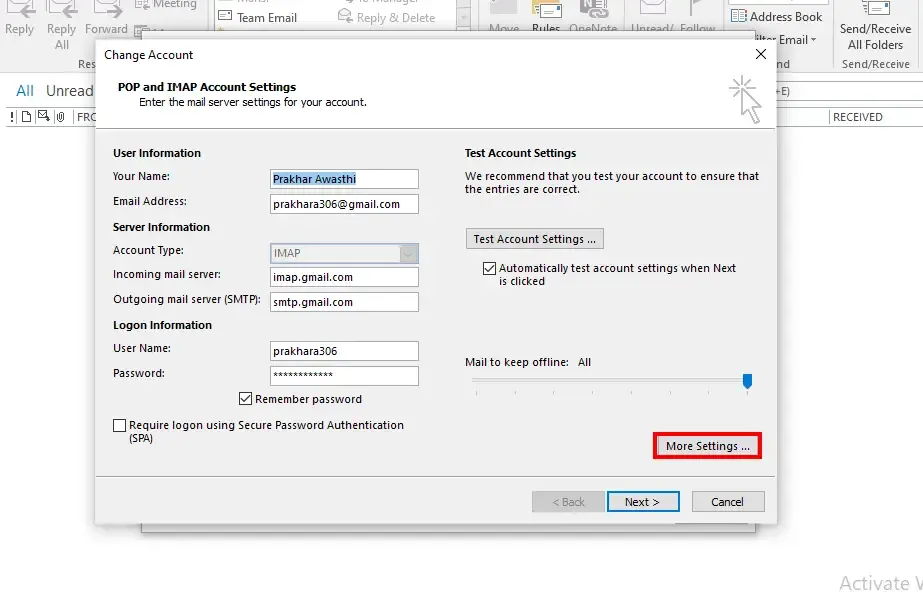
In the Account Settings window, select your email account and click Change.
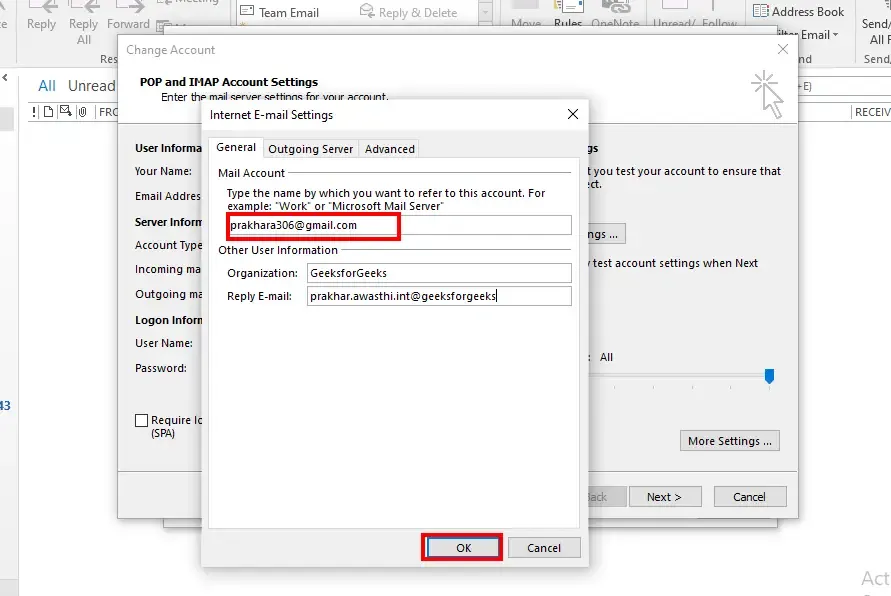
Click on More Settings, then go to the Advanced tab.
Under the Mailboxes section, click Add and enter the mailbox name (e.g., shared mailbox).
Click OK, then Next, and Finish to save the changes.
If necessary, restart Outlook to see the newly added mailbox in your folder list.
Pro Tip: If the mailbox doesn’t appear, ensure the correct permissions are set in Microsoft Exchange Admin Center.
If you're using Outlook Web (Outlook.com or Microsoft 365), adding a mailbox allows you to access emails from multiple accounts without needing the desktop application. This method is perfect for users who frequently check their email on different devices or browsers.
Go to Outlook.com or Microsoft 365 in your web browser and sign in.
Click the gear icon (Settings) in the top-right corner and select "View all Outlook settings".
In the settings menu, go to Mail and select Accounts.
Click on Connected accounts and then select Add a mailbox.
Enter the email address or mailbox you want to add and follow the on-screen instructions to complete the process.
Once added, the mailbox will appear in your folder list in Outlook Web.
Pro Tip: If the mailbox is not syncing, try logging out and back in or check your Outlook Web permissions.
Issue: The shared mailbox is missing after adding it.
Solution:
- Restart Outlook and check your Account Settings > Mailboxes.
- Ensure your Microsoft 365 admin settings grant the correct permissions.
Issue: The "Add Mailbox" option is unavailable in Outlook.
Solution:
✔ Check if your organization’s IT policy restricts adding new mailboxes.
✔ Update Outlook to the latest version.
Issue: The added mailbox is not syncing properly.
Solution:
✔ Log out and back in.
✔ Ensure your server settings are correctly configured.
Now that you know how to add a mailbox in Outlook across different platforms, managing multiple accounts becomes simpler and more efficient. Whether you're adding a shared mailbox in Outlook 365 for team collaboration, setting up a mailbox in the Classic Outlook version, or incorporating a mailbox in Outlook Web for flexibility, these methods will ensure you stay organized and on top of your email communications. By following the steps outlined in this guide, you'll be able to access all your important emails in one place, enhancing your workflow and productivity.