|
VOOZH | about |
|
VOOZH | about |
Google Docs, a versatile tool used by over a billion users globally, offers a variety of formatting options to tailor your lists to specific needs. Although directly adding prefixes or suffixes to lists isn't a built-in feature in Google Docs, users can employ creative formatting techniques or simple text additions before or after items to achieve the desired effect.
Adding a prefix or suffix to a list in Google Docs can greatly enhance the clarity and functionality of your document, particularly when organizing content or emphasizing specific elements. Here we'll learn How to Add a Prefix or Suffix to a Google Docs List.
👁 How to Add a Prefix or Suffix to a Google Docs List
A numbered list in Google Docs usually has numbers or alphabets as ordered followed by a period. Sometimes we would like to change the period to a round bracket or any other symbols or letters of our choice. This can be done in Google Docs by editing our numbered list. Also, the left side of the numbers in the numbered list is always empty. This also can be made to appear with any letters words or symbols of the user's choice. This helps customize the documents we are working on to our preferences and styles. Google Docs has made it quite a simple task to add a prefix or suffix to a list.
In Google Docs, a prefix or suffix to a list refers to any text you add before (prefix) or after (suffix) each item in a list to provide additional context or structure. For example, adding "Step" before each number in an instructional list (e.g., Step 1, Step 2, Step 3) serves as a prefix, while adding "cm" after numbers in a list of measurements (e.g., 15 cm, 20 cm, 25 cm) serves as a suffix. These additions help clarify the information or specify the type of data presented in the list, making the document easier to read and understand.
Initially let us create a numbered list in Google Docs on which we can add prefixes or suffixes in the following paragraphs.
Open Google Docs in any modern web browser on your desktop or laptop device, and open a document.
Place the cursor anywhere you want in the document to start creating a numbered list at that place.
To create a numbered list, click on the numbered list icon which is in the toolbar of Google Docs.
Now the numbered list is started.
Start typing the list of content and press the "Enter" key to create a numbered list in the next line.
There are two ways to add a prefix or suffix to a list in Google Docs. They are,
Open Google Docs in your web browser on your desktop or laptop device. Open the document in which you want to add prefixes or suffixes.
Click on the any number in the numbered list.
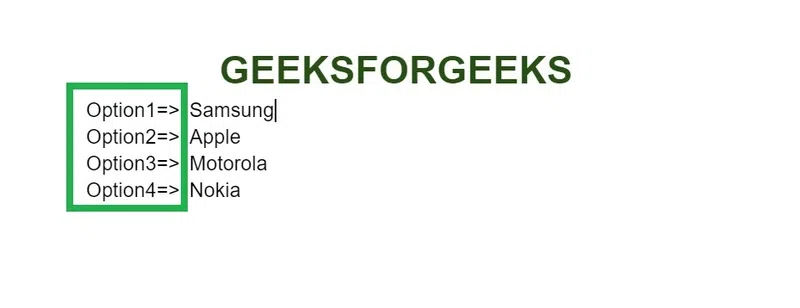
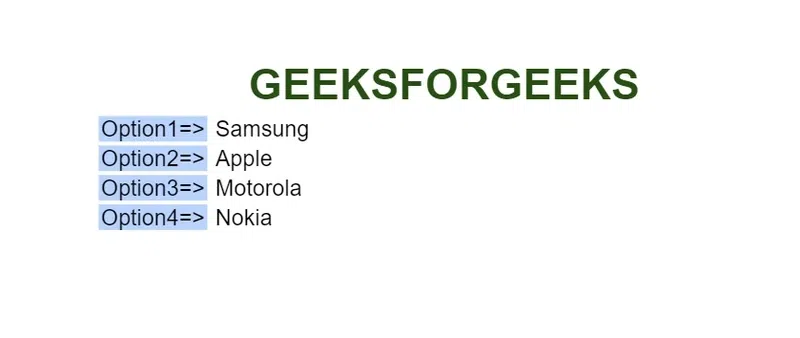
After clicking, all the numbers in the numbered list appear to be highlighted.
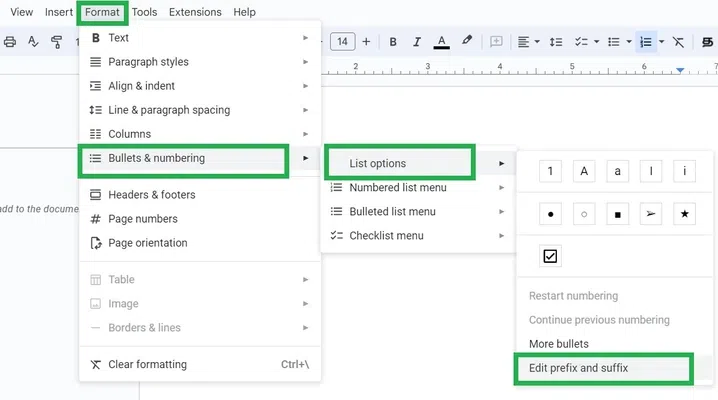
In the menu bar of Google Docs, click the "Format" tab. A dropdown opens, click on "Bullets & Numbering". A sub dropdown opens up. Click on "List options". Another sub dropdown opens up. Click on "Edit prefix and suffix".
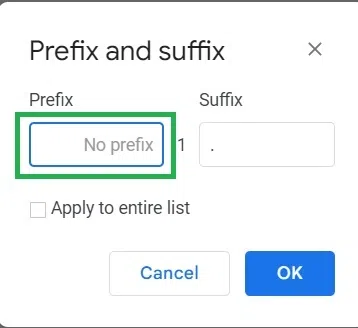
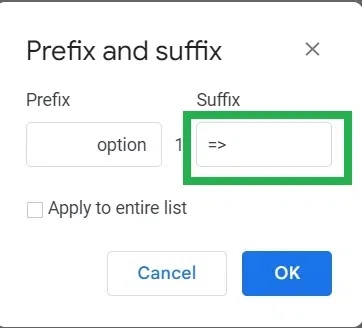
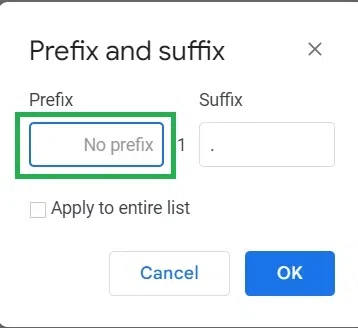
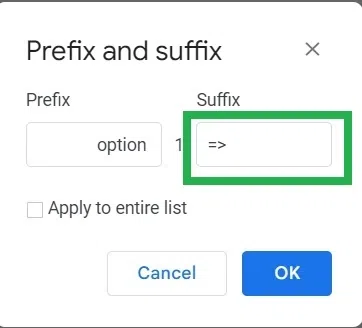
A dialog box appears. Type the prefix you want to add to the number in the numbered list in the prefix box.
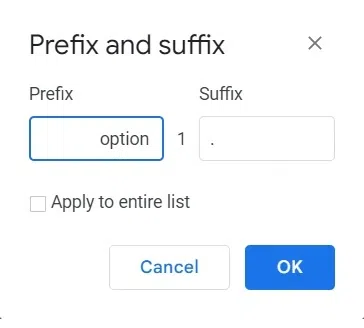
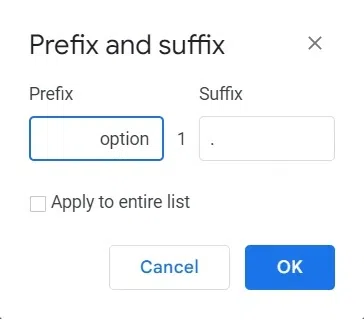
Here we are adding the word 'option ' in the prefix box.
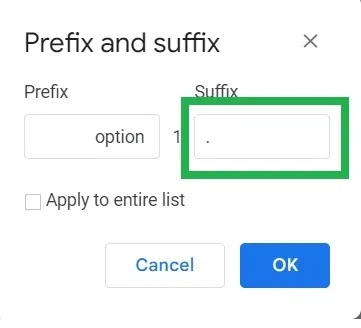
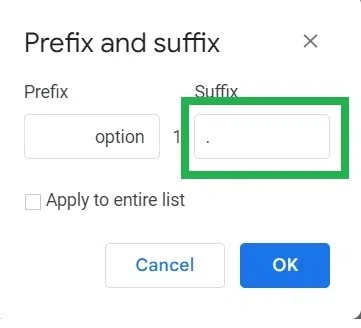
By default, the full stop(period) is in the suffix box. Type the suffix you want to add to the number in the numbered list in the suffix box.
Here we have added some symbols '=>' in the suffix box.
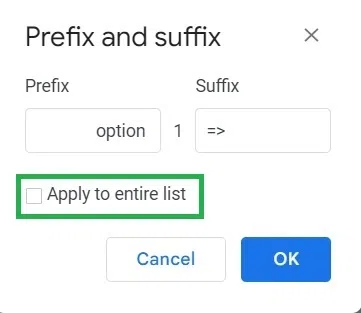
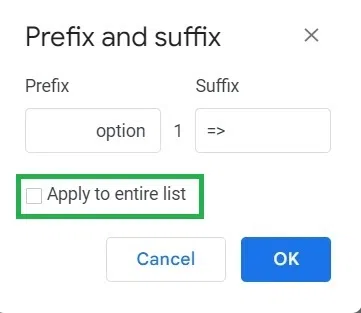
Click on the checkbox if you want to add prefixes and suffixes to all the numbers in the numbered list. Here we have checked the checkbox to add the prefix and suffix to all lines in the list.
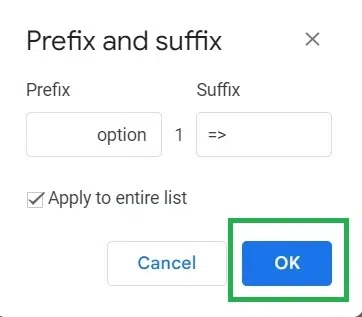
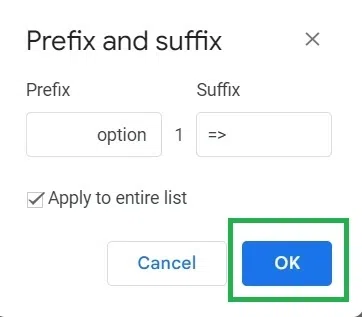
Click on the "OK" button to confirm.
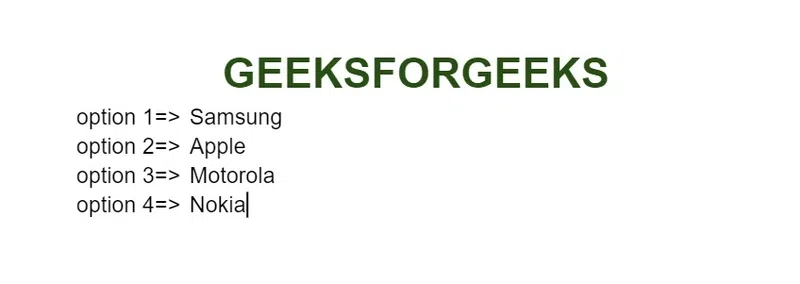
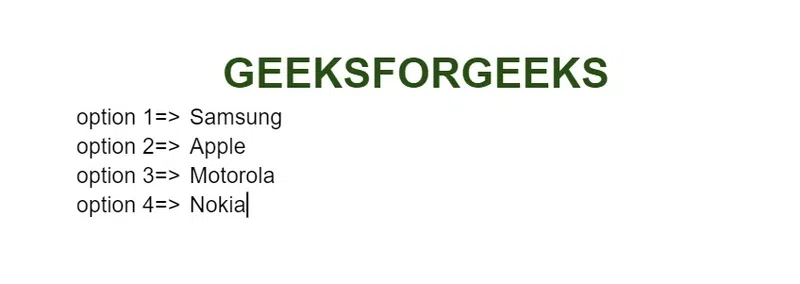
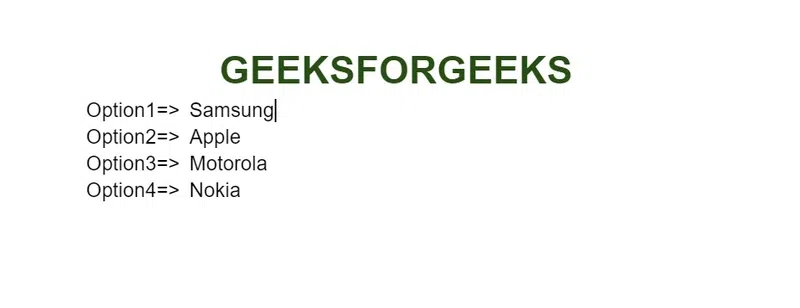
Now the list has prefixes and suffixes added to it.
Open Google Docs in your web browser on your desktop or laptop device. Open the document in which you want to add prefixes or suffixes.
Click on the any number in the numbered list.
After clicking, all the numbers in the numbered list appear to be highlighted.
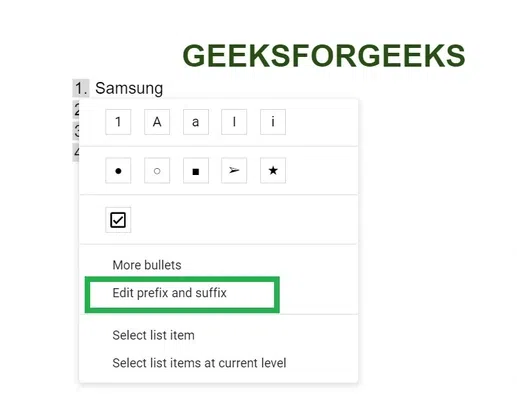
Right-click on the highlighted numbers in the numbered list. A menu of options appears. Click on "Edit prefix and suffix" in the menu.
A dialog box appears. Type the prefix you want to add to the number in the numbered list in the prefix box.
Here we are adding the word 'option ' in the prefix box.
By default, the full stop(period) is in the suffix box. Type the suffix you want to add to the number in the numbered list in the suffix box.
Here we have added some symbols '=>' in the suffix box.
Click on the checkbox if you want to add prefixes and suffixes to all the numbers in the numbered list. Here we have checked the checkbox to add the prefix and suffix to all lines in the list.
Click on the "OK" button to confirm.
Now the list has prefixes and suffixes added to it.
Open Google Docs on your desktop or laptop device. Open the document to remove the prefix or suffix in a numbered list.
Click on any prefix or suffix in the numbered list.
Now the prefix or suffix in the whole list gets highlighted and selected automatically.
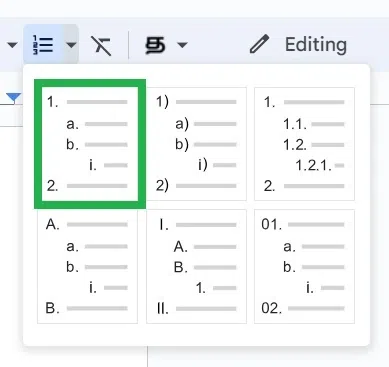
Click on the downward-facing arrow attached to the numbered list icon in the toolbar of Google Docs.
A dropdown opens with different varieties of numbered list headers. Click on the first box in the dropdown to remove the prefix or suffix in the numbered list back to the original numbered list without the prefix or suffix.
The prefix or suffix present in the numbered list is removed now.
In this article, we have discussed adding prefixes and suffixes to lists in Google Docs. Also, we have seen the detailed step-by-step approach in two ways to add prefixes and suffixes to the list i.e., either by using the Menu Bar or right-clicking the numbers. We have also explained the steps to remove the added prefix or suffix from the numbered list in Google Docs.