|
VOOZH | about |
|
VOOZH | about |
How to Insert Emoji in Outlook: Quick Steps
- Open Outlook >> Compose a New Email
- Open the Emoji Panel
- For Windows, Press Win + ;
- For Mac Press, Control + Command + Space
- Select an Emoji >>Send your Mail
Adding emojis in Outlook can make your emails more engaging, expressive, and visually appealing. Whether you're using Windows, Mac, Outlook Web, or Mobile, you can insert emojis using keyboard shortcuts, the emoji panel, copy-paste, or the insert symbol feature. Outlook supports a wide range of emojis, allowing you to enhance both personal and professional emails with fun or relevant symbols. In this guide, you'll learn all the ways to add emojis in Outlook emails quickly and easily.
Table of Content
Using emojis in Outlook emails enhances engagement, improves clarity, and makes messages more expressive. Here’s why you should use them:
Adding emojis in Outlook can make your emails more engaging and visually appealing. Follow these methods to insert emojis in Outlook for Windows, Mac, and Web.
Here is the first method to add emoji on Outlook, follow the steps given below:
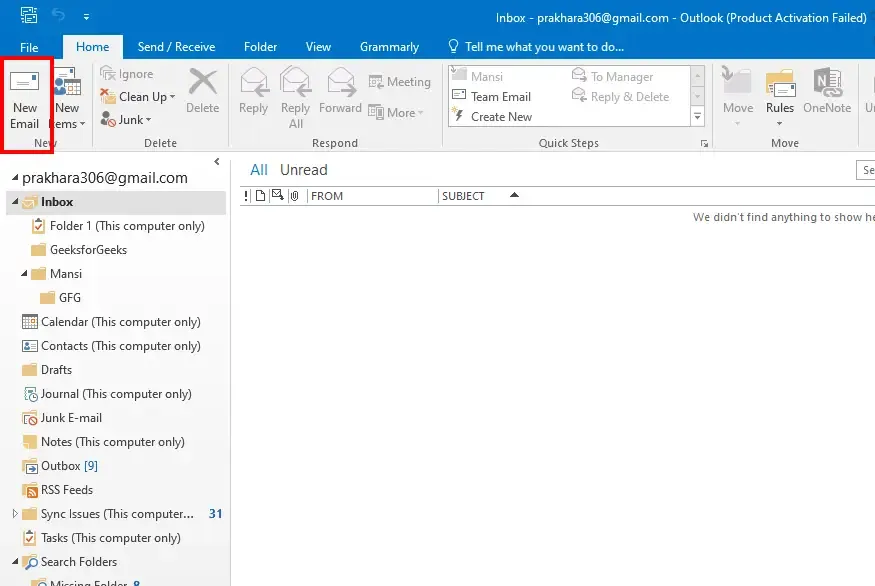
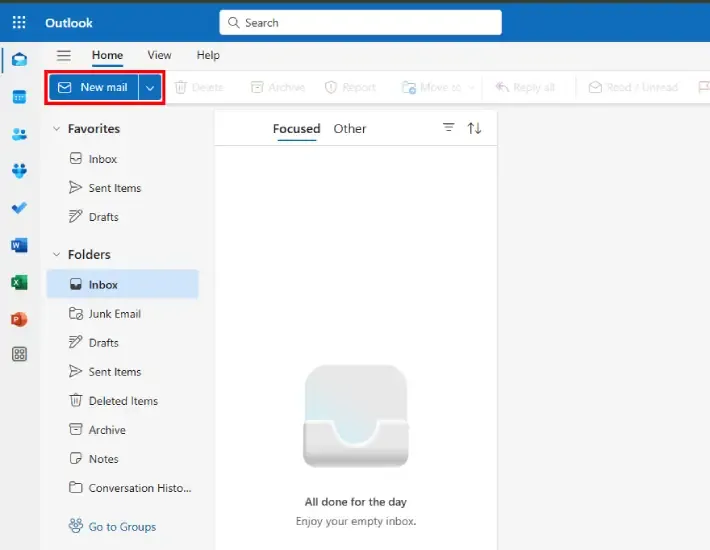
Launch Microsoft Outlook and click New Email to start composing a message.
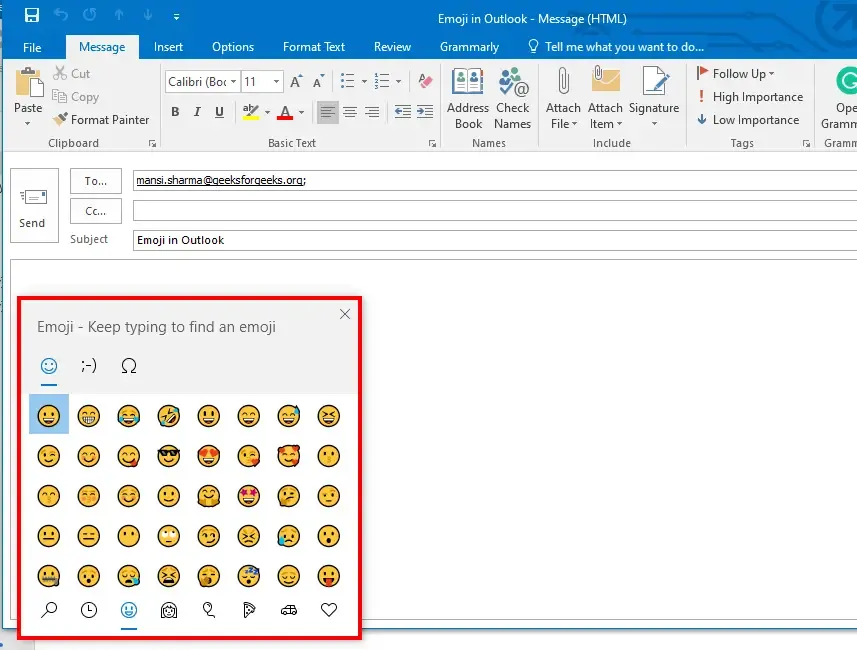
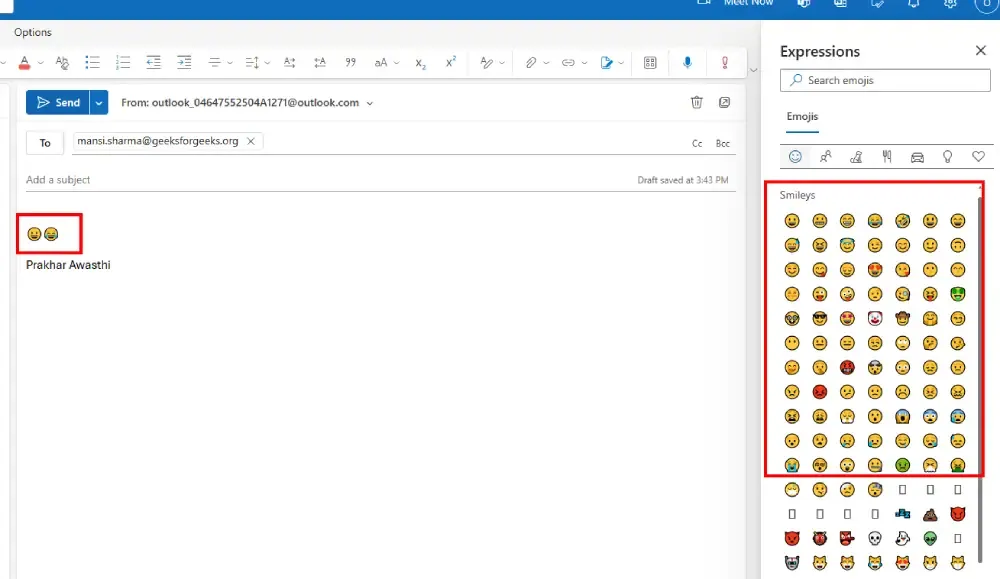
Scroll through the available emojis or type in the search bar to find a specific one. Click on the emoji to insert it into your email.
You can also add an emoji by inserting a symbol in Outlook, Follow the below steps to add emoji in outlook on windows:
Click New Email in Outlook to start composing a message.
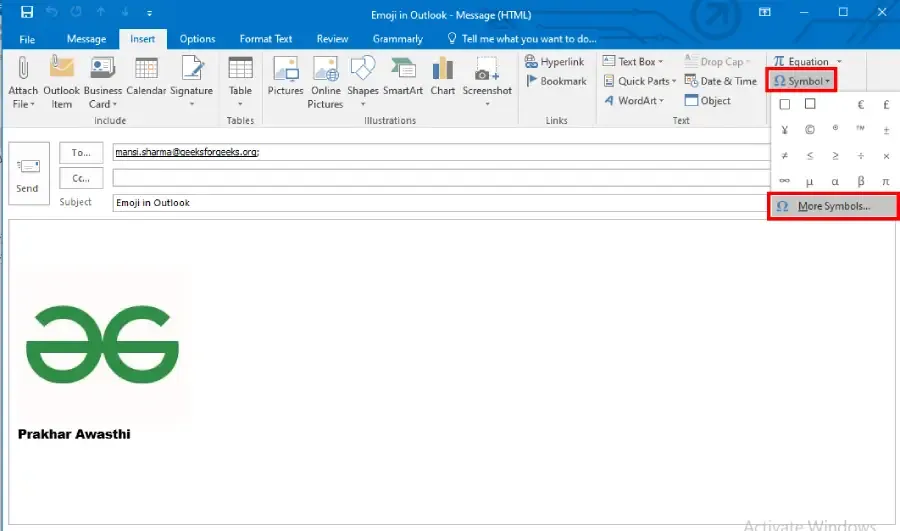
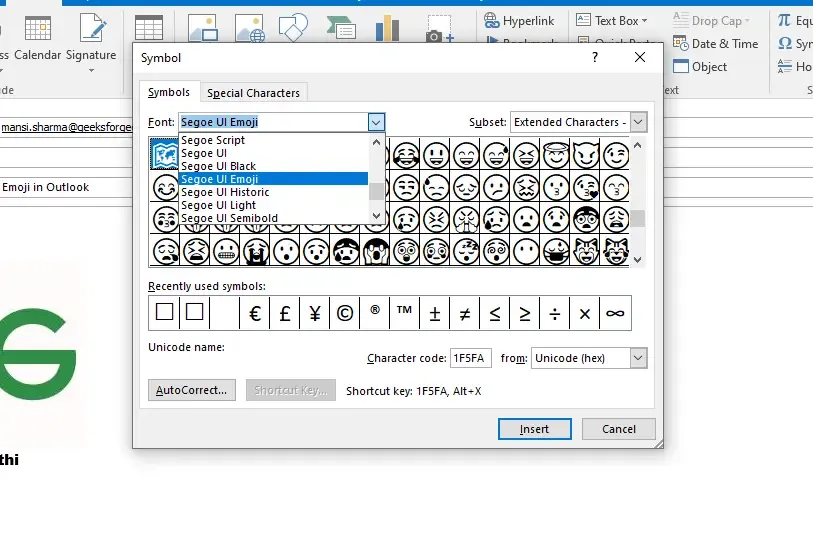
Go to Insert > Symbol > More Symbols to open the symbol selection window.
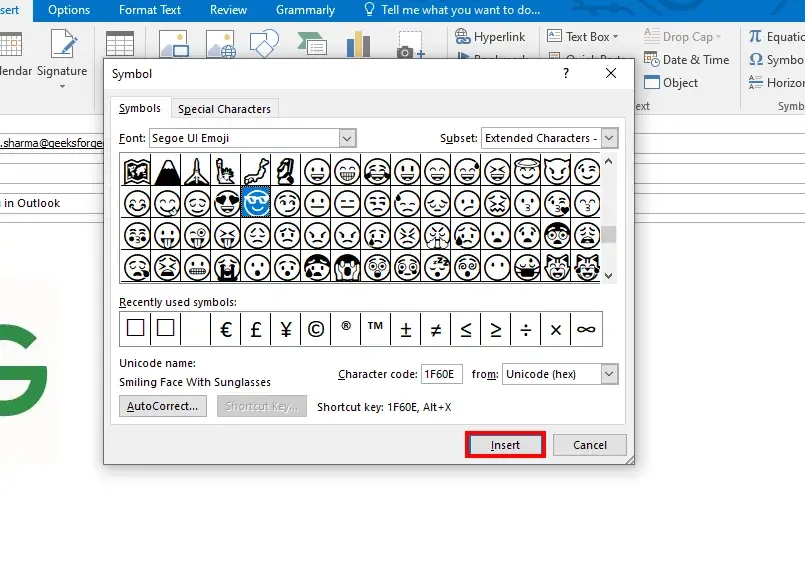
In the Font dropdown menu, select Segoe UI Emoji or Wingdings to access emoji characters.
Scroll through the symbols, select the emoji you want, and click Insert to add it to your email.
Directly copying and pasting the emoji can be a frequent way to add an emoji in Outlook.
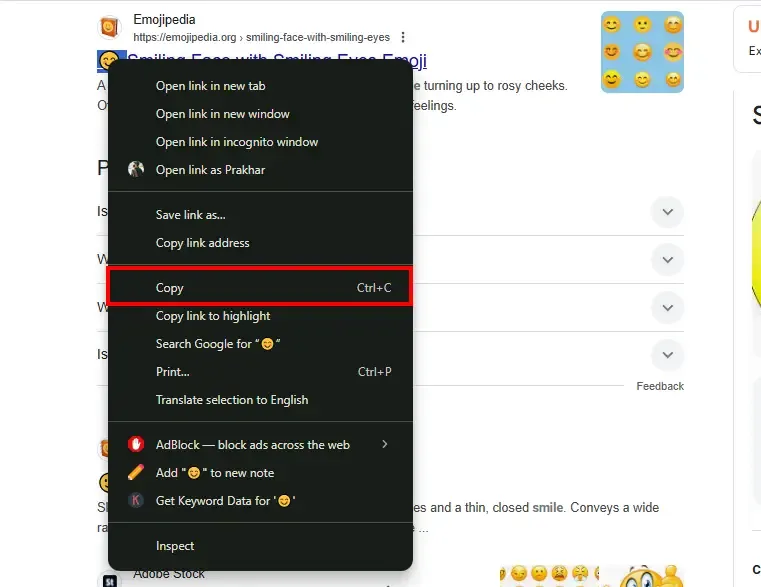
Go to a website like Emojipedia.org or search for an emoji on Google (e.g., "Smile emoji 😊").
Highlight the emoji and press Ctrl + C (Windows) or Command + C (Mac) to copy it.
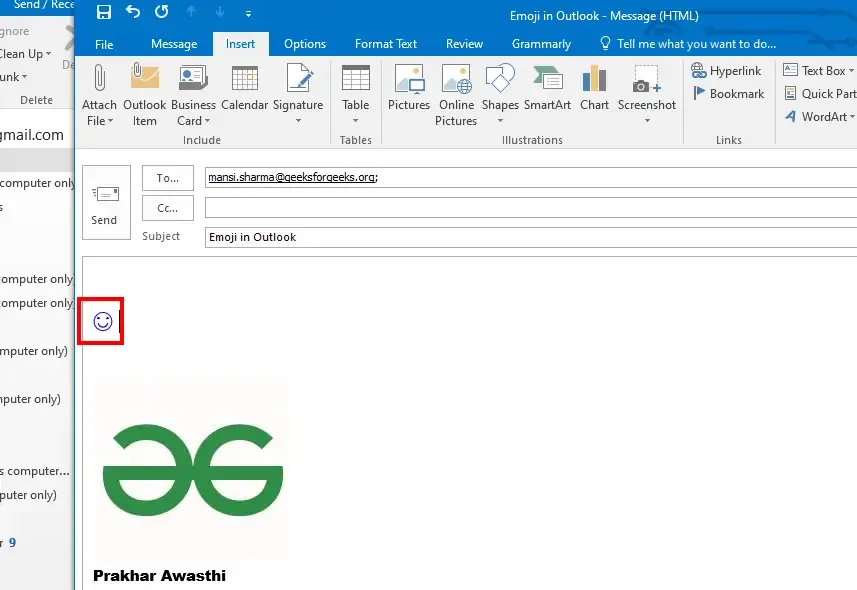
In your email, click where you want to insert the emoji and press Ctrl + V (Windows) or Command + V (Mac) to paste it.
To use the Emoji button in Outlook Web, follow the steps given below:
Go to Outlook.com or Outlook on Office 365 and start a new email.
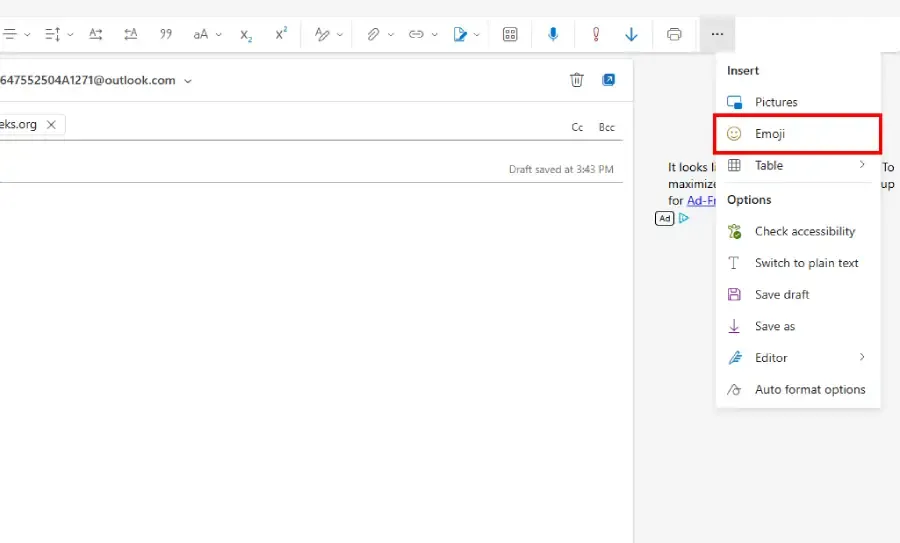
In the email composer toolbar, click the emoji icon 😀 to open the emoji selection panel.
Browse through the emojis and click on one to insert it into your email.
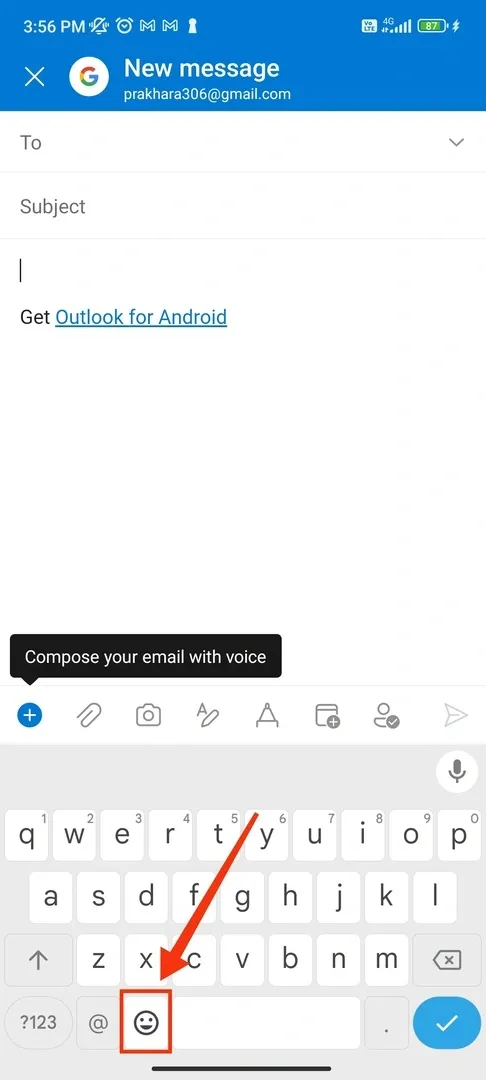
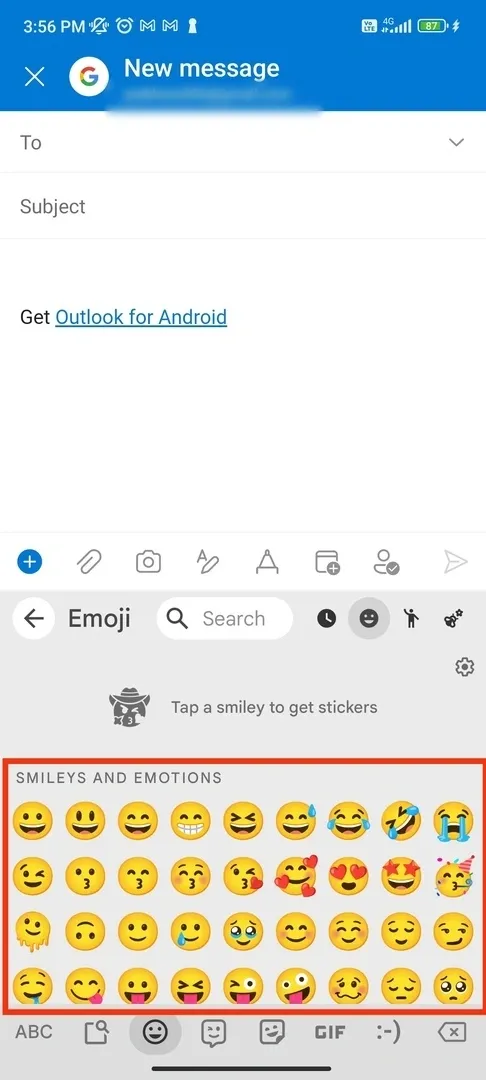
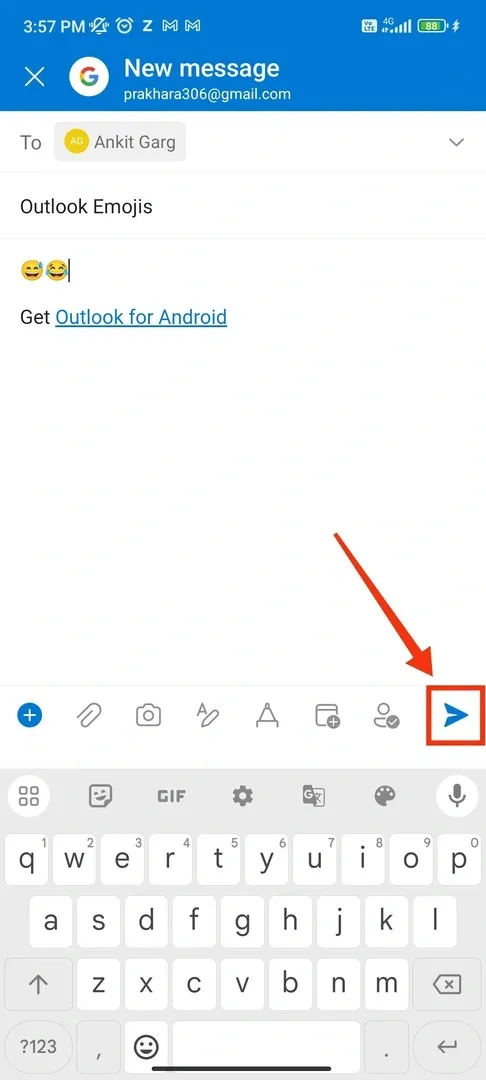
Adding emojis in Outlook on mobile is quick and easy using your device’s built-in emoji keyboard. Follow these steps to insert emojis in Outlook for iPhone and Android.
Launch the Outlook app on your iPhone or Android device and tap the Compose button to start a new email.
Scroll through the available emojis or use the search bar to find a specific emoji. Tap on the emoji to insert it into your email.
After adding emojis, complete your email and tap Send to deliver your message.
Adding emojis in Outlook is a simple way to make your emails more engaging, expressive, and visually appealing. Whether you're using Windows, Mac, Outlook Web, or Mobile, you can insert emojis using keyboard shortcuts, the insert symbol feature, copy-paste from the web, or built-in emoji panels.
By following the steps outlined in this guide, you can effortlessly enhance your Outlook emails with emojis for both personal and professional communication