How to Add Multiple Stops in Google Maps: Easy Guide for Desktop and Mobile
Last Updated : 10 May, 2025
Maps are always been considered for finding the right path from ancient times, and in the morden age Google Maps is doing the same thing. Nowadays, Google Maps has become an essential navigation tool, helping millions of users reach their destinations with ease.
Now, if you are roaming around an unknown country and want to explore multiple locations, but you don't know the right path to visit all these places. In this situation, Google Maps is a simple and effective way to plan your trips. The best part about the Google Map is that it runs on any device like an iPhone, Android, iPad, tablet, or laptop.
If you don't know how to add multiple stops in your route on Google Maps, then explore this guide. Here we have discussed detailed steps to add multiple stops in Google Maps. Through this guide, you can add multiple destinations directly in the app, making it perfect for road trips, errands, or any route involving several stops. Whether you're using Google Maps on your phone or computer, this feature is great for ensuring you never miss a stop along the way.
How To Route With Multiple Stops in Google Maps on Desktop
There are many ways to learn how to use Google Maps with multiple stops. Here are some steps to add stops on Google Maps on desktop.
Step 1: Visit the Google Maps Website
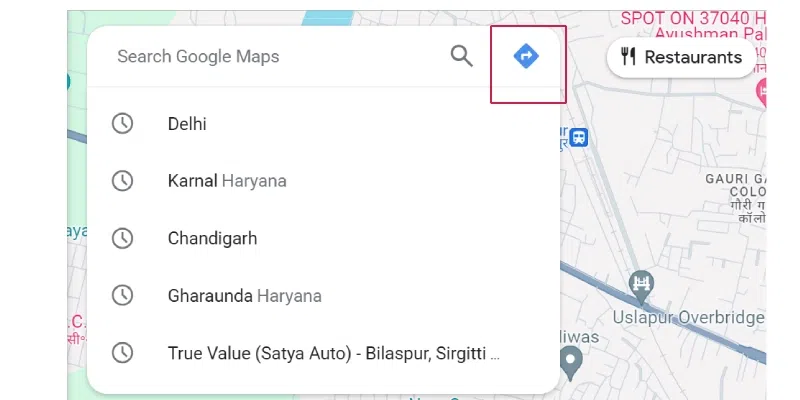
Open your browser and go to the official Google Maps website. Use the search bar labelled "Search Google Maps" to look for a location.
Step 2: Search Your Destination and Source Address
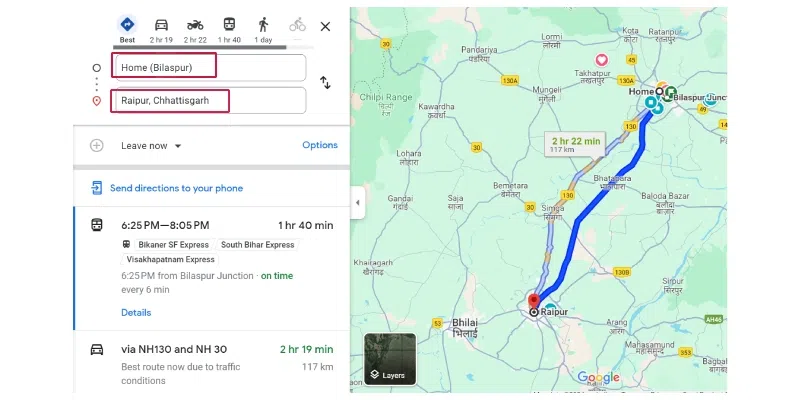
Type your destination into the search bar and press Enter. Once the location appears, click the Directions button. Then, select or enter your starting point (source address).
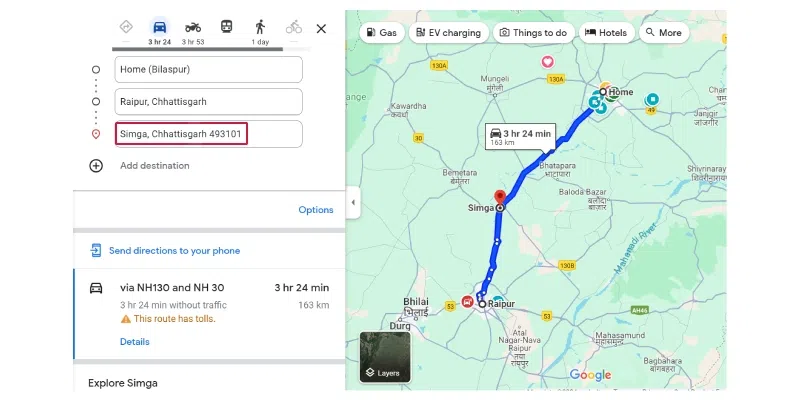
After setting the source and destination, click on the "+" (Add destination) or "Add stop" option. Enter the address or name of the stop you'd like to add. You can include up to 9 additional stops between your source and final destination.
Choose the location you want to add as a stop. You can do this by selecting a point from the suggested route or manually searching for a new one. Once selected, tap “Add stop” to include it in your journey.
You can add up to 9 additional stops between your starting point and final destination.
You have successfully Added Stops In Google Maps on Android & iPhone.
How to Add More Than 10 Stops in Google Maps
If you need to plan a route for more than 10 stops then you can follow the steps given below:
Step 1: Open Google Maps
Launch Google Maps on your desktop or mobile device. Enter your start location and destination as you normally would.
Note: Google Maps officially allows only 10 stops per route, including the starting point and the final destination.
Step 2: Add More Stops Manually via URL (Desktop Method)
To exceed the 10-stop limit on desktop, you can modify the URL manually:
After creating a route with the maximum allowed stops, look at the URL in your browser’s address bar.
Identify the waypoints (locations) added.
You can add more waypoints directly in the URL by appending them using this format:
/dir/Start/Stop1/Stop2/.../StopN/Destination
Press Enter, and Google Maps will reload with the updated route including all your custom stops.
Step 3: Add More Stops Using the App (Workaround)
If you're on Android or iOS, follow these steps:
Tap on any location on the map that you want to add as a stop.
Select “Add stop” from the options that appear.
Repeat the process for additional locations.
Once you reach the 10-stop limit, you may:
Create a second route for the remaining stops.
Use a third-party route planning tool and import it into Google Maps.
Note: The method above will also apply if you are using the iOS platform instead of the Android platform all the steps mentioned in this article are same for both the iOS as well as the Android with just some minor changes in the UI.
How to Mark a Route on Google Maps
Yes it is very easy to mark a route by creating our map using Google Maps for creating our map in Google Maps we will have to use the following steps:
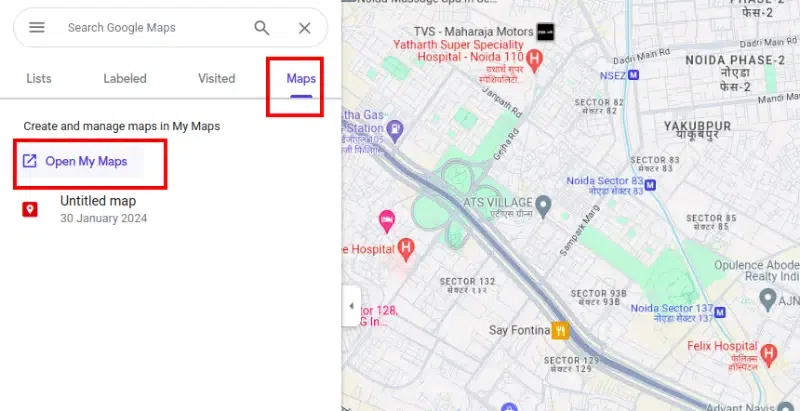
Step 1: Open Saved Maps
Open Google Maps and click on the three dots. From the menu select Saved.
Click on the button called Create a New Map and search for the location that you want to add.
Step 4: Add the Location to the Map
Click on the Add to mapbutton and that will automatically add the location to the map that you are trying to create.
What are the Limitations of Google Maps
Here are some of the key limitations of Google Maps:
Limited Offline Access: While you can download maps for offline use, not all features (e.g., real-time traffic, public transit info) are available offline.
Accuracy Issues: Location data may not always be accurate, especially in rural or poorly mapped areas.
No Detailed Indoor Maps: Indoor maps are limited, which can make navigating large buildings like malls or airports difficult.
Privacy Concerns: Google collects and stores a lot of location data, raising privacy concerns for some users.
Battery and Data Usage: Continuous use of Google Maps can drain battery and consume a significant amount of mobile data.
How does Multiple Stops Work in Google Maps
Multiple Stops allow us to go to the multiple places which are listed on the Google Maps, the multiple stops option also allows us to visit the multiple locations which are available in the single trip which makes our trip more efficient.
How to Optimize Your Multi-Stop Route in Google Maps
Learn how to optimize your multi-stop route for better travel planning.
Manually Rearrange Stops: Drag and drop stops within your route to find the most efficient order.
Use Traffic Information: Consider real-time traffic updates to select the quickest route.
Note: Google Maps uses its own algorithms to suggest the best route based on traffic and distance, but manual adjustments may still be helpful..
Conclusion
Using Google Maps multiple stops feature makes planning your trips efficient and easy. Whether you're using Google Maps on iPhone or Google Maps route planner on Android, adding multiple stops allows you to customize your journey with ease. Simply follow the steps in the Google Maps directions feature to add or rearrange stops. If you're having trouble with the no add stop option on Google Maps iPhone, ensure your app is updated. For more advanced route planning, you can also explore Google My Maps to plot your course in detail and save it for future use. This guide helps you understand how to plan a route on Google Maps seamlessly.


.webp)
.webp)
.webp)
.webp)
.webp)
.webp)