|
VOOZH | about |
|
VOOZH | about |
Apache is a powerful and flexible web server widely used for hosting websites. Setting it up in a Windows environment is relatively straightforward. This guide will provide a step-by-step process to install and configure the Apache web server on a Windows machine.
1. Go to the Apache Lounge website to download the latest version of the Apache HTTP Server.
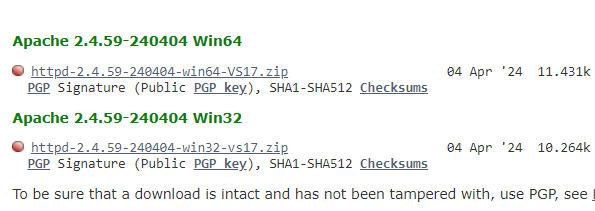
2. Download the binary version suitable for your system (usually found under the "Apache HTTPD" section).
Extract the downloaded zip file to your preferred location (e.g., C:\Apache24).
1. Open the extracted folder and navigate to the conf directory.
2. Locate the httpd.conf file(C:\Apache24\conf) and open it with a text editor (e.g., Notepad).
1.ServerRoot: Set the server root to the directory where Apache is installed.
ServerRoot "C:/Apache24"2.Listen: Set the port number you want Apache to listen on (default is 80).
Listen 803.ServerName: Specify the server name and port.
ServerName localhost:804.DocumentRoot: Set the directory where your web files will be located.
DocumentRoot "C:/Apache24/htdocs"5.Directory: Update the <Directory> directive to match the DocumentRoot.
<Directory "C:/Apache24/htdocs">
 Options Indexes FollowSymLinks
 AllowOverride None
 Require all granted
</Directory>
If you want to change the default port and root directory for serving files, follow these steps:
Listen 8080Update the ServerName directive to reflect the new port.
ServerName localhost:8080DocumentRoot "D:/MyWebFiles"<Directory "D:/MyWebFiles">
Options Indexes FollowSymLinks
AllowOverride None
Require all granted
</Directory>
1.Open Command Prompt as an administrator.
2.Navigate to the Apache bin directory.
cd C:\Apache24\bin3.Install Apache as a service:
httpd.exe -k install1.Start Apache service:
httpd.exe -k startAlternatively, you can start and manage the Apache service via the Services management console:
Open a web browser and navigate to http://localhost./ You should see the "It works!" default Apache page.
or
open the command prompt as administrator and type the following command.
httpd -vEnsure that the Windows Firewall allows traffic on the port Apache is using (usually port 80).
You have successfully installed and configured the Apache web server on your Windows machine. You can now place your web files in the htdocs directory and start serving web content. For further customization and advanced configuration, refer to the Apache documentation.