|
VOOZH | about |
|
VOOZH | about |
How to Convert Word to Google Doc - Quick Steps
- Open Google Drive > Upload the Word Document
- Open the Uploaded File > Convert to Google Docs Format
- Edit and Save
Are you looking to seamlessly transition your documents from Microsoft Word to Google Docs? Whether you're aiming to collaborate more effectively, ensure cloud accessibility, or simply prefer the interface of Google Docs, converting your Word documents is a breeze. In this article, we'll walk you through how to convert Word to Google Docs, ensuring your formatting remains intact and your workflow stays smooth. Learn how to convert Word documents to Google Docs effortlessly and unlock the full potential of cloud-based document management. Discover the simple steps for how to convert from Word to Google Docs, making your documents accessible anytime, anywhere.
Table of Content
Converting a Word document to Google Docs offers several advantages:
Follow the below steps to Convert Microsoft office Files to Google Files::
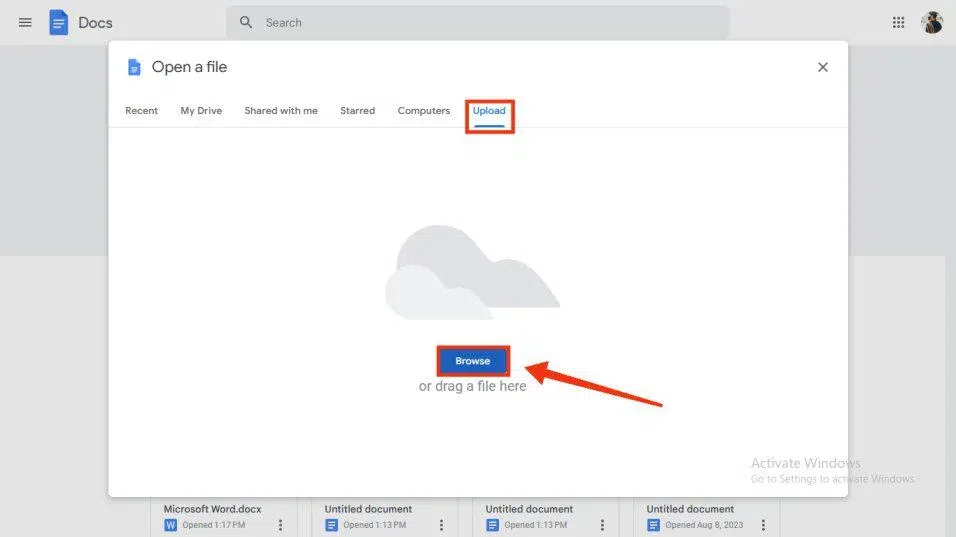
Open Google Docs on your Desktop and click on the "File Picker" option to open the uploading section or File Picking Section in Google Docs.
Now an uploading window will appear on the desktop that will have an upload tab at the last. Click on the upload tab select "Browse" button to browse the file section of your computer.
Note: - You can also go through the other tabs .
Select your word file from the file Section of your computer and click "Open" button to open it in the Google Docs.
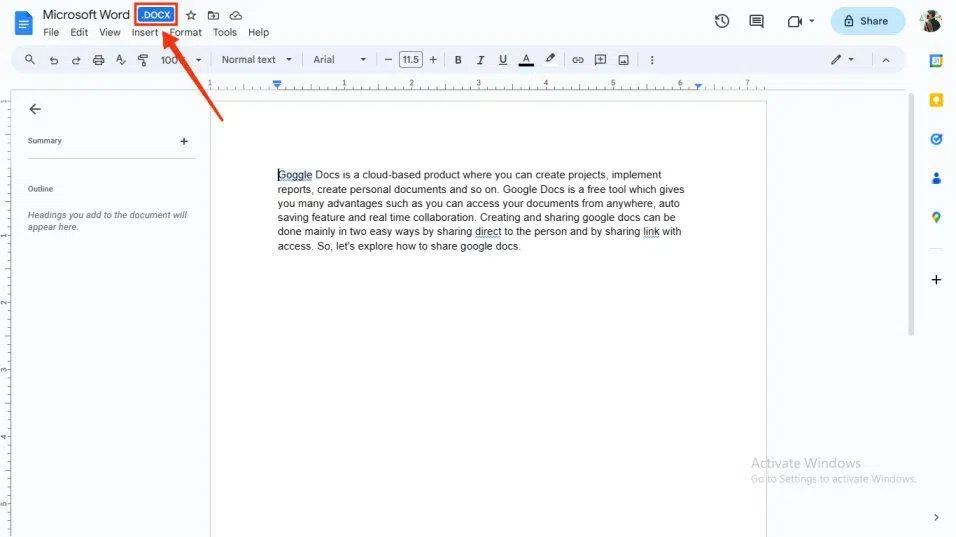
Your file has been converted to Google Doc and you can edit it by the help of the tools of Google Docs. After completing your editing process you can download your Google Doc by the Downloading process.
Follow these detailed steps to convert Word file to Google Docs using your desktop:
First you have to open Google drive on your Desktop and click on the '+' Icon to upload a the word file.
Now you need to upload your word file to Google Drive by selecting the "File Upload" option from the menu.
From the list of files in your system, select your desired word file that you wanted to convert to a Google Doc, after selecting your file click "Open" button to upload it to Drive.
After uploading your word file to the Google Drive, locate it and click on the three-dots present in front of the File. From the drop-down menu appeared click on the "Open With" button and select "Google Doc".
Now you will observe at the top left corner that your Word file is converted to a Google Doc and you can save it by going through the Downloading process.
You can also convert Word documents using Google Drive on your mobile device:
To launch Google Drive on your Mobile, locate the Google Drive icon on your phone and give it a click.
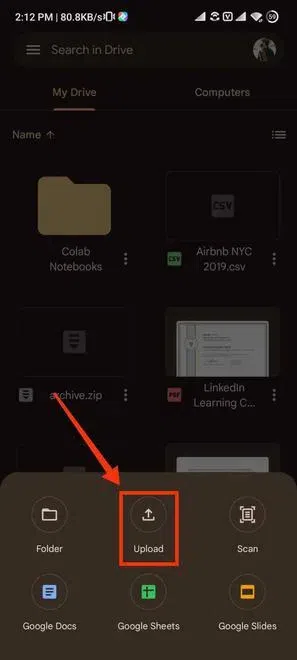
You need to upload your Word file to Google Drive by selecting the "Upload" button given at the bottom of the screen.
Click on the three dots present in front of the File to open the drop-down menu.
From the drop-down menu displayed, out of the given options select "Open With" option to view the various method of opening a file.
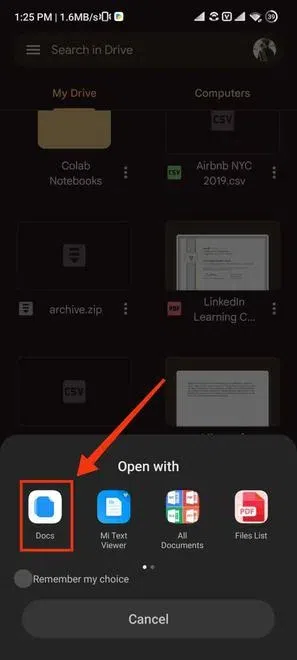
Now out of the presented options select Google Docs by clicking on Google Doc icon to open it. It will go through your selected Word File and will open it in Google Docs.
Your selected Word File is now converted to a Google Doc and you can also save it to your File manager.
To Learn how to convert word document to google doc without loss of formatting, follow these steps:
Even though converting Word documents to Google Docs is usually simple, you might face some issues, like formatting changes or compatibility problems. Here are some tips to help you troubleshoot:
These tips can help ensure a smooth conversion process across different devices.
Converting your documents from Microsoft Word to Google Docs is a simple process that allows you to enjoy the benefits of cloud-based document management. Whether you're working from a desktop or mobile device, converting Word to Google Docs ensures that you can easily access, share, and collaborate on your documents. Follow the steps above to make the transition smooth while maintaining your original formatting.
By mastering how to convert Word to Google Doc, you can unlock the full potential of Google Docs for better productivity and collaboration..


.webp)
.webp)