|
VOOZH | about |
|
VOOZH | about |
Google Docs is a versatile online document editor that allows you to easily copy and paste text and images for both personal and professional purposes. With features like customizable font styles, text alignment, and media insertion, Google Docs makes document creation straightforward and efficient.
In this article, you will learn the multiple methods to copy and paste in Google Docs, including using right-click, keyboard shortcuts, and the menu bar, ensuring you work more efficiently and save time.
👁 How to Copy and Paste Text and Images in Google Docs
Table of Content
Google Docs offers several ways to copy and paste content. You can use right-click, keyboard shortcuts, or the menu bar to quickly copy and paste text, images, and even tables. Let’s explore each method in detail.
1. How to Copy and Paste Text in Google Docs Using Right-Click (Desktop)
2. How to Quickly Copy and Paste Text in Google Docs Using Keyboard Shortcuts (Desktop)
3. How to Use the Menu Bar to Copy and Paste Text in Google Docs (Desktop)
Sometimes we may need to retype all the contents of a document again in the documents. We may need to create multiple copies of certain text for assignments, documents, transcripts, and more. At such times, we do not need to type all the required specific contents again in a document. We can use simple and quick copy-and-paste techniques to create a copy of the specific content from any document or webpage, and then simply paste our document into Google Docs.
Google Docs has various methods of copying and pasting for users to work quickly on their documents. This article will discuss the different ways to copy and paste in Google Docs.
Right-clicking is a simple and familiar method for copying and pasting text in Google Docs.
Open Google Docs in any web browser on your desktop or laptop device. Open the document in which copy and paste is to be done.
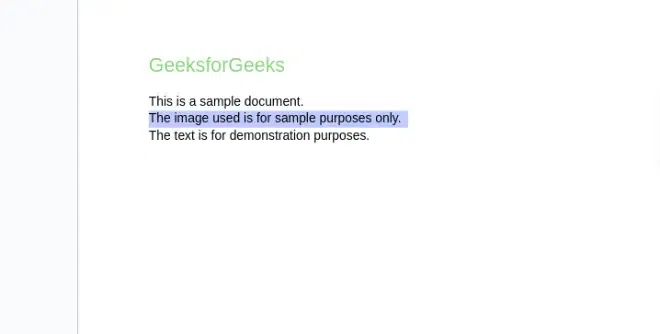
Select and highlight the specific text you want to copy in the document.
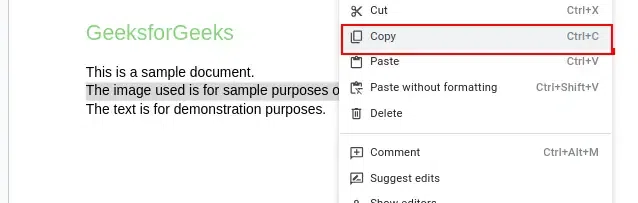
A drop-down menu appears. Select 'Copy' in it. Now the highlighted text gets copied to the clipboard.
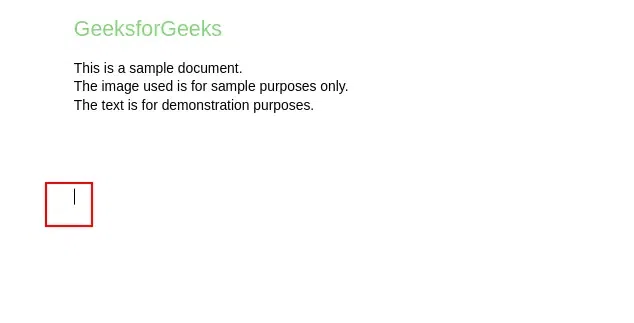
To paste the copied text, place the cursor anywhere in the document in Google Docs where you want to paste it.
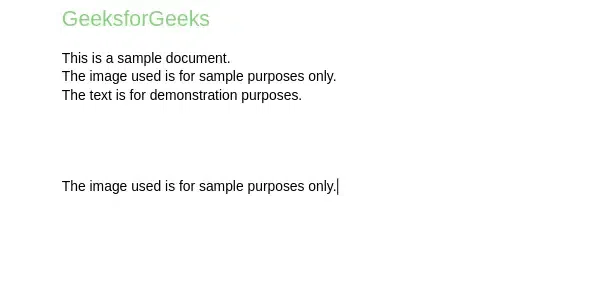
A dropdown appears. Select 'Paste' in it. Now the copied text is pasted to the document in Google Docs.
Now the selected text has been copied and pasted in Google Docs successfully.
Open Google Docs in any web browser on your desktop or laptop device. Open the document in which copy and paste is to be done.
Select and highlight the specific text you want to copy in the document.
On your keyboard of desktop or laptop, press 'Ctrl' + 'C'. Now the highlighted text gets copied to the clipboard.
To paste the copied text, place the cursor anywhere in the document in Google Docs where you want to paste it.
On your keyboard of desktop or laptop, press 'Ctrl' + 'V'. Now the copied text gets pasted into the document.
Now the selected text has been copied and pasted in Google Docs successfully.
Open Google Docs in any web browser on your desktop or laptop device. Open the document in which copy and paste is to be done.
Select and highlight the specific text you want to copy in the document.
In the menu bar of Google Docs, click 'Edit'. A dropdown opens. Click 'Copy' in it. Now the highlighted text gets copied to the clipboard.
To paste the copied text, place the cursor anywhere in the document in Google Docs where you want to paste it.
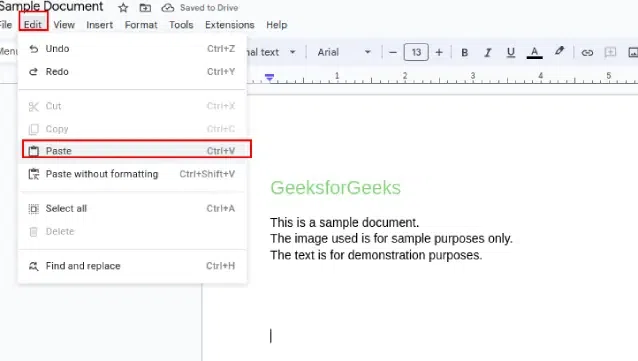
In the menu bar of Google Docs, click 'Edit'. A dropdown opens. Click 'Paste' in it. Now the highlighted text gets pasted to the document.
Now the selected text has been copied and pasted in Google Docs successfully.
Open Google Docs in any web browser on your desktop or laptop device. Open the document in which copy and paste is to be done.
Select the image in the document to copy by clicking on it.
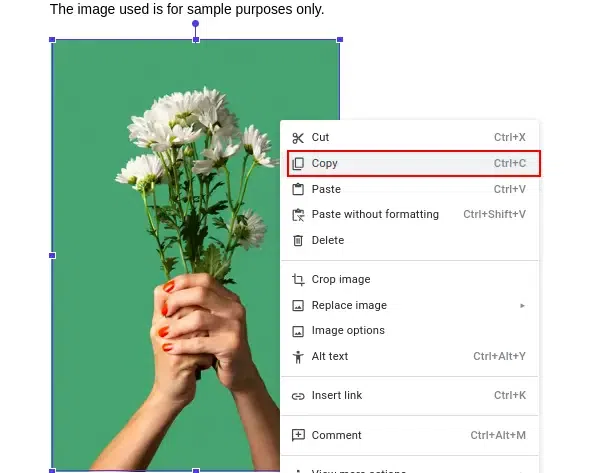
On the selected image, right-click. A drop-down menu appears. Select 'Copy' in it. Now the selected image gets copied to the clipboard.
To paste the copied text, place the cursor anywhere in the document in Google Docs where you want to paste it.
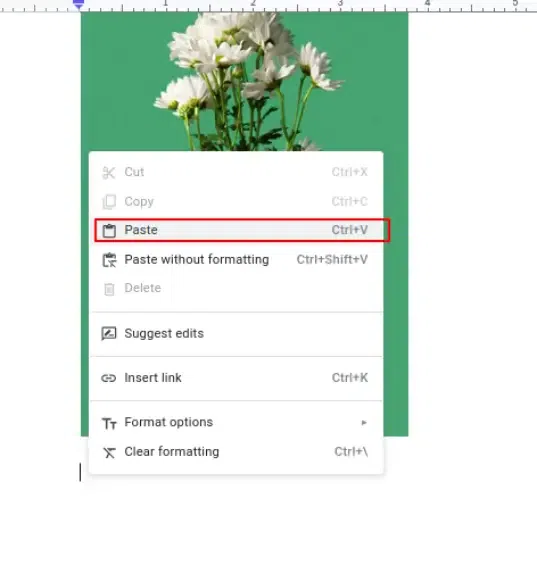
A dropdown appears. Select 'Paste' in it. Now the copied image is pasted to the document in Google Docs.
Now the selected image has been copied and pasted in Google Docs successfully.
Open Google Docs in any web browser on your desktop or laptop device. Open the document in which copy and paste is to be done.
Select the specific image you want to copy in the document.
On your keyboard of desktop or laptop, press 'Ctrl' + 'C'. Now the selected image gets copied to the clipboard.
To paste the copied image, place the cursor anywhere in the document in Google Docs where you want to paste it.
On your keyboard of desktop or laptop, press 'Ctrl' + 'V'. Now the copied image gets pasted into the document.
Now the selected image has been copied and pasted in Google Docs successfully.
Open Google Docs in any web browser on your desktop or laptop device. Open the document in which copy and paste is to be done.
Select the specific image you want to copy in the document by clicking on it once.
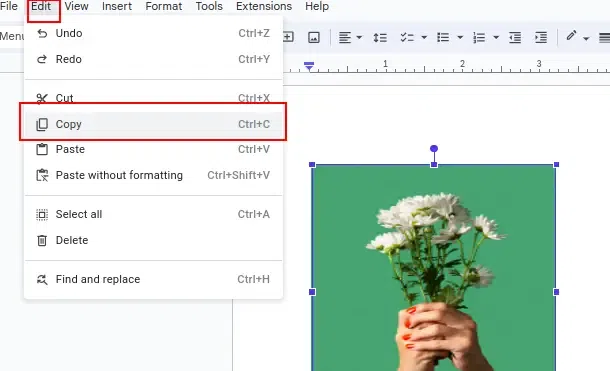
In the menu bar of Google Docs, click 'Edit'. A dropdown opens. Click 'Copy' in it. Now the selected image gets copied to the clipboard.
To paste the copied image, place the cursor anywhere in the document in Google Docs where you want to paste it.
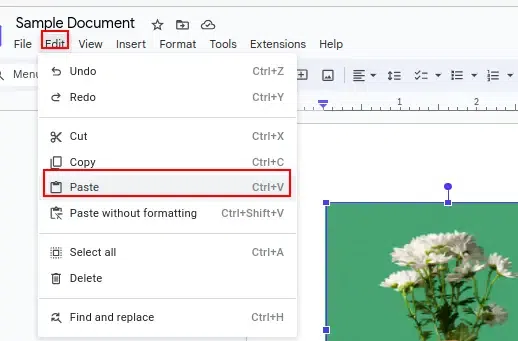
In the menu bar of Google Docs, click 'Edit'. A dropdown opens. Click 'Paste' in it. Now the selected image gets pasted to the document.
Now the selected image has been copied and pasted in Google Docs successfully.
In this article, we covered multiple methods to copy and paste text and images in Google Docs, including using right-click, keyboard shortcuts, and the menu bar. Knowing these methods can help you work more efficiently and save time while editing your documents.