|
VOOZH | about |
|
VOOZH | about |
How to Make a Discord Account - Quick Steps
- Go to the Discord Website >> Click on "Register"
- Enter your details >> Set a Password.
- Open Gmail >> Verify your email
- Log in to Discord >> Customize your profile
Want to join the vibrant world of Discord but don’t know where to start? Whether you’re looking to chat with friends, join a community, or find new people who share your interests, setting up a Discord account is quick and easy. In this guide, we’ll walk you through the steps of creating your very own Discord account, both on desktop and mobile devices. No matter if you're using Android, iOS, or your computer, we’ve got all the details you need to get started. Read on to learn how to sign up for Discord and dive into one of the most popular communication platforms available today.
Creating a Discord account on desktop is simple and quick. Whether you're using Windows, Mac, or Linux, you can easily sign up for a new Discord account and start chatting with friends or joining servers.
Here’s a step-by-step guide to sign up for a Discord account on desktop:
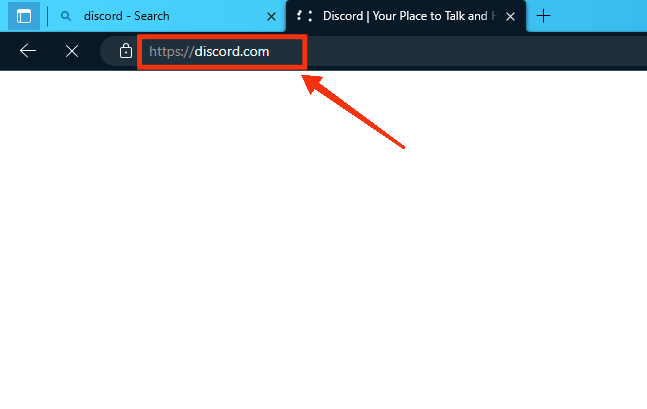
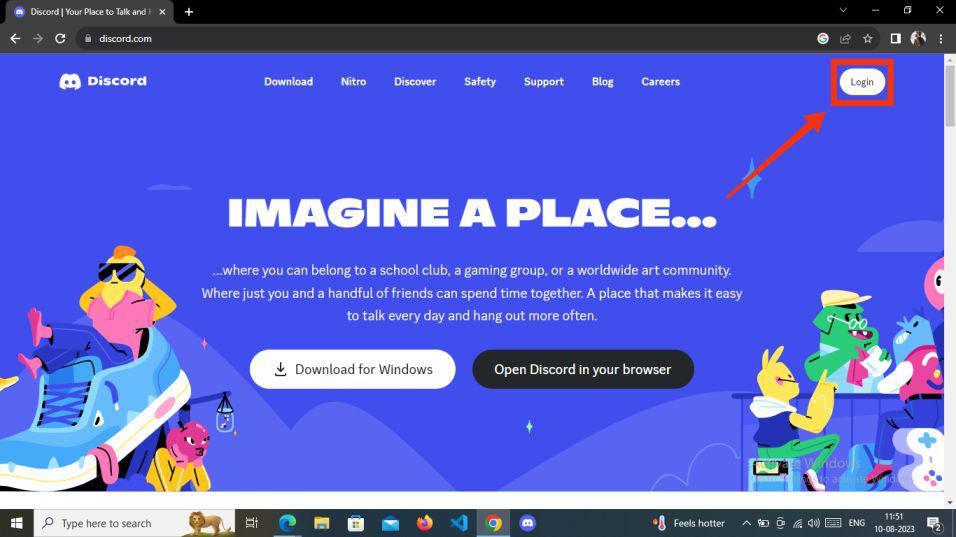
Launch your web browser and search Discord's Official Website.
After you have visited the official Discord website, proceed to the upper right corner and select the "Login" button as you are creating a new discord account.
Upon reaching the welcome back screen, you will be prompted to log in using your current account. To create a new account on Discord, click on the "Register" option located below the Log In button.
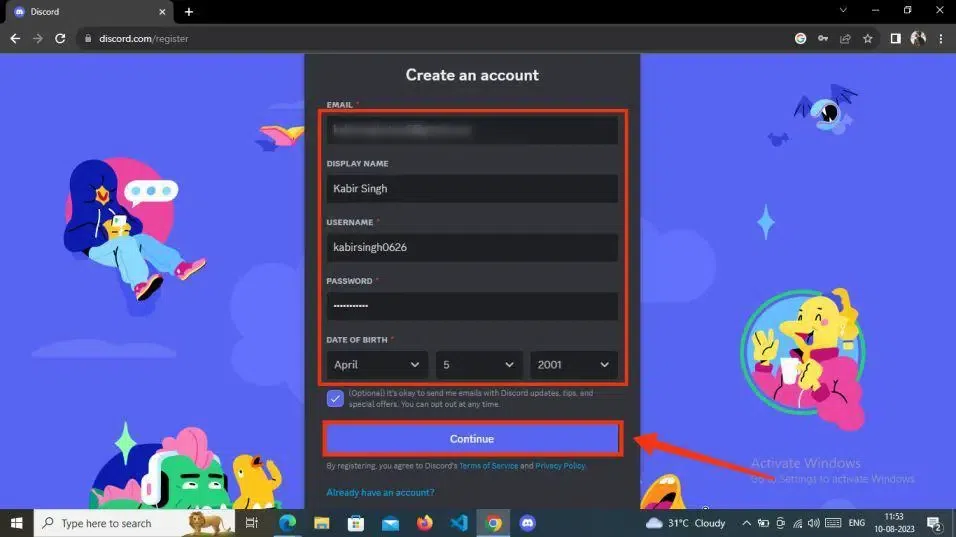
You need to complete the necessary information for creating a new account. This includes your email address, the display name you wish to use on your profile, your chosen Discord username, the password you want to set, and your date of birth.
Once you've provided all the required information, click the "Continue" button to proceed to the next step.
A box will now appear that requires confirmation before proceeding to the next step. Verify your human status and proceed to the following stage.
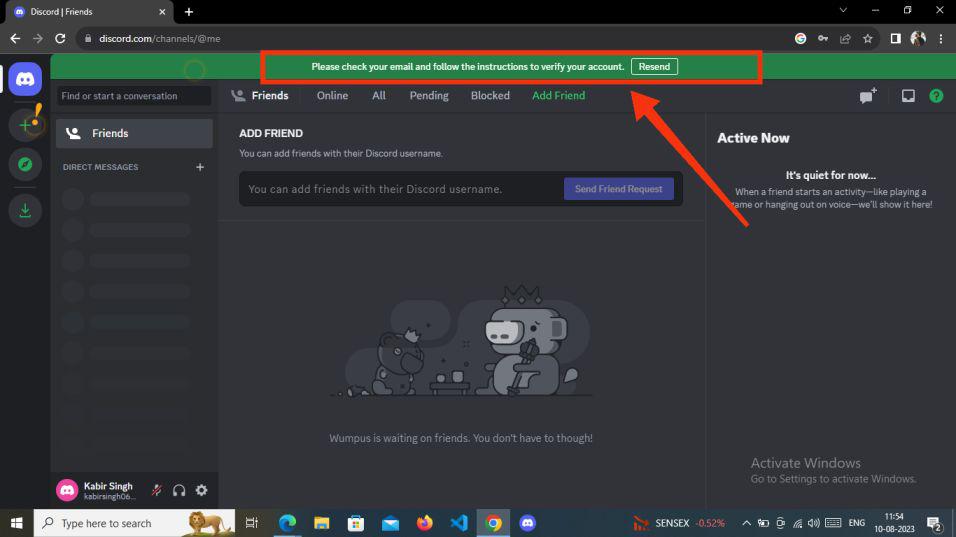
Upon reaching this stage, your Discord account has been successfully created. At the top of the Discord screen, you'll notice a green tab prompting you to verify your Gmail account.
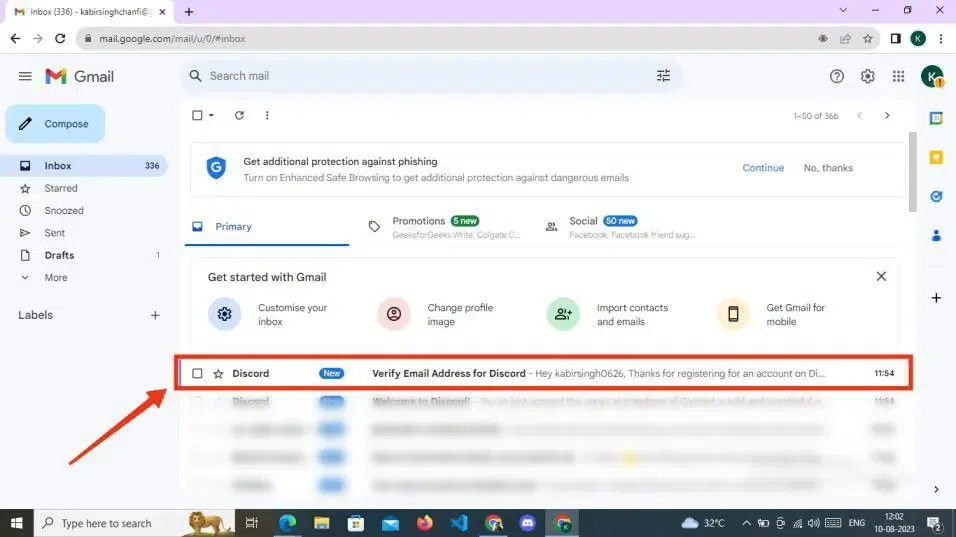
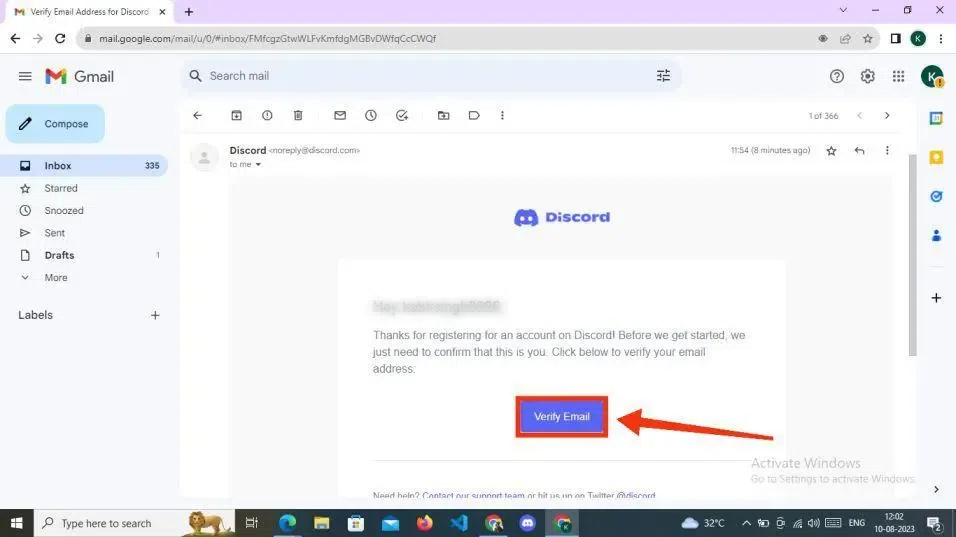
Next, access the email account you provided during the registration process. Look for the verification email sent by Discord in your inbox and click to open it.
Once you've opened the verification email from Discord, locate the "Verify Email" button and click on it.
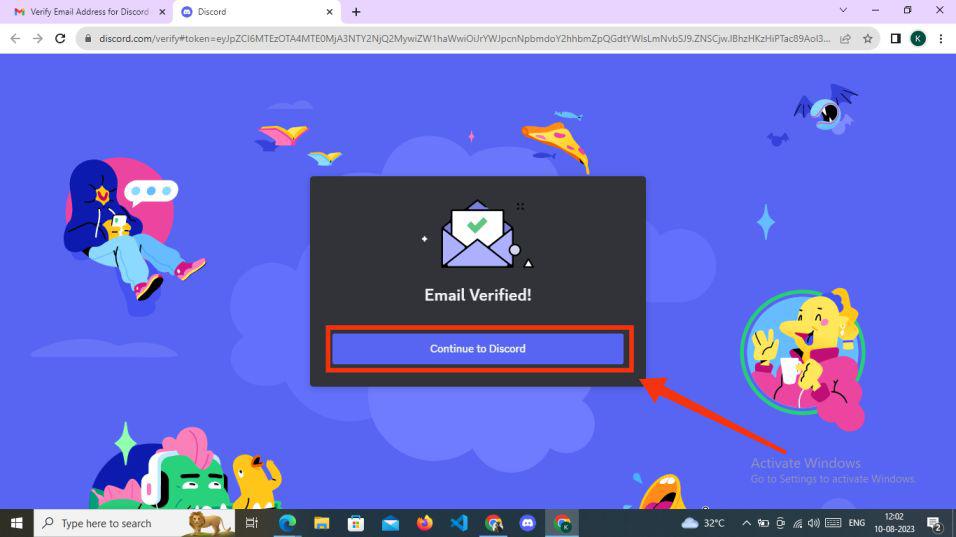
Your email has been successfully verified, and your Discord account is now ready to use. Simply click on the "Continue to Discord" button to begin using Discord.
Here are the steps on how to make new discord account.
Download the Discord Mobile app from either the Play Store or the App Store. After installing it on your mobile device, tap on the Discord app to launch it.
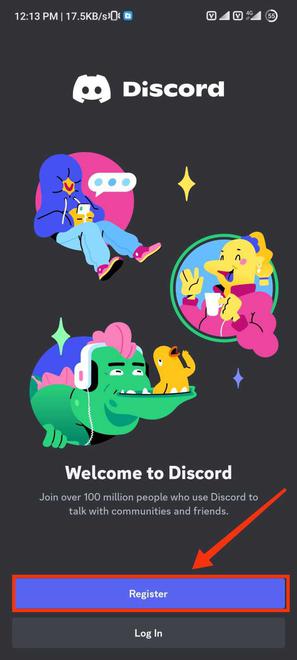
Once you've launched the Discord app, you'll be greeted by a welcome screen. To initiate the registration process on Discord, tap on the "Register" button.
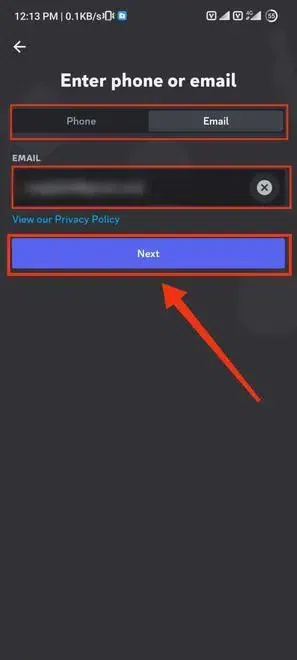
Now, decide on your preferred Registration method for Discord - either using your phone or your email if you want to create discord account with phone number. If you've opted for the "Email" method, input your email address and click "Next." Conversely, if you've chosen the "Phone" method, enter your phone number and click "Next."
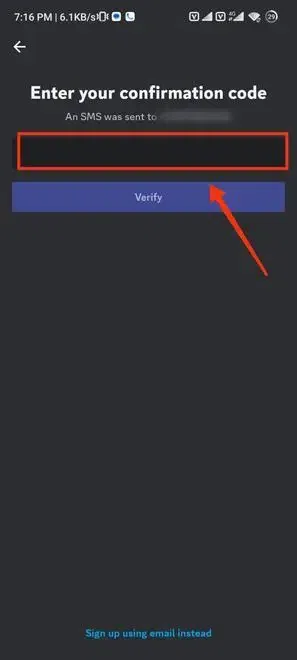
Once you've entered your phone number, a verification code will be sent to your mobile device. Simply input the code and click "Verify." In this example, we've selected the "Phone" mode of registration to help illustrate the Discord registration process.
Next, input your Display Name, which will be publicly visible on Discord, or you can choose to skip this step and edit your Display Name later. After that, confirm the Captcha prompt to verify that you are human.
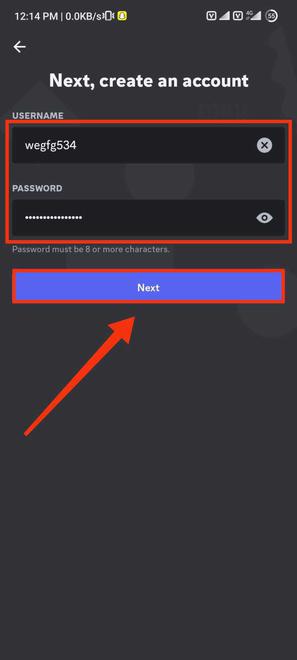
In the "Create an Account" section, provide your chosen username and password. Afterward, click the "Next" button to proceed to the next step of account creation.
Now, input your date of birth as this information is crucial, and then click the "Create an Account" button.
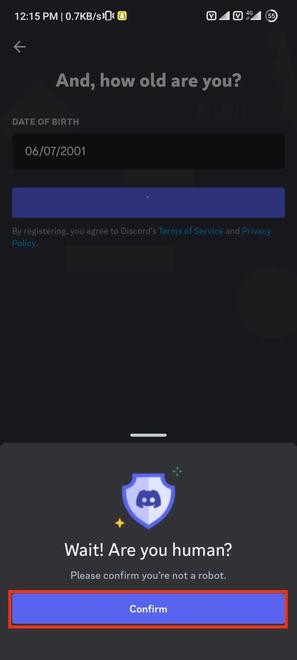
In the following step, a pop-up message will emerge, requesting confirmation of your human status. Simply validate this by clicking the "Confirm" button.
Select your profile picture from the provided options, or you can import an image from your file manager by clicking the '+' button located on the profile picture section. Alternatively, you can skip this step and edit your profile picture later once you've completed the Discord registration process. After configuring your profile, click the "Next" button.
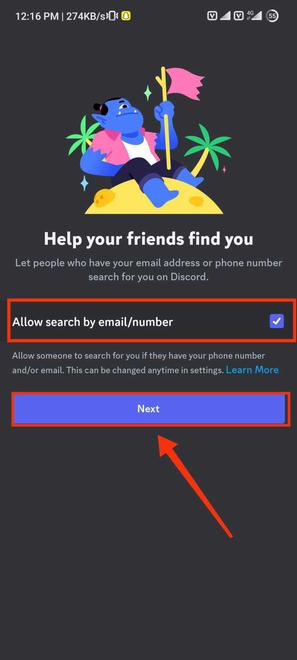
Mark the checkbox to permit your friends to find you using your email or phone number, and then click "Next."
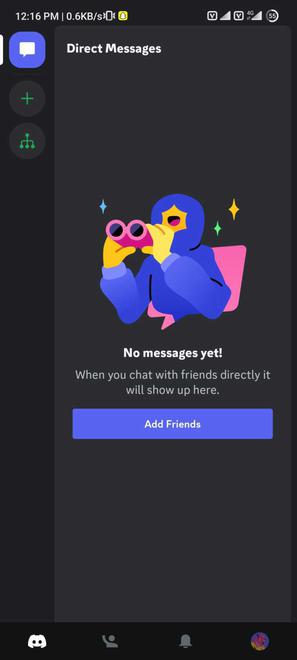
Congratulations, your Discord account has been successfully created and is now ready for use. Feel free to join or create servers according to your preferences.
Setting up your Discord account on desktop or mobile is a fast and simple process that connects you to millions of users worldwide. Whether you're gaming, chatting with friends, or exploring new communities, having a Discord account is your gateway to endless opportunities. Now that you know how to sign up for a Discord account on both desktop and mobile, you're all set to get started. Enjoy your time on Discord, and don’t forget to personalize your profile and dive into the conversations!



-660.jpg)