 |
VOOZH | about |
|
VOOZH | about |
Twitter, now rebranded as X, has undergone significant changes since Elon Musk's takeover, leading many users to consider deleting their accounts. Whether it's the new features, changes in verification, or the loss of the iconic blue bird logo, many users are finding it challenging to navigate the platform. If you're among those looking to delete your X account permanently, this guide will walk you through the process on both desktop and mobile devices. Learn how to deactivate and delete your Twitter account (X) effectively and securely.
👁 How to Delete a Twitter Account
Table of Content
Deactivating your X (formerly Twitter) account is temporary—you can reactivate it within 30 days, and your data stays intact. Deleting your account is permanent—after a 30-day deactivation period, all your data and activity are erased, and you can't recover your account. Choose deactivation for a break or deletion to leave the platform for good.
Deactivating your X (formerly Twitter) account is a temporary action that allows you to take a break from the platform. When you deactivate your account, your profile, tweets, and other data become inaccessible to other users, but they are not deleted. You can reactivate your account anytime within 30 days by simply logging back in. If you don't log in within 30 days, your account will be automatically deleted. This option is ideal if you need a temporary break but plan to return to X in the future.
Deleting your X (formerly Twitter) account is a permanent action that removes your profile, tweets, and data from the platform entirely. Once you initiate the deletion process, your account will first be deactivated for 30 days. During this period, you can reactivate your account if you change your mind. However, after 30 days, all your data and activity will be permanently erased, and you will not be able to recover your account. This option is best if you are certain that you no longer want to use X and wish to remove your presence from the platform completely.
There are several reasons why users might want to delete their X accounts:
Changes in Features: New features and changes in functionality might not suit your needs.
Verification Changes: Alterations in the verification process.
Logo and Brand Changes: Loss of the iconic blue bird logo.
Platform Preferences: You may prefer other social media platforms.
You can permanently deactivate your X account on your desktop by following these steps:
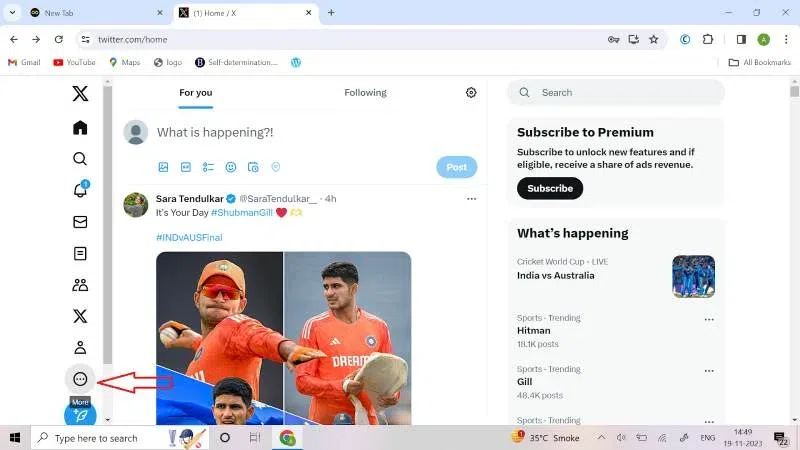
The first step is to open X on your desktop. A home page will appear on your screen.
On the left-side bottom of your home page, click on the three dots. This is the ‘More’ button.
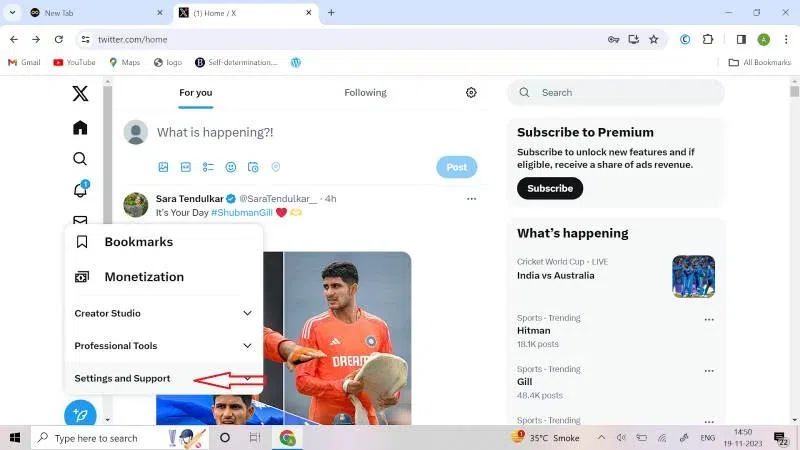
Once you are through with the first two steps, click on the ‘Settings and Support’ button.
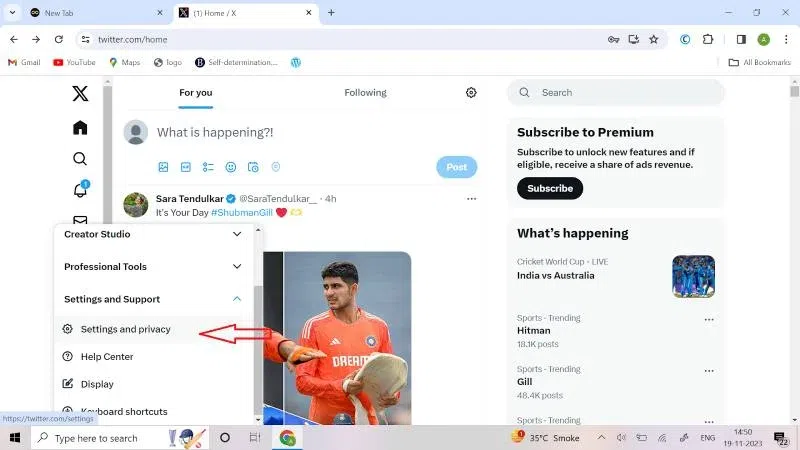
Once you click on Settings and Support, a drop-down menu will appear on your screen. Click on ‘Settings and Privacy’.
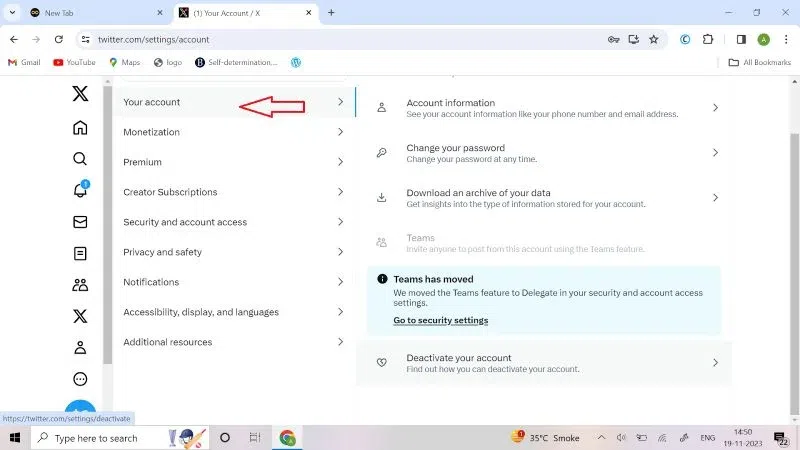
After clicking on Settings and Privacy, you have to click on ‘Your account’. A window will appear.
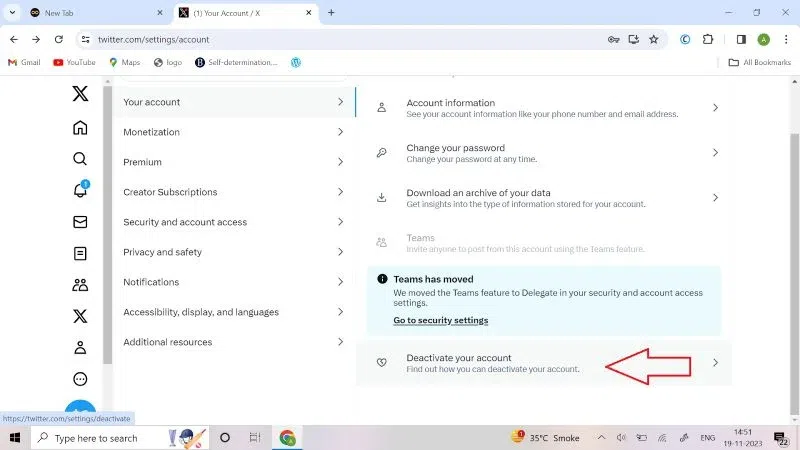
Scroll down to the bottom of the page. A ‘Deactivate your account’ option will appear on your screen. Click on that.
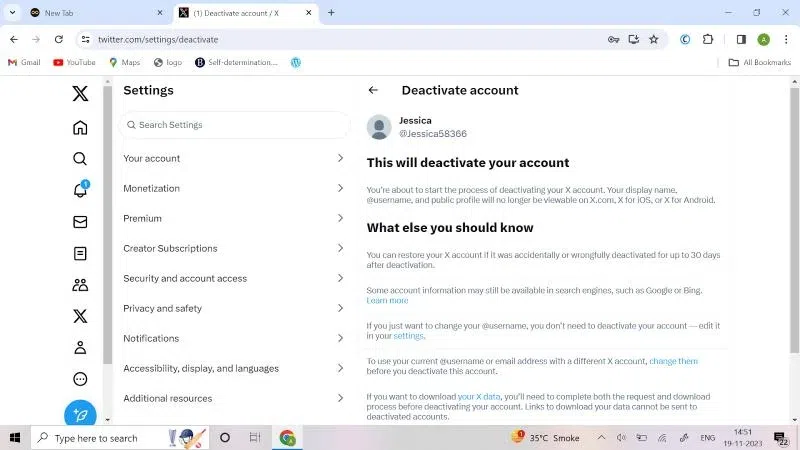
Once you click on the ‘Deactivate your account’ button, an information window will appear on your screen. In order to make a well-informed decision before deactivating your account, you must carefully read the information.
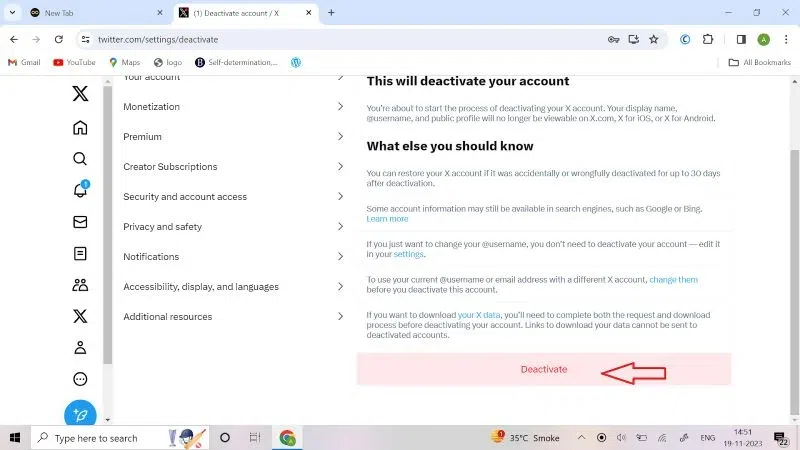
Once you have read all the information, click on ‘Deactivate’.
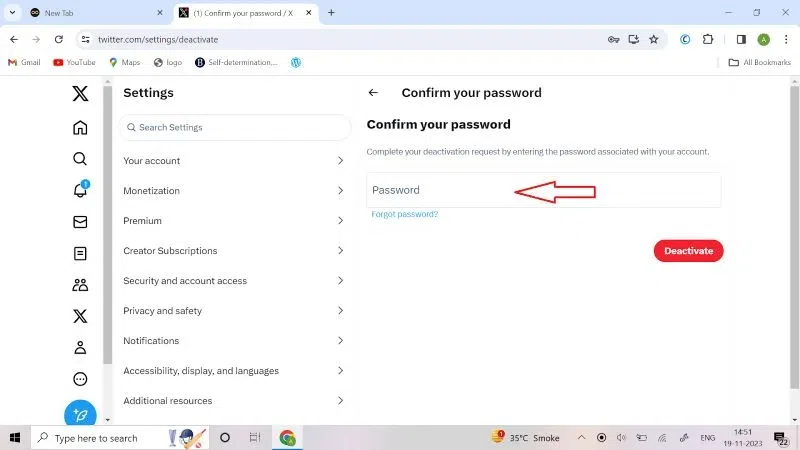
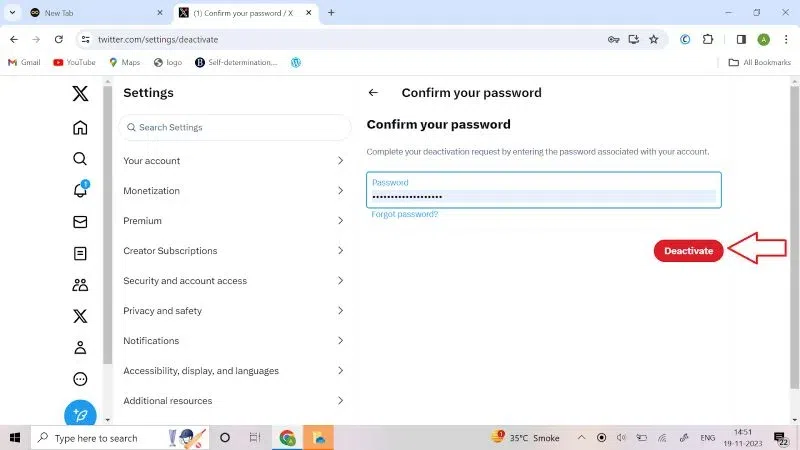
Once you click on ‘Deactivate’, you will be required to confirm your password. Type your password.
Lastly, click on ‘Deactivate’ after you have confirmed your password. This will confirm the request for account deactivation and your account will be deactivated.
Follow these steps to delete ‘X’ account permanently on your phone:
Once you open X on your phone, a homepage will appear on your screen. On the top left corner, click on the "Your profile" option.
Now, scroll to the bottom of the page and click on ‘Settings and Support’.
Once you click on Settings & Support, a drop-down menu will appear on the screen. Click on "Settings and Privacy" option.
Once you click on Settings and Privacy, you will be directed to a window where you have to click on ‘Your account’.
👁 Delete a Twitter Account[1]-(1)
After clicking on Your account, scroll to the bottom of the page. You will see the ‘Deactivate Account’ option. Click on that option.
A window containing information will appear on your screen. Read the information to know everything you must know before deactivating your account. Once you have read everything, click on ‘Deactivate’.
After you click on ‘Deactivate’, you will be asked to confirm your password. Type your password.
Once you have confirmed your password, click on ‘Deactivate’ at the bottom of the page. You will be asked for confirmation; click on ‘Yes, Deactivate’ to confirm the deactivation of your account.
Using the above steps, you will face zero issues while deleting your X Account. You just have to make sure to not reactivate your account within 30 days. With no activity for a period of 30 days, your account shall be automatically deleted permanently.
Now that you know the comprehensive steps to delete your X account, you can explore other social media platforms that better suit your needs. If you are an irregular user, it may be best to delete your account as the new version of X might categorize inactive accounts as ‘bots.’ Follow these steps to ensure a smooth deletion process and secure your digital footprint.

-.webp)
.webp)
.webp)
.webp)
![👁 Delete a Twitter Account[1]-(1)](https://media.geeksforgeeks.org/wp-content/uploads/20231121112753/Step_4_Click_on_Your_account%5B1%5D-(1).webp)
.webp)
.webp)
.webp)
.webp)